


Alert Manager by UnifyApps defines metric-based alerts that watch your automations, pipelines, connections, and APIs, then fire actions when a metric crosses a threshold you set.
Overview
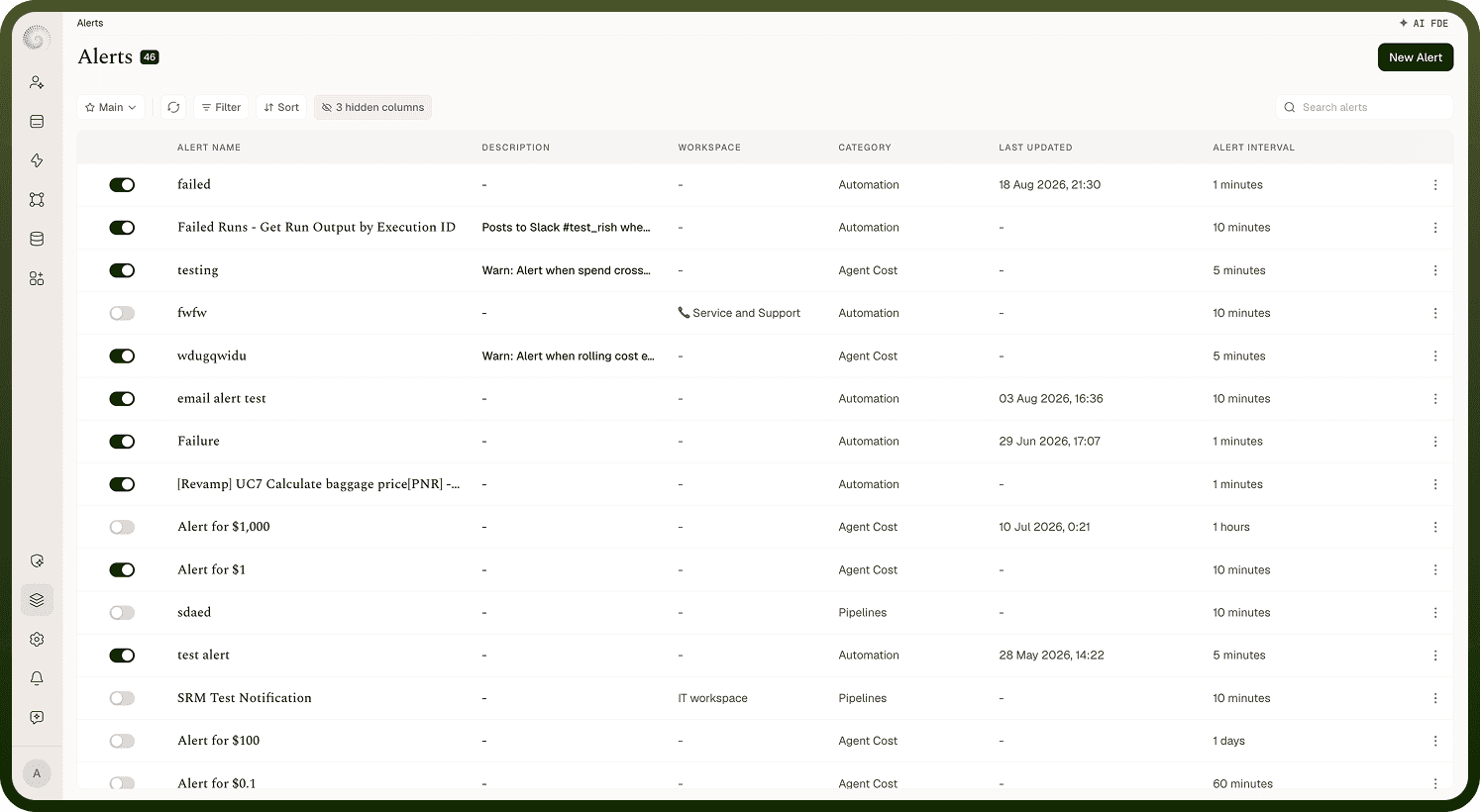
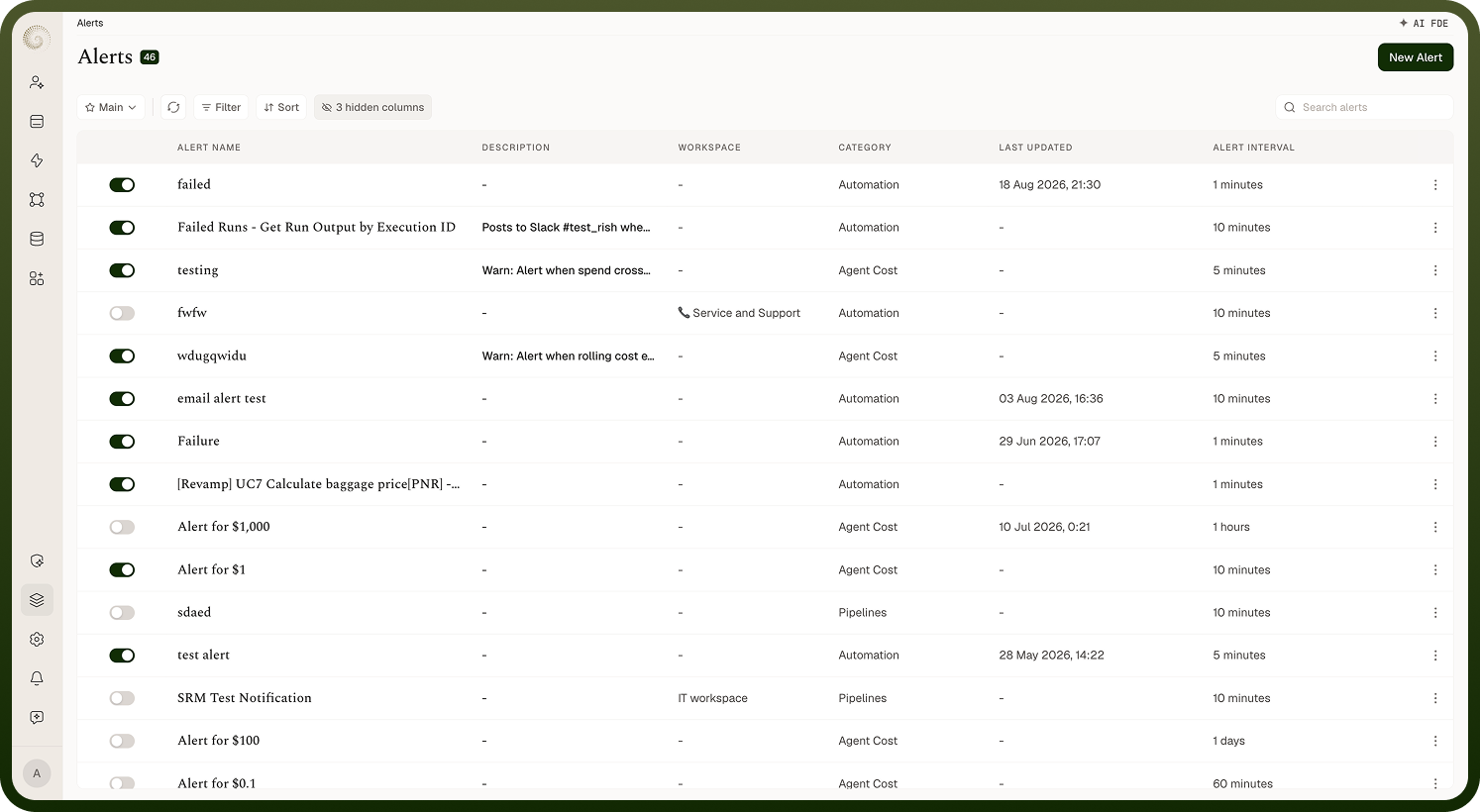
Settings › Alerts lists every alert definition on the platform: a table with an on/off toggle per alert, Alert Name, Description, Workspace, Category, Alert Interval, and Last Updated, plus a "Search alerts" box. Row actions "Edit", "Share", and "Delete" appear per your permissions, and "New Alert" creates one. The same alerts also surface on individual assets — for example, an automation's Alerts tab shows just its own alerts — while this settings screen is the global view across every asset. Flip the toggle to pause or resume an alert without deleting it.
Use Cases
Get notified when an automation's failed runs cross an acceptable threshold.
Watch pipeline health metrics such as read latency or load failures.
Alert on API endpoint problems like failed executions or policy violations.
Track AI agent cost or usage metrics separately from operational alerts.
Route different severities to different channels — email on-call for Critical, notify a team in-platform for Warning, post a recovery message on Resolved.
Creating an Alert
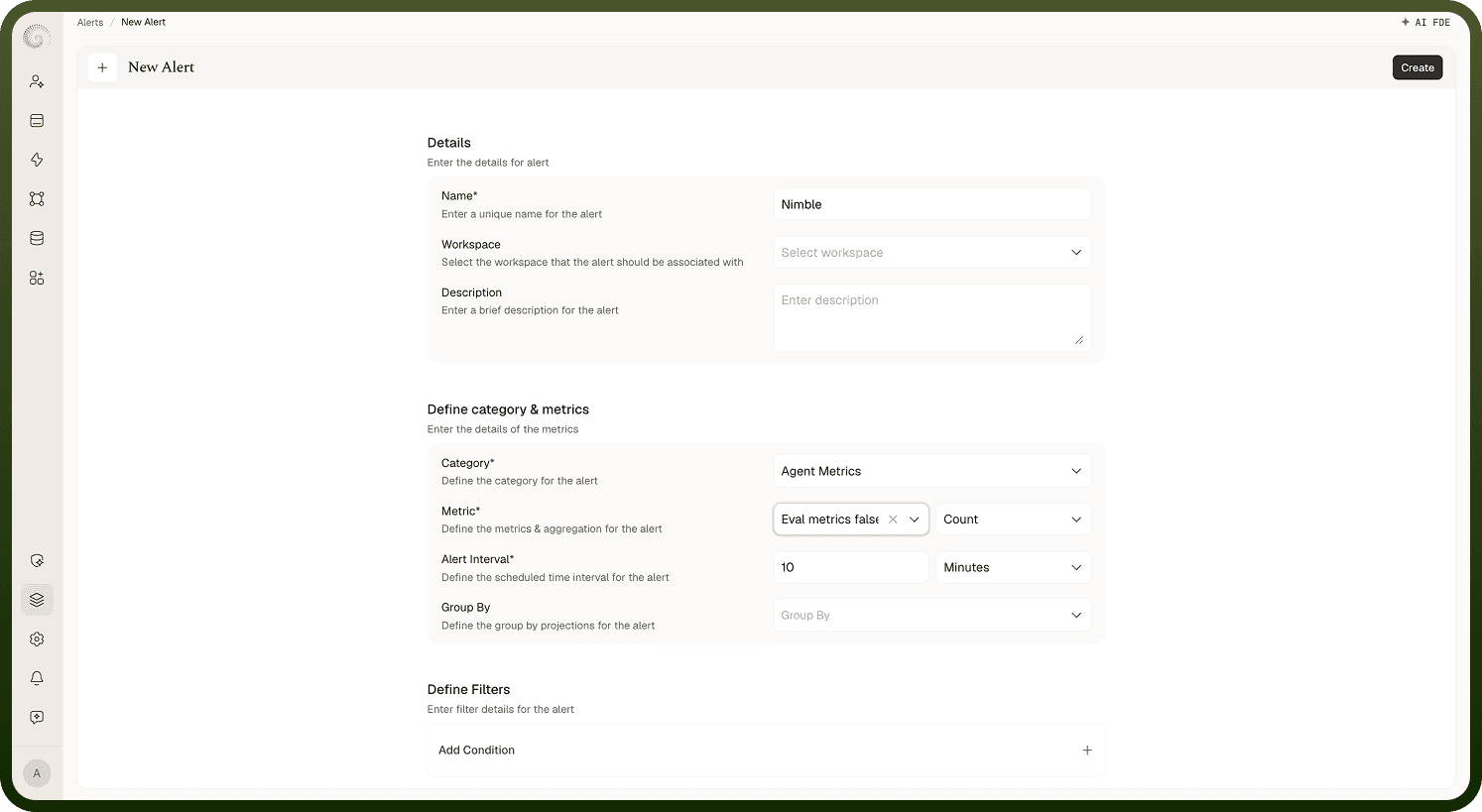
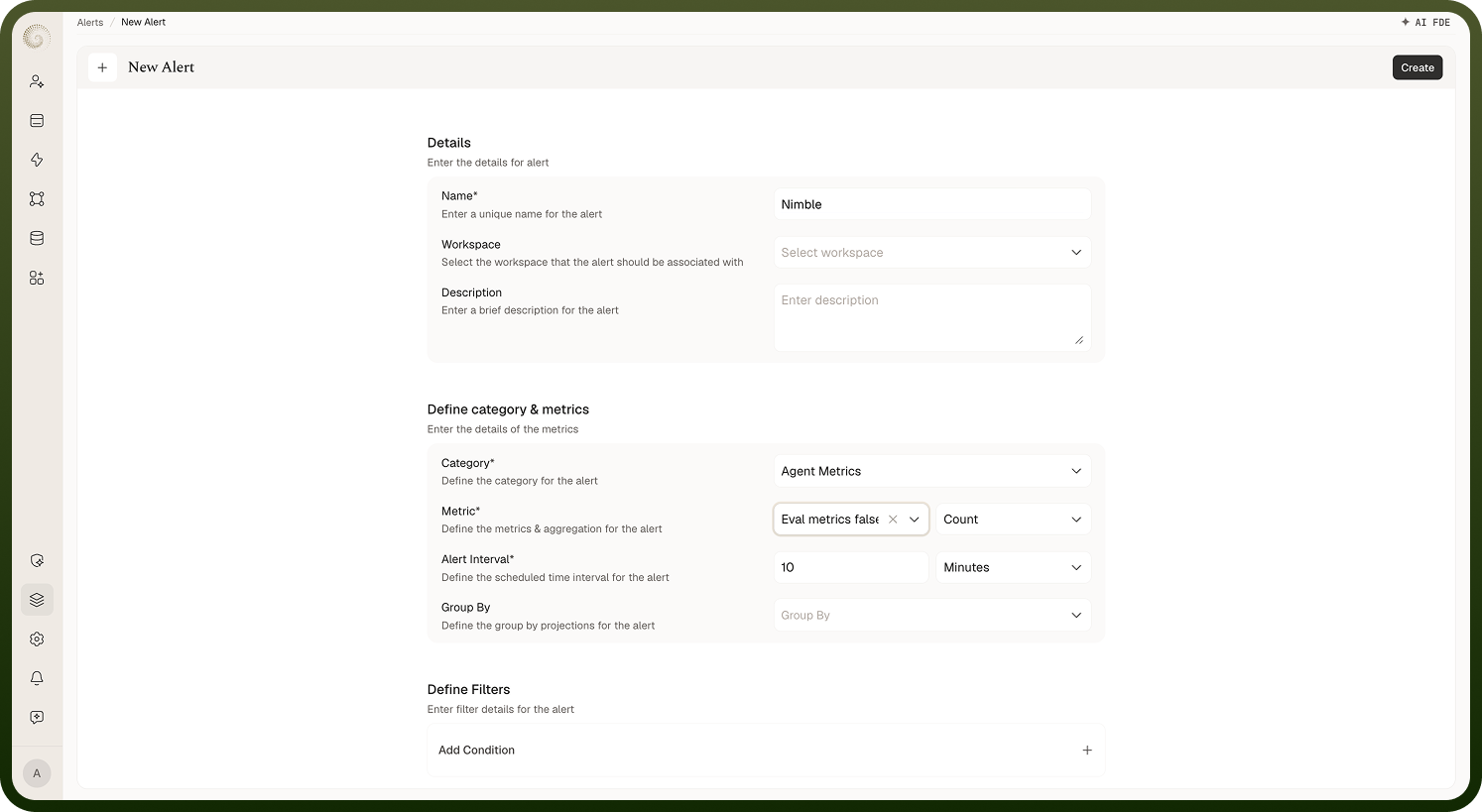
"New Alert" opens the alert form.
Parameter | Description | Example |
|---|---|---|
Name* | A unique name for the alert. | "Nightly Sync — Failed Runs" |
Workspace | The workspace the alert belongs to. | "Production" |
Description | Free-text context for what the alert covers. | "Watches failed runs on the nightly sync automation" |
Category* | What to watch: Automation, Automation Nodes, Pipelines, Connection, API Endpoint, Agent Cost, or Agent Metrics. | "Automation" |
Metric* | The metric for the chosen category — for example, Total Runs, Successful Runs, Failed Runs, Completed Runs, Execution Time, or Wait time for Automation; Total requests, Failed Executions, or Policy violations count for API Endpoint; Read Latency or Load Failed/Skipped/Successful for Pipelines. | "Failed Runs" |
Aggregation* | How the metric is aggregated: Count, Distinct Count, Sum, Avg, Min, or Max. | "Count" |
Group By | Optional dimensions to break the aggregation down by. | "Automation Name" |
Alert Interval* | How often the alert is evaluated — a number of Minutes, Hours, or Days. Default is 10 minutes. Each evaluation aggregates the metric over the interval and compares it to your thresholds. | 10 minutes |
Filters | Narrows which records of the category count toward the metric, such as a specific automation or connection. | Automation = "Nightly Sync" |
Thresholds and Statuses
An alert has three statuses — Critical, Warning, and Resolved — configured as threshold rows. You choose the comparison operator and value on the Critical row (for example, failed runs greater than 10); Warning takes its own value with the same operator. Resolved is derived automatically as the inverse — if Critical is "greater than," Resolved becomes "less than or equal" — marking recovery. On each evaluation, the metric lands in one of the statuses, and the actions attached to that status fire.
Alert Actions
For each status — Critical Status, Warning Status, Resolved Status — you add one or more actions.
Actions | Description |
|---|---|
Sends to the email addresses you list. Required for this action type. | |
Notification | An in-platform notification to a User (pick individuals) or a Team (pick user groups). |
Custom | Runs any connector action — pick the app and action, its connection, and map the inputs. Alert data is available as pills, so you can post to Slack or open a ticket, for example. |
This means a single alert can email on-call on Critical, notify the team on Warning, and post a recovery message on Resolved.
Notes
Pick a Category and Metric combination that actually indicates a problem for that asset type, not just whatever's available first.
Use Group By when you need to see which automation, connection, or endpoint is driving a threshold breach, rather than a single aggregated number.
Set the Alert Interval to a cadence you can realistically act on — the 10-minute default suits most nodes, but longer-running pipelines may warrant a wider interval.
Configure a Resolved action so the same channel that received the Critical alert also gets the all-clear.
Use the toggle to pause an alert during planned maintenance instead of deleting and recreating it afterward.