


Overview
Teams in UnifyApps represent groups of users that are organized based on specific functions, departments, or projects. Teams help categorize users according to their responsibilities, ensuring proper organization and efficient collaboration within the platform.
Team Information
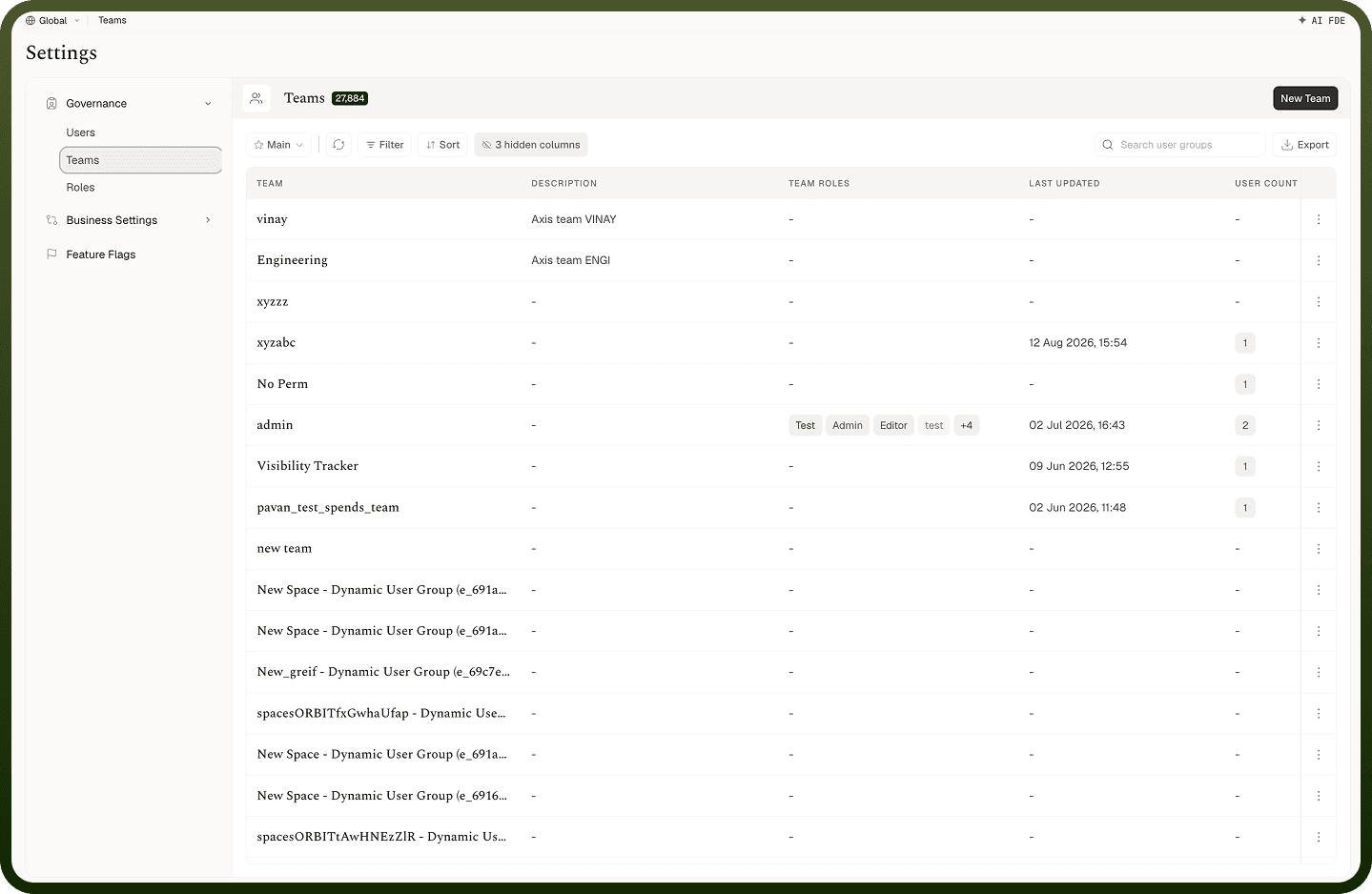
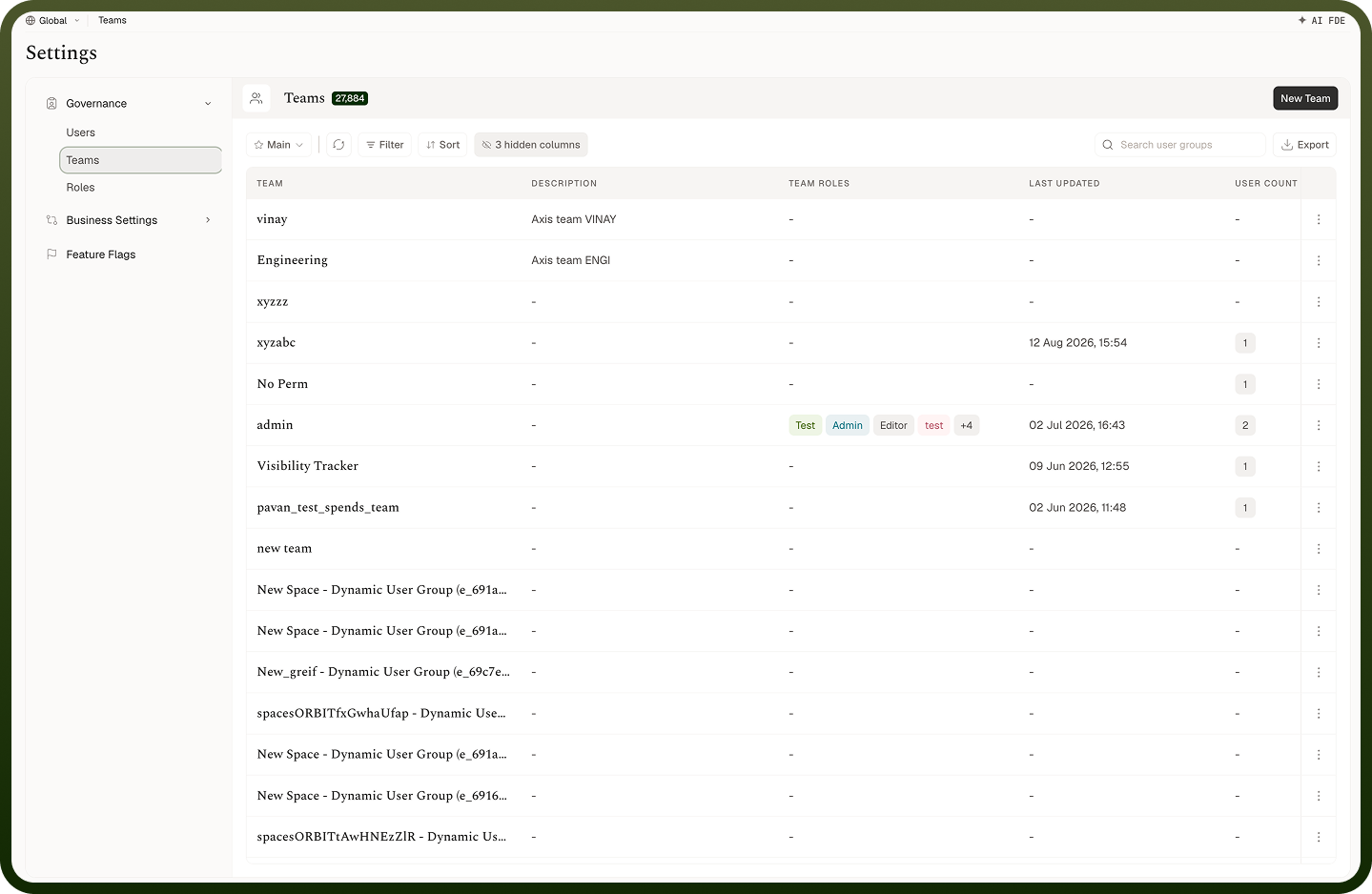
When viewing the Teams page in UnifyApps, teams are displayed in a table format with the following details:
Team: The name assigned to the team, used to label and identify the group within the system.
Description: A brief explanation of the team's purpose or function, providing context about its role within the organization.
User Count: The number of users associated with the team, indicating the team's size.
Team Roles: The roles assigned to the team that define the permissions and access levels for team members. Roles can include Member, Admin, and custom roles.
Last Modified By: The date and time when the team was last updated, providing tracking for administrative changes.
Last Modified On: The date and time when the team was last updated, providing tracking for administrative changes.
You can use the Filter, Sort, and Search functions to manage and find teams efficiently.
How to Create a Team in UnifyApps?
To create a new team in UnifyApps, follow these steps:
Click on the "
New Team" Button
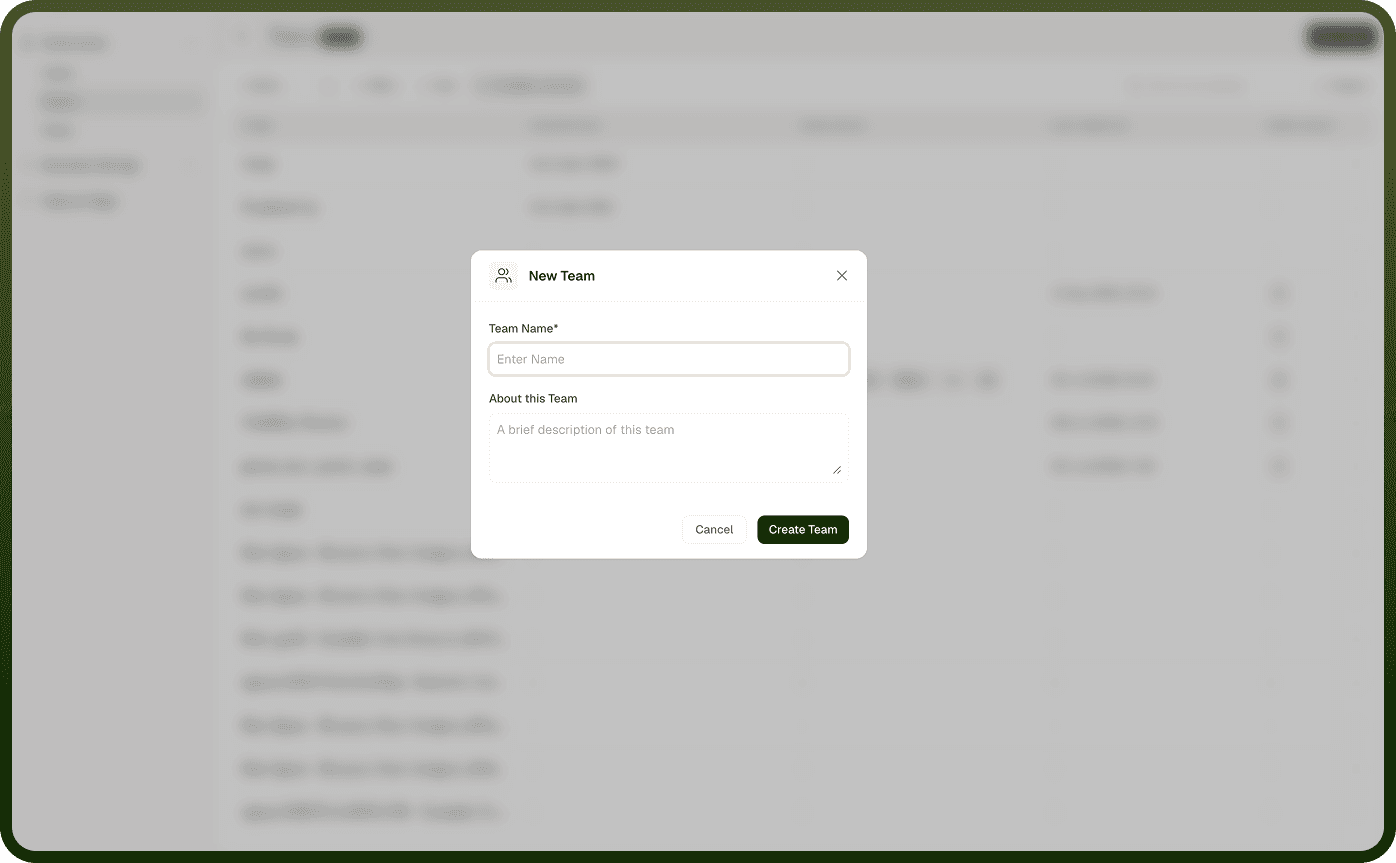
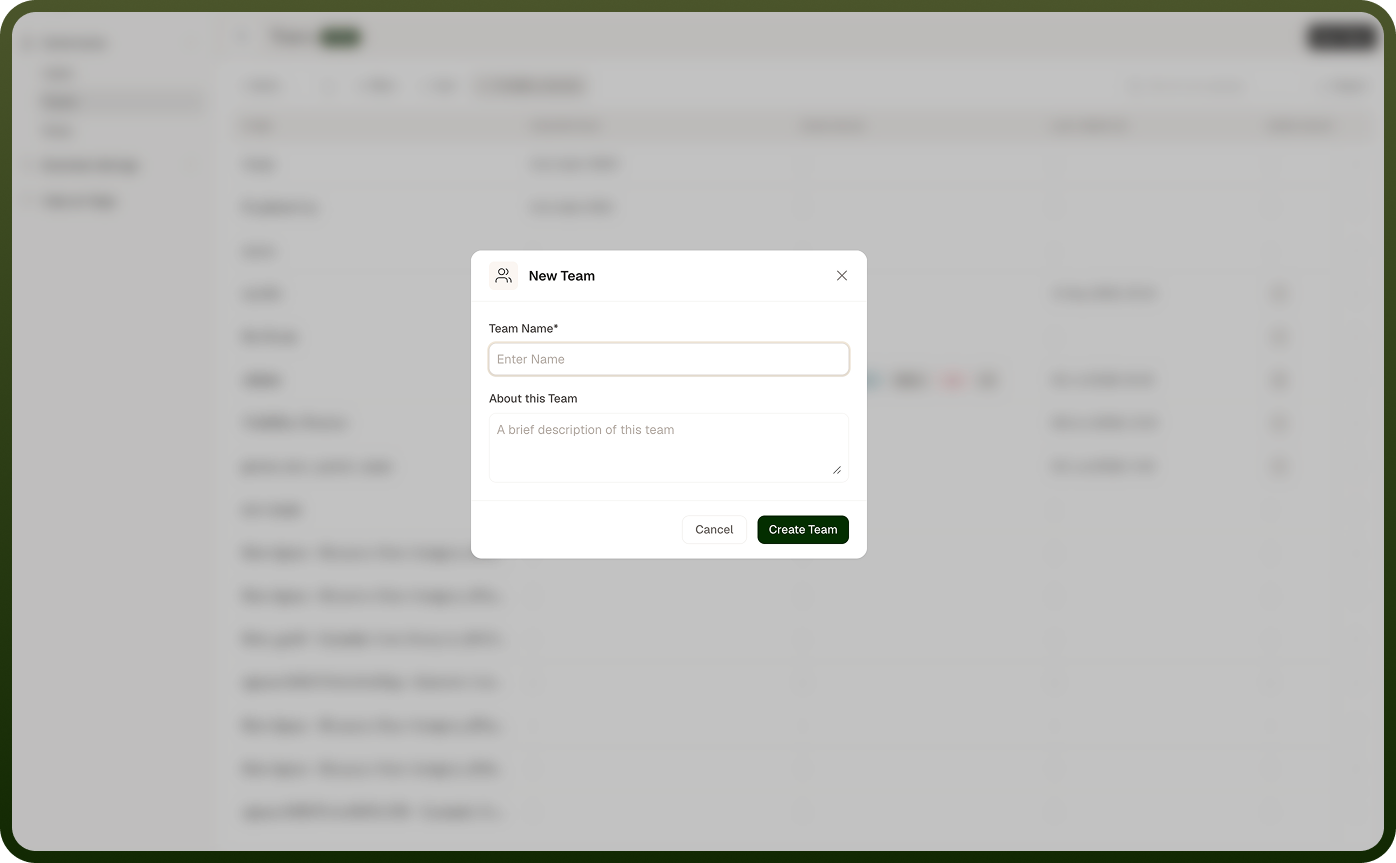
Navigate to the Teams section and click on the "
New Team" button in the top-right corner. A modal will open with the following fields:
Team Name (Required): Enter a unique name for the team.About this Team: Add a brief description of the team's purpose or function. Click "Create Team" to proceed to the team configuration page.
Configure Team Settings
After creating the team, you'll be directed to the team's configuration page, which contains three tabs:
In Users Tab
This tab allows you to manage the users assigned to the team:
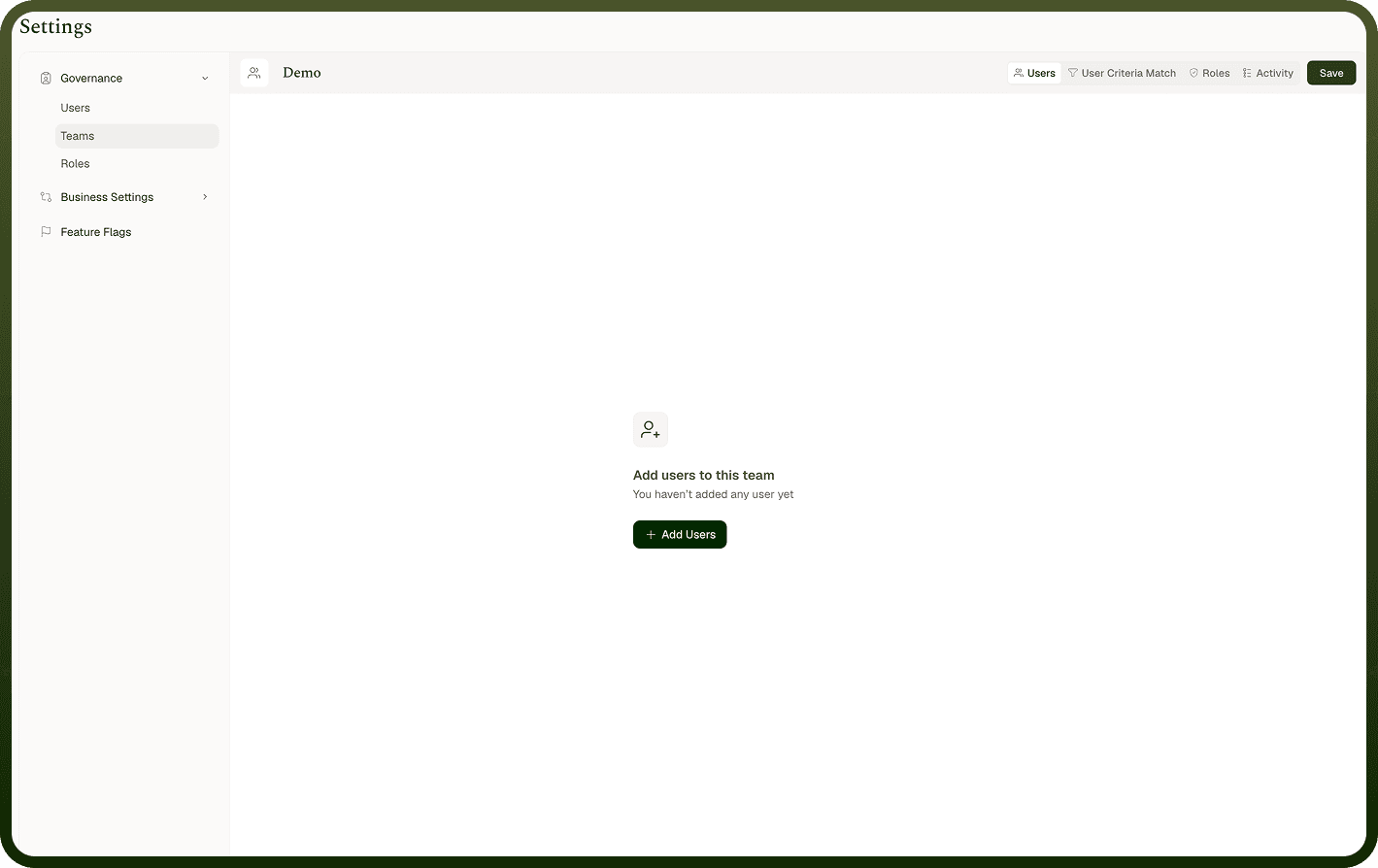
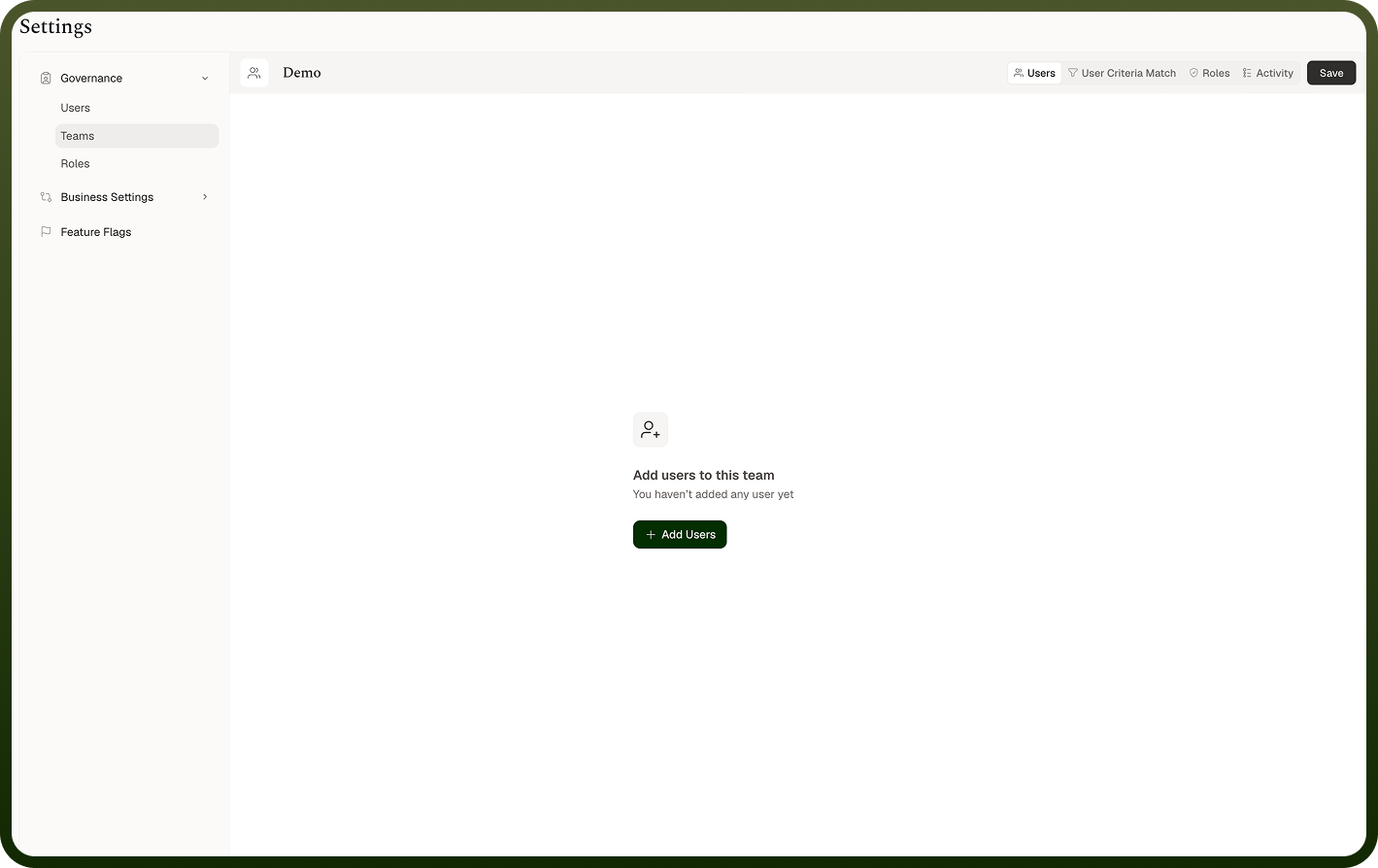
View existing team users with their name, username, and last active time
Click "
Add Users" to select users to add to the team
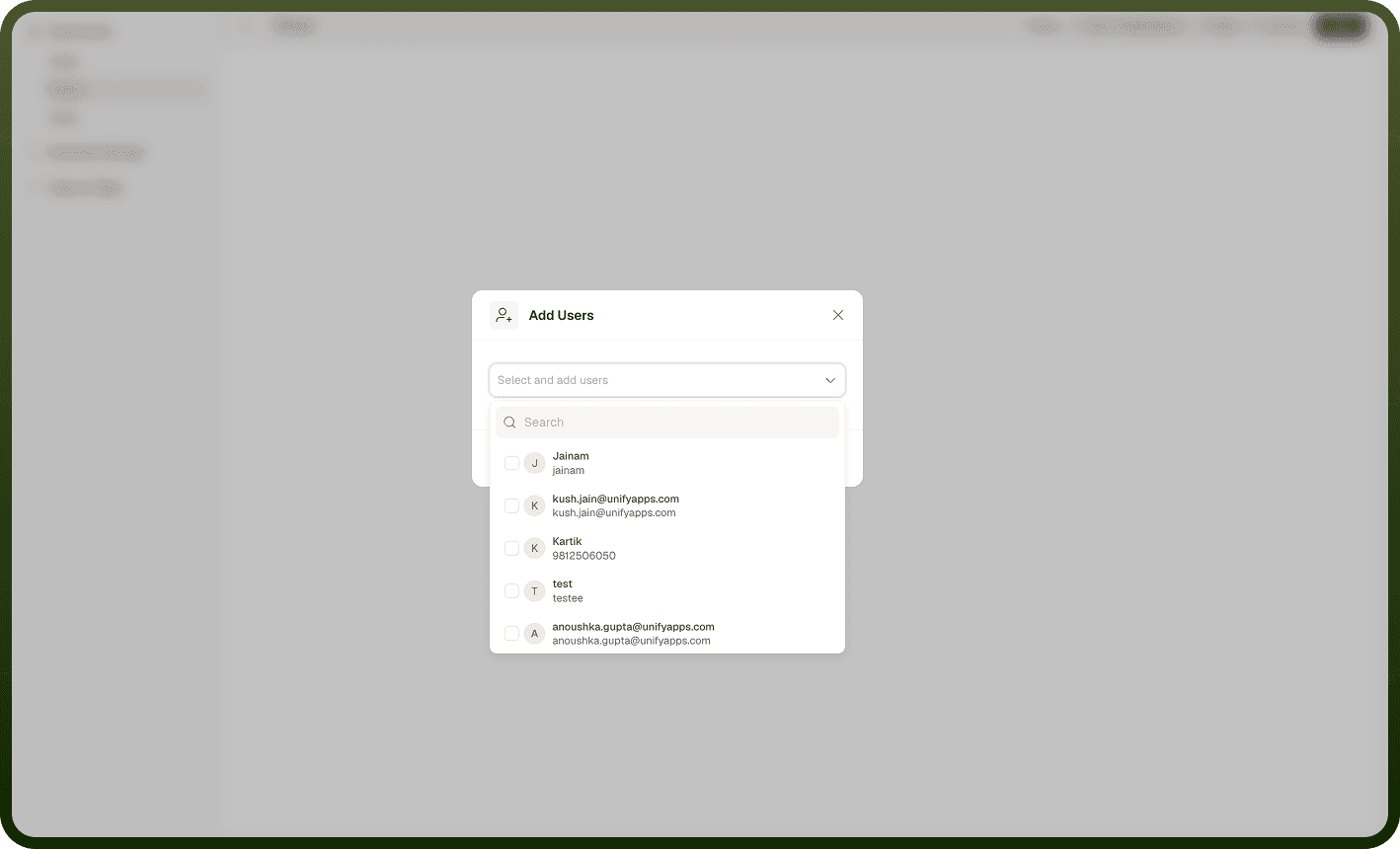
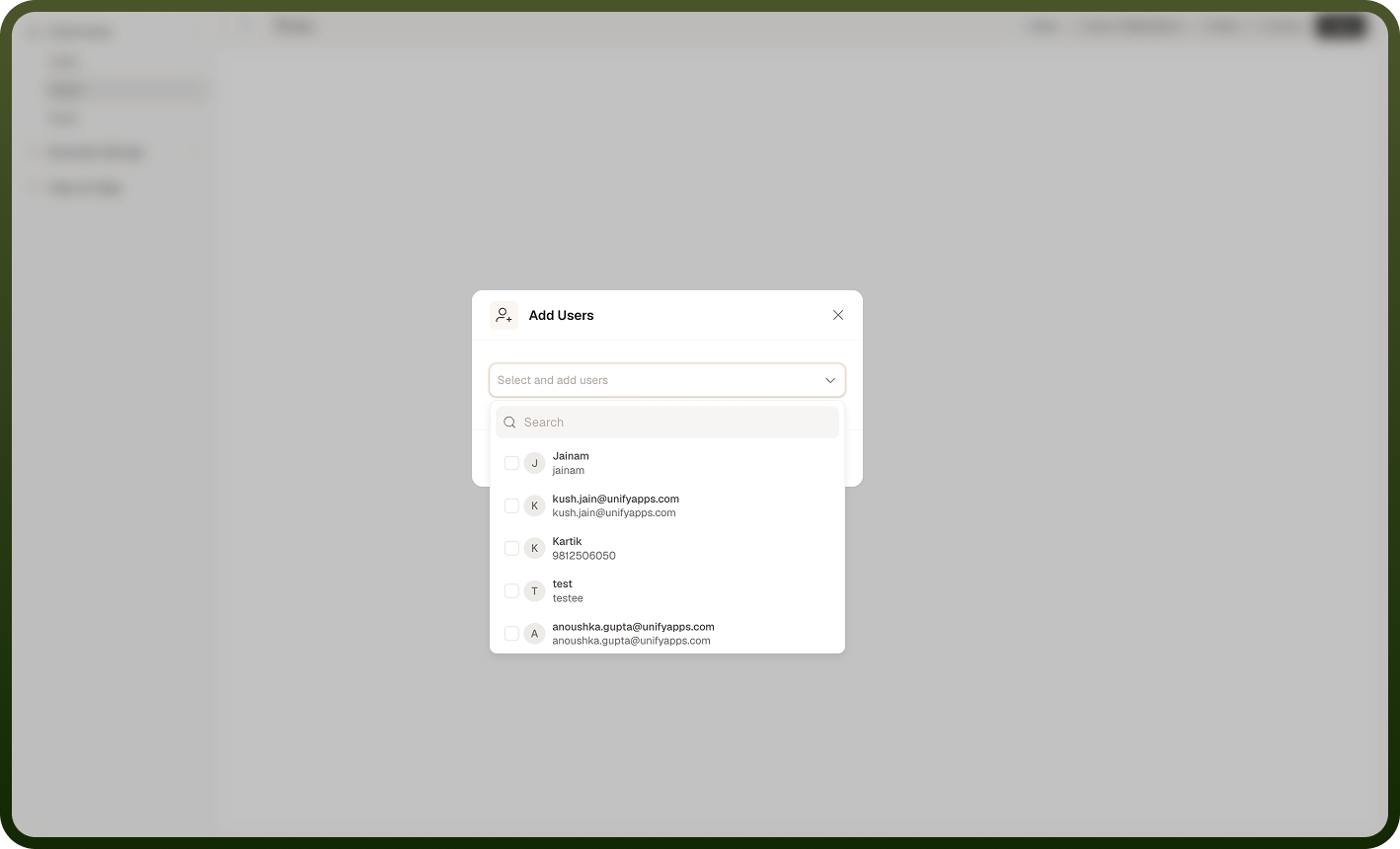
Use Filter, Sort, and Search options to manage larger team lists
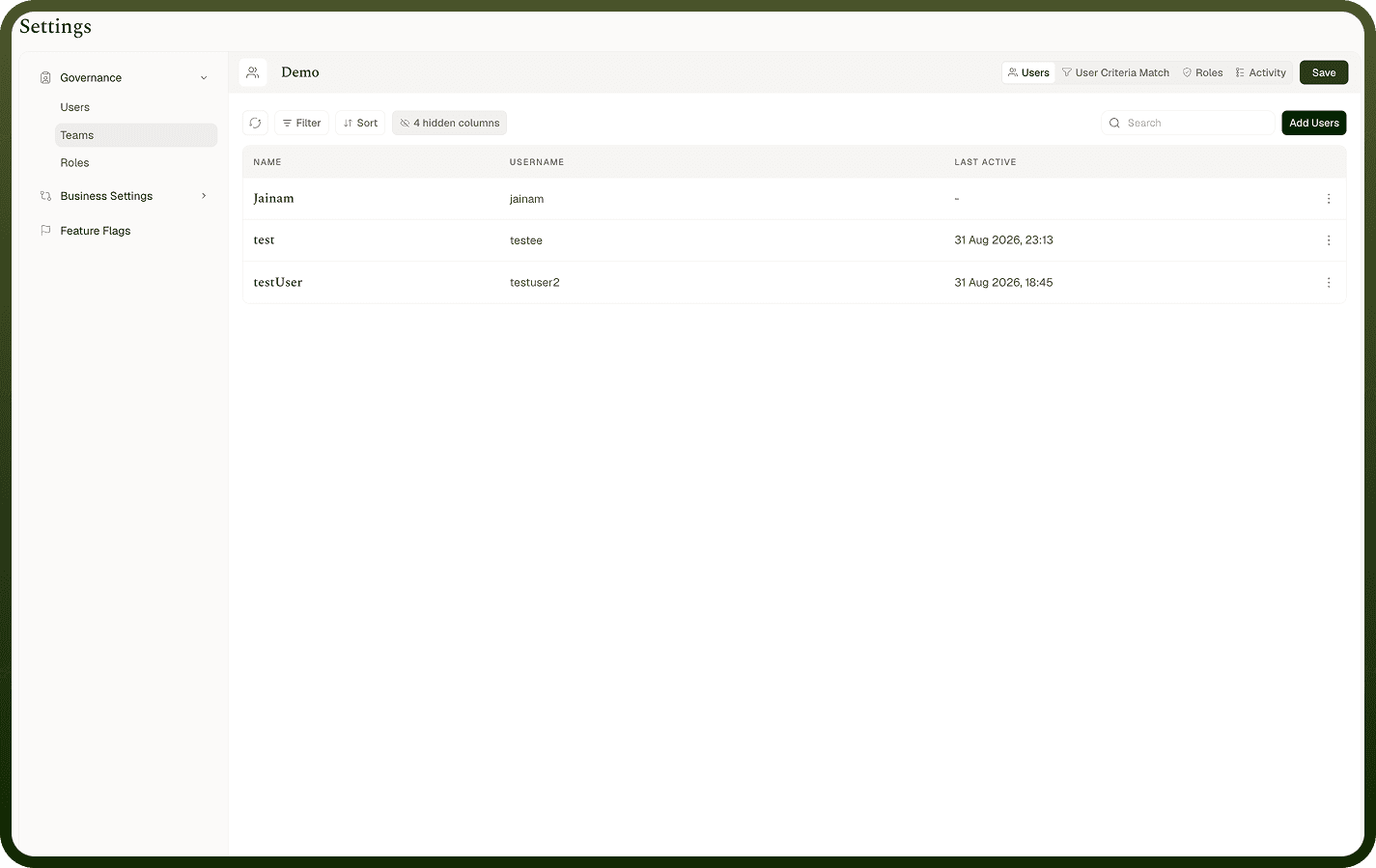
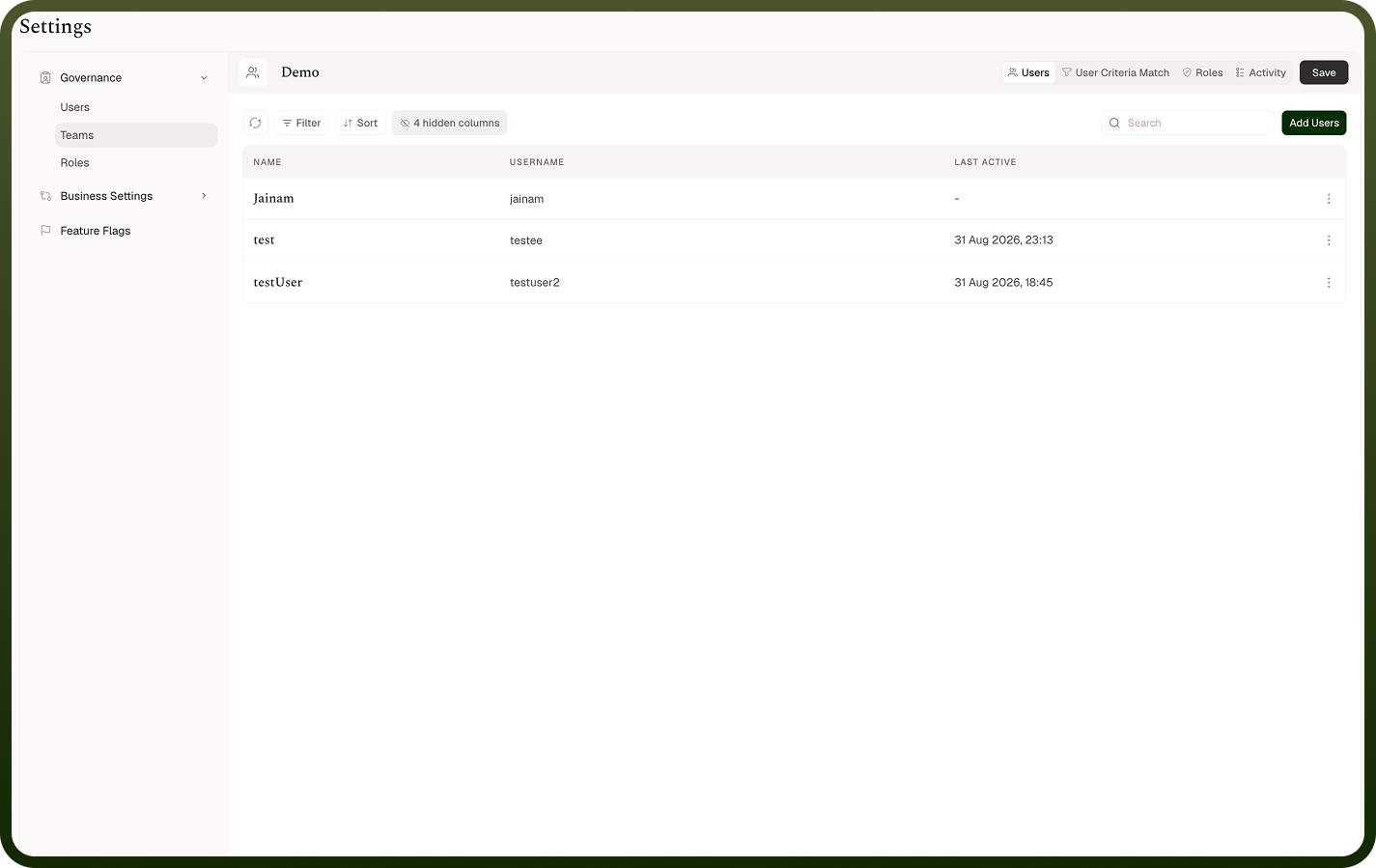
Remove users from the team as needed
In User Criteria Match Tab
This tab allows you to set up automatic user assignment based on specific criteria:
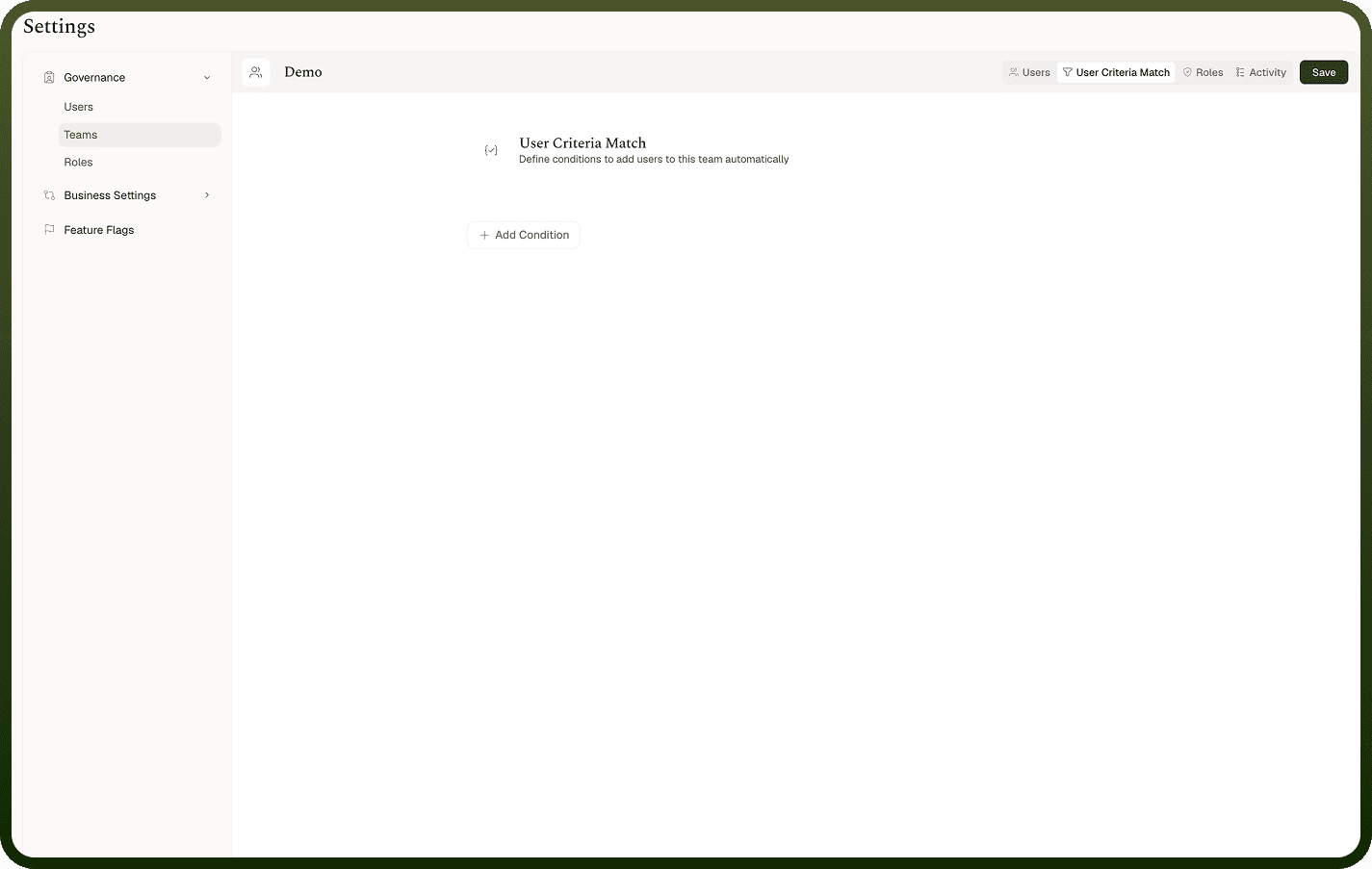
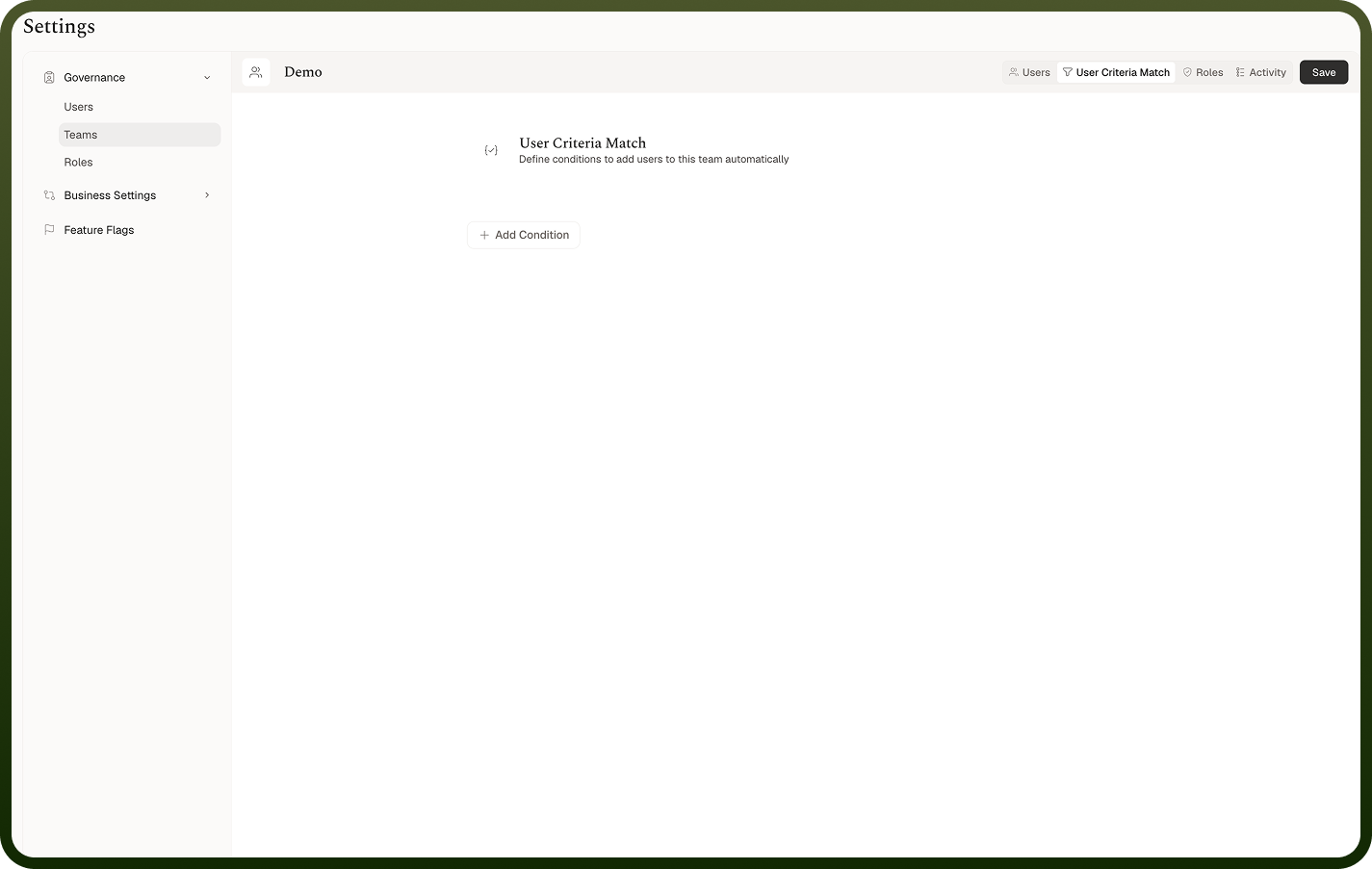
Define conditions that will automatically add users to the team when those conditions are met
Click "
Add Condition" to create a new condition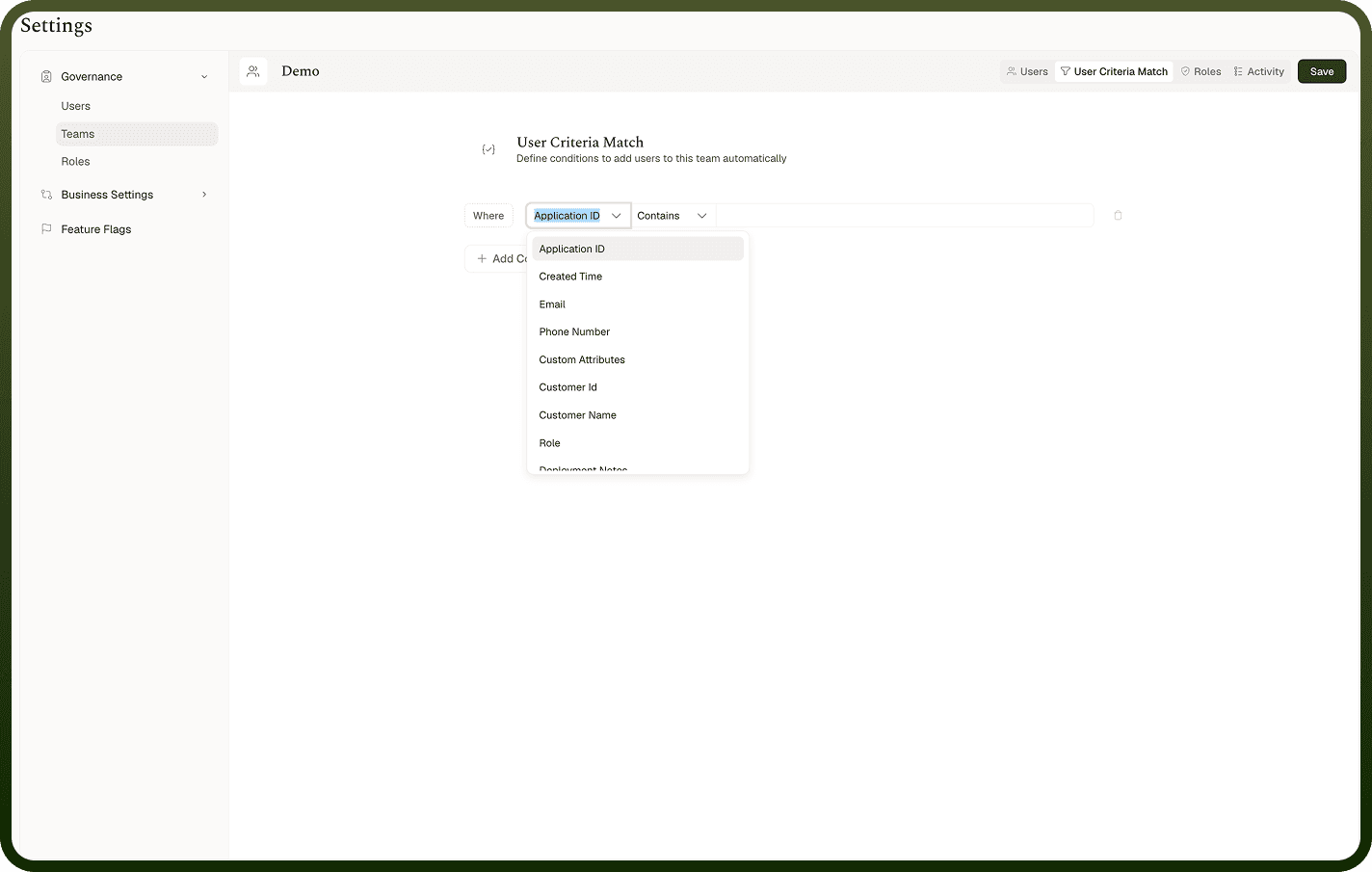
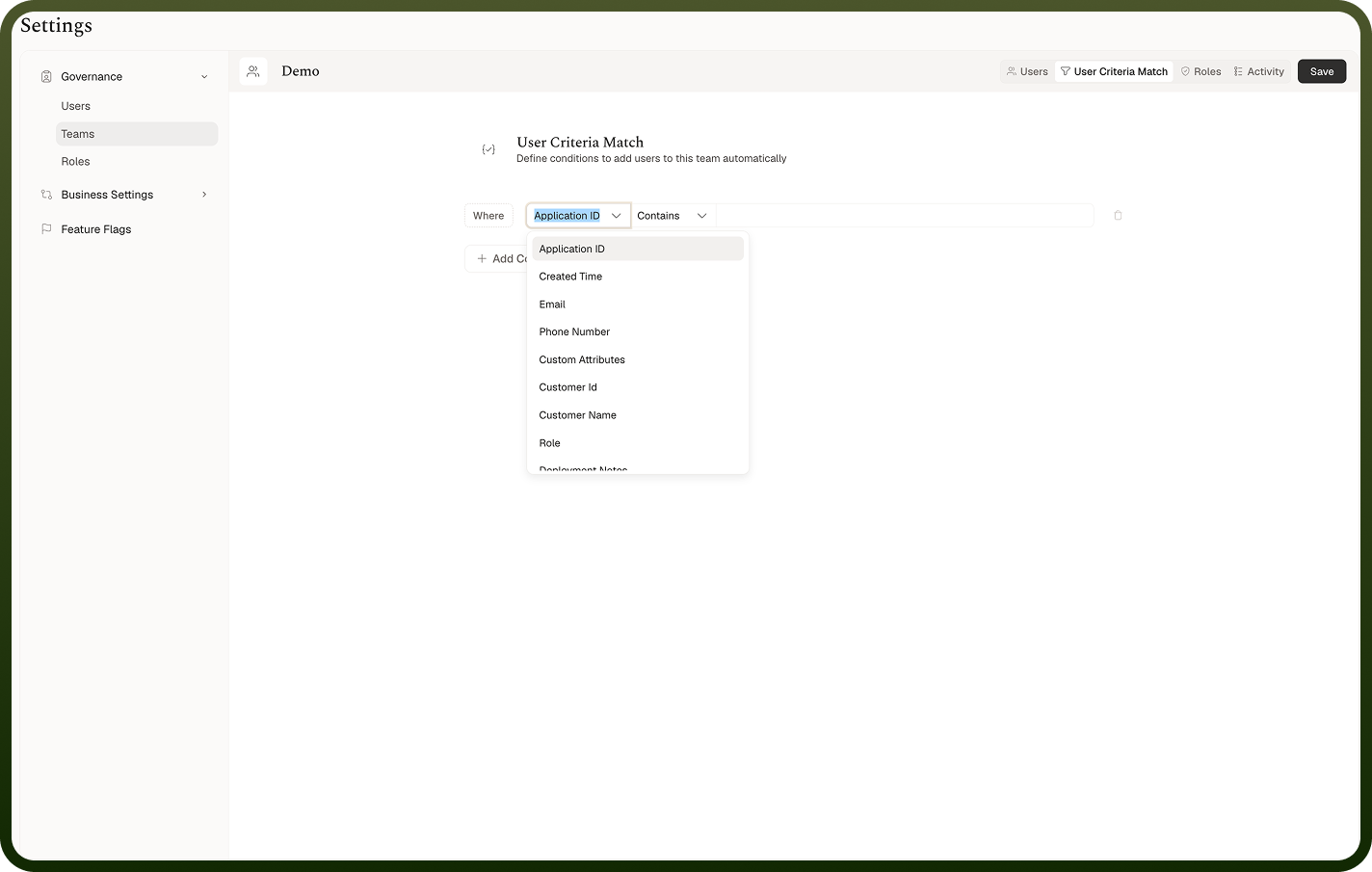
For each condition, you can specify:
Where: Select the user attribute to evaluate (options include Application ID, Created Time, Email, Phone Number, Custom Attributes, Test Boolean, Deployment Notes, Deployment Tag, Entity Type, and more)
Operator: Choose from operators like "Contains" or other logical operators
Value: Define the specific value that will trigger the condition
Multiple conditions can be added to create complex automatic assignment rules
This feature helps manage which users are added to teams based on user attributes, eliminating the need for manual updates.
In Roles Tab
This tab allows you to configure the permissions for team members:
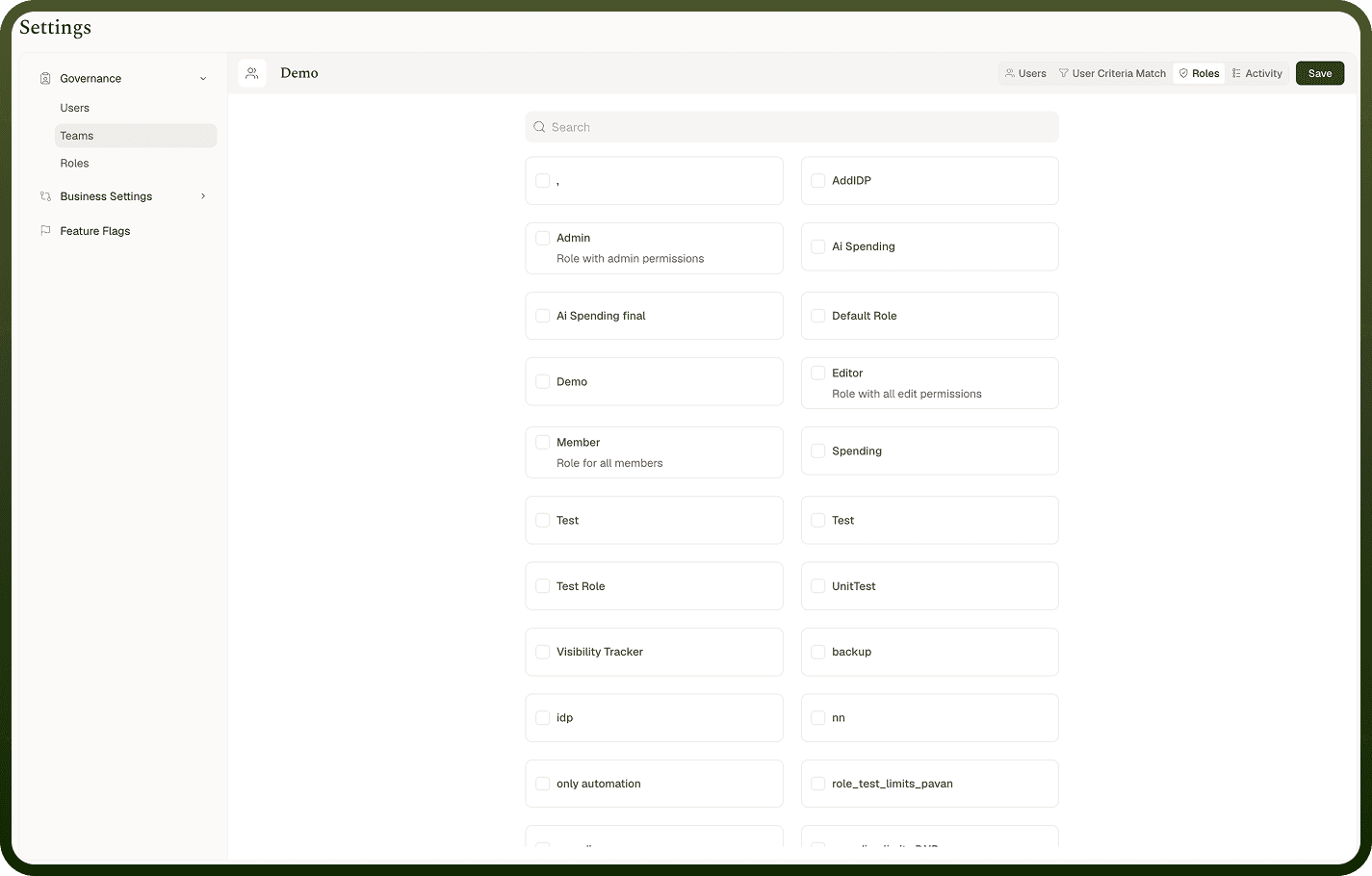
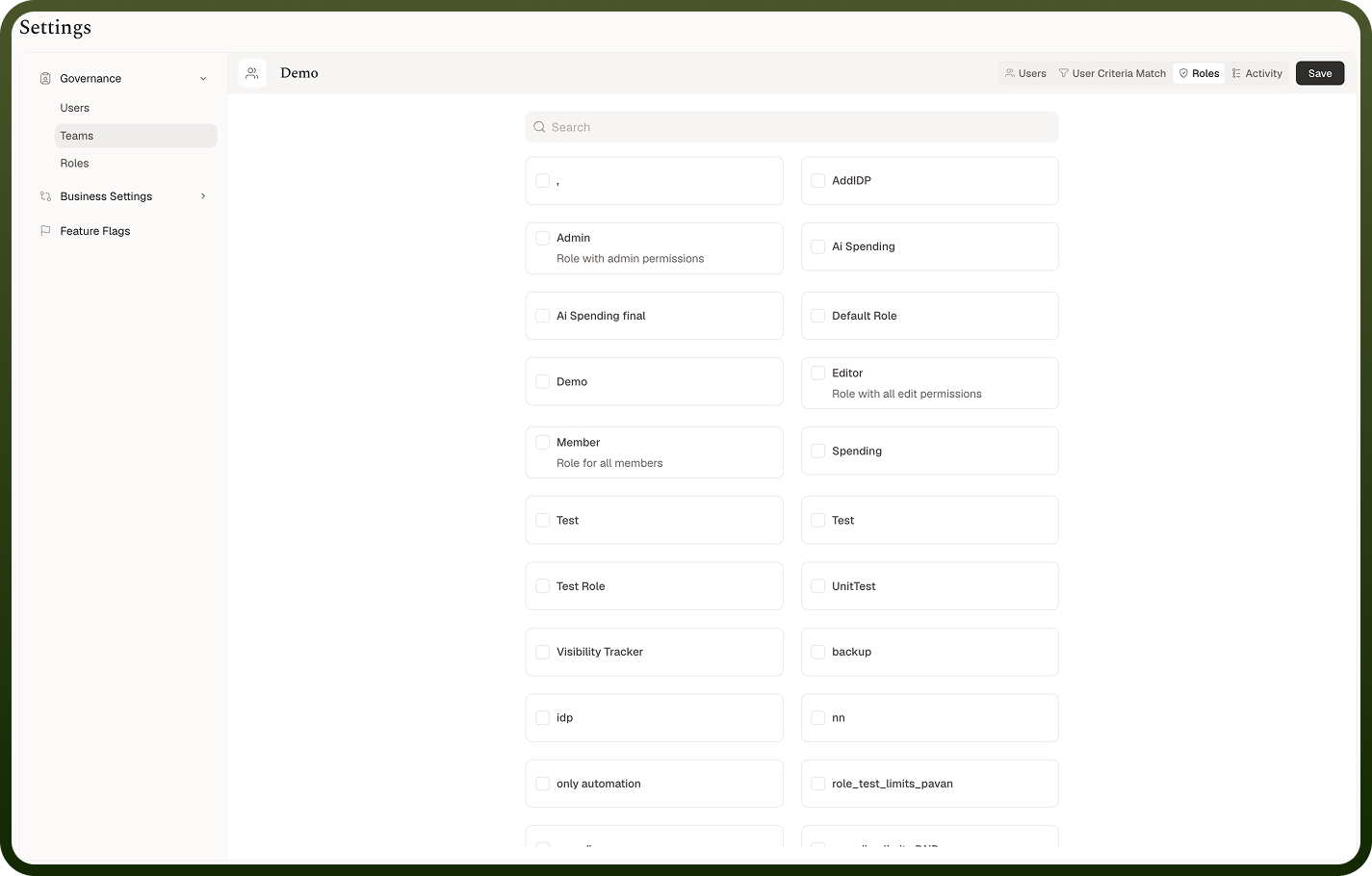
Add Team Roles: Select roles to assign to the team members
Search functionality is available to find specific roles in large role lists
Available role options include:
Member: Basic role for all team members with standard permissions
Admin: Role with administrative permissions for managing the team
Editor: Role with all edit permissions for team content
Custom roles: Additional roles specific to your needs
Each role has a specific set of permissions that determine what actions team members can perform
You can select multiple roles for a team, providing different levels of access to different team members
Roles assigned at the team level are combined with each user's individual roles to determine their overall permissions within the platform. These role assignments help maintain proper access control and permission management across the platform, ensuring users have appropriate permissions based on their team.
Save Your Changes
After configuring the team settings, click the "Save" button in the top-right corner to apply your changes.
Conclusion
The Teams section in UnifyApps is essential for organizing users into functional groups, streamlining collaboration, and managing permissions. By creating well-structured teams with clear purposes and appropriate user assignments, administrators can ensure effective user organization and maintain appropriate access controls throughout the platform.