


Introduction
Unify Application is a no-code application builder that enables organisations to develop enterprise-grade applications rapidly without writing any code.
It allows teams to create secure and scalable applications using a user-friendly interface with drag-and-drop functionality. The application builder allows team members without extensive programming knowledge to contribute to software development.
Supported Application Types
Unify Applications supports four application types, chosen when you create the app: Web App, Mobile App, Copilot Chat and Display.
Copilot Chat is a chat experience meant to be embedded in another app. It opens from a floating launcher button.
Display targets video walls. You set its screen layout (aspect ratio, resolution, orientation and display grid) from the builder header.
The two most common types, web based and mobile native applications, are described below.
Web Applications
Web apps are accessible across devices through browsers. They automatically adapt to
desktop,mobile, andtabletinterfaces, ensuring full device responsiveness.Web apps can be quickly updated and don't require users to download or install anything, ensuring all users access the latest version.
Mobile Native Applications Native apps for iOS and Android provide optimised mobile experiences, leveraging device-specific features like
cameras,GPS, andpush notifications.Native apps are particularly suitable for businesses looking to provide a dedicated mobile solution with a highly responsive and intuitive user interface.
Key Building Blocks of an Application
UI Components:
These are prebuilt elements that form the building blocks of the application interface. They are categorized into four types:
Layout Components: These components are used to
structureandorganiseother components within the interface.Rich Components: These offer complex functionality like
data tablesorcharts.Basic Components: These are simpler components like
buttonsortext fields.Repeatable: These elements are designed for repeating patterns, such as
listsorgrids, enabling dynamic data display..png&w=1080&q=75) Each UI component comes with a property panel where users can define its content, interaction, and appearance.
Each UI component comes with a property panel where users can define its content, interaction, and appearance..png)

Refer
You can add different types of components to make your application intuitive. To learn more, see Configuring a Component.
Canvas: The Canvas is the central workspace where users design and build their applications.
.png&w=1080&q=75) It provides a visual, drag-and-drop interface where UI components can be easily
It provides a visual, drag-and-drop interface where UI components can be easily.png)
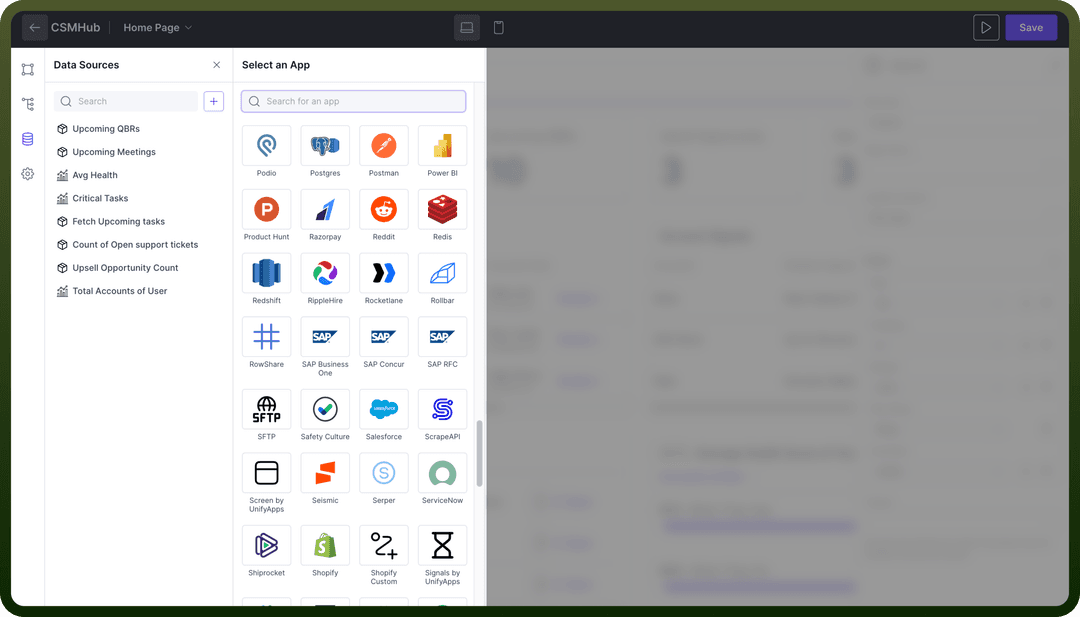
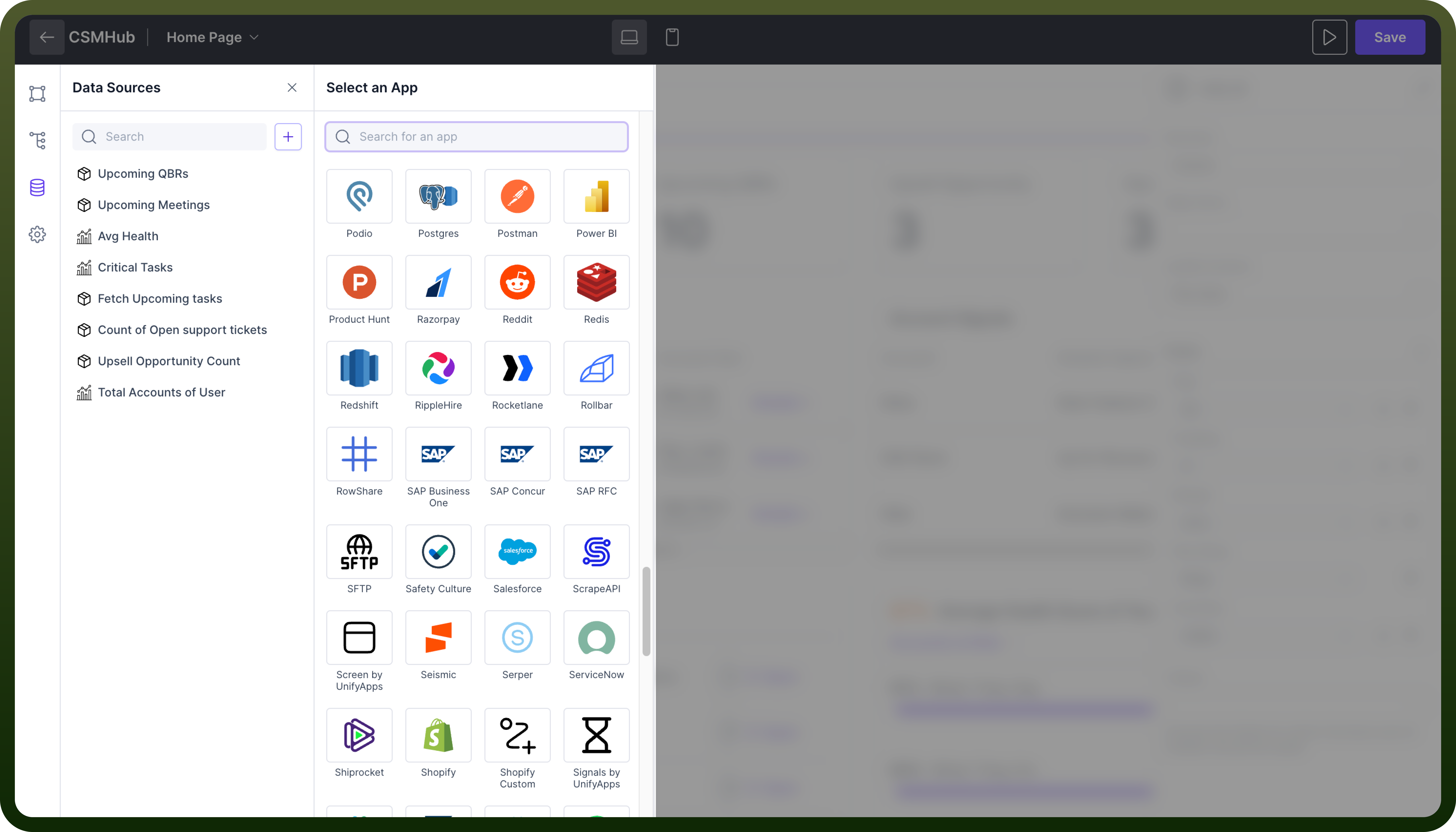
placed,arranged, andcustomised.Data Sources: These are the essential components that fetch and manage data for the application. They can retrieve information from external applications or from UnifyApps' internal database, providing flexibility in data integration.
Refer
Data sources are essential for connecting and utilizing various external applications. To learn more, see Data Sources Overview.
An app also uses these parts. Each has its own section in these docs.
Pages and navigation: an app is a set of pages, and the navigation decides how users move between them. See Pages Overview and Navigation Overview.
Data binding:
{{ }}expressions connect component properties to data sources, variables and other components. See Data Binding Overview.Events and actions: events such as a button click run actions such as navigating or triggering a data source. See Events & Actions Overview.
Variables: variables hold values that pages and components read and update. See Variables Overview.
Theming: themes set the colors, typography and styles used across the app. See Theme Builder.
For components, see Configuring a Component. For data sources, see Data Sources Overview. For a tour of the current builder screens, see Builder Tour.
Best Practices
User-Centric Design: Design applications with the end user in mind. Make the interface
intuitiveanduser-friendly.Consistency: Keep design elements such as
fonts,coloursandbuttonstyles consistent across the application.Define Data Sources and Schema: Plan your data sources and schema before you build them in the app.
API Keys and Credentials: Make sure you have the developer access, API keys or admin credentials you need before you connect data from external applications.
Naming Conventions: Use clear, meaningful names for data connections, UI components and pages so the data flow is easy to follow.