What Is Code-First App Creation?
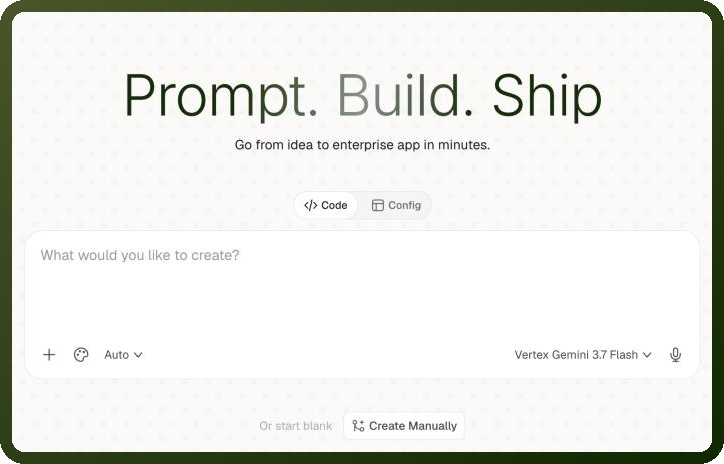
UnifyApps offers two build modes when creating an application through the AI creation screen:
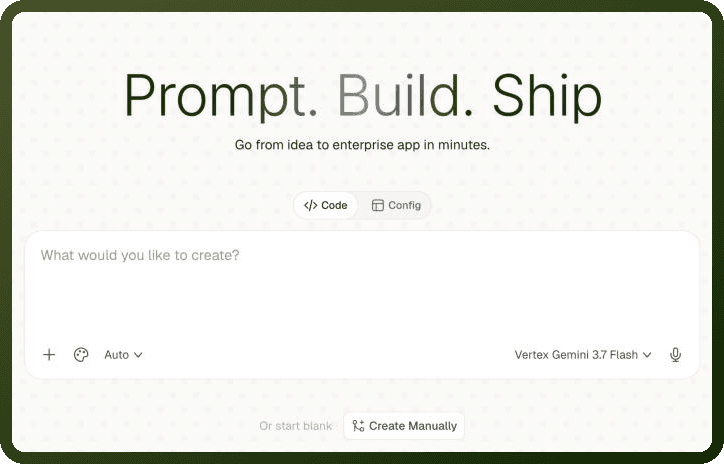
Code mode — uses the code builder (also called the application builder). You describe what you want in natural language, the AI writes a real code-based application, and you continue refining it through a conversational chat interface. This is the code-first approach.
Config mode — uses the no-code page builder where you configure UI, data bindings, and logic visually without writing code. This is the config-first approach (covered in Config-First App Creation).
Code-first is aimed at developers and power users who prefer to express application logic in code, or who want to prototype quickly using an AI that understands software architecture. The resulting app is a genuine code application — not a configuration file — and the code builder remains the primary interface for ongoing development.
When to Choose Code-First vs. Config-First
| Consideration | Code-First | Config-First |
| Primary audience | Developers, technical users | Business builders, citizen developers |
| How the app is edited | Chat with the AI code builder; modify generated code directly | Drag-and-drop canvas; visual property panels |
| Output type | Real code application (Text to App type) | Configuration-based application (Web App, Mobile App, etc.) |
| Ongoing editing environment | Code builder (chat interface) | No-code Page Builder |
| Best for | Custom logic, complex data transformations, developer-driven workflows | Standard CRUD apps, dashboards, forms, low-code workflows |
| AI involvement | AI writes and iterates the full codebase on request | AI can assist with individual component suggestions |
How to Start a Code-First App
The code builder is accessed through the AI creation screen, which appears when the AI builder feature is enabled for your workspace. If both build modes (Code and Config) are enabled, the send button on the prompt input becomes a split button — the left side sends the prompt to the default mode, and the right side reveals the mode picker.
Steps: Starting a Code-First App
Open the Applications Manager and click New Application. The AI creation screen opens (requires AI builder to be enabled for your workspace).
In the prompt input area, click the dropdown arrow on the send button and select Code to switch to code builder mode.
Type a description of the application you want to build — be as specific as you need. For example: "Build a project tracker with a Kanban board, task detail panel, and due-date filtering."
Click Send. The code builder generates the application from your prompt.
The code builder opens in a chat interface. Review the generated app, then continue refining it by sending follow-up prompts: add features, fix issues, or change the layout.
When ready, publish the application from within the code builder. The app appears in the Applications Manager as type Text to App.
Note: Text to App apps open in the code builder, not the no-code page builder. Once a code-first app is created, clicking its name in the Applications Manager returns you directly to the code builder chat interface — not the visual page builder. All future edits happen through the code builder.
The Text to App Entry
When the code builder creates an application, it is registered in the Applications Manager with the type tag Text to App. This distinguishes it from manually created app types (Web App, Mobile App, etc.) and signals to the platform that the app's canonical editing environment is the code builder, not the page builder.
Clicking the app name in the Applications Manager opens the code builder rather than the no-code page builder.
Row actions (Edit Details, Clone, Delete) work the same as for other app types; Clone is available.
Type is fixed — a Text to App cannot be converted to a Web App or Mobile App.
The Interface Record
Regardless of build mode, every application in UnifyApps is stored internally as a single Interface Record. Understanding the Interface Record helps you know where different settings live and why certain configurations affect the whole application rather than individual pages.
What the Interface Record Holds
The Interface Record is the authoritative identity and configuration document for an application. It holds:
Identity — application name, logos, favicon, supported languages, and display metadata.
App type — the
InterfaceTypevalue that determines which builder and settings surfaces are shown.Navigation — the top-level navigation structure (menu items, link targets, visibility rules). For Copilot apps, this is the Launcher panel configuration instead.
App-level events and realtime channels — global event handlers that fire across all pages, and WebSocket/SSE channel definitions.
Third-party integrations — OAuth providers, analytics connectors, and platform-level integrations attached to the app (distinct from data-source connectors, which live in the Data layer).
Theme — the active design theme applied globally across every page of the app.
Security and permission rules — app-level access policies, role bindings, and guest/public access settings.
App-level variables and functions — global variables accessible across all pages, and app-scoped custom functions.
Pages, modules, and walkthroughs are stored as separate entities. The Interface Record holds an index that references them, but their content (components, bindings, page-level events) lives in their own records.
InterfaceType Values
The InterfaceType field in the Interface Record controls which builder and settings sections are available. It is set at creation time and cannot be changed.
Note: The app type determines which settings sections are available. Mobile apps get settings sections that Web Apps do not (Splash Screen, App Variants, Mobile), while Copilot apps replace the Navigation panel with a Launcher panel. Modules and walkthroughs see a reduced settings surface.
| InterfaceType | Description | Settings Surface |
application | A full application — Web App, Mobile App, Copilot Chat, Display, or Text to App. The most common type; covers all production app scenarios. | Full settings surface. Web Apps: includes UnifyApps Chat, Ozonetel integrations. Mobile Apps: adds Splash Screen, App Variants, Mobile section, and mobile-specific integrations. Copilot: replaces Navigation panel with Launcher panel. |
module | A reusable UI and logic component designed to be embedded inside other applications. Has its own page canvas but no independent navigation or deployment URL. | Reduced surface — no Navigation, no Splash Screen, no mobile-only sections. Theme and variables are still configurable. |
package | A bundle that groups multiple applications and modules under a shared access-control policy. Not a deployable app itself. | Package-level settings only: member apps, shared user groups, access control rules. No page builder or theme settings. |
template-component | A pre-built design or layout component made available as a starting template in the page builder's template picker. | Reduced surface similar to modules — focused on component structure and theming. No navigation, deployment, or security-rule settings. |
Settings Sections by App Type
The App Configuration panel (accessible from within the builder) shows different sections depending on the InterfaceType and the specific application variant. The table below summarizes the key differences.
| Settings Section | Web App | Mobile App | Copilot Chat | Display | Module |
| Identity (name, logo, favicon) | Yes | Yes | Yes | Yes | Yes |
| Navigation panel | Yes | Yes | No (replaced by Launcher) | Yes | No |
| Launcher panel | No | No | Yes | No | No |
| Splash Screen | No | Yes | No | No | No |
| App Variants | No | Yes | No | No | No |
| Mobile section | No | Yes | No | No | No |
| UnifyApps Chat integration | Yes | No | No | No | No |
| Ozonetel integration | Yes | No | No | No | No |
| Theme | Yes | Yes | Yes | Yes | Yes (limited) |
| Security / permissions | Yes | Yes | Yes | Yes | No |
| App-level variables & functions | Yes | Yes | Yes | Yes | Yes |
| Realtime channels | Yes | Yes | Yes | Yes | No |
Interface Record Fields: Where to Configure Them
| Field | Description | Where Configured |
| Name | Display name for the application shown in the Applications Manager and browser title. | Edit Details (from Applications Manager row menu) or App Configuration → General |
| Logos | Application logo images shown in the app header and launcher. | App Configuration → Identity |
| Favicon | Browser tab icon for the published application. | App Configuration → Identity |
| Languages | Locales the app supports for internationalization. | App Configuration → Localization |
| App type (InterfaceType) | The type classification that governs the builder and settings surface. | Set at creation; read-only thereafter. |
| Navigation | Global menu structure: items, icons, links, and visibility rules. | App Configuration → Navigation (or Launcher for Copilot) |
| App-level events | Global event handlers that execute on app load, route change, or custom triggers. | App Configuration → Events |
| Realtime channels | WebSocket or SSE channel definitions for real-time data updates across pages. | App Configuration → Realtime |
| Third-party integrations | OAuth providers, analytics, and platform-level integration settings. | App Configuration → Integrations |
| Theme | The design theme (color tokens, typography, spacing) applied globally. | App Configuration → Theme |
| Security / permission rules | Access policies, role bindings, and public/guest access settings. | App Configuration → Security |
| App-level variables | Global variables accessible from any page or module within the app. | App Configuration → Variables |
| App-level functions | Reusable custom JavaScript/expression functions scoped to the entire app. | App Configuration → Functions |
Frequently Asked Questions
Do I need programming knowledge to use code-first app creation?
Yes. Code-first creation (the Code build mode) is aimed at developers and technical users who want to express application logic in code or prototype quickly with AI assistance. The resulting app is a genuine code application edited through a chat-based code builder. If you prefer to build without writing code, use the Config build mode (described in Config-First App Creation), which opens the visual no-code page builder instead.
What languages or frameworks does the code builder support?
The code builder generates applications using UnifyApps' internal code application framework. The AI writes and iterates the full codebase in response to your natural-language prompts. For specifics on the supported runtime, language, and framework versions, refer to the code builder documentation or contact UnifyApps support, as this may vary based on your workspace configuration.
Can I test a code-first app locally before publishing it?
Code-first (Text to App) applications are built and run within the code builder's chat interface. Local development outside the platform is not part of the standard workflow. You iterate on the app by sending follow-up prompts in the code builder and reviewing the generated result there. Publishing from the code builder makes the app live at its Application URL, which is the primary way to share a finished version with users.
Can I integrate a code-first app with a CI/CD pipeline?
Code-first applications are managed through the UnifyApps platform rather than a traditional version-controlled repository. Native CI/CD pipeline integration (for example, triggering a deploy from a GitHub Actions workflow) is not part of the standard code builder feature set. For enterprise teams that require automated deployment workflows, contact your UnifyApps account team to discuss available options.
What is the Interface Record and why does it matter for code-first apps?
The Interface Record is the underlying data structure that stores every application's identity, type, navigation, theme, security rules, and app-level configuration. Regardless of whether an app was created code-first or config-first, it is stored as an Interface Record. Understanding it explains why certain settings — like app type — are fixed after creation, and why app-level variables and navigation are configured in a central place rather than scattered across individual pages.