


QR Code
The QR Code block renders a scannable QR code from one of three content types: plain Text, a URL, or a Visiting Card (a contact card built from name, phone, email, company, address and website fields that phones recognise as a contact when scanned). You can overlay a logo image at the centre, and the block automatically strengthens error tolerance so the code stays scannable underneath the logo.
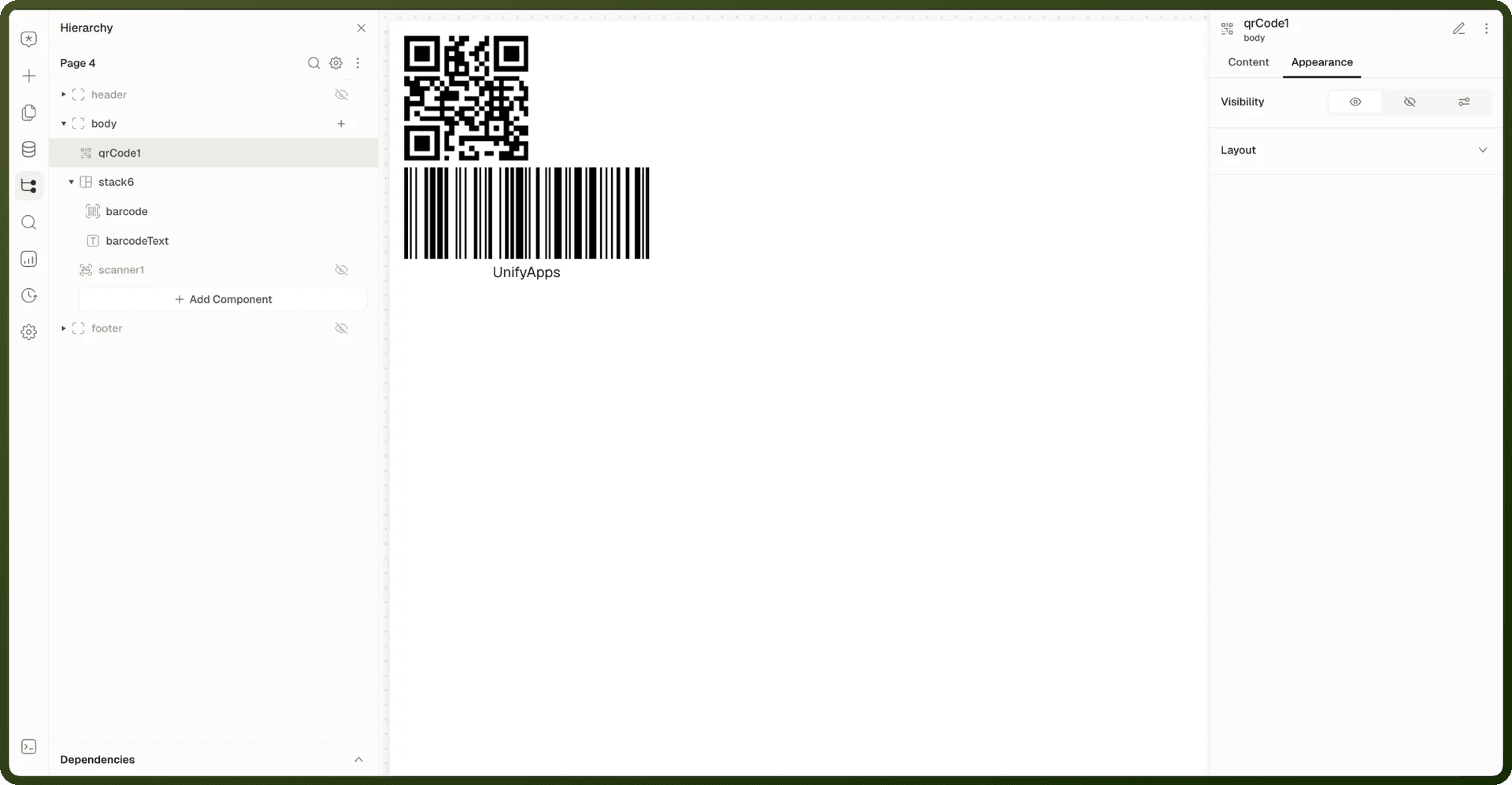
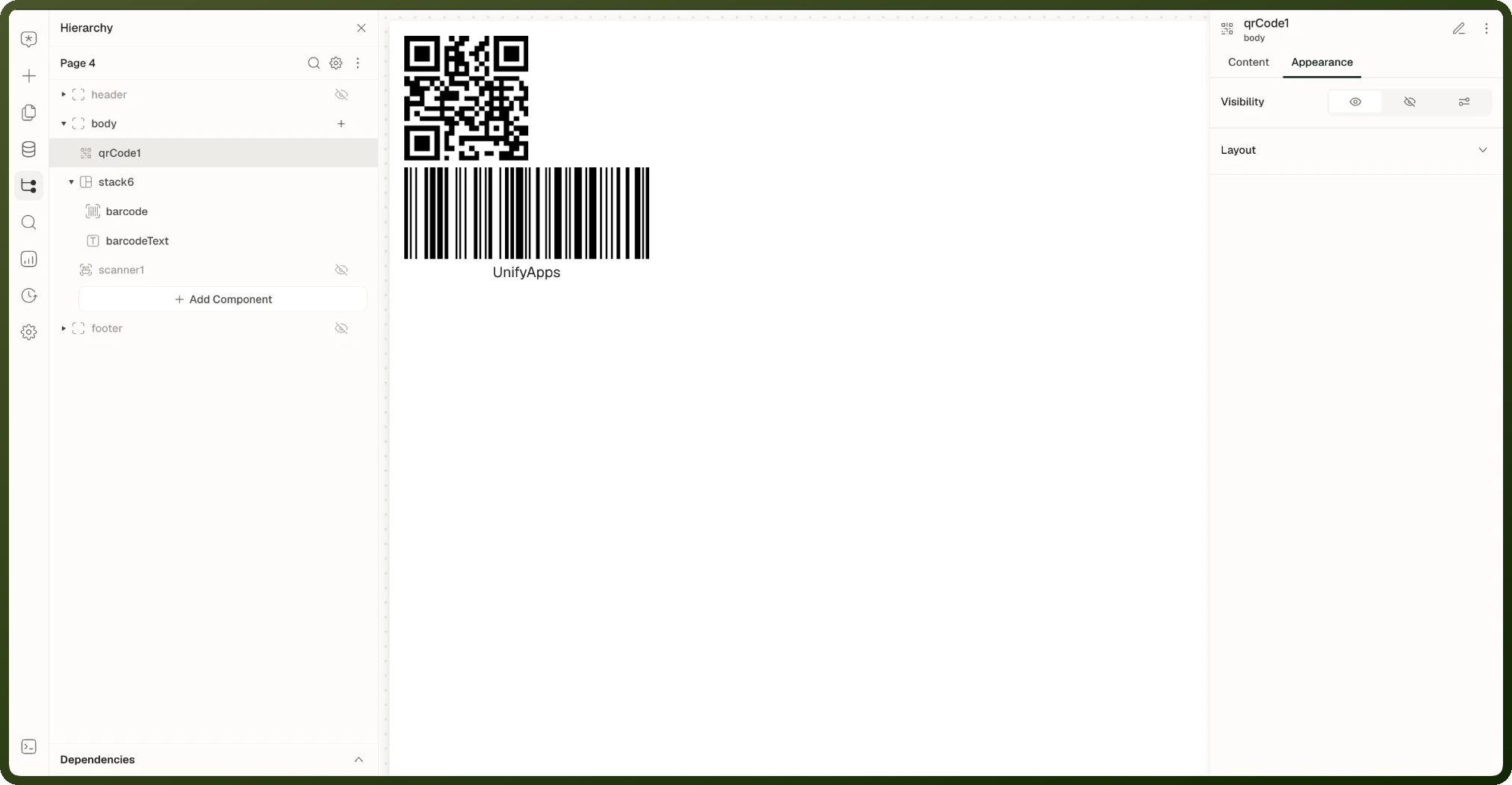
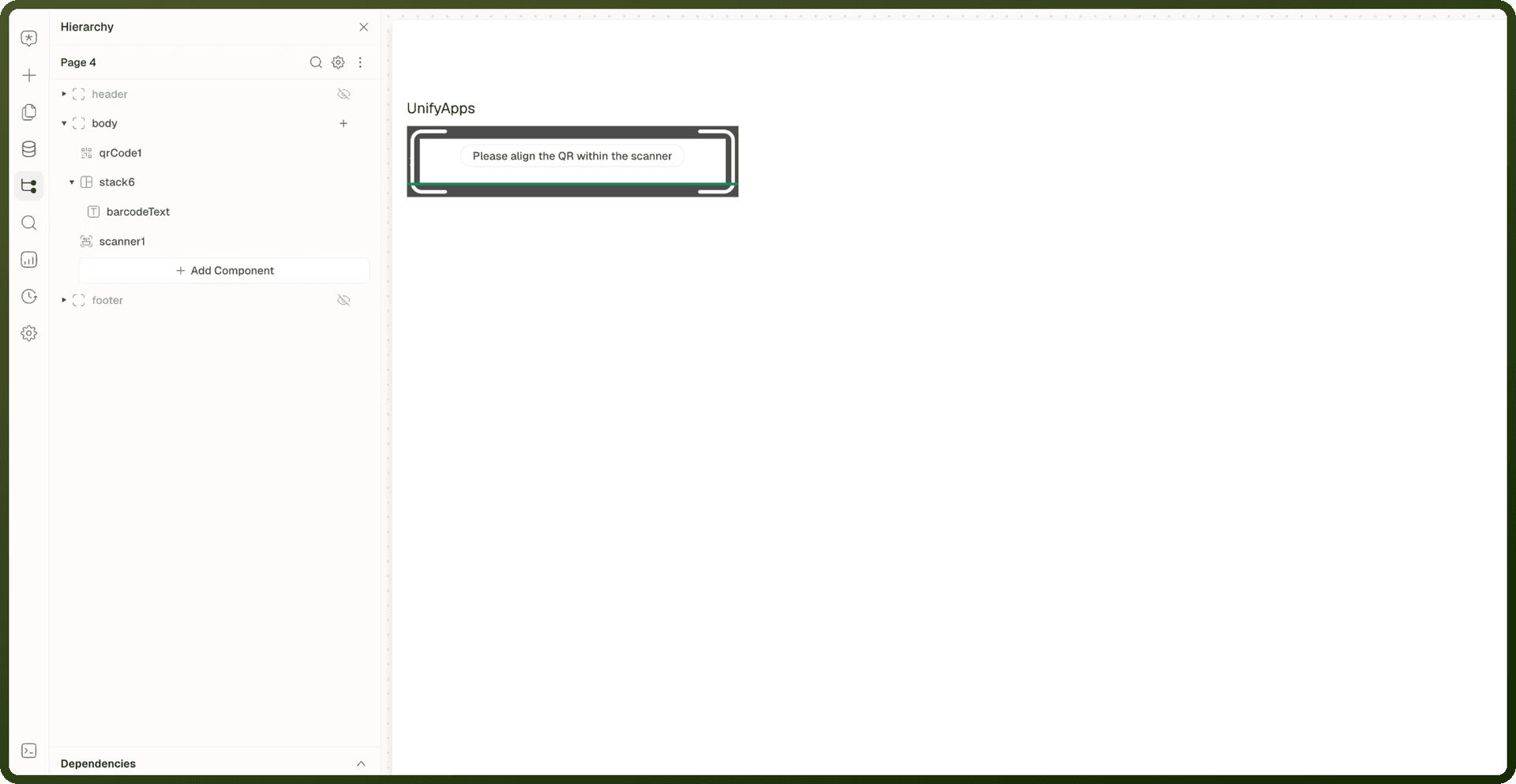
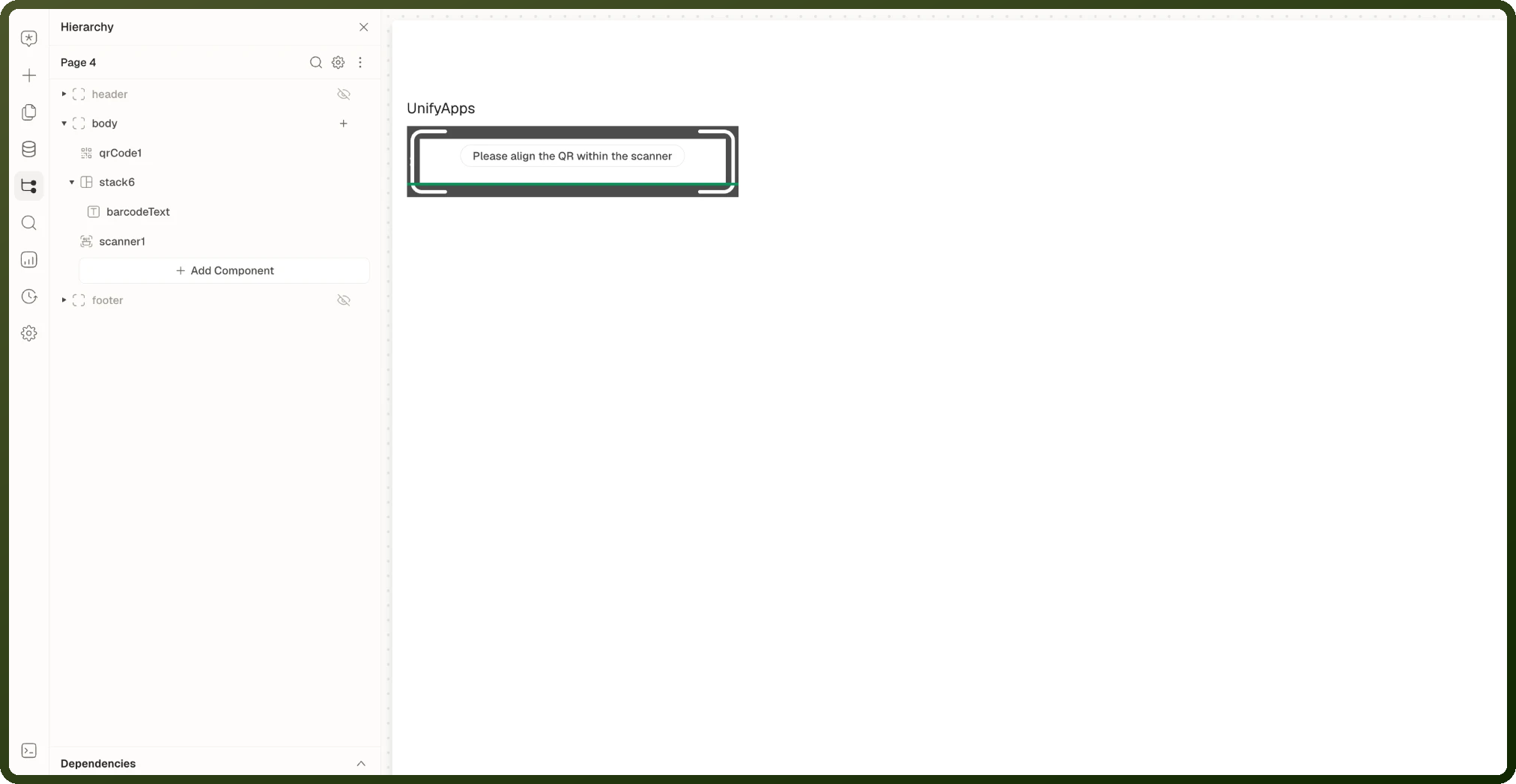
Tip: When to use QR Code: Let users scan a link on a kiosk, poster or receipt screen (URL type, typically bound to a dynamic value). Share contact details a phone can save directly (Visiting Card type). Encode any arbitrary string — ticket ID, Wi-Fi payload, coupon code — (Text type). To read codes rather than display them, use the Scanner block instead.
Properties
Content — Type and Value
| Property | Type | Default | Description |
type | "TEXT" | "URL" | "VISITING_CARD" | URL | Chooses what the QR code encodes. |
inputs.text | string | https://www.unifyapps.com | The text or URL to encode. Bindable. Appears when type = TEXT or URL. |
inputs (Visiting Card) | grouped fields | — | Name (firstName, lastName), Contact (mobile, phone, fax, email), Company (name, jobTitle), Address (street, city, zip, state, country), Website. Appears when type = VISITING_CARD. |
addOns.logo | image (src, alt, fit, size/padding/radius) | Off; when on: 40×40 px rounded logo | Optional icon or image overlaid at the centre of the code. The logo type can be Icon or Image (default Image). Error correction is automatically increased. |
Appearance
| Property | Type | Default | Description |
styles | style set | 136×136 px | Width and height of the code block. |
Behavior & Gotchas
Warning: A Visiting Card with no name renders nothing. The block renders nothing to scan if both firstName and lastName are empty. Always ensure at least one name field is populated.
Note: Logo overlay increases error correction automatically. When a logo is enabled, the code's error correction level is raised so it remains scannable even with the logo covering the centre cells.
Note: The QR Code block has no events, no methods and no exposed state keys. It only draws a code. To read one, use the Scanner block.
Barcode
The Barcode block renders a scannable barcode from a text value, in any of 16 formats — CODE128 (the default) and its A/B/C variants, EAN13, EAN8, UPC, CODE39, ITF14, ITF, MSI family, and Pharmacode. Dropping the block creates a small stack: the barcode graphic and a separate caption text block underneath, both prefilled with a sample value.
Tip: When to use Barcode: Print or display scannable identifiers — SKUs, asset tags, ticket numbers — bound to your data. For QR codes (two-dimensional, URL-friendly), use the QR Code block. The Barcode block draws one-dimensional bar formats only.
Properties
Content
| Property | Type | Default | Description |
text | string (bindable, translatable) | UnifyApps | The value encoded into the bars. |
type | CODE128 | CODE128A | CODE128B | CODE128C | EAN13 | EAN8 | UPC | CODE39 | ITF14 | ITF | MSI | MSI10 | MSI11 | MSI1010 | MSI1110 | pharmacode | CODE128 | The barcode format. Each format has its own rules about valid characters and lengths. |
Appearance
| Property | Type | Default | Description |
barWidth | pixels | 2px | Width of the thinnest bar. |
colors.barColor | color | near-black | Color of the bars. Conditions allowed. |
colors.backgroundColor | color | transparent | Background behind the bars. |
Behavior & Gotchas
Warning: Each barcode format has strict character and length rules. EAN13 requires exactly 12 digits (the 13th is a check digit computed automatically). EAN8 requires 7 digits. UPC requires 11 digits. CODE39 supports uppercase letters, digits, and a small set of special characters. If a bound value is empty or doesn't meet the format's rules, no error is shown: the block keeps showing the last barcode it drew, or stays blank if it never drew one. Validate bound values upstream.
Note: The caption text block is separate. The barcode and the human-readable text below it are two sibling blocks in a stack. Edit the caption block independently — it doesn't automatically stay in sync if you change the barcode binding.
Note: The Barcode block has no events, no methods and no exposed state keys.
Scanner
The Scanner block opens a live camera feed and decodes barcodes and QR codes the moment they enter its framed scan region. It decodes continuously by default, keeping a running list of every value it reads. Turn on Pause after scan for single-shot capture, or set a delay between reads to throttle continuous scanning. Each accepted read fires an On Scan event and appends the raw decoded text to the block's data list. Duplicate reads are skipped by default.
Tip: When to use Scanner: Read barcodes or QR codes from physical items with the device camera — inventory intake, ticket check-in, asset lookup, coupon redemption. To render a code from a value, use the Barcode or QR Code block instead. To capture a photo, use the Camera block.
Properties
Content
Property | Type | Default | Description |
|---|---|---|---|
|
|
| Which camera the feed opens with. |
|
|
| Which family of codes the scanner decodes. |
|
|
| Skip a code that has already been read so the same item is never recorded twice. |
|
| off | Freeze the scanner on the first successful read — single-shot capture. Leave off to keep scanning continuously. |
|
|
| Delay in milliseconds between consecutive scan attempts. Continuous mode only. |
| add-on (Enabled, color) | On, green | Highlight box: outlines a detected code in the chosen color. Turn off Enabled to hide the outline. |
Content — Capture
Setting | Options | Default | Description |
|---|---|---|---|
Auto capture | on | off | On | On: scans automatically. Off: only the Capture method triggers a scan. |
Hold time | Fast (150 ms), Balanced (300 ms), Patient (600 ms), or a custom value | Balanced (300 ms) | How long a code stays steady before it's read. Appears when Auto capture is on. |
Minimum coverage | Lenient (15%), Balanced (50%), Strict (75%), or a custom value | Lenient (15%) | How much of the code must be in frame to count. Appears when Auto capture is on. |
Events
Event | Trigger | Payload |
|---|---|---|
| A code is successfully decoded | None — the value is added to |
Methods
Method | Effect |
|---|---|
| Pauses the scanner without closing the camera feed. |
| Resumes scanning after a pause. |
| Triggers a scan. Use it when Auto capture is off. |
| Clears the accumulated scan results list. |
Exposed State
State key | Type | Description |
|---|---|---|
| string[] | The accumulated list of decoded values since the last clear. The most recent value is the last element. |
Behavior & Gotchas
Note: The scanner requires camera permission. On first use, the browser or mobile OS prompts the user for camera access. If permission is denied, the scanner block shows an error state. Design your flow to handle the case where permission is not granted.
Note: Pause after scan freezes on the first successful read. When enabled, the scanner stays frozen until you programmatically resume it with the Resume method — or the user takes a manual action if you've added resume controls.
Warning: Ignore duplicate codes compares against the current session's data list. If you clear the data list (via Clear method), previously scanned codes become eligible for re-scanning. This is useful for workflows where items need to be re-scanned in a new pass.
Supported Formats
Web supports Code 128, Code 39, EAN-13, EAN-8, UPC-A, UPC-E, ITF, Code 93, Codabar and QR. Mobile apps support EAN-13, EAN-8, Code 128, Code 39, Code 93, Codabar and QR, but not UPC-A, UPC-E or ITF. A code in an unsupported format is silently ignored, so test your format on each platform you ship to.
Related blocks
Block | Relationship |
|---|---|
Camera | Captures photos and video; use instead of Scanner when you need images, not decoded codes. |
Camera is covered in full in Camera & Photo Booth. For a side-by-side comparison of Camera, Photo Booth, Scanner and Barcode, see Camera, Photo Booth, Scanner & Barcode.