


How Published Apps Are Served
After the first publish, the application is live at its Application URL. Every subsequent request to that URL serves the most recently published version. In-progress edits and saved Working Copy changes are invisible to visitors until a new version is published.
At runtime, the platform decides what a visitor can see by evaluating three things:
App access level — is the app set to Private or Public?
Signed-in status — is the visitor an authenticated user or an anonymous visitor?
Page privacy setting — in a Private app, is the page they're trying to reach marked Public or Private?
Visitors navigate the app using the navigation structure you configured in the builder. If a visitor lands on an address that has no page, the runtime shows a not-found page — unless you've set a redirect on that path. You add a redirect in the folder's settings under Redirect: in the Redirect to page field, pick the page that visitors on the old address should be sent to.
Page Privacy Settings
The app as a whole has an Access level, and each page in the builder has a Privacy setting in its Page Settings panel. The two settings work together to determine who can reach which parts of your app.
Note: In a Private app, anonymous visitors can only reach Public pages. If a visitor is not signed in, any attempt to navigate to a Private page is blocked — the runtime redirects them to sign in. In a Public app, every page is open to anyone with the link, whatever its page Privacy setting. Make only pages that are genuinely open to the world Public.
Privacy Settings Reference
| Setting | Who Can Access | Use Case |
| Private | Signed-in users only. Anonymous visitors are redirected to sign in. | Default for most pages. Applies to any page that should only be accessible to authenticated users — dashboards, reports, admin screens, data entry forms. |
| Public | Anyone with the link, including anonymous (unauthenticated) visitors. | Public-facing landing pages, publicly accessible forms, status pages, or any content that should be viewable without sign-in. |
App Access Level
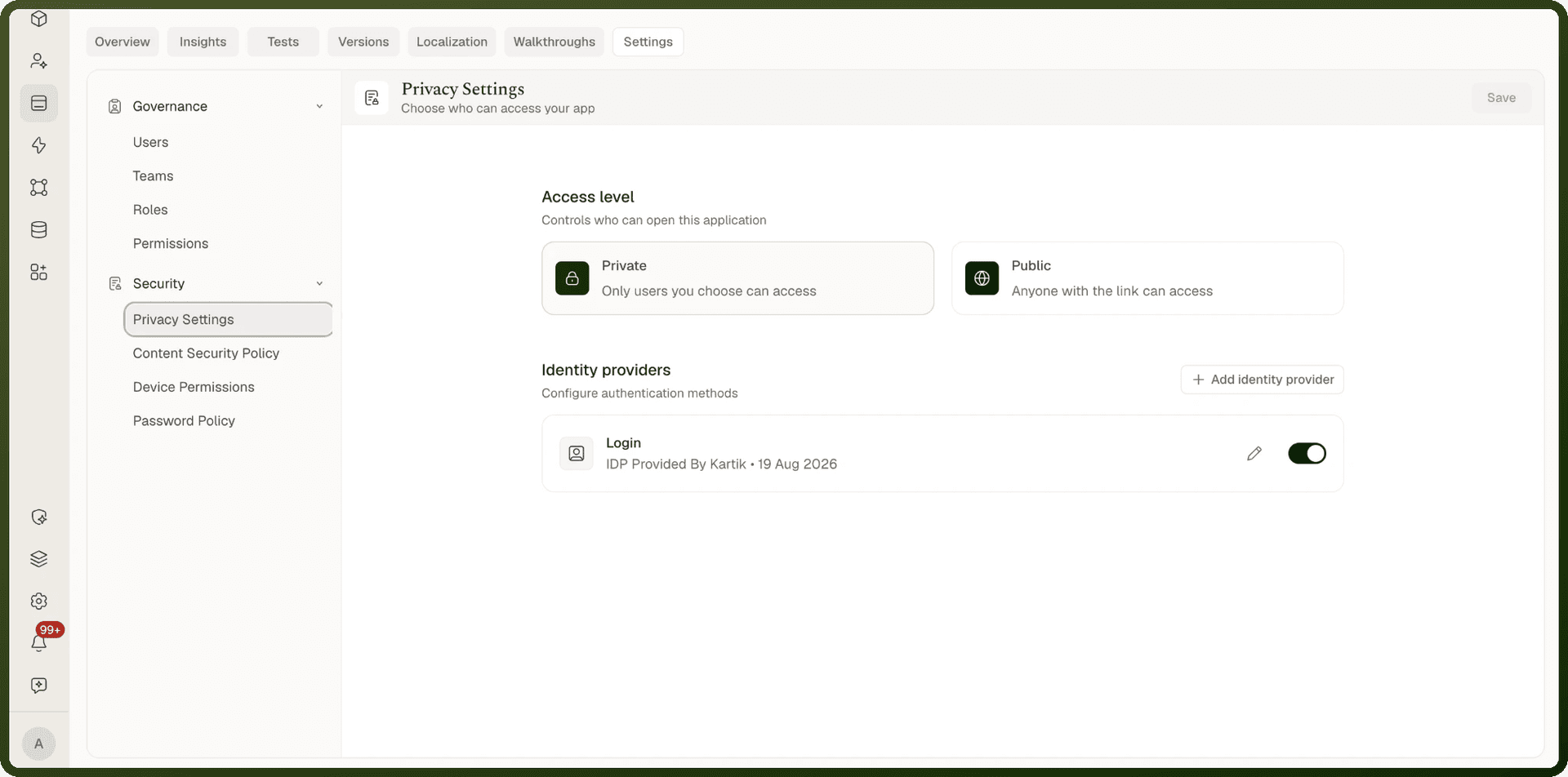
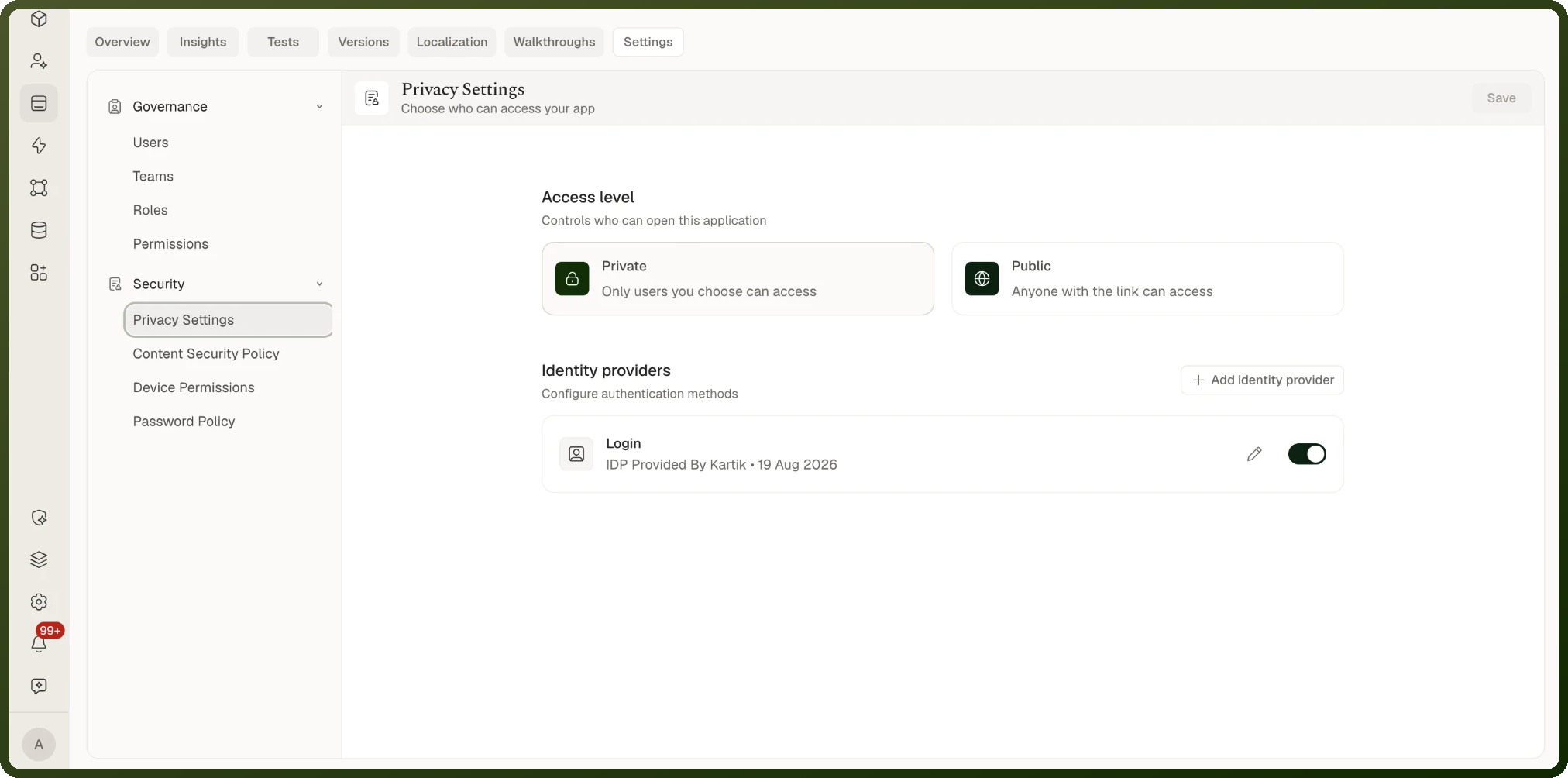
Set the app's access level in the app's Settings tab → Privacy Settings → Access level:
Private — Only users you choose can access. Page Privacy settings apply, and you choose which identity providers users sign in with.
Public — Anyone with the link can access. Every page is open, including pages marked Private, and the page Privacy field is hidden in Page Settings.
Warning: Switching an app to Public opens all of its pages to anonymous visitors. Check what each page shows before you change the access level.
Permissions and Roles
Public/Private privacy is a coarse gate — it controls whether unauthenticated visitors can reach a page at all. For signed-in users, a second layer of control applies: role-based permissions.
Access is determined by three stacked questions:
Can they reach the app? — Is the app published? If its access level is Private, is the user signed in and on the app's user list (Governance → Users, added directly or through a team)?
Can they open this page? — Does the page's Privacy setting allow their signed-in status, and does their role have permission for this page?
What can they do on this page? — What actions does their role permit (read, write, delete, etc.)?
Role and permission management is handled in the app's Settings tab under the Governance section, where you can manage users, teams, roles, and page-level permission assignments.
Troubleshooting: A User Can't Open a Page
When a user reports they cannot access a particular page, the root cause is almost always one of three things: the page is private and they are not signed in, their role lacks permission for that page, or the page URL has changed.
Common Causes
Page is Private and user is not signed in. Anonymous visitors cannot reach Private pages regardless of the link they use.
Role lacks permission for that page. The user may be signed in but assigned a role that does not have the page-level permission for this particular page.
Page URL changed and the old link no longer resolves. If the page slug was updated after the link was shared, the old URL leads to a not-found page.
App not published. If the app has never been published, no one can reach it at the Application URL.
Steps: Diagnosing a Page Access Problem
Confirm the application is published by checking the builder top bar or the Versions tab on the app detail page. If "Not Published" is shown, the app is not yet live.
Check the app's Access level in the app's Settings tab → Privacy Settings. If it is Public, every page is open and page Privacy does not apply. If it is Private, continue.
Open the builder, navigate to the affected page, and open Page Settings. Check the Privacy field.If Privacy is Private and the user is not signed in, they need either a login or the page must be made Public (only if truly open access is intended).If Privacy is already set correctly, move to the next step.
Open the app's Settings → Governance section. Find the user's assigned role and verify that the role has the page-level permission for the affected page. Assign the correct permission if missing.
Confirm the page's current URL/slug. If it was recently changed, update any stale links shared with the user. The current slug is visible in Page Settings.
Have the user retry access in a fresh browser tab or incognito window to rule out cached redirects.
Embedding Applications in iFrames
Embedding a UnifyApps application inside another website or platform (such as a portal, intranet, or third-party SaaS product) requires passing two independent security gates. Passing one gate does not satisfy the other — both must be configured correctly for embedding to work.
Note: The two embedding gates are independent. Allowing a parent site in Frame-ancestors does not automatically permit that site's origin for API and sign-in calls. You must configure both settings separately.
Gate 1 — Frame-ancestors (Can the Site Frame Your App?)
The browser will refuse to render your application inside an iframe if the parent site's origin is not listed in your application's Content Security Policy (CSP) Frame-ancestors directive. This check happens at the browser level, before any page content loads.
In the app's Settings tab, open Security → Content Security Policy and turn on the Enable Content Security Policy toggle. Then add the full origin of the site that will embed your app to the Frame-ancestors list (for example, https://portal.example.com). In the builder's Settings panel, the same list is labelled Who can embed this app.
With Content Security Policy off, the app can be embedded by any site, and the Frame-ancestors list has no effect.
Gate 2 — Allowed Origins (Can the Site's Page Reach Your App's APIs?)
Even after Frame-ancestors is configured correctly, the embedded application still needs to make authenticated data requests and sign-in calls back to the platform. These requests are subject to CORS checking: the parent site's origin must be listed in the environment's allowed-origins configuration.
A common symptom of a missing CORS origin: the iframe renders (Frame-ancestors passed) but the application appears blank, shows a loading spinner indefinitely, or cannot complete sign-in. Browser developer tools will show CORS errors on API or authentication requests.
Note: Allowed origins are per-environment. An origin allowed in a test or staging environment does not automatically carry over to production. Configure each environment's allowed-origins list independently.
HTTPS Requirement for Embedding Origins
Some UnifyApps environments require embedding origins to be served over HTTPS. An origin like http://localhost pointing at a local development server will generally fail origin checks against a production environment, even if you add it to the allowed-origins list. Use HTTPS for any embedding origin that targets a production environment.
Steps: Setting Up iframe Embedding
Identify the exact origin of the parent site that will host the iframe. The origin is the scheme, hostname, and port (if non-standard) — for example,
https://portal.example.comorhttps://intranet.corp.internal:8443.In the app's Settings tab, open Security → Content Security Policy and turn on the Enable Content Security Policy toggle, then add the parent site's origin to the Frame-ancestors list. Click Save, then publish the application — outside sites get the policy from the published version.
Contact your platform or environment administrator to add the same origin to the environment's allowed-origins (CORS) list. This step is environment-specific and may require access to environment configuration outside the application builder.
Verify the parent site is served over HTTPS if you are embedding in a production environment.
Test the embedding in the target portal. Open browser developer tools and check the Console and Network tabs for CSP or CORS errors. A CSP
frame-ancestorserror means Gate 1 is still misconfigured — re-check the Frame-ancestors list in Settings → Security → Content Security Policy. A CORS error on an API or auth request means Gate 2 is misconfigured — the origin is not on the allowed-origins list for this environment.If the embedded app loads correctly but authentication fails, confirm that the environment's allowed-origins include the parent site, and that the user is signing in within the embedded context (some SSO configurations may require additional setup for cross-origin authentication).
Common Embedding Pitfalls
| Symptom | Likely Cause | Fix |
| Blank iframe / browser error | Parent site not listed in Frame-ancestors (Gate 1 blocked) | Add parent origin to Settings → Security → Content Security Policy → Frame-ancestors and republish |
| App appears in frame but stays empty or spins indefinitely | Frame-ancestors passed but parent origin missing from allowed-origins (Gate 2 blocked) | Add parent origin to environment allowed-origins list (CORS) |
| Works in staging, fails in production | Allowed origins configured for staging env but not production env | Add origin to production environment's allowed-origins list separately |
| Works on HTTPS site, fails on HTTP dev server | Environment requires HTTPS for embedding origins | Serve the parent site over HTTPS or use a local HTTPS proxy |
| Frame loads but sign-in fails | CORS blocks authentication requests from the framing origin | Ensure parent origin is on allowed-origins AND verify SSO/cookie settings for cross-origin contexts |
Related Pages
Runtime & Access Control — a shorter summary of the same topics.
App Settings & Privacy — Privacy Settings, identity providers and Content Security Policy in the app's Settings tab.
Slugs and Visibility — a page's slug and its Privacy setting.