Overview
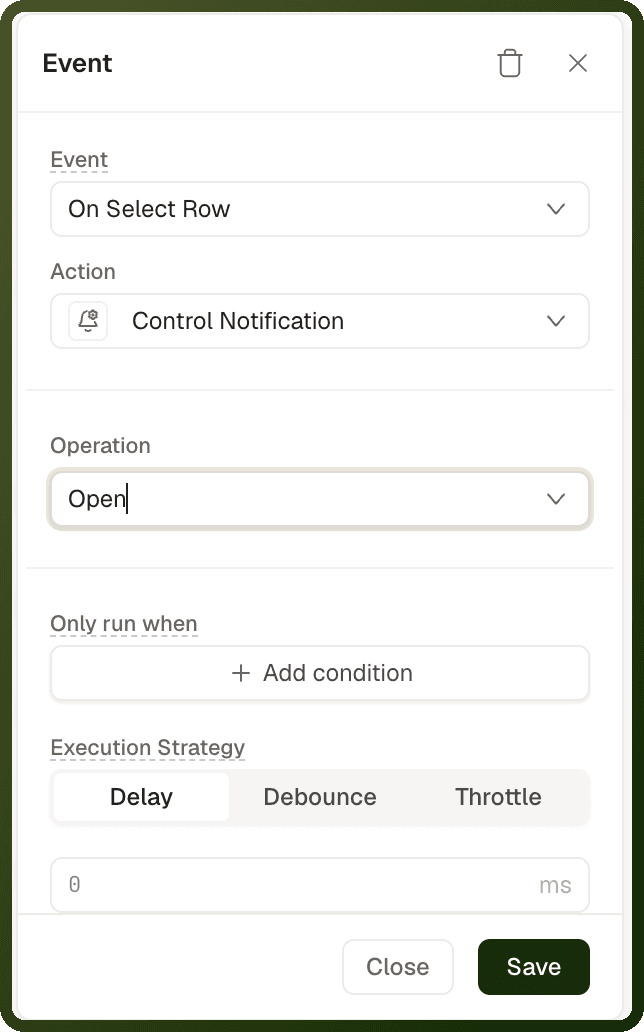
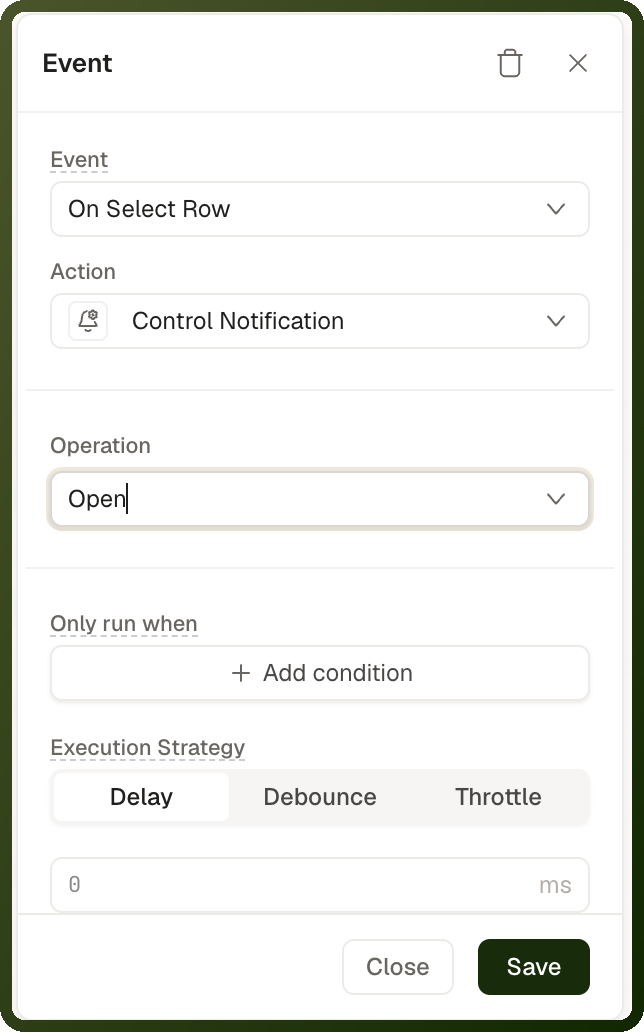
The controlNotification action delivers notifications to the user through two distinct channels depending on the platform context:
In-app banner (web and mobile, foreground): A rich banner appears at the top of the screen while the user has the app open. This uses the app's notification layer, not the system tray.
Local notification (mobile, background/foreground): A system-level notification that appears in the device's notification tray. This requires the notification permission and works even when the app is in the background.
Both modes use the same action configuration. The platform context determines which channel is used, unless you explicitly target one with the channel parameter.
Warning: Notification permission required on mobile. Local notifications require POST_NOTIFICATIONS on Android 13+ and the user to accept the system prompt on iOS. Enable the permission in App Settings → Mobile → Permissions → Notifications. The action automatically requests the permission if not yet granted; if denied, it silently falls back to in-app banner mode.
Parameters
| Parameter | Type | Required | Default | Description |
| title | string | Required (required) | — | Primary notification heading. Appears bold in the system tray. Supports bindings. Keep under 50 characters for best cross-platform display. |
| body | string | Optional (optional) | — | Notification body text shown below the title. Supports bindings and i18n. On iOS, long bodies are truncated to ~100 characters in the lock screen view. |
| icon | string | Optional (optional) | App icon | URL of the icon image, or a named asset key from the Media Library. Recommended size: 96×96 px. On iOS, the system uses the app icon regardless of this value — it only applies on Android and in-app banners. |
| badge | number | Optional (optional) | — | Number to display on the app icon badge. On iOS, sets the badge count absolutely. On Android 8+, displayed in the notification dot. Pass 0 to clear the badge. |
| sound | "default" | "silent" | "custom" | Optional (optional) | "default" | Notification sound. default uses the system notification sound. silent delivers without sound. custom plays the file specified in soundFile. |
| soundFile | string | Optional (optional) | — | Asset key or filename of the custom sound file. Required when sound is "custom". The file must be bundled in the app's assets (iOS: .caf or .aiff; Android: .mp3 or .wav in res/raw). |
| deepLink | string | Optional (optional) | — | In-app page URL or deep link scheme to navigate to when the user taps the notification. Example: /orders/{{ orderId }} or myapp://orders/123. Only applies to local notifications — in-app banners use the onTap action instead. |
| schedule | number (ms) | Optional (optional) | 0 (immediate) | Delay in milliseconds before delivering the notification. Set to 0 or omit for immediate delivery. Maximum schedule delay is 28 days. Scheduled notifications survive app restarts on both platforms. |
Step-by-Step Usage Guide
Enable notifications in App Settings: Navigate to App Settings → Mobile → Permissions and enable Notifications. This adds the required manifest entries. For iOS, provide a clear usage description explaining why the app sends notifications.
Create the action in your event chain: Add a Control Notification action to the appropriate event — an API callback's
onSuccess, a timer event, or a realtime message handler. Fill in at minimumtitleandbody.Add a deep link for actionable notifications: Set
deepLinkto the relevant page route so tapping the notification takes the user directly to the related content. Use bindings to inject dynamic IDs:/tickets/{{ ds_createTicket.response.ticketId }}.Test in Builder preview: In Builder preview mode, local notifications are simulated as in-app banners. Deploy to a real device or use the mobile emulator to test system tray notifications and sounds.
Examples
Immediate notification with a deep link
{ "actionType": "controlNotification", "payload": { "title": "Order #{{ ds_placeOrder.response.orderNumber }} confirmed", "body": "Your order has been placed. Tap to track delivery.", "icon": "asset://notification-icon", "sound": "default", "deepLink": "/orders/{{ ds_placeOrder.response.orderId }}" } }
Scheduled reminder notification (5 minutes later)
{ "actionType": "controlNotification", "payload": { "title": "Don't forget to submit your report", "body": "Your weekly report is due in 1 hour.", "sound": "default", "schedule": 300000, "badge": 1 } }
Silent notification to clear the badge
{ "actionType": "controlNotification", "payload": { "title": "", "sound": "silent", "badge": 0 } }
Tip: In-app banners vs. showNotification: controlNotification is designed for mobile-first, system-tray delivery with deep linking. For simple transient in-app toast messages (save confirmations, warnings), use the showNotification action instead — it does not require permissions and works identically on web and mobile.