


Overview
The Meeting block packages an entire meeting lifecycle into a single composable block. It has three distinct phases:
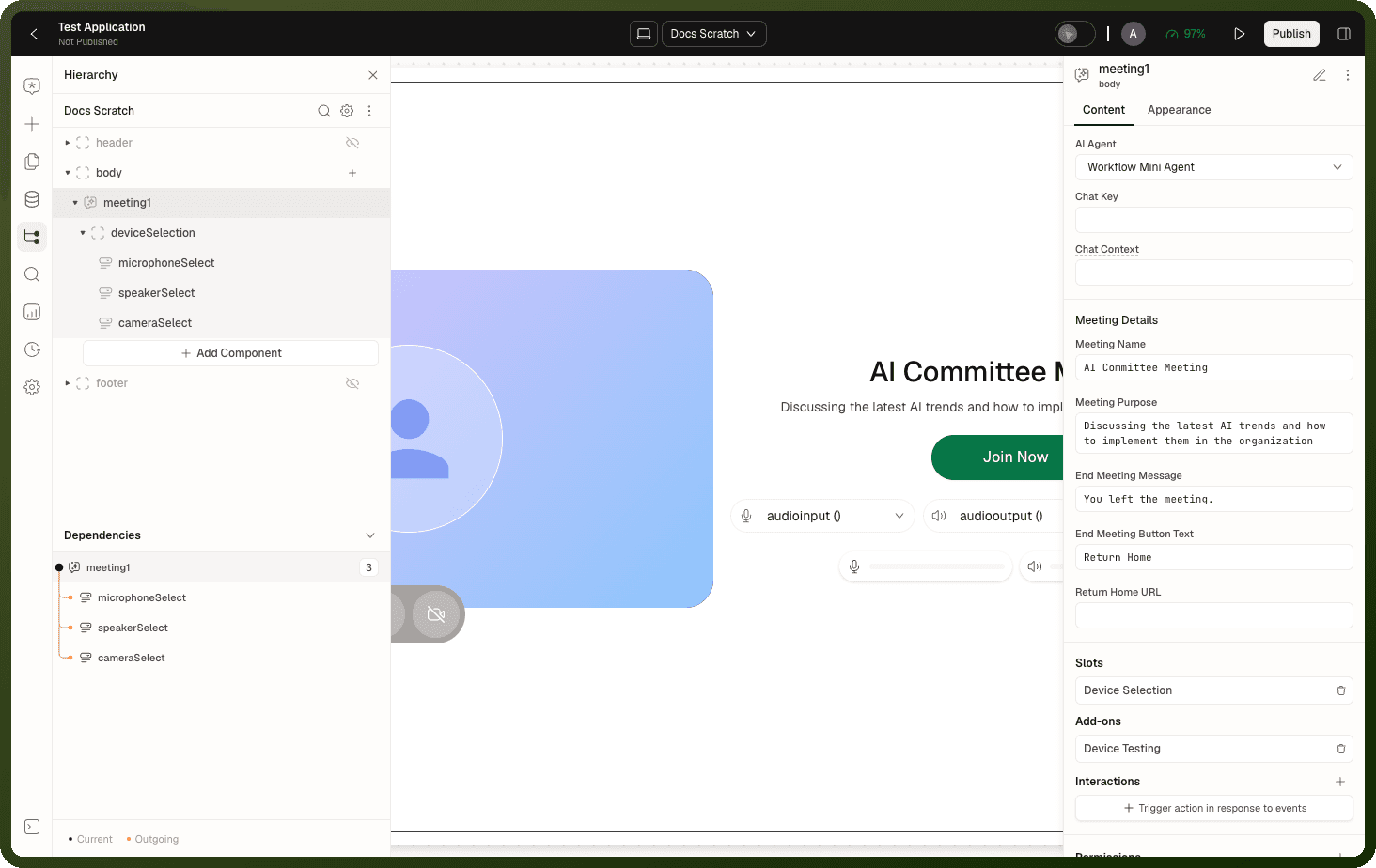
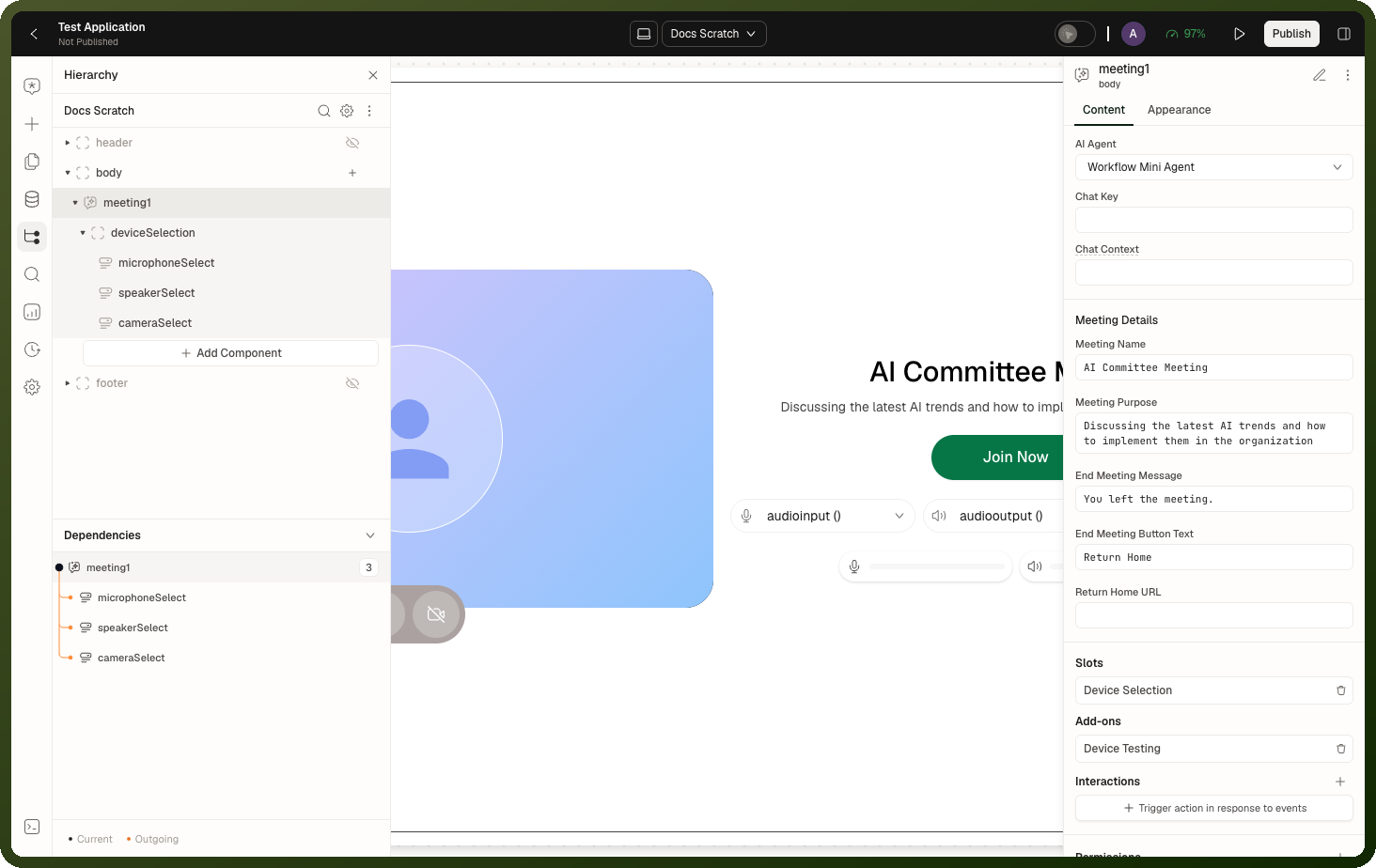
Lobby — the user sees a camera preview, picks and tests their microphone, speaker and camera, reviews the meeting name and purpose, then clicks Join.
Live meeting — a Copilot conversation running in meeting mode with real-time voice and video, mic/camera/captions controls, and an optional side canvas.
End screen — shown after the user leaves. Displays a configurable message and a button that navigates to a configured URL.
Tip: When to use Meeting: Run a face-to-face style AI session — an interview, a consultation, a patient intake. Give users a proper pre-join experience with device choice and mic testing. For text-first AI chat without the meeting framing, use a Copilot block. For voice interaction without the lobby and end screen, use Copilot Voice.
Note: Meeting wraps a Copilot conversation. Under the hood, the live meeting phase is a Copilot conversation in meeting mode — same AI Agent, Chat Key and Chat Context semantics, including the side canvas and its open/close events. Everything documented for Copilot conversations about resuming, context injection and chat state also applies inside the meeting.
Properties
Content
Property | Type | Default | Description |
|---|---|---|---|
AI Agent ( |
| First available agent | The AI agent that runs the meeting. Bind to change dynamically based on context. |
Chat Key ( |
| — | A key identifying the conversation to open. Binding to an existing key resumes that conversation when the user joins. |
Chat Context ( |
| — | Context handed to the agent when a new chat is created. Can be plain text, a JSON object or an array. Useful for providing case details, user profile or task context. |
Meeting Details
These five text fields control what the user reads in the lobby and on the end screen. All are translatable except the URL.
Field | Default | Where shown |
|---|---|---|
|
| Lobby header |
|
| Lobby sub-text below the name |
|
| End screen body |
|
| End screen button label |
| — | Navigation target for the end-screen button |
Warning: Always set Return Home URL. If Return Home URL is empty, clicking the end-screen button does nothing — the user is stuck on the end screen. Set it to a valid page path or external URL.
Slots
Slot | Description |
|---|---|
| The lobby's microphone, speaker and camera pickers. A new block fills it with three pre-wired Single Select pickers. Empty it to use the built-in picker pills instead, or replace its content with your own layout — your blocks must then switch devices with the Set input/output device for media method. |
Add-ons
| Add-on | Default | Description |
Device Testing | Enabled | Adds a lobby section where users play a test sound and check their microphone level before joining. Disable to simplify the lobby for users who don't need device verification. |
Appearance
The block fills its container by default (width: 100%, height: 100%). Use the standard styles panel for custom dimensions, visibility conditions, margin, padding, stroke and radius.
Events
| Event | Trigger |
On Open Copilot Canvas | The live meeting's side canvas opens. |
On Close Copilot Canvas | The side canvas closes. |
On End Meeting | The user leaves the meeting — fires before the end screen is shown. |
Methods
Call from any event with the Trigger Component Method action.
| Method | Params | Effect |
Create New Chat | — | Starts a fresh conversation with the AI agent. Clears the current chat state. |
Go to Chat | chatId | Switches to an existing conversation by its chat ID. |
Set input/output device for media | device selection payload | Changes the active microphone, speaker or camera. Required when using a custom Device Selection slot. |
Exposed State
| State key | Type | Description |
{{ id.chatId }} | string | The active conversation ID. |
{{ id.voiceMode.isVoiceModeActive }} | boolean | Whether the live session is running. |
{{ id.voiceMode.isMicrophoneEnabled }} | boolean | Microphone on/off state. |
{{ id.voiceMode.isCameraEnabled }} | boolean | Camera on/off state. |
{{ id.voiceMode.isClosedCaptionsEnabled }} | boolean | Captions on/off state. |
{{ id.voiceMode.agentState }} | string | The AI agent's connection state. |
{{ id.voiceMode.roomDetails }} | object | The joined room's ID and name. |
{{ id.voiceMode.availableDevices }} | object | Detected microphones, speakers and cameras. |
{{ id.voiceMode.selectedDevices }} | object | The currently selected device IDs. |
Behavior & Gotchas
Everyone joins muted with camera off
In the lobby, both the microphone and camera start disabled. The user must explicitly switch each on before or during the meeting. There is no setting to start hot (microphone or camera on by default on join).
There is no way back from the end screen
Once the user leaves, the block shows the end screen permanently — the meeting cannot be rejoined from there. The Return Home button navigates to the Return Home URL, so make sure it is set (see the warning under Meeting Details). Test the end screen during development.
The Device Selection slot holds the device pickers
A new Meeting block comes with its Device Selection slot already filled: a Stack holding three Single Select blocks (microphoneSelect, speakerSelect, cameraSelect). Each one lists the devices from {{ id.voiceMode.availableDevices }}, shows the selected device, and calls Set input/output device for media when the user picks another. These are the lobby's device pickers, and you can restyle them. If you empty the slot, the block falls back to its own built-in picker pills. If you replace the slot content with your own blocks, they must call Set input/output device for media themselves.
Device pickers show "Detecting..." until the browser enumerates
Until the browser finishes detecting audio and video devices, the lobby pickers display "Detecting..." and remain disabled. A device category with no devices found stays disabled after detection. Users who deny camera or microphone permission at the OS level will see empty picker lists.
The live meeting is a Copilot conversation underneath
Once joined, the session is a Copilot block in meeting mode — the same Chat Key and Chat Context semantics apply. Use Go to Chat to resume a prior conversation, and bind Chat Context to a data source record so every new chat starts pre-informed. The side canvas and its Open/Close Copilot Canvas events behave identically to the standard Copilot block's canvas.
Related blocks
Block | Relationship |
|---|---|
The same agent conversation as text-first chat. Meeting wraps it in a lobby and end screen. | |
Voice interaction without the meeting framing — no lobby, no end screen. | |
Raw camera capture; Meeting manages its own camera preview independently. |