


Overview
A registered custom code-component appears on a page as a Custom block. Each registered component is its own block in the block picker's Custom components tab. You add it to the page, choose which version renders, feed it data through the inspector, and handle the events it raises — exactly like configuring any other block.
The registered component is the code; the Custom block is how you place and wire it on a page.
Placing a Custom Component
Open a page in the app builder.
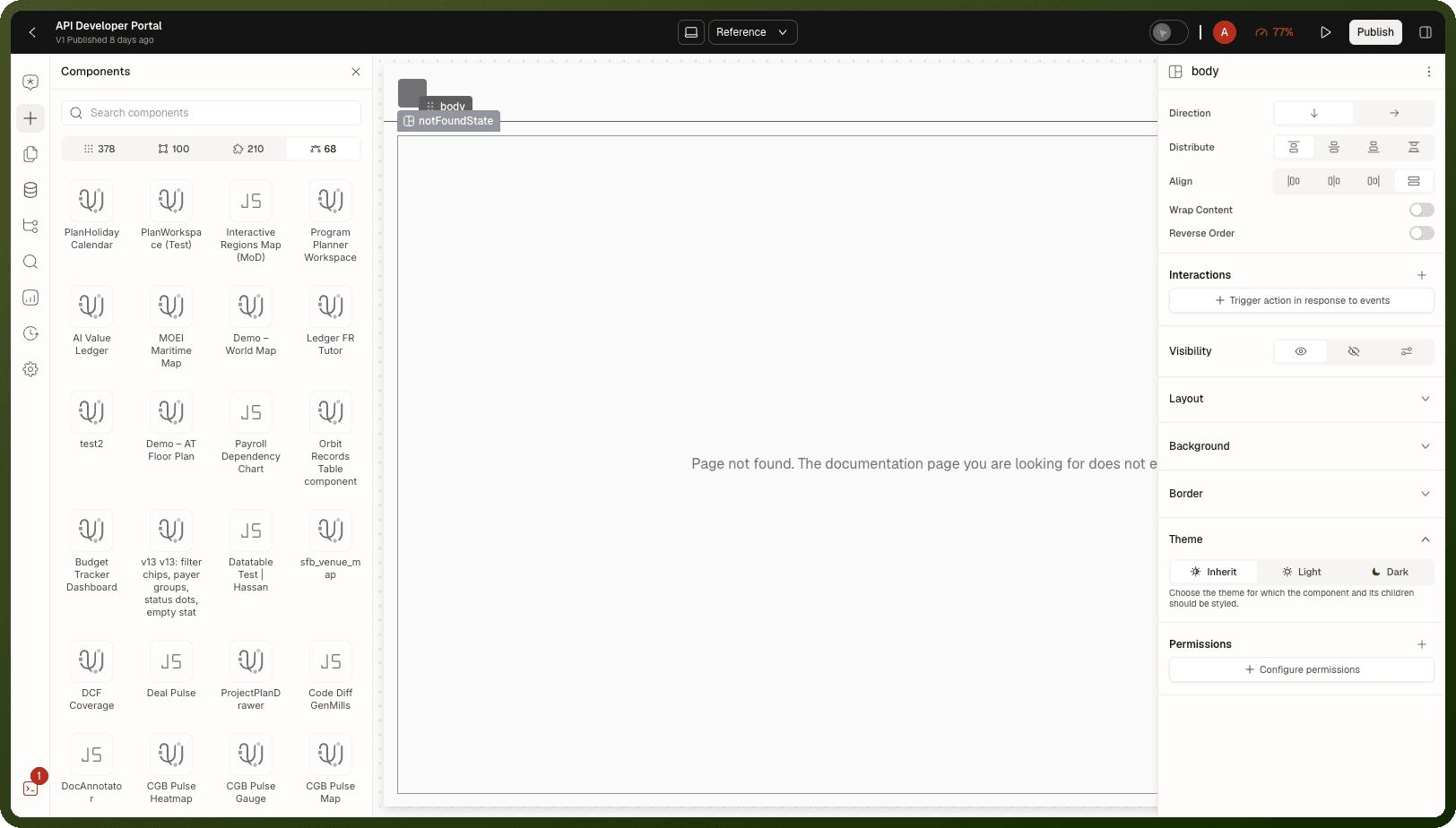
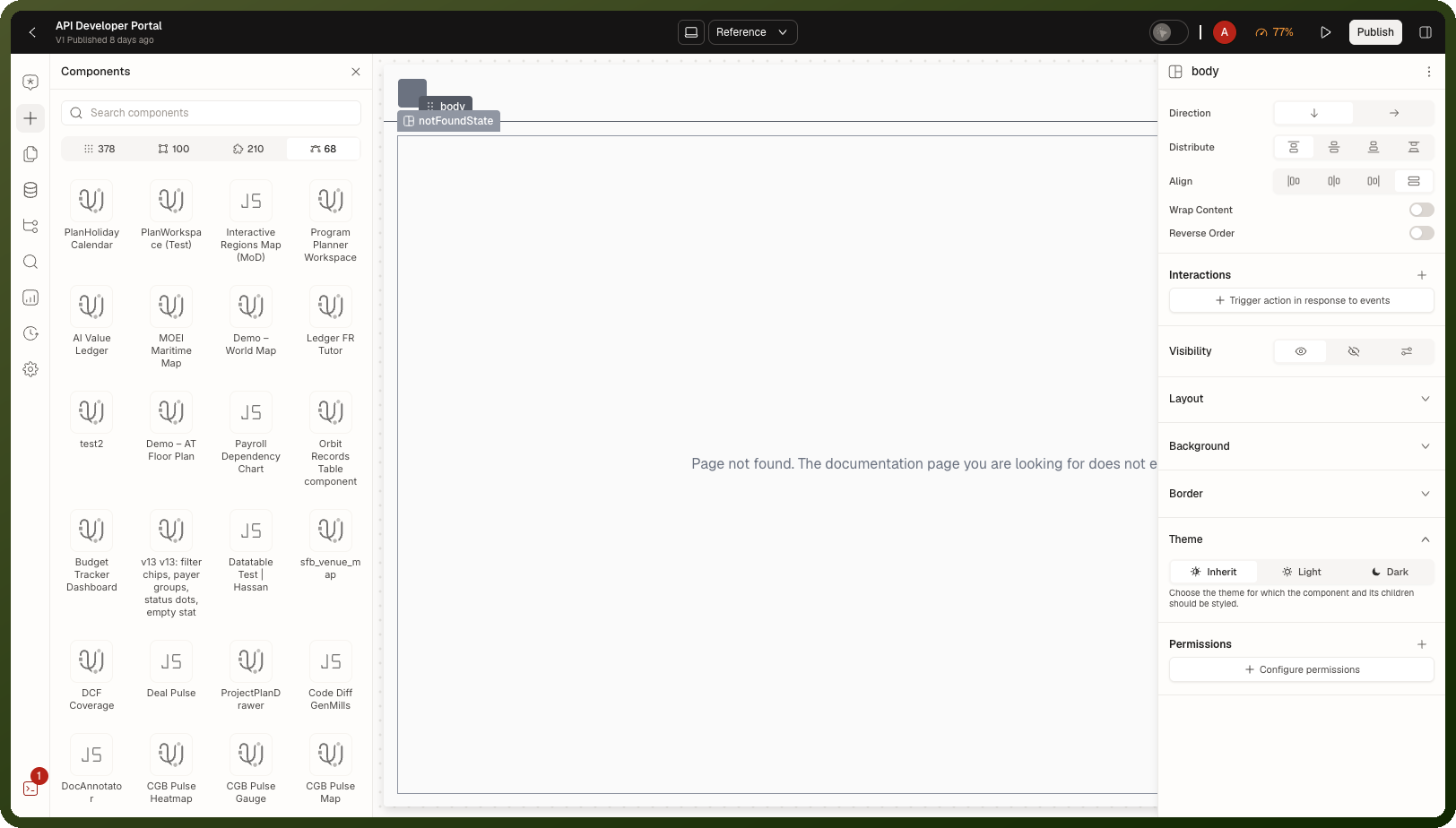
In the block picker, open the Custom components tab — the last of the four tabs at the top of the picker (hover to see its name) — or search for the component's name. Each registered component is its own block.
Drag your component onto the canvas.
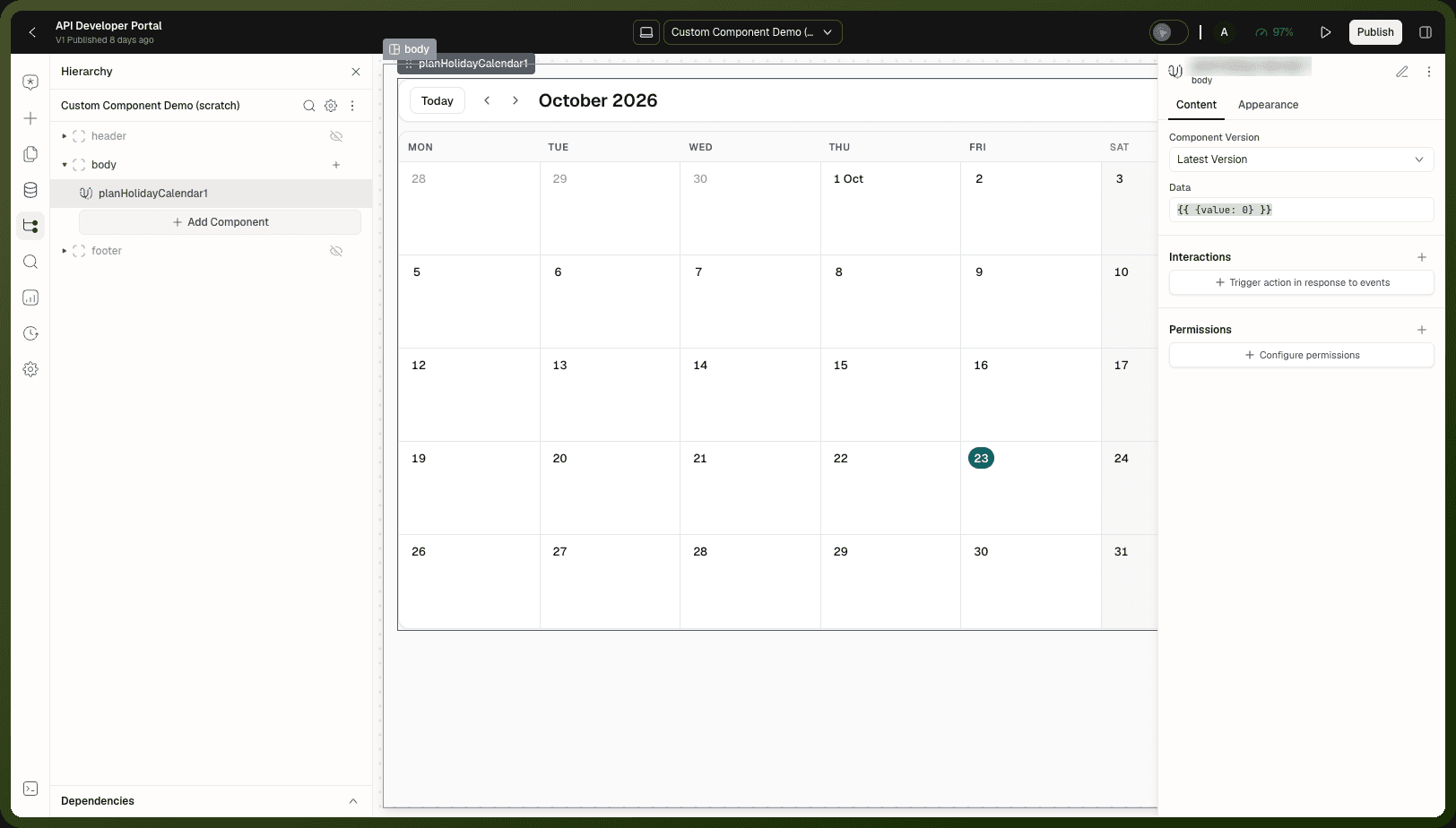
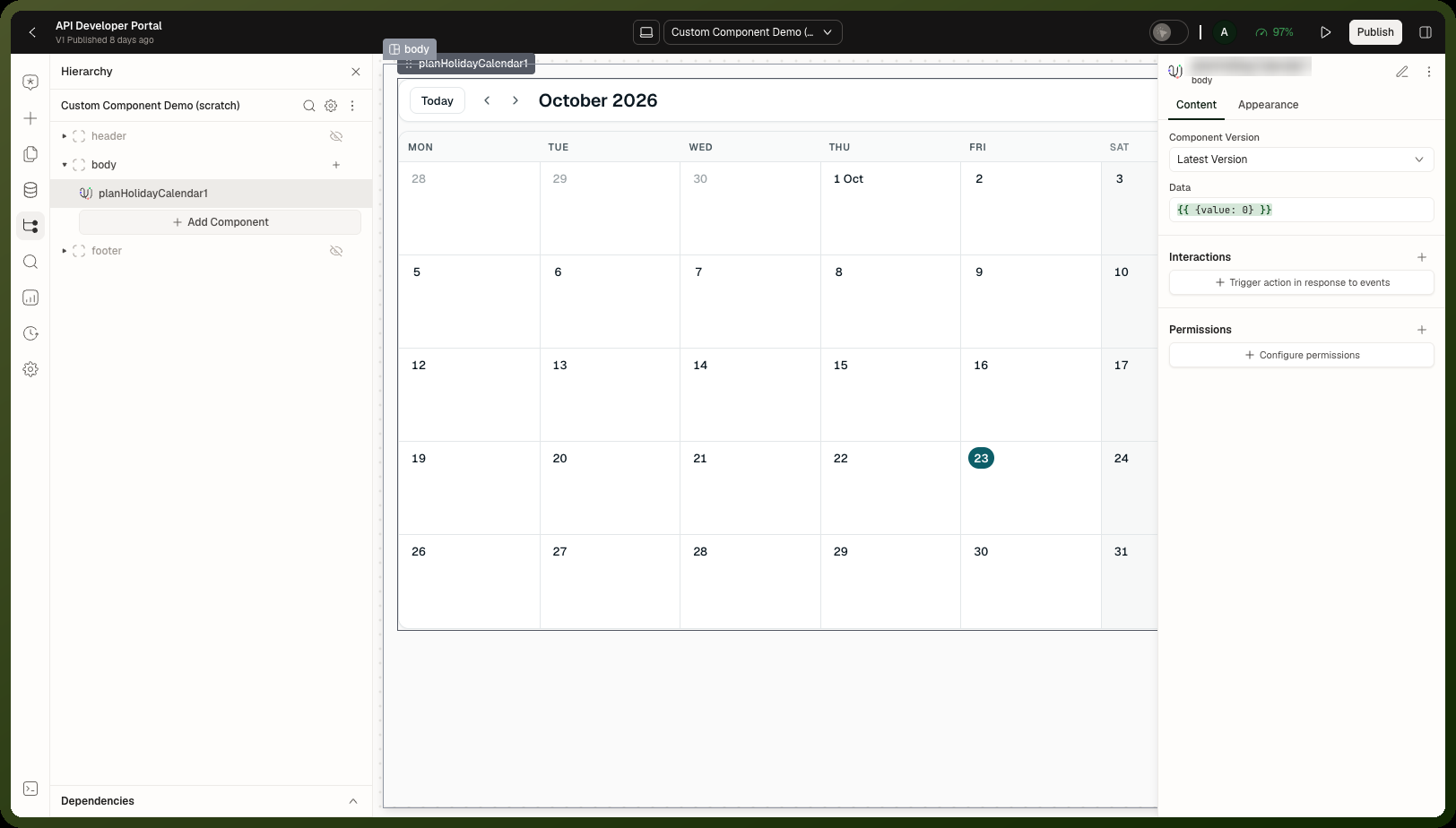
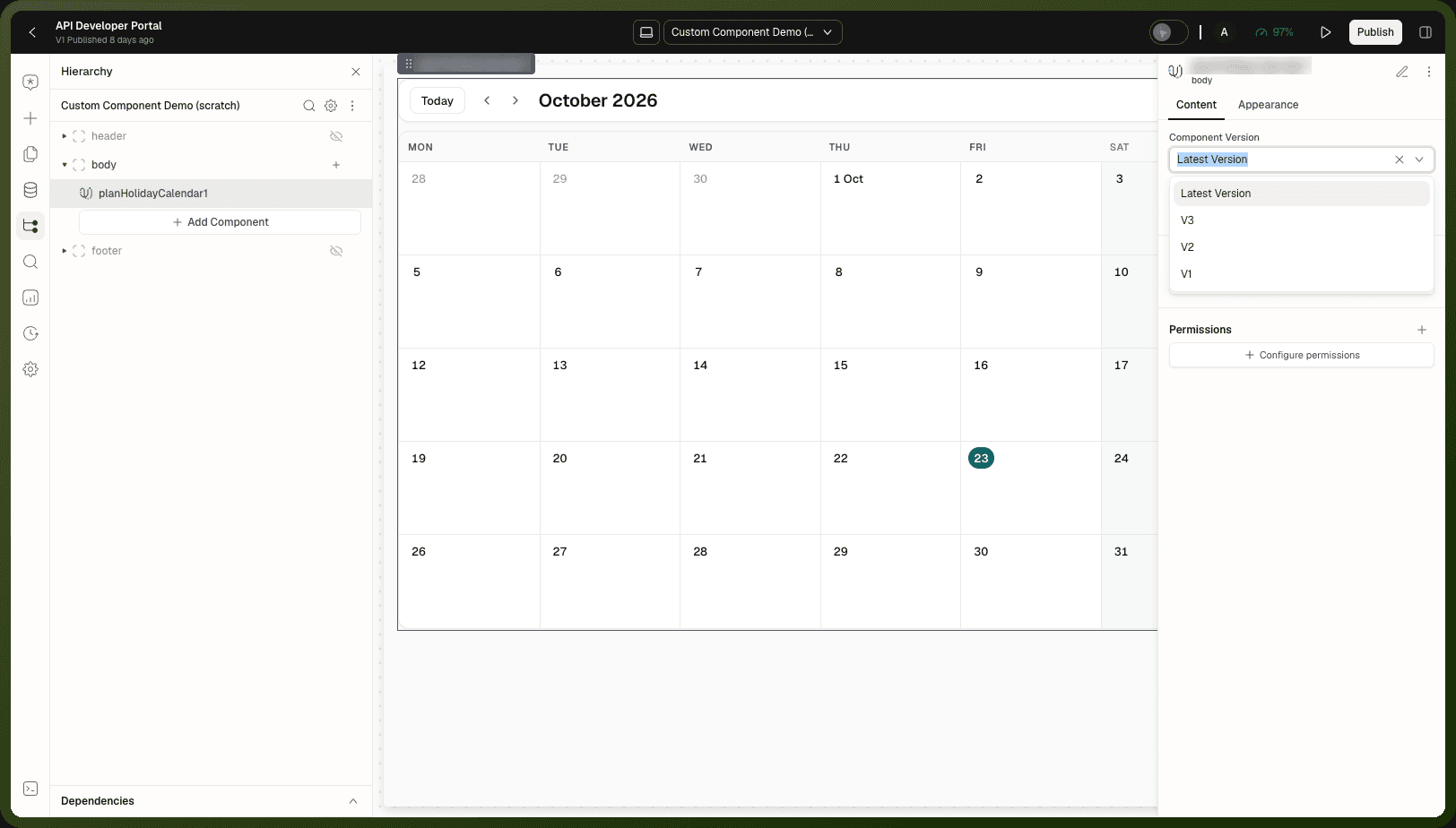
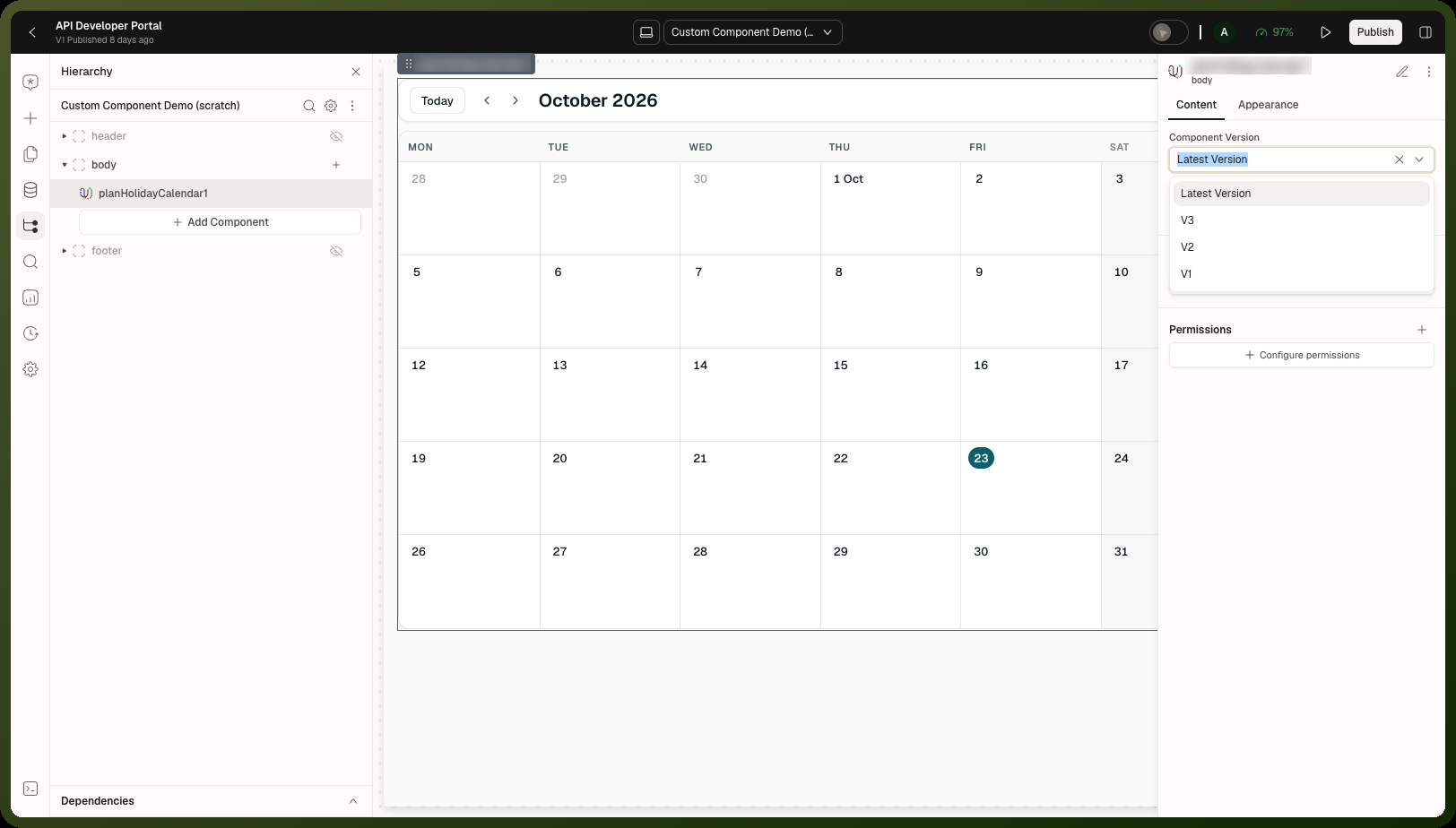
In the inspector, use Component Version to choose Latest Version, a specific numbered version, or — if the component has a Development Version — the development version. The picker lists only this component's versions. A new block defaults to Latest Version.
Choosing Which Version Renders
The Component Version picker lists three categories of versions:
Version option | Behavior | Use for |
|---|---|---|
| Follows every new production version automatically — promote a new version and the block picks it up. | Most pages — always runs the current stable release |
Specific version (V1, V2, …) | Pins the block to one numbered build. A later promotion doesn't change it until you switch versions yourself. | Pages that must stay on a particular build; isolation from regressions |
Development version | Renders the live test build from the developer's Manifest URL. Listed only while the component has a Development Version. | Testing during development only — never use for published apps |
Warning: Switch away from the development version before publishing. Pointing a block at the live test build means end users see unreleased work and whatever the developer redeploys at that URL. Always switch to Latest Version or a pinned version before publishing the app.
Passing Data and Handling Events
Passing data in
Feed the component whatever you bind to the block's Data property — usually an expression that references other page data. The component reads this as its input. The exact shape depends on what the component's developer designed it to accept.
Handling events
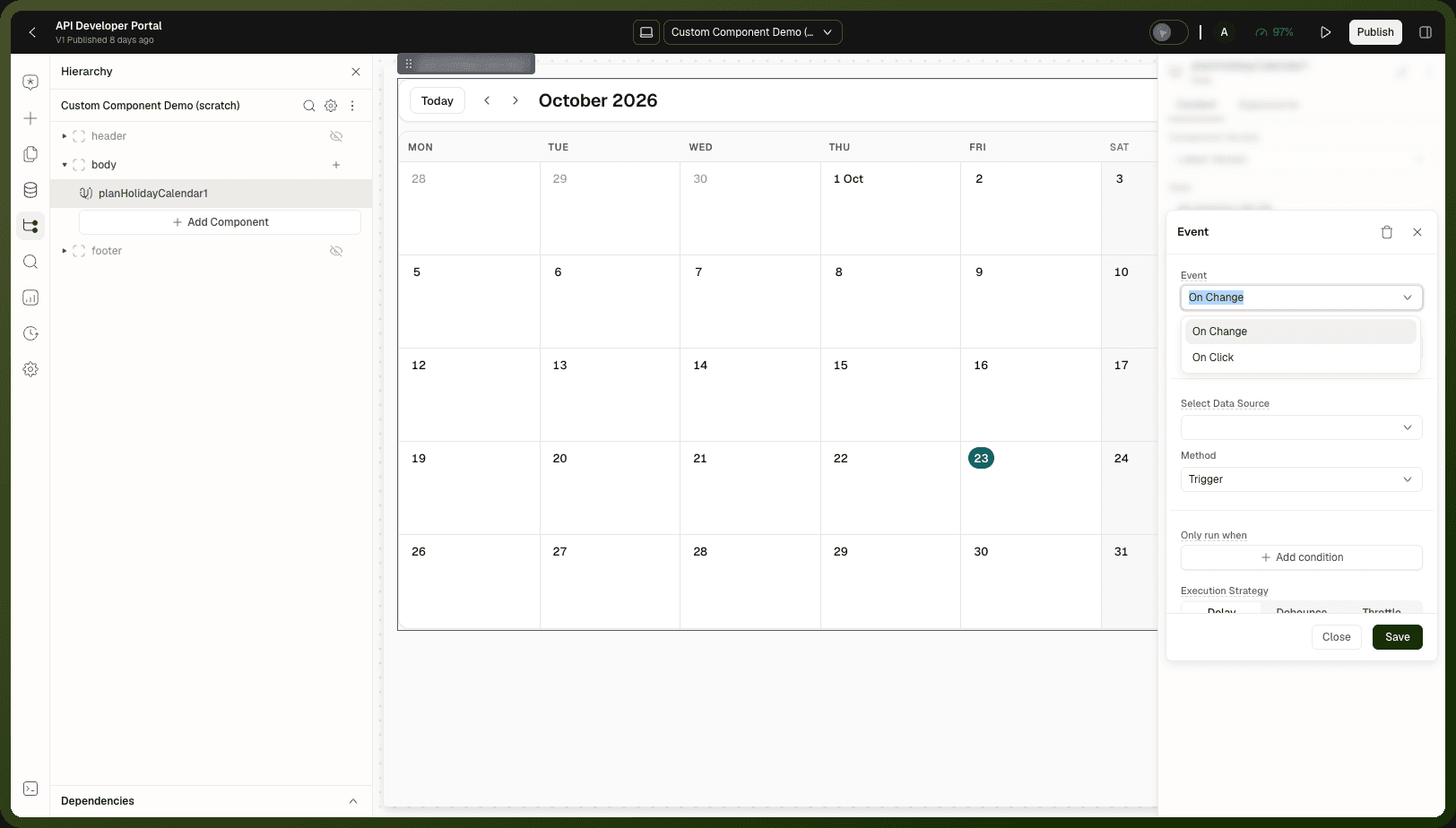
When the component reports a change or a click, the block raises:
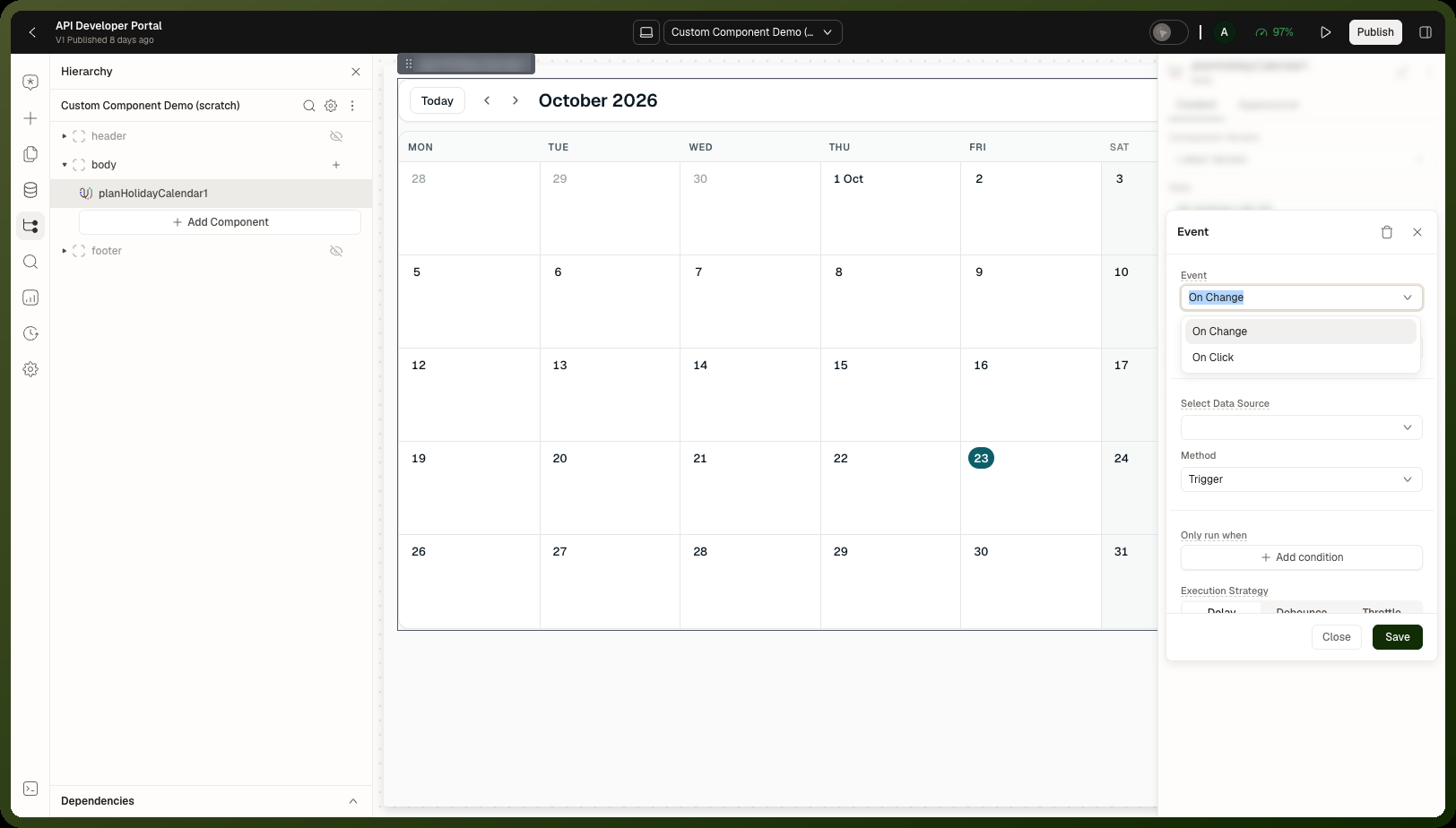
On Change — fires when the component reports a data change
On Click — fires when the component reports a click
Wire these to actions in the Interactions panel. The component can also write back to its own state for your bindings to read. Read it with the block's ID, for example {{ customBlock1.state.selectedId }} for a key the component writes to its state, or {{ customBlock1.content.data }} for the data the block currently holds. The available state keys depend on the component's code.
Note: Events and data flow depend on the component's code. The block feeds data in and surfaces the events the component chooses to raise. If a handler never fires, the component may not raise that event — check with the component's developer.
Updating Component State from Actions
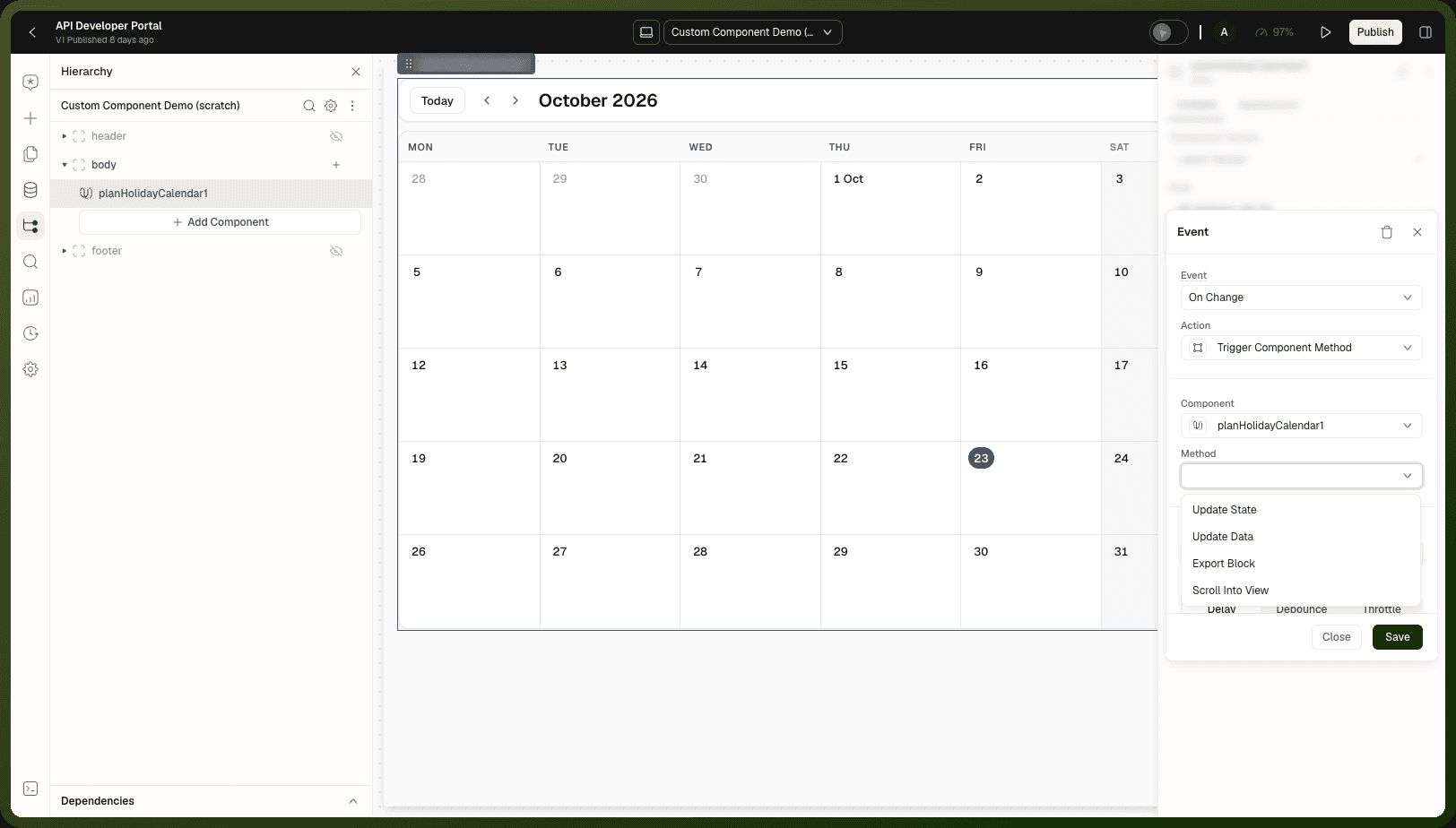
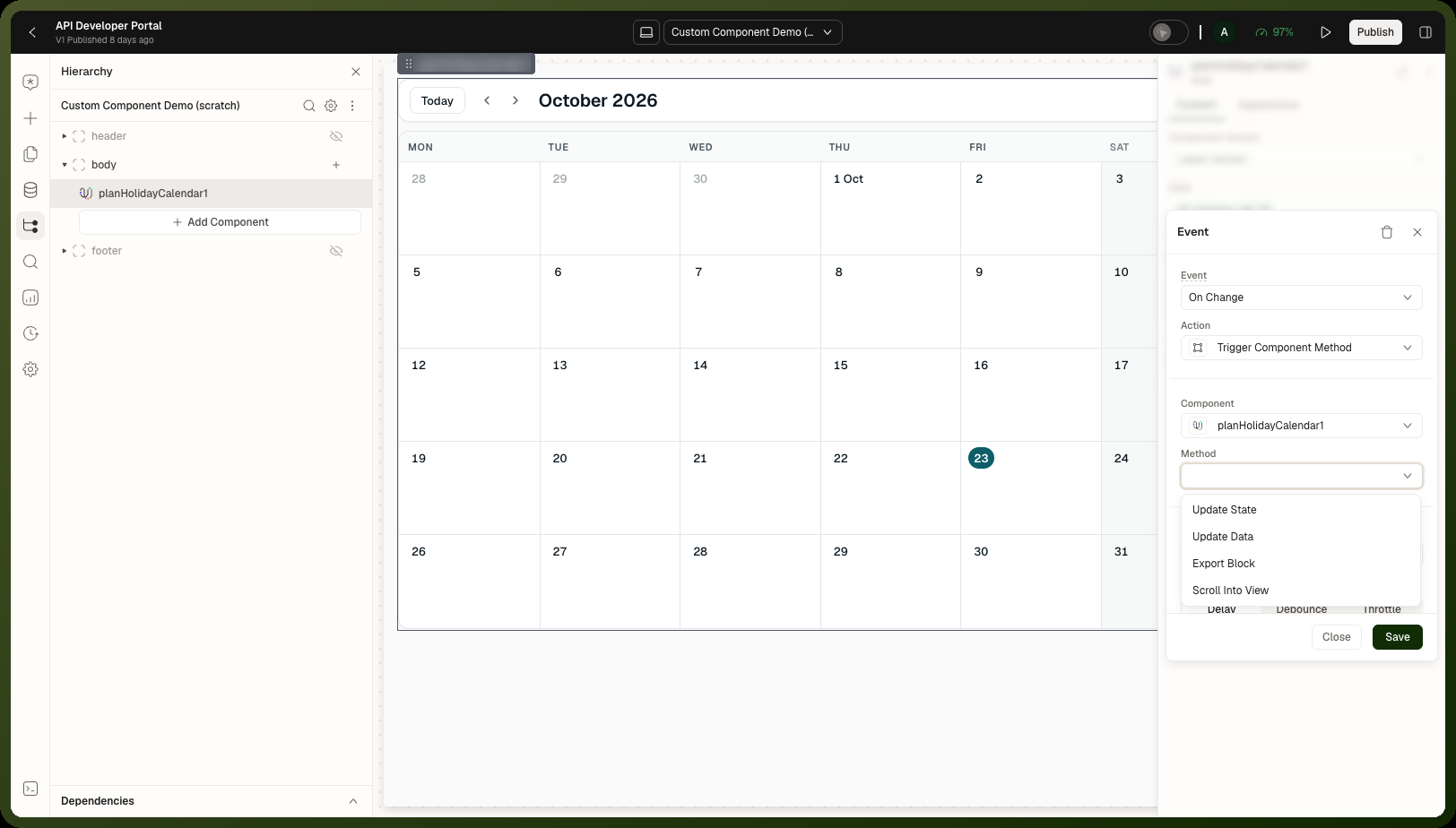
You can push data into a placed custom component from any action with Trigger Component Method. Its method list shows four methods — Update State, Update Data, Export Block and Scroll Into View. The two that write data into the component are:
| Method | What it does |
Update State | Writes to the component's own top-level state. |
Update Data | Writes into the component's data at specific paths using path-and-value pairs. Merges rather than replaces — setting a nested field leaves siblings untouched. Useful for form-like components that need one field patched from elsewhere on the page. |
Both are available under Trigger Component Method in any action's configuration.
Development Version Is Blocked
If the canvas shows "Custom component blocked — The dev URL {host} isn't on this app's allowlist", use the Allow & reload action on that message. It adds the host to the app's Content Security Policy allowlist (Settings → Security → Content Security Policy), turns on CSP enforcement if it was off, saves any pending changes to the open page, and reloads so the new policy takes effect. If saving fails, the message "Couldn't save the allowlist update. Please try again." appears.
Component Has No Deployed Versions
The version picker only lists versions that exist. A freshly registered component with just a test version cannot offer a deployed version until it is promoted. Ask the component's developer to promote a production version before you need to use it in a published page.
In the meantime, you can use the development version for testing in the builder, but don't publish with it.
Related Pages
Custom Components Overview — the full lifecycle and two-halves model
Registering & Versioning — creating and managing versions