


How Events and Actions Work
You make an app interactive by attaching events to a component (or to the page itself) and giving each event one or more actions. An event is the trigger — a click, a value change, a page load. An action is what runs in response — navigate, run a data source, set a variable, open a modal.
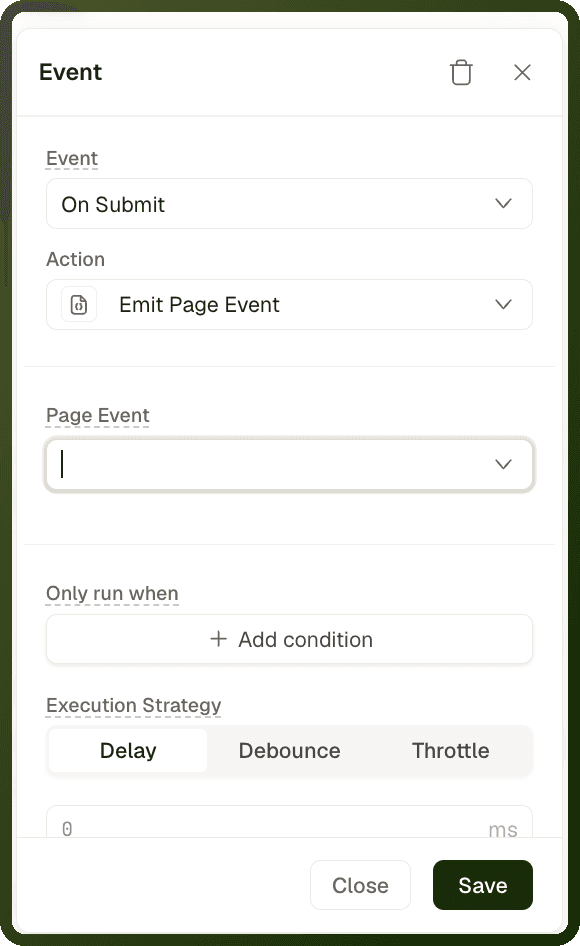
You configure interactions in a component's Interactions section: click + (Add Interaction), choose the Event, then choose the Action. For page-wide triggers, open the page settings and use the Events list in its Interactions section. Actions on the same event run in order, top to bottom.
Note: Where to configure: Application builder → select a component → its Interactions section in the properties panel → + (Add Interaction) → Event and Action. Follow-up actions go under Callbacks → On Success / On Failure.
Event Node Anatomy
Internally, each event-action pair is stored as a node in the component's events array. Understanding this shape helps when reading generated configurations or debugging unexpected behavior.
JSON — event node structure
{ "eventType": "onClick", "id": "Evt_6VRjl", "action": { "actionType": "showNotification", "payload": { "type": "success", "title": "Saved successfully" }, "id": "act_674C5" } }
Key facts about the node shape:
eventType — the exact camelCase event key (e.g.
onClick,onChange,onSubmit). The click event is alwaysonClick— lowercase "on", uppercase "C".id — platform-minted identifier beginning with
Evt_orevt_.action — a single action node. Multiple actions on the same event are sibling entries in the array sharing the same
eventType, executed in array order.
Event Types
Each component exposes the events that make sense for it. The table below covers the most common ones.
Event Key | Trigger | Available On |
|---|---|---|
onClick | User clicks the component | Most interactive components |
onChange | Value changes in an input or select | Text Input, Select, Checkbox, Date Picker, etc. |
onSubmit | Form is submitted | Form block |
onMouseEnter | Cursor moves over the component | Most visible blocks |
onOpen / onClose | Component opens or closes | Modal, Drawer, Bottom Sheet |
onFocus / onBlur | Component gains or loses keyboard focus | Input fields |
onRowSelect | A table row is selected | Table block |
onPageChange | Table pagination changes | Table block |
onClickCell | A table cell is clicked (On Click Cell) | Table block |
onChange | A table cell's value changes (On Change Cell Value). The Table block uses the same onChange key for this event | Table block |
onStepChange | Active step changes | Stepper block |
onFilterChange | Filter criteria change | Filters component |
onFileUpload | File upload completes (On File Uploaded) | File Upload block |
onDataPointClick | User clicks a data point on a chart | Chart blocks |
onPageLoad | Page finishes mounting | Page-level events |
onPageFocus | Browser tab regains focus | Page-level events |
onKeyboardShortcut | A configured keyboard shortcut fires | Page-level Keyboard Shortcuts |
onReceiveMQTTEvent | MQTT message received on a subscribed topic | Page-level events |
onTimerExpire | Timer block countdown ends | Timer block |
onSuccess / onFailure | Data source completes or errors | Data source events |
Action Catalog
The action picker groups actions by category. The list below shows every action on a page, with the label you see in the builder. Some actions appear only in mobile apps, and integration actions appear only when that integration is enabled for the app. App-level events offer a smaller set.
Data Actions
Action | Builder Label | What it does |
|---|---|---|
controlDataSource | Re-runs or refreshes a data source on demand | |
controlBlockMethod | Calls a named method on a target block (submit form, scroll into view, export as image, etc.) | |
triggerFunction | Executes a manual page or app function | |
executeScript | Runs JavaScript inline | |
logToDebugger | Writes a line to the builder's Dev Tools (Pulse tab) |
Navigation Actions
Action | Builder Label | What it does |
|---|---|---|
navigate | Go to an external URL or raw path | |
navigateToPage | Go to another page in the same app | |
navigateBack | Go back in browser or app history | |
setURLParameters | Update the current page's query string without navigating | |
openShareDialog | Open the device or browser share sheet |
Block Control Actions
Action | Builder Label | What it does |
|---|---|---|
controlModal | Open or close a Modal block | |
controlDrawer | Open or close a Drawer block | |
controlDrawerNavigator | Open or close the app's navigation menu | |
controlBottomSheet | Control Bottom Sheet | Show or hide a Bottom Sheet block (mobile apps only) |
controlNotification | Open, close or toggle the notifications panel (web) or open the notifications page (mobile) | |
controlMediaViewer | Control Media Viewer | Open a full-screen viewer for one or more files |
controlMediaUploads | Capture a photo, upload files, or delete or reset uploads | |
controlWalkthrough | Start or stop a guided tour | |
controlStep | Move a running guided tour one step forward or back | |
controlBlockSelection | Start or stop component-selection mode on the page | |
submitForm | Submit a Form block |
State Actions
Action | Builder Label | What it does |
|---|---|---|
setPageVariable | Write a page or app variable | |
setInterfaceSessionStorage | Write to or clear session storage | |
setLocalStorage | Write to or clear local storage |
Event Actions
Action | Builder Label | What it does |
|---|---|---|
emitPageEvent | Emit Page Event | Send one of the page's declared events to whatever hosts or embeds it |
sendCustomEvent | Record one of the app's predefined custom analytics events | |
sendMQTTEvent | Publish a message to a configured MQTT topic |
User Interaction & Sharing Actions
Action | Builder Label | What it does |
|---|---|---|
showNotification | Display a toast/snackbar message | |
copyToClipboard | Write a value to the clipboard | |
controlUser | Run an operation on the signed-in user, such as logout | |
controlUserLocation | Capture or track the device's location | |
shareEntityRecord | Open the share dialog for a record so the user can give others access | |
importObjects | Open the import wizard for an object | |
exportData | Export records to CSV, XLS or XLSX | |
downloadFile | Download a file from a URL |
Mobile Actions (mobile apps only)
Action | Builder Label | What it does |
|---|---|---|
manageBiometrics | Enroll, revoke or verify biometric login | |
controlBuild | Download an over-the-air update, restart the app, or open the debug menu | |
controlDevicePermissions | Check or request a device permission | |
controlOfflineMode | Sync or reset the device's offline database | |
controlPushNotifications | Register the device for push notifications | |
mobileUtils | Preload images for upcoming screens |
Apps & Integrations (shown only when the integration is enabled)
Action | Builder Label | What it does |
|---|---|---|
controlUAEPass | Control UAE Pass | Start UAE Pass sign-in (mobile apps only) |
controlRazorpay | Open the Razorpay payment sheet (mobile apps only) | |
controlCleverTap | Record an analytics event in CleverTap (mobile apps only) | |
controlYellowAI | Open or close the Yellow.ai chatbot (mobile apps only) |
Action Node Structure
Every action — regardless of type — follows the same node shape:
JSON — full action node
{ "actionType": "showNotification", "payload": { "type": "success", "title": "Record saved", "description": "Changes were applied." }, "id": "act_674C5", "runCondition": { "type": "filter", "payload": { "operator": "AND", "filters": [ { "property": "{{ var_isAdmin['value'] }}", "filter": { "operator": "EQUAL", "value": "true" } } ] } }, "onSuccessActions": [ { "actionType": "navigate", "payload": { "path": "/dashboard" }, "id": "act_abc1" } ], "onErrorActions": [ { "actionType": "showNotification", "payload": { "type": "error", "title": "Failed" }, "id": "act_abc2" } ] }
Field | Builder label | Type | Required | Description |
|---|---|---|---|---|
actionType | Action | string | Required | The exact machine ID of the action (e.g. |
payload | The action's own fields | object | Required | Action-specific parameters. Fields differ per |
id | — | string | Required | Platform-minted identifier ( |
runCondition | Only run when | ConditionObject | Optional | If provided, the action only runs when this condition evaluates to true. Must be an object ( |
onSuccessActions | Callbacks → On Success | Action[] | Optional | Actions to run after this action succeeds. One level deep only. |
onErrorActions | Callbacks → On Failure | Action[] | Optional | Actions to run if this action fails. One level deep only. |
delayDuration | Time Interval (in ms) | number (ms) | Optional | Milliseconds to wait before running, or the debounce/throttle window. |
executionType | Execution Strategy (Delay, Debounce, Throttle) | string | Optional |
|
Sequential vs Callback Execution
UnifyApps gives you three ways to chain actions. Choose based on whether subsequent actions depend on the prior action's success:
1. Sequential Steps (same event)
When you add multiple actions to one event, they run as sibling entries in array order. Use this for "do A then B" where B does not depend on whether A succeeded.
Pattern — sequential actions on onClick
{ "events": [ { "eventType": "onClick", "id": "Evt_001", "action": { "actionType": "setPageVariable", "payload": { "variableId": "var_abc", "operationDetails": { "operation": "SET", "value": "active" } }, "id": "act_001" } }, { "eventType": "onClick", "id": "Evt_002", "action": { "actionType": "showNotification", "payload": { "type": "success", "title": "Done" }, "id": "act_002" } } ] }
2. Success/Failure Callbacks
Use onSuccessActions and onErrorActions on an action node when the follow-up only makes sense after the parent succeeds or fails. For example: save a record → on success navigate away, on failure show an error.
Warning: One level only. Callback actions cannot carry their own onSuccessActions/onErrorActions. The builder enforces this limit. A plain sibling event entry is not a second stage: it runs whether or not the earlier action succeeded. For a stage that depends on a data source call, put it on the data source's own On Success / On Failure events (see Data Source Events below). Otherwise, have the callback write a page variable and gate the later sibling entry with an Only run when condition on that variable.
3. Data Source Events
When you want to react to an async data source completing, put the follow-up actions on the data source's own onSuccess / onFailure events — not inside the action that triggered the data source. This is the correct pattern for "call an API, then show a success toast."
Conditional Execution
Each action supports an Only run when condition, stored as a runCondition — a condition object that gates whether the action runs. If the condition evaluates to false, the action is skipped without error.
The condition object takes one of two forms:
Form 1 — boolean literal
{ "type": "boolean", "payload": true }
Form 2 — filter group (role-based gate)
{ "type": "filter", "payload": { "operator": "AND", "filters": [ { "property": "{{ userContext.roles.some((role) => role.name === 'admin') }}", "filter": { "operator": "EQUAL", "value": "true" } } ] } }
Execution Strategy: Delay, Debounce, Throttle
Each action can have an execution strategy that rate-limits when it fires:
| Strategy | Behavior | Use Case |
| delay | Waits delayDuration ms, then runs | Show a tooltip after a 500 ms hover |
| debounce | Resets the timer on each trigger; runs after the quiet period | Search-as-you-type — only fire after typing stops |
| throttle | Runs at most once per delayDuration window | Scroll events or rapid button clicks |
Managing Events and Actions
In the builder's Interactions panel you can:
Reorder actions by dragging within the same event.
Copy an action to reuse its configuration elsewhere.
Disable an event or action without deleting it — disabled items are skipped at runtime and shown dimmed with a tooltip. Use this to temporarily switch off behavior while testing.
To ask for confirmation before a destructive action runs, open a Modal with Control Modal instead, and put the destructive action on the modal's confirm button.
Tip: Put a navigate or navigateToPage action last in a sequential chain. The runner continues executing later nodes even after a same-tab navigation (it does not cancel the loop), so a navigate mid-chain can lead to unexpected behavior.
End-to-End Example: Save & Navigate
A button that saves a record, shows a success toast, then navigates to a list page — or shows an error on failure. Trigger Data Source only reports that it started the data source, not whether the save worked, so the follow-up actions go on the data source's own events:
On the button: Add an On Click interaction with a Trigger Data Source action for
ds_saveRecord.On the data source's On Success event: Add a Show Snackbar action ("Record saved"), then a Go to Page action for the list page.
On the data source's On Failure event: Add a Show Snackbar action with type error ("Save failed").
Complete event handler — save button
{ "eventType": "onClick", "id": "Evt_saveBtn", "action": { "actionType": "controlDataSource", "payload": { "dataSourceId": "ds_saveRecord", "method": "trigger" }, "id": "act_save" } }
Data source event handlers — ds_saveRecord
These are set in the data source's Event Handlers section and stored on the data source:
{ "callbacks": { "successEvents": [ { "eventType": "onSuccess", "id": "Evt_saved", "action": { "actionType": "showNotification", "payload": { "type": "success", "title": "Record saved" }, "id": "act_toast" } }, { "eventType": "onSuccess", "id": "Evt_goList", "action": { "actionType": "navigateToPage", "payload": { "pageId": "e_recordListPage" }, "id": "act_goList" } } ], "failureEvents": [ { "eventType": "onFailure", "id": "Evt_failed", "action": { "actionType": "showNotification", "payload": { "type": "error", "title": "Save failed" }, "id": "act_error" } } ] } }