


Overview
The Control Media Uploads action brings files into your app. It can open the camera, open a file picker, delete an uploaded file, or clear all uploads on the page.
Uploaded files are stored against the block whose event runs the action. For example, if you add the action to a Button's On Click event, the files are stored under that Button's ID. The action itself returns nothing; read the files through a binding such as {{ mediaUploads['b_uploadButton'] }}.
Operations
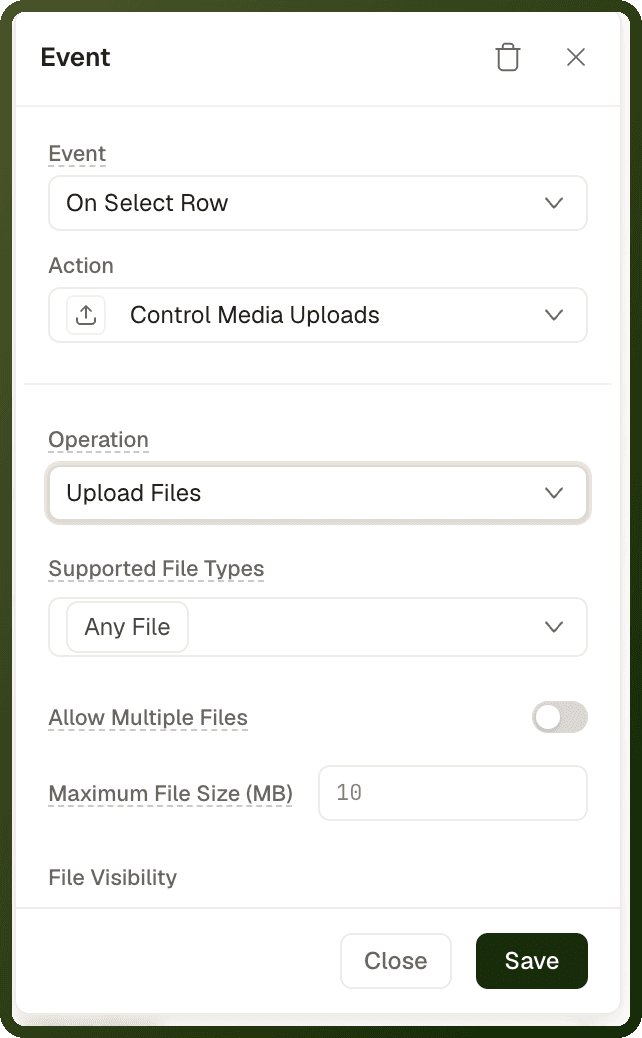
Choose what the action does in the Operation field. The default is Upload Files.
Operation | What it does |
|---|---|
Capture Photo | Opens the camera on a phone or tablet and uploads the photo. On a desktop browser it opens a file picker limited to images. |
Upload Files | Opens the file picker and uploads the selected files. |
Delete File | Removes one uploaded file, identified by its File ID. |
Reset Media Uploads | Clears the uploads of every block on the page, not just one. |
In mobile apps, the list also has Upload from Gallery, which lets users pick photos or videos from the device gallery.
Settings
The fields you see depend on the operation you choose.
Field | Operations | Description |
|---|---|---|
Supported File Types | Upload Files | The file types users can upload. Files of other types are removed and listed in the mediaUploads errors. To tell the user, add a Show Snackbar action to On Failure. |
Allow Multiple Files | Upload Files | Lets users select more than one file. Off by default. |
Max Files | Upload Files | The maximum number of files. Appears when Allow Multiple Files is on. |
Maximum File Size (MB) | Upload Files | The largest file allowed, in MB. Larger files are removed and listed in the mediaUploads errors. To tell the user, add a Show Snackbar action to On Failure. |
File Visibility | Upload Files | Who can access the uploaded files. The default is Restricted. The options available depend on your app's storage. |
Folder Path | Upload Files, Capture Photo | The folder in your app's storage to save uploads in. Leave it empty to give every upload its own folder. If you name a folder, the file is saved exactly there, and a file with the same name in the same folder replaces the previous one. Letters, numbers, dots, dashes, underscores and / are kept; every run of any other characters becomes one underscore. |
Quality | Capture Photo | Image compression quality from 0 to 1. Lower values upload faster. Applies in mobile apps; ignored on the web. |
File ID | Delete File | The ID of the file to delete. |
In mobile apps, Upload from Gallery also uses Max Files, Maximum File Size, Quality and Allow Editing, plus a Media Type setting (Photos, Videos or Photos + Videos).
Component Methods and Completion Event
The File Upload component exposes two methods you can call with Trigger Component Method:
Remove File — removes one file from the component. Pass the file's ID.
Remove Files — clears all files from the component. Call it without a file ID.
On File Uploaded fires once all files in a batch finish uploading. Use it under the component's Interactions to trigger follow-up actions, such as saving the uploaded file reference to a record. The uploaded file data is available through the component's Files state, whose entries include ID, Name, File Extension, Mime Type, Size, Progress, Is Uploaded, URL, Source, and Source Type.
These methods and the event belong to the File Upload block, not to this action. The two keep separate files: the File Upload block holds its files in its own Files state, while this action stores files in mediaUploads under the block that ran it. Delete File and Reset Media Uploads don't remove files from a File Upload block, and a File Upload block can't be read through mediaUploads. Use one mechanism per feature. For the block itself, see File Upload.
How success and failure work
If the user closes the picker without choosing a file, neither the success nor the error actions run.
If some files upload and some fail, the success actions run. The error actions run only when every file fails.
If the user selects more files than Max Files allows, the first files up to the limit are uploaded and the rest are dropped.
If the user denies camera access, the error actions run.
Files the action did not keep are listed at {{ mediaUploads['errors']['b_uploadButton'] }}, where b_uploadButton is the block that ran the action. Each entry includes the file name and the reason it was not kept.
Step-by-Step Usage Guide
Add the action to a block event: Select a Button (or another block) and add Control Media Uploads to its On Click event.
Choose the operation: Set Operation to Capture Photo or Upload Files, and fill in the settings for it.
Use the uploaded files: Bind
{{ mediaUploads['<block ID>'] }}wherever you need the files, for example in an Image block's source or a Submit Form payload.Handle the result: In the block's Interactions section, expand Callbacks under the event. Click Add Action next to On Success or On Failure to add the follow-up actions. Keep in mind that a cancelled picker runs neither.
Examples
Take a photo
{ "actionType": "controlMediaUploads", "payload": { "operation": "capturePhoto" } }
Upload up to five PDFs under 10 MB
{ "actionType": "controlMediaUploads", "payload": { "operation": "uploadFiles", "config": { "supportedFileTypes": ["application/pdf"], "multipleFiles": true, "maxFiles": 5, "maxFileSize": 10 } } }
Warning: Reset Media Uploads clears the whole page. It empties the uploads of every block on the page. To remove a single file, use Delete File with that file's ID.