


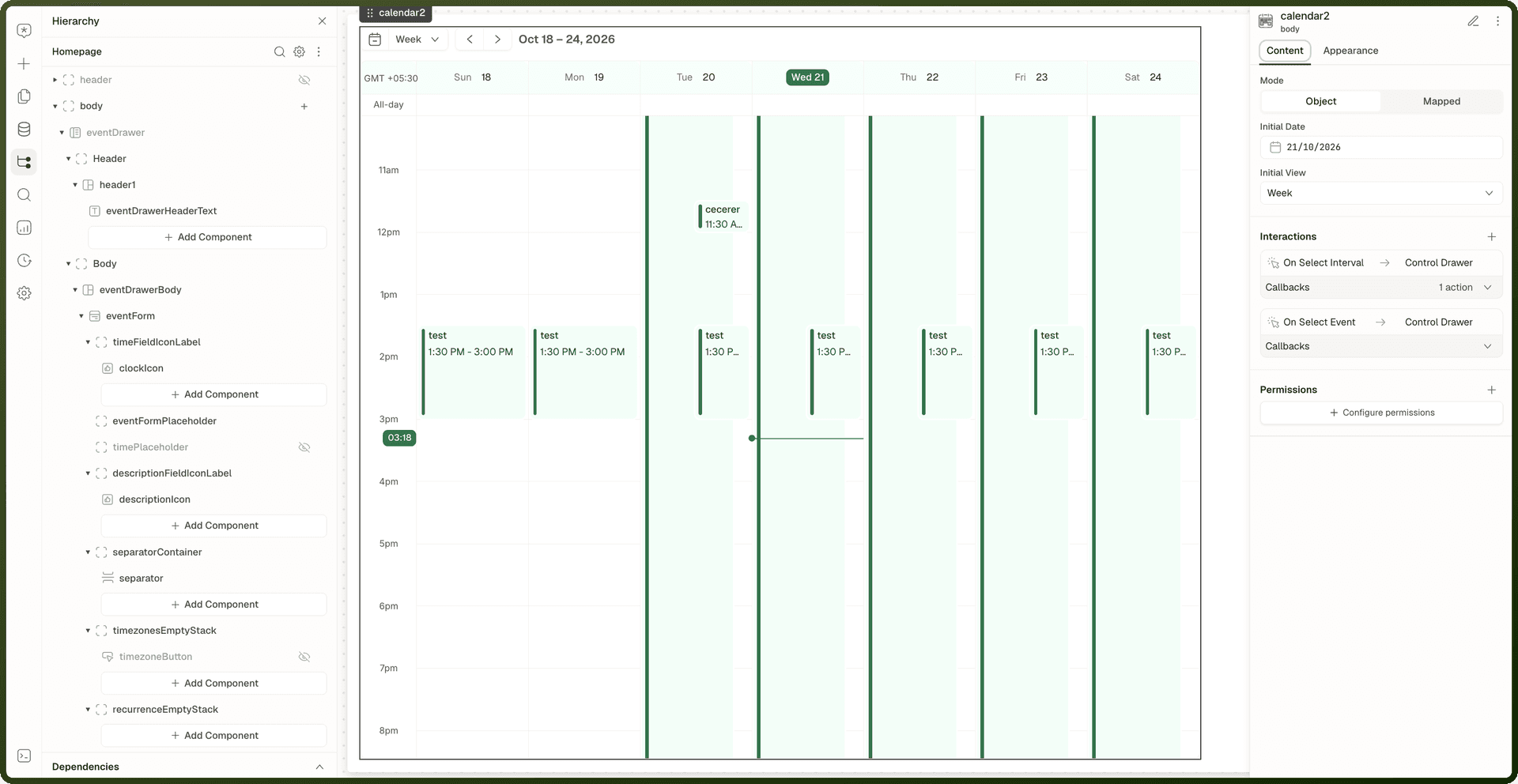
The Calendar block shows events on a week, day or month grid. Users can select time slots, click events, and drag events (or other blocks) onto the calendar. Its defining choice is the Mode: where events come from.
Mode | Description | When to Use |
|---|---|---|
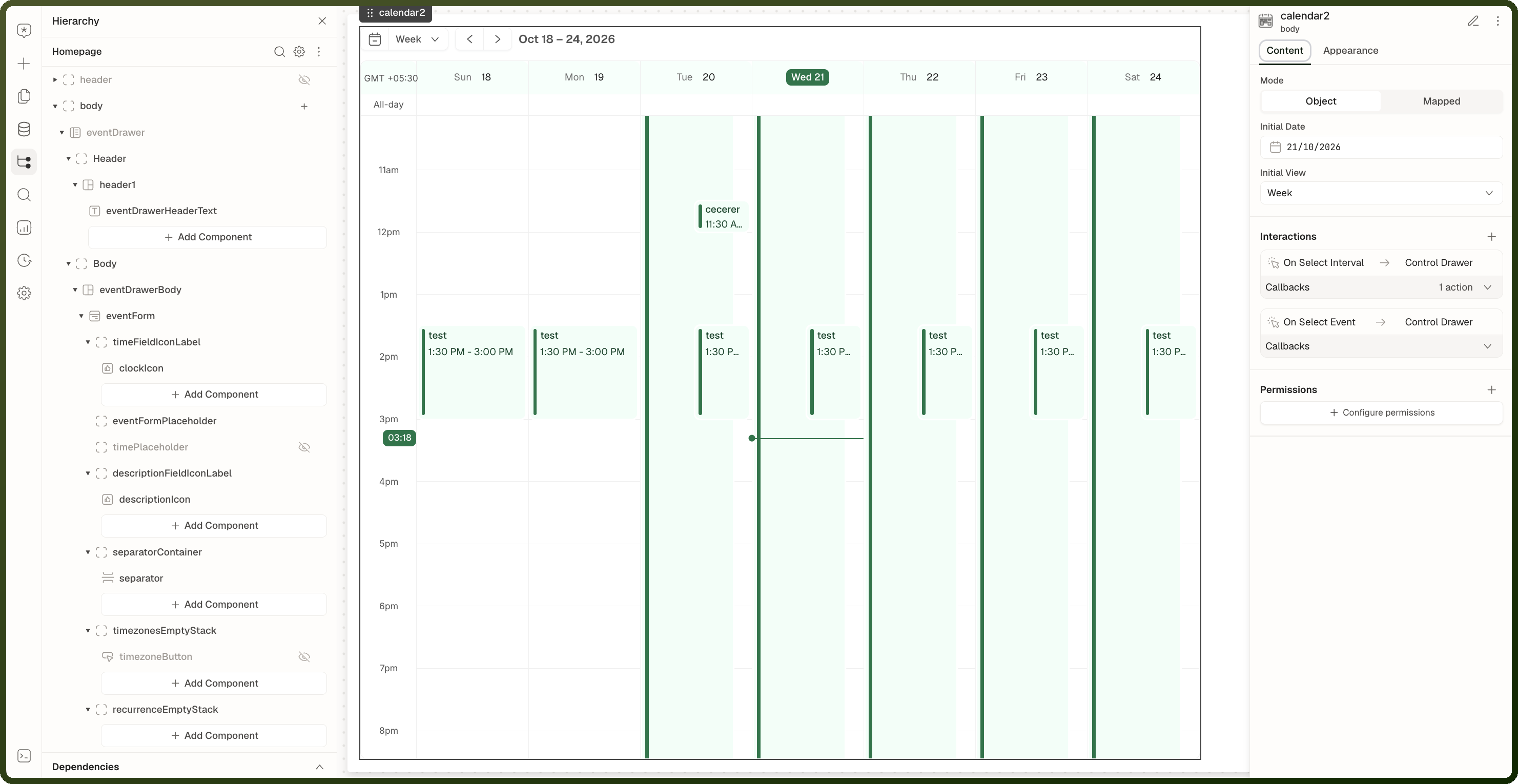
Object | Events come from the platform's built-in Events object. Recurrence, invitees, locations and notifications work out of the box. When you add the block, it arrives with an event card and an event-creation drawer, pre-wired to open when the user selects a time slot. It also arrives with a preview drawer pre-wired to On Select Event, so clicking an event opens it. | You want a ready-made meeting or task calendar without building your own event store. |
Mapped | You bind any list of records and map which fields supply the event's Id, Start, End and Title. | You have existing data (appointments, tasks, bookings) and want to show it on a calendar. |
Tip: In Object mode, event creation is handled by the scaffolded event-creation drawer. In Mapped mode, the block displays your data; to create or change records, run your own actions from the calendar's events.
Calendar Views
View | Description |
|---|---|
Month | Shows a full month grid. Events appear as compact bars on their dates. Best for a high-level overview. |
Week | Shows a 7-day grid with hour rows. Events appear as time-block cards positioned by start and end time. Best for scheduling. |
Day | Shows a single day with hour rows. Gives the most detail for a busy day. |
Set Initial View to choose which view opens on load. Web apps offer Week (default), Day and Month. Mobile apps offer Single-Day, Two-Day and Month.
Content Properties — Object Mode
Property | Description |
|---|---|
Mode | Set to Object (the default). Events come from the built-in Events object. |
Initial Date | The date the calendar opens on. Defaults to today. Bindable. |
Initial View | The view shown on load: Week, Day or Month on web; Single-Day, Two-Day or Month on mobile. |
Interactions | The block's events (see Events below). Object mode arrives pre-wired: selecting a time slot opens the event-creation drawer, and clicking an event (On Select Event) opens a preview drawer. |
Permissions | Restricts who can see or use the calendar. |
Content Properties — Mapped Mode
Property | Required | Description |
|---|---|---|
Mode | Required | Set to Mapped. |
Data | Required | The list of records to render as events. |
Id | Required | The field that uniquely identifies each event. |
Start | Required | The field for the event start: an ISO 8601 date-time or epoch milliseconds. |
End | Required | The field for the event end, in the same formats as Start. |
Title | Optional | The field shown as the event title. |
All Day | Optional | A true/false field. True puts the event in the all-day row. |
Parent Event Id | Optional | For a recurring event's occurrence, map the field that holds the Id of the event it repeats (its parent). An occurrence with no colour of its own uses the parent's colour. |
Original Start Time | Optional | Map the field that holds the occurrence's original start time. It's passed into the event ( |
Start Timezone | Optional | The timezone for the event start time. It's passed into the event; the grid always draws in the browser's own time zone. |
End Timezone | Optional | The timezone for the event end time. It's passed into the event only. |
Initial Date / Initial View / Interactions / Permissions | Same as in Object mode. |
Appearance Properties
Property | Description |
|---|---|
Visibility | Shows or hides the whole block. |
Styles | Width/height, margin, padding and visibility. |
Event colours aren't a builder setting. Each user picks event colours in the calendar, and those colours are saved as that user's own preference.
Events
Event | Description |
|---|---|
On Select Interval | Fires when the user clicks or drags across empty time slots. The selection is stored in |
On Select Event | Fires when the user clicks an event. The event is stored in |
On Drag Event | Fires when the user starts dragging an event. |
On Drop Event | Fires when the user drops a dragged event on a new slot. |
On Drop Block | Fires when another block is dropped on the calendar. Adding this handler is what enables dropping. |
All five events are available in both modes. In mobile apps, only On Select Interval and On Select Event fire.
Methods
Method | Description |
|---|---|
Refetch Data | Reloads the calendar's events and each user's event colours. |
Go To Date | Navigates the calendar to the given date. |
Select Interval | Selects a time interval (start and end, plus optional title and all-day flag), as if the user dragged it. |
Unselect Interval | Clears the selected time interval and its highlight. |
Unselect Item | Clears the selected event. |
Exposed State
State Property | Type | Description |
|---|---|---|
| string | The active view. |
| date | The visible date range. Updates whenever the user changes view or navigates. |
| string | The viewer's device timezone, captured when the page loads. |
| object | The selected empty slot: |
| object | The event the user clicked. |
| object | The event being rendered. Available to blocks inside the event card. |
Behavior & Gotchas
⚠ Mapped mode: load the visible range yourself
The calendar shows whatever data you bind. To load only the visible range, bind your data source's date filters to {{ calendar1.currentView.start }} and {{ calendar1.currentView.end }}. They update whenever the user changes view or navigates.
⚠ Date fields must be ISO 8601 strings or epoch milliseconds
The Calendar block parses start and end field values as dates. Inconsistent formats (e.g., mixing MM/DD/YYYY and ISO format) will cause events to appear on the wrong date or not appear at all. Standardize your date format in the data source.
⚠ No events render until Id, Start and End are mapped
In Mapped mode, the calendar shows no events at all until the Id, Start and End mappings are set, even if data is bound.
⚠ Interval selection and event selection clear each other
Selecting an empty slot clears selectedItem, and clicking an event clears selectedInterval. Check which one is set before you read it.
⚠ Dropping blocks needs an On Drop Block handler
Dragging another block onto the calendar does nothing until you add an On Drop Block handler.
Common Patterns
Appointments Calendar (Mapped + Drill-Down)
Set up the data source: Query appointments, with the date filter bound to
{{ calendar1.currentView.start }}and{{ calendar1.currentView.end }}. Return id, start, end and patient name fields.Bind to Calendar (Mapped): Set Mode = Mapped. Bind Data, then map Id, Start, End and Title = patient name.
Open appointment details: On On Select Event, open a detail drawer bound to
{{ calendar1.selectedItem }}.
New Event Quick-Create
Handle On Select Interval: On On Select Interval, open a drawer or dialog containing a form for the new event.
Pre-fill the times: Bind the form's start and end fields to
{{ calendar1.selectedInterval.start }}and{{ calendar1.selectedInterval.end }}.Save and refresh: On form submit, call your API to create the event. After success, call the calendar's Refetch Data method so the new event appears.