Overview
MQTT (Message Queuing Telemetry Transport) is a lightweight publish/subscribe messaging protocol widely used in IoT, telemetry, and real-time operational systems. UnifyApps embeds an MQTT client that connects to your broker over WebSocket, subscribes to one or more topics, and makes incoming message payloads available as bindable state across the entire page.
The key advantage over polling data sources is that the connection is event-driven: the broker pushes a message to the app the moment a publisher sends it, instead of the app refetching on a timer. This eliminates unnecessary HTTP requests and reduces perceived latency to near-zero for latency-sensitive displays like sensor dashboards, live chat, and order tracking boards.
Note: UnifyApps connects to MQTT brokers over WebSocket (ws:// or wss://), not raw TCP. Ensure your broker has WebSocket listeners enabled (most modern brokers — Mosquitto, HiveMQ, EMQX, AWS IoT, Azure IoT Hub — support this). The default WebSocket port for MQTT is 8083 (plain) or 8084 (TLS).
Broker Configuration
Before adding MQTT listeners to a page, register the broker in App Settings → Integrations → MQTT. Each app can have multiple named broker configurations.
| Property | Type | Required | Description |
| name | string | Required (required) | Friendly label for this broker — used when selecting it in page/component settings. |
| brokerUrl | string (URL) | Required (required) | Full WebSocket URL of the broker, e.g. wss://broker.example.com:8084/mqtt. Plain-text URLs (ws://) are permitted only in development environments. |
| clientId | string | Optional (optional) | Client identifier sent to the broker. If left blank, UnifyApps auto-generates a unique ID per session (ua_<uuid>). Brokers reject duplicate client IDs — leave this blank unless your broker requires a fixed ID. |
| username | string | Optional (optional) | MQTT username for brokers with password authentication. |
| password | string (secret) | Optional (optional) | MQTT password. Stored as an encrypted app secret — never exposed in the builder UI after saving. |
| keepAlive | number (seconds) | Optional (optional) | PING interval to keep the connection alive. Default 60. Reduce for latency-sensitive use cases; increase to reduce broker load. |
| cleanSession | boolean | Optional (optional) | When true (default), the broker discards any queued messages for this client on disconnect. Set to false to receive messages sent while offline on reconnect (requires a persistent clientId). |
Adding a Subscription on a Page
After registering the broker, add subscriptions in Page Settings → Realtime → Add MQTT Subscription. Each subscription connects to one broker and subscribes to one or more topic filters.
| Property | Type | Required | Description |
| broker | enum (broker name) | Required (required) | The named broker configuration to connect to. |
| subscriptionId | string (identifier) | Required (required) | The name used to reference this subscription in binding expressions, e.g. sensorFeed. Must be unique on the page. |
| topics | array of strings | Required (required) | One or more MQTT topic filters to subscribe to. Wildcards are supported: + (single level), # (multi level). Example: factory/line1/+/temperature. |
| qos | 0 | 1 | 2 | Optional (optional) | Quality of Service level. 0 = at most once (fire-and-forget, lowest overhead); 1 = at least once (guaranteed delivery, possible duplicates); 2 = exactly once (guaranteed, highest overhead). Default 0. |
| payloadFormat | enum: raw | json | text | Optional (optional) | How to parse incoming payloads. json automatically parses valid JSON strings into objects. text returns the payload as a UTF-8 string. raw returns a byte array. Default json. |
| onMessage | action chain | Optional (optional) | Actions to run each time a message arrives. The event payload is { topic: string, payload: any, qos: number, retain: boolean }. Use this to update variables, call APIs, or trigger notifications. |
| onConnect / onDisconnect | action chain | Optional (optional) | Actions run when the WebSocket connection is established or lost. Useful for showing a connection-status indicator. |
| onError | action chain | Optional (optional) | Actions run on a connection or subscription error. Error details are available in {{ event.error }}. |
Binding MQTT Data
Each subscription exposes a bindable state object under its subscriptionId. Use double-brace binding expressions anywhere in the app to access the latest message or the full message history.
| Binding Expression | Type | Description |
| {{ sensorFeed.lastMessage.payload }} | any | The parsed payload of the most recent message received by this subscription. |
| {{ sensorFeed.lastMessage.topic }} | string | The exact topic the most recent message was published to. Useful when subscribing with wildcards. |
| {{ sensorFeed.lastMessage.timestamp }} | number (epoch ms) | Client-side timestamp (ms since epoch) when the message was received. |
| {{ sensorFeed.isConnected }} | boolean | true while the WebSocket connection to the broker is active. |
| {{ sensorFeed.messageCount }} | number | Running count of messages received since the page loaded. Resets on page navigation. |
Tip: The subscription only stores the last message. To build a scrolling log, use the onMessage action to append {{ event.payload }} to an array page variable. Bind a Repeatable or Data Table to that variable for a live-updating list.
QoS Levels Explained
QoS controls the message delivery guarantee between the broker and the client. Choose based on your application's tolerance for message loss vs. overhead:
| Level | Guarantee | Overhead | Use When |
| QoS 0 (At most once) | No acknowledgement — message may be lost on a bad connection | Lowest | High-frequency sensor data where occasional gaps are acceptable (temperature readings every 100ms) |
| QoS 1 (At least once) | Broker retransmits until ACK — duplicates possible | Medium | Order status updates, alerts where you need delivery but can handle deduplication |
| QoS 2 (Exactly once) | Four-way handshake ensures single delivery | Highest | Financial transactions, command-and-control messages where duplicates are dangerous |
Setting Up a Live Sensor Dashboard
Register the broker: Go to App Settings → Integrations → MQTT → Add Broker. Enter the broker's WebSocket URL (e.g.
wss://iot.acme.com:8084/mqtt), username, and password. Click Test Connection to verify before saving.Add a subscription on the page: Open the page in the builder. Go to Page Settings → Realtime → Add MQTT Subscription. Select the broker, set
subscriptionIdtosensors, and add topicfactory/+/temperature. Set QoS to1.Bind data to a chart: Add a Line Chart block. Bind its Data Source to a page variable
tempHistory(array). In theonMessageaction chain, add a Set Variable action: append{{ event.payload }}totempHistory. The chart refreshes on each append.Show connection status: Add a Tag block. Bind its Text to
{{ sensors.isConnected ? "Live" : "Disconnected" }}and its Color to{{ sensors.isConnected ? "success" : "error" }}. Viewers see a live/disconnected indicator in real time.Preview and test: Open Preview mode. Publish a test message to your broker. The chart should update immediately. Use Dev Tools → Traces to inspect the
onMessageaction chain execution for each incoming message.
Common Patterns
Pattern: Live order status board
Subscribe to topic orders/+/status. In onMessage, use a Set Variable action to update an object map keyed by order ID: {{ orders[event.topic.split('/')[1]] = event.payload }}. Bind a Data Table to the values of this map for a real-time status board — no page refresh needed.
Pattern: IoT device control panel
Subscribe to devices/+/state at QoS 1 for inbound device state. Use a Button block's onClick to call a Publish MQTT Message action (under Integration Actions) targeting devices/{{ deviceId }}/command to send control commands back to the device. Bind the button's disabled state to {{ !sensors.isConnected }} so commands only fire when connected.
Pattern: Chat application
Subscribe to a room topic like chat/{{ roomId }}/messages. Each message payload contains { senderId, text, timestamp }. In onMessage, append the payload to a messages array variable. Bind a Repeatable block to messages to render a scrolling chat feed. Use a Text Input + Button to publish new messages via the Publish action.
Polling vs MQTT Push
Both approaches can keep UI state current, but they have very different cost profiles:
| Dimension | Polling (Data Source) | MQTT Push |
| Latency | Bounded by the polling interval (typically 1–30s) | Near-zero — message arrives within milliseconds of publish |
| Server load | Proportional to number of viewers × polling rate | Fixed per connection — independent of update frequency |
| Setup | Only a REST/GraphQL endpoint required | Requires an MQTT broker with WebSocket support |
| Use case fit | Data changing every few seconds or slower | Sub-second updates, high-frequency telemetry, event-driven workflows |
Security Considerations
Warning: Use wss:// (WebSocket Secure) URLs in production environments. Plain ws:// connections transmit credentials and payloads in cleartext. UnifyApps will warn you if a plain-text broker URL is saved in a published app.
Credentials: Broker username and password are stored as encrypted app secrets and are never included in the compiled JavaScript bundle delivered to end users. They are injected server-side at connection time.
Topic permissions: Configure your broker's ACL rules to restrict which topics each app can subscribe to. UnifyApps cannot enforce topic-level permissions — that is the broker's responsibility.
Payload validation: Treat all incoming MQTT payloads as untrusted external data. Use Conditions on action chains to validate payload structure before acting on it.
Client ID collisions: If you set a fixed
clientIdand multiple users open the same app simultaneously, the broker will disconnect the earlier session. Use the auto-generated ID option (leave blank) unless your broker requires a fixed ID for ACL purposes.
Frequently Asked Questions
Does MQTT work on mobile (iOS/Android)?
Yes. The MQTT connection is established in the app's JavaScript runtime regardless of platform. On mobile, the connection persists while the app is in the foreground. When the app moves to the background, the OS may suspend the WebSocket — the subscription automatically reconnects when the app returns to the foreground. Use onConnect to re-subscribe or refresh state after a reconnect if your use case requires it.
How many concurrent MQTT subscriptions can I have per page?
There is no hard platform limit on subscription count, but each subscription opens or reuses a WebSocket connection to its broker. Multiple subscriptions to the same broker share a single connection — topics are multiplexed over it. Subscriptions to different brokers each maintain their own connection. Keep the number of distinct broker connections below five per page to avoid saturating mobile network budgets.
Can I publish messages from the app back to the broker?
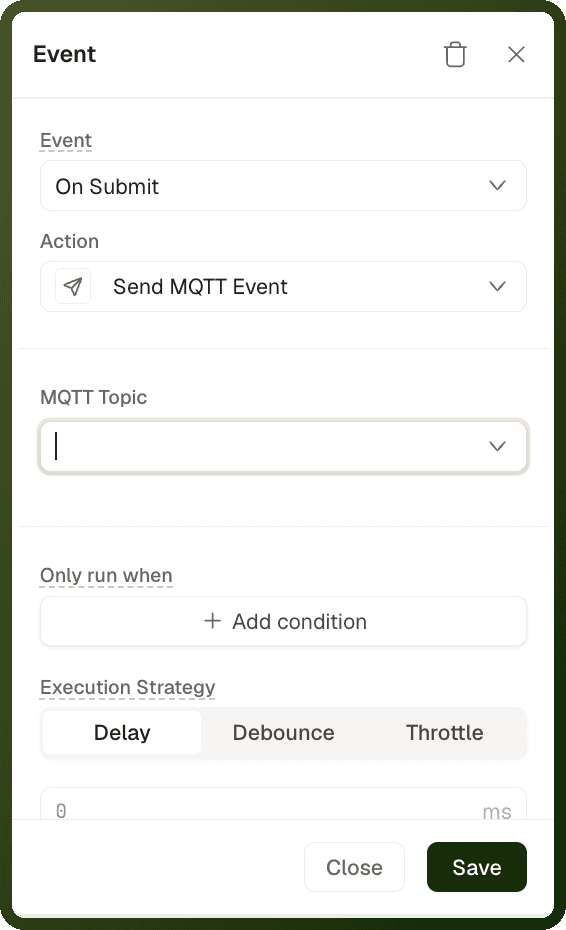
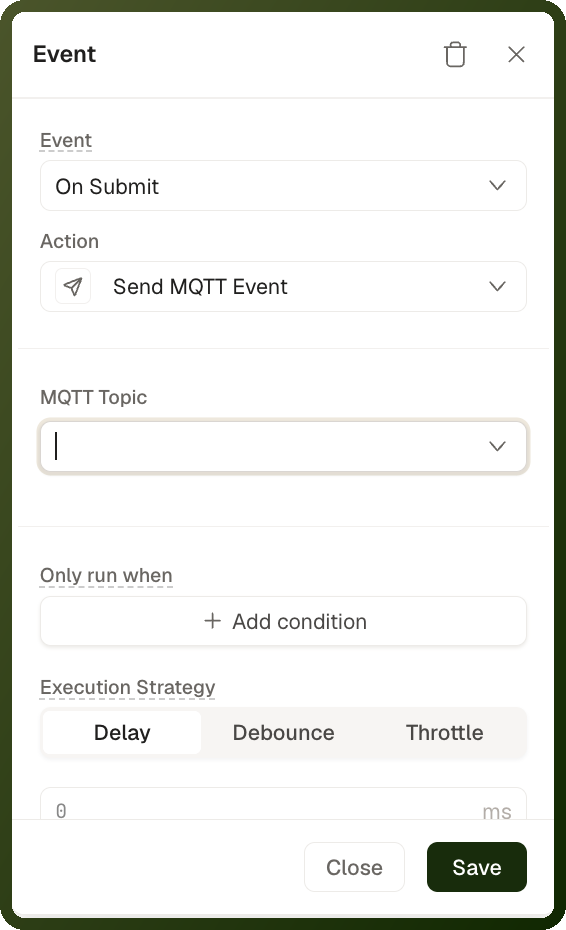
Yes. Use the Publish MQTT Message action, available under Integration Actions in any action chain. Configure the target broker, topic, payload (a binding expression or static JSON), and QoS. This enables bidirectional communication — for example, sending a command to a device or posting a chat message.
Related Pages
| Page | Relationship |
| Traces | Inspect onMessage action chain execution timing and payloads in the Dev Tools Traces panel |
| Page Variables | Store accumulated MQTT messages in array variables for binding to charts and lists |
| Webhook & API Actions | Call REST APIs within onMessage action chains to persist or process incoming data |