


Chat
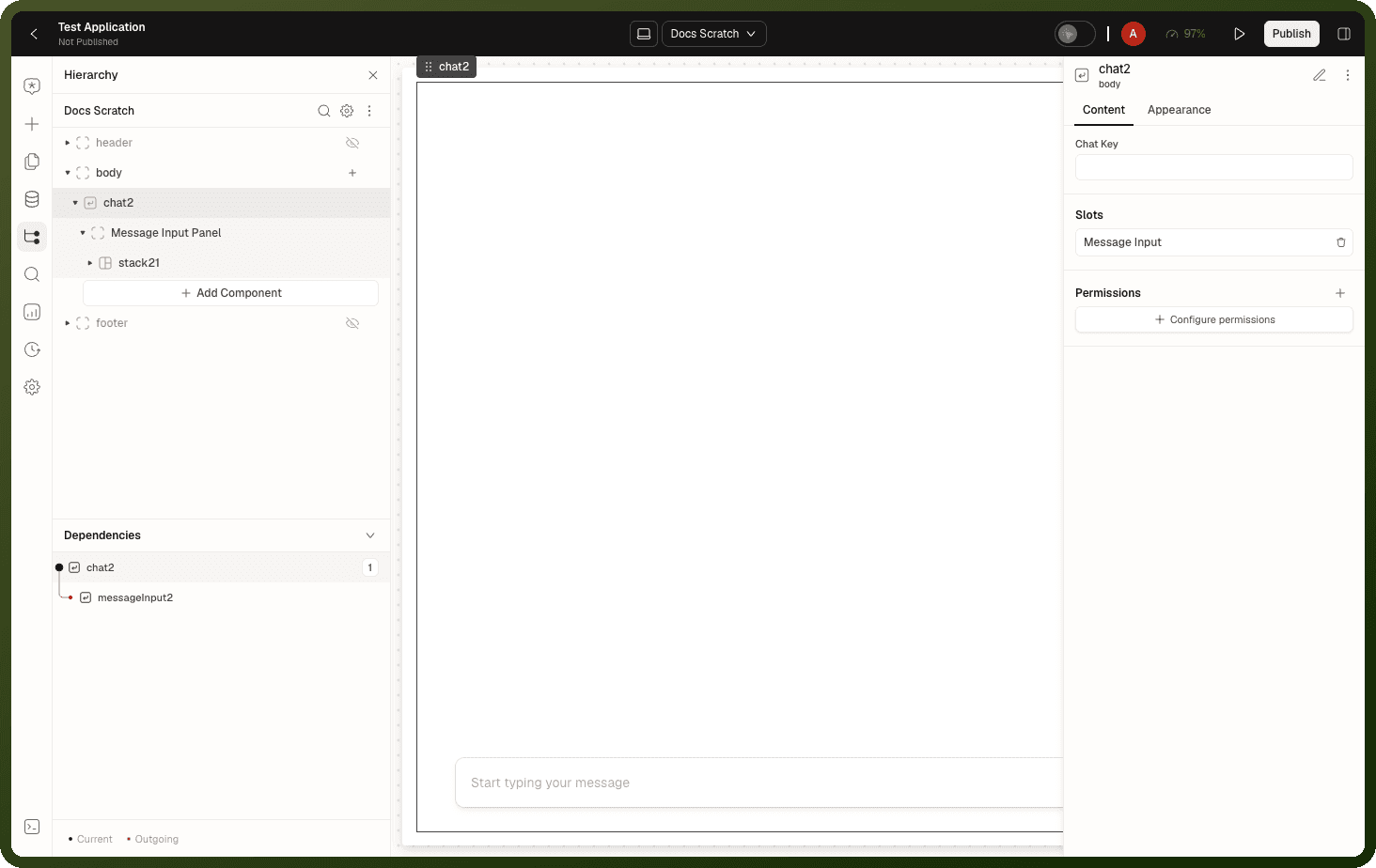
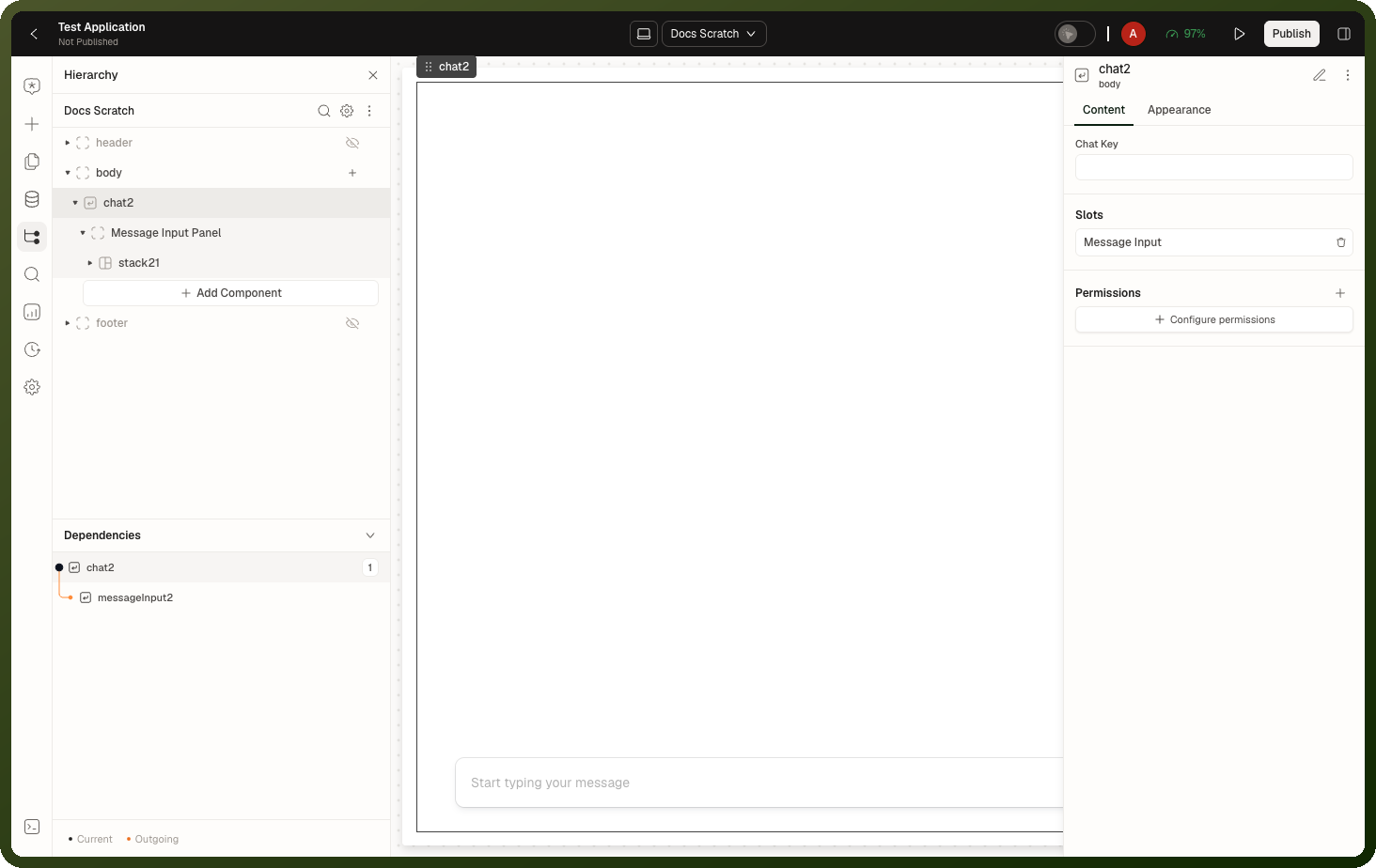
The Chat block renders a live, two-sided conversation — a scrollable thread of messages between a customer and your team — inside an interface. It is a composite block pre-wired with a message composer in its Message Input slot. Messages stream in real time, older history loads as you scroll up, and message bodies render as rich HTML.
Each conversation is a case: a conversation record with its own case ID, which you pass to the block as the Chat Key. The block loads history and sends replies through the automations set in your workspace's chat configuration; you don't pick automations on the block. If the workspace has no chat configuration, the block stays in a loading state and never shows the conversation.
Tip: When to use Chat: Embed a customer-support conversation on a page — a running thread where your team replies. Not for AI assistants (use Copilot Chat). Not for threaded comments on records (use the comment blocks). If you only need the composer box without the thread, use Message Input.
Properties
Content
Property | Type | Default | Description |
|---|---|---|---|
|
| — | Shown as Chat Key. The ID of an existing conversation (case) to show. Leave empty to start a new conversation; the case is created when the first message is sent. |
|
| Stack holding a Message Input (attachments + Send actions) | The composer docked below the thread. Already wired: its Send action's On Click calls the Chat's Send Message method with the composer's text and attachments, so you don't need to add anything. Restyle or extend the blocks inside. |
Appearance
| Property | Type | Default | Description |
layout | "BUBBLE" | BUBBLE | Message bubble styling. Fixed to Bubble — not exposed in the inspector. |
visibility | condition | — | Shows or hides the block. |
Methods
| Method | Params | Effect |
Send Message | message, attachments | Programmatically sends a message into the conversation. |
Exposed State
State key | Type | Description |
|---|---|---|
| string | The active conversation's case ID. For a new conversation, it is filled in once the first message is sent. It is not saved — store it yourself in the action that sends the first message. |
Behavior & Gotchas
Note: The block fills in the case ID after the first message. For new conversations (no Chat Key set), after the first message is sent the block fills in {{ id.content.chatId }} with the created case's ID. This value is not saved anywhere — store it in your data in the action that sends the first message.
Comments
The Comments block is a complete commenting experience — composer, thread, and replies — in one block. Object mode attaches the thread to a record of one of your objects and handles loading/saving automatically. Mapped mode gives you two slots (a Comment Input and a Comment List) that you wire to your own data. Both modes support rich text or plain text, @-mentions, attachments, emoji, reply threads, and top-to-bottom or bottom-to-top display.
Tip: When to use: Add discussion to a record (ticket, document, task) with zero backend work — pick Object mode, select the object and record id. Use Mapped mode when comments live in your own tables or APIs. Use the standalone Comment Input or Comment List blocks directly when you need a layout this block's two-slot arrangement can't express.
Properties
Property | Type | Default | Description |
|---|---|---|---|
Source ( | Object or Mapped | Object | Object mode stores comments on a record for you. Mapped mode uses your own data. |
Select object ( | object selector | — | Object mode only. The object whose records carry the comment threads. |
Record Id ( | string | — | Object mode only. Which record's thread to show — typically a dynamic value like the current page's record id. |
Variant ( | Rich text or plain text | Rich text | Rich text (with a formatting toolbar) or plain text composing. |
|
|
| What pressing Enter does while writing. START_NEWLINE: Enter adds a line; cmd/ctrl + Enter sends. |
Add Ons
The Add Ons section of the Comments block turns on extra features. Switch on the ones you need and set their options there.
Add-on | What it does |
|---|---|
Reply to comment | Adds a reply action to each comment. |
Delete comment | Adds a delete action to each comment. |
Time Format | Sets how each comment's timestamp is shown. |
Attachments | Lets users attach files to a comment. |
Emoji Picker | Adds an emoji picker to the composer. |
Toggle Formatting | Lets users show or hide the formatting toolbar while writing. |
User Mentions | Lets users @-mention people, using the users you map. |
Comments — Mapped Mode
With Source set to Mapped, the block creates two slots for you: a Comment Input with an Add Comment action and a Comment List with a Reply add-on. Nothing is stored for you, so wire both:
Set Source to Mapped.
Select the Comment List slot and map its comments source (id, content, created time, attachments, user details). See Comment List below.
Select the Comment Input slot. In its On Add Comment event, save the comment to your data, then refresh the list's source.
On the Comment List, handle On Add Reply and, if you turn on Delete comment, On Delete Comment to save those changes.
Comments — Events
Event | Trigger | Available when |
|---|---|---|
| The user posts a comment. | Object mode |
| The user posts a reply. | Object mode |
| The user clicks a comment's attachment. Payload: | Object mode |
In Mapped mode, use the events of the Comment Input and Comment List slots instead.
Comments — Exposed State
State key | Type | Description |
|---|---|---|
| object | The attachment last clicked. |
| string | What the user typed after @ when User Mentions is on. |
Comment List
The Comment List block renders a thread of comments coming from your own data source. You map which fields hold each comment's id, content, timestamp, attachments, and author, and the block renders the conversation. It supports optional per-comment delete and reply actions, reply threads fetched on demand from a second source, and a configurable timestamp format. The block never stores comments itself — every add, reply, and delete raises an event for your app to persist.
Tip: When to use: Render a comment thread from any backend you own. Pair with Comment Input for the composer. Use Comments block instead when you want the whole experience pre-wired in one block.
Properties
| Property | Type | Default | Description |
data | source + field mappings | — | Comment source with field mappings: id, content, createdTime, attachments, and user details (name, profileImageUrl). |
addOns.deleteComment | toggle | — | Adds a delete action to each comment. |
addOns.replyComment | toggle | — | Adds a reply action with its own composer and a separate replies source. |
addOns.datetimeFormat | format string | — | Controls how each comment's timestamp is displayed. |
size | "sm" | "md" | md | Comment density. |
Events
Event | Trigger |
|---|---|
| User clicks the delete action on a comment. Payload: |
| User submits a reply in the reply composer (set on its Add Reply action). Payload: the reply text, attachments and parentCommentId. |
| User clicks a comment's attachment. Payload: |
The list removes a deleted comment and shows a new reply immediately, before your event runs. Save the change in the event, or the next data refresh brings the old state back.
Comment List — Exposed State
State key | Type | Description |
|---|---|---|
| string | ID of the last deleted comment. |
| string | Text of the last reply sent. |
| array | Files attached to the last reply. |
| string | The comment the reply was posted under. |
| string | The comment whose replies are being fetched. Filter your replies source with it. |
Comment Input
The Comment Input block is a composer for writing comments, in either a rich text or plain text variant. It supports @-mentions of users from your own data, file attachments, an emoji picker, formatting controls, and a configurable Enter-key behavior. The block holds the draft text and attachments in its state and fires an event when the user sends — your app decides what "posting a comment" actually does.
Properties
Property | Type | Default | Description |
|---|---|---|---|
|
|
| Rich text (formatted, with toolbar) or plain text. |
|
|
| What pressing Enter does. |
|
| All standard on | Rich text only. (optional) Which formatting marks, lists, links, etc. are enabled. |
Events
Event | Trigger |
|---|---|
| Set on the composer's Add Comment action. Fires when the user submits the comment. Payload: the comment text and any attachments. |
Methods
Method | Params | Effect |
|---|---|---|
| value, attachments | Sets the text and attachments in the composer. |
Message Input
The Message Input block is a chat-style composer: a text box with a configurable row of action buttons — send, add attachments, emoji picker, or custom buttons. It types in Rich Text or Plain Text mode, supports voice dictation, and can be linked to a Chat block. A new standalone Message Input arrives compact and full-width with a rounded border and a Send button; nothing is sent until you wire the Send button's On Click. The composer that comes inside a Chat block's Message Input slot is different: it is already wired to the Chat's Send Message method.
Tip: When to use: Compose and send chat messages — pair with a Chat block. Collect free-form text with attachments and a submit button in one compact control. For a plain form field that submits with a form, prefer a Form block text field instead.
Properties
Property | Type | Default | Description |
|---|---|---|---|
|
| — | Links the composer to a Chat block. When linked and the customer's latest message arrived by email, a To: line with the customer's name appears above the text box. For other channels nothing extra is shown. |
|
|
| Compact or comfortable spacing for the composer. |
|
|
| Whether the text box supports formatting. |
|
|
| What Enter does — new line or send. |
|
| — | Hint text shown while the box is empty. |
Autofocus ( |
| On | Puts the cursor in the text box when the block loads. Turn it off if you don't want the page to jump to the composer. |
|
| Send action | Configurable action buttons: Add Attachments, Submit Message (with an optional Dictation add-on), Emoji Picker (Rich Text only), or custom buttons. |
Events
Event | Trigger |
|---|---|
| Set on a toolbar action, e.g. Submit Message. Fires when the user clicks that action. Read the text from {{ id.value }} and files from {{ id.attachments }}. |
Methods
Method | Params | Effect |
|---|---|---|
| content | Replaces the text in the box. Use it to pre-fill the composer. It does not send. |
| — | Starts voice dictation into the box. |
| — | Stops voice dictation. |
| — | Clears the text and attachments, and switches autofocus off. |
Exposed State
| State key | Type | Description |
{{ id.value }} | string | The current text in the composer. |
{{ id.attachments }} | array | Files attached to the pending message. |
Related blocks
| Block | Relationship |
| Copilot Chat | AI assistant transcript — use for agent conversations, not human messaging. |
| Copilot Input | The message composer for copilot conversations (vs. Message Input for human chat). |