


Query Builder is the set of inputs you fill in when a data source uses Storage by UnifyApps → Fetch records. You pick the object, decide how many records to fetch, and add filters, sorts, the fields to return and the page window. The platform runs the query on the server, so only matching records reach the page.
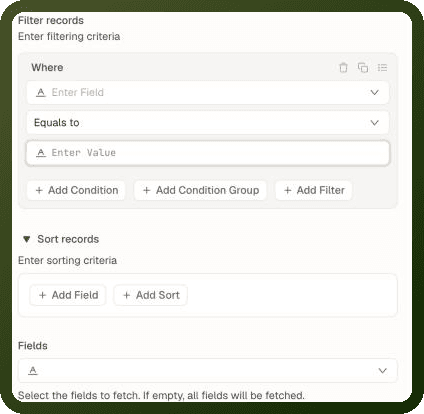
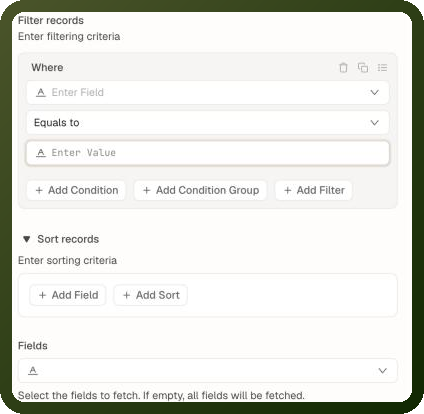
Note: These inputs belong to the Fetch records action of Storage by UnifyApps. To fetch one record whose ID you know, use Fetch record by ID instead. Other apps have their own inputs — for example, Custom HTTP Endpoint takes a method, URL, headers and body. See Data Source Types for every app and action.
Setting Up a Fetch Records Query
Add the data source: In the Data panel, click + → Data Source, pick Storage by UnifyApps, and choose Fetch records on the App & Action tab.
Pick the object: On the Input tab, choose the Object whose records you want.
Choose how many records: Set Number of records to fetch to Single or Multiple. The Page inputs appear only for Multiple.
Narrow and shape the results: Use Search records, Filter records, Sort records and Fields, described below.
Run it: Click Save & Run, then check the Output and Schema tabs at the bottom of the panel before you bind blocks.
Input Reference
Input | What it does |
|---|---|
Object | The object to read records from. |
Number of records to fetch | Single returns one record and is the default, so a new source hides the Page inputs until you choose Multiple. Multiple returns a list in |
Search records | Searches the chosen Fields for a Value — for example, bind Value to a search box. |
Filter records | Conditions that records must match. See Filter Conditions below. |
Sort records | One or more sorts, each with a Field name and a sorting order (Ascending or Descending). |
Fields | The fields to return. If empty, all fields are fetched. |
Page | Offset and Limit for the window of records. Paginate by sets how the window moves: Offset (the default) or Cursor. With Cursor, a cursor value replaces Offset; use the cursor returned in the previous response. Multiple only. |
Include count of records matching query | Adds the total number of matching records to the result as |
Returned Fields
Use Fields to choose which fields each record includes. The picker reads: "Select the fields to fetch. If empty, all fields will be fetched." Picking only the fields your blocks use keeps responses small.
Warning: Once you select fields, a block bound to a field you didn't select reads an empty value — no error or warning appears. If a binding shows nothing, check that the field is in Fields, or clear Fields to fetch every field.
Filter Conditions
Filter records narrows results on the server. Click Add Condition, then pick a field, an operator and a value. Combine conditions with AND or OR, and use Add Condition Group to nest them.
The operators depend on the field's type. They're the same ones the condition builder offers in Filters, Sorting & Pagination — for example Equals to, Does not equal, Contains, Starts with, Greater than, Less than and Is present. Is present and Is not present need no value.
Dynamic (Bound) Filter Values
A condition's value can be a binding expression — for example, filtering by a value the user picked in a select block. When the bound value changes and the data source is automatic, the query re-runs with the new filter automatically.
Example — Filter by a select block's chosen value
Filter records: Field: status Operator: Equals to Value: {{ status_filter.value }} // When status_filter changes (e.g. from "open" to "closed"), // the query re-runs automatically and the table updates.
Sort
Sort records orders results on the server before paging is applied. Each sort has a Field name and a sorting order — Ascending or Descending. Add several: the first is the main order, later ones break ties.
Warning: Offset paging assumes a stable order. Without an explicit sort, records can shift between page fetches as data changes — a record may appear twice or be skipped when the user pages through results. Always add at least one sort when using paging.
Paging
When Number of records to fetch is Multiple, Page sets the window: Limit (how many records to return) and Offset (how many records to skip from the start). By default, Limit is 20 and Offset is 0. Page 3 at 10 records per page = Limit 10, Offset 20.
Paging a Table
The standard way to page a table is its Pagination add-on with Type Page based: bind the data source's Limit and Offset to the block's page size and offset, and bind the block's Total Records from the same data source. See Filters, Sorting & Pagination. If you'd rather drive paging with your own buttons, the example below works too.
Example — Page-based navigation with a variable
// Assuming a page_number variable (starts at 1) and 10 records per page Page: Limit: 10 Offset: {{ (page_number.value - 1) * 10 }} // "Next page" button action: increment page_number variable // The automatic data source re-runs with the new offset
Paging vs Infinite Loading
Offset paging fetches one fixed window at a time and replaces the current results when the page changes. For "load more" behavior, where new records are added below the ones already shown, see Infinite Loading. Infinite loading isn't switched on by the data source alone: the consuming block must ask for it — a Timeline, or a Table, Repeatable or Image Grid whose Pagination add-on is set to Scroll based — with the data source's Limit and Offset bound to the block's page size and offset and Total Records bound from the same data source.
Counts, Sums and Grouped Results
Fetch records lists records. For dashboards, stat tiles and charts that need counts, sums or grouped breakdowns, use Analytics by UnifyApps (Analytics Query or Execute Analytics SQL Query) — see Data Source Types.
Practical Tips
Tip | Details |
|---|---|
Bind filter values to blocks | An automatic data source whose filter or search value is bound to a search box re-fetches as the user types, with no event handler needed. |
Keep the Fields list tight | Select only the fields blocks actually use. Fewer fields = smaller payload = faster renders. |
Always add a sort when paging | Without a deterministic sort, records can shift across page fetches as the underlying data changes. |
Check the Output and Schema tabs | Run the query once, then inspect its Output and Schema tabs to see the exact field names and nesting before writing binding expressions. |
Related
Data Source Types — Every app and action a data source can call, and the output shape of each.
Filters, Sorting & Pagination — The full condition-operator list, component filters and the Pagination add-on.
Run Behavior & Triggering — Bound filter values drive reactive re-runs; this page explains how.
Infinite Loading — Append-on-scroll pagination for list data sources.
Response Transforms — Post-process the result when server-side narrowing isn't enough.