


The Screen and Chat nodes are the two built-in human-interaction primitives in UnifyApps Automations. Screen pauses a run to collect structured input from a person; Chat posts a message into a live chat surface. Both are lightweight ways to bring a human into a workflow — one for blocking input, one for non-blocking messaging.
Overview
Node | Purpose | Blocks the run? |
|---|---|---|
Screen | Shows a UI form to a user and waits for their submission before the automation continues. | Yes — the automation pauses until the user submits. |
Chat | Posts a message into a chat conversation (user or topic). | No — the automation continues after sending. |
Screen Node
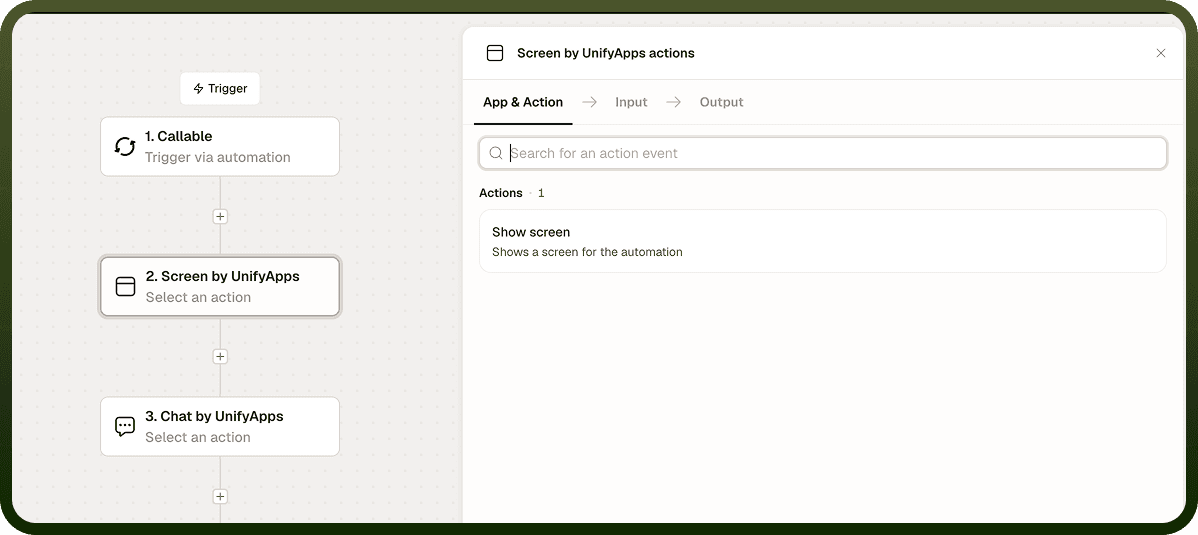
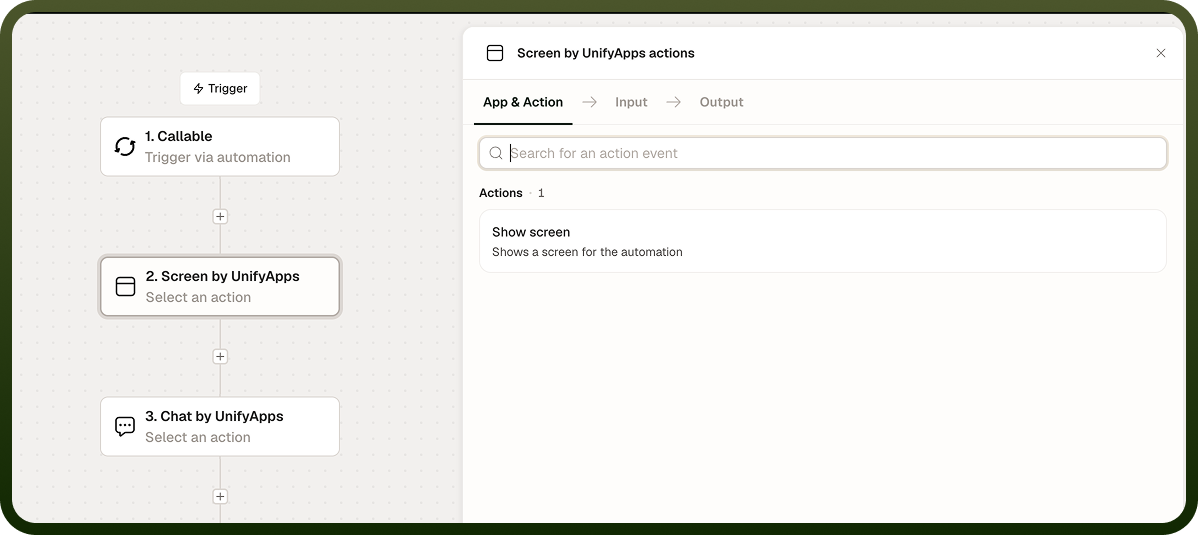
The Screen node is the human-in-the-loop primitive. Its single action, Show screen, shows a screen (a form) and the automation waits for the screen to be submitted before resuming. The submitted values are available to all subsequent steps in the run. Use it for approvals, missing-detail collection, or any decision that genuinely requires a human before the workflow can proceed.
Input Field | Description |
|---|---|
Setup screen payload | JSON that describes the screen to show. Enter it in the code editor. |
Response | The fields (key and type) that the submitted screen returns. Click Add Field to define each one. These fields make up the node's output. |
Output: The submitted values for the fields you defined in Response. These are available to all downstream steps in the automation run.
The automation is suspended until the screen is submitted. If it is never submitted, the run remains paused.
Chat Node
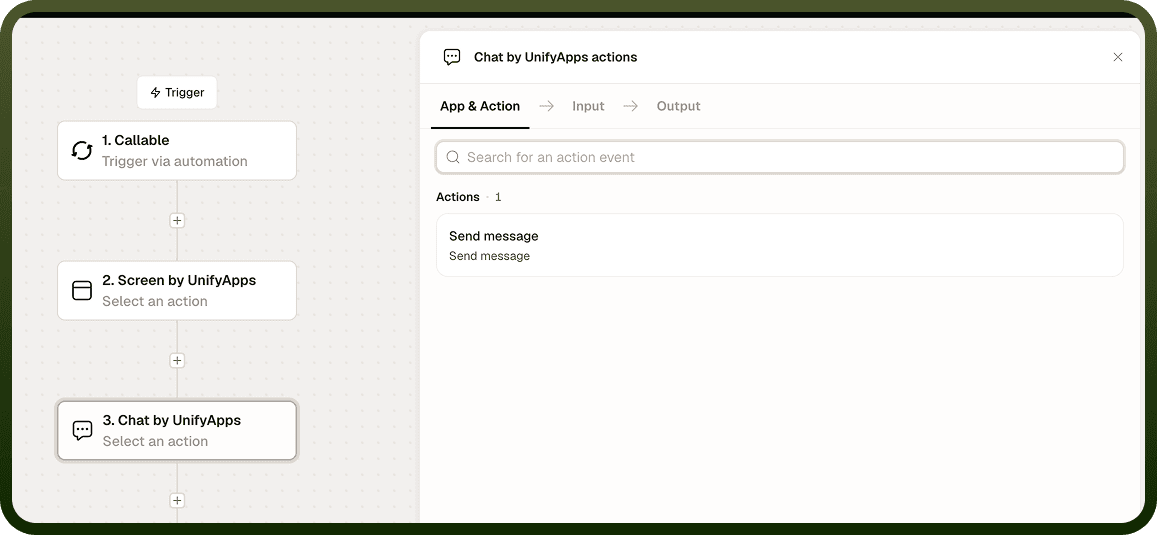
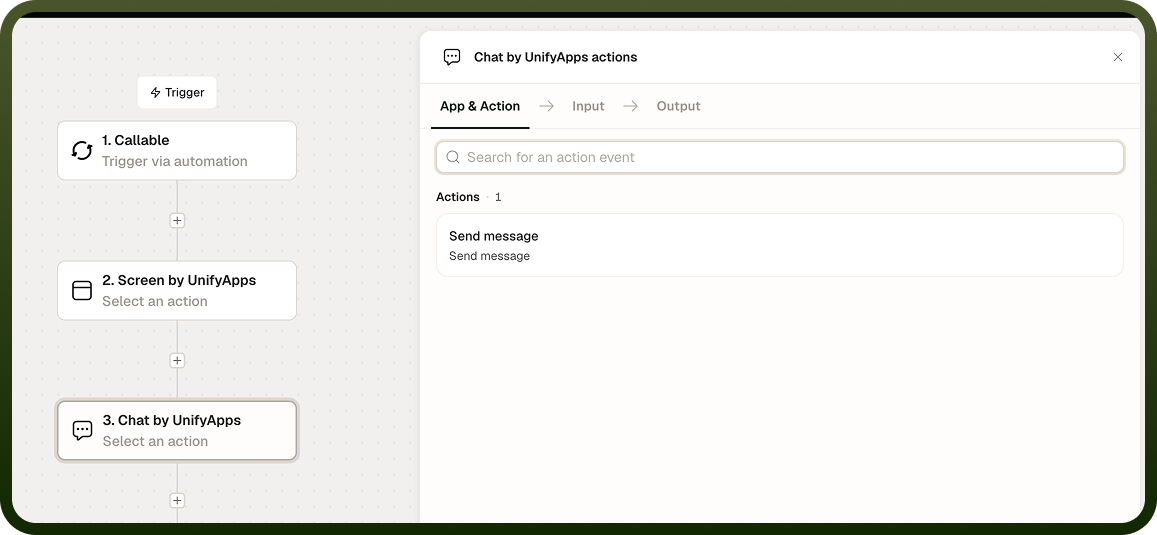
The Chat node posts a message into the platform's built-in chat or messaging surface — addressed to a user or a conversation topic. It is lighter-weight than the Notification node: it contributes to an ongoing conversation rather than raising a formal alert. Use Chat when you are driving or participating in a chat thread; use Notification when you need to formally alert people and optionally send them somewhere to act.
Input Field | Description |
|---|---|
User ID | The user to send the message to. When Topic is empty, the message goes to this user's chat inbox. |
Topic | The conversation topic to post the message into. When set, it is used instead of the user's chat inbox. |
Payload | The message data, sent as-is: Message ID, Conversation ID and any Additional data. |
Output: Result (true or false), which confirms whether the message was sent. The automation continues immediately after sending.
Choosing Between Screen, Chat, and Notification
Scenario | Recommended node |
|---|---|
You need a person to approve or fill in a form before the run continues. | Screen |
You want to post a message into a live chat or assistant conversation. | Chat |
You need to alert one or more people and optionally give them a direct action to take. | Notification |
Notes
Keep the following in mind when using the Screen and Chat nodes:
The Screen node suspends the automation run until the screen is submitted. Runs waiting on a Screen node count against your concurrent-run limits during that pause.
The Chat node is non-blocking: the automation moves to the next step immediately after posting the message, regardless of whether the recipient reads it.
The Chat node targets the platform's built-in messaging surface. It does not post to external chat systems (for example, Slack or Teams) — use a connector node for those.
Define the Response fields to match the values the screen submits, so later steps can map them.
Choose Screen, Chat, or Notification based on whether you need blocking human input, a conversational message, or a formal alert with an optional action.