


Read Document converts documents in many formats into text, with OCR support for scanned pages and the ability to extract table structure from rich layouts. Use it when your source file may be scanned, uses a non-PDF format, or contains tables you need downstream.
Overview
The Read Document operation is the full-featured counterpart to Read PDF Pages. It handles a wide range of document formats, applies OCR when pages contain image-based content rather than embedded text, and identifies and extracts table structure from documents with formatted tables. This makes it suitable for financial reports, forms, scanned archives, and similar content where embedded text alone is not sufficient.
Read Document is also the document-reading step used in text chunking pipelines — when your automation feeds chunked content into retrieval or RAG systems, this is the operation that ingests the source file.
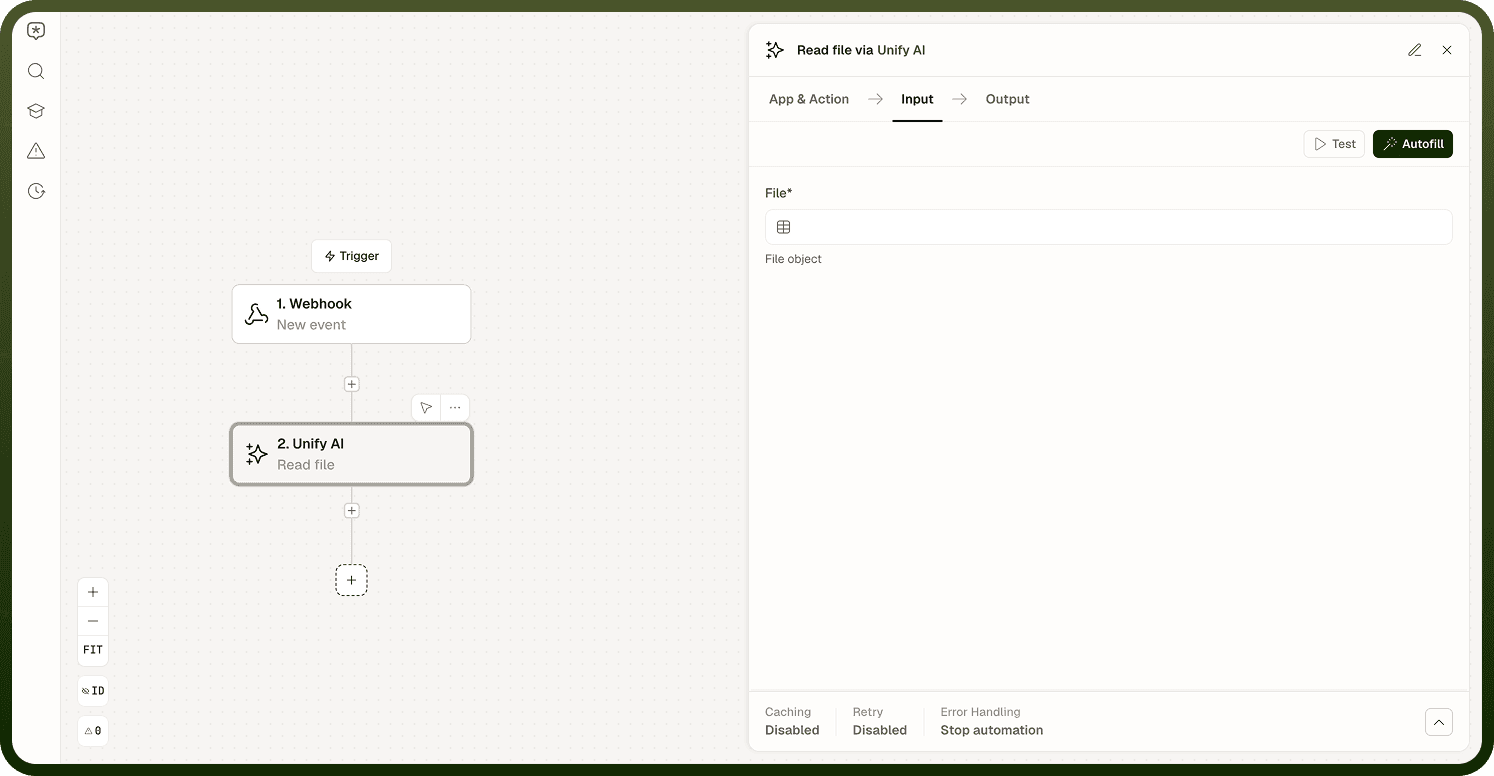
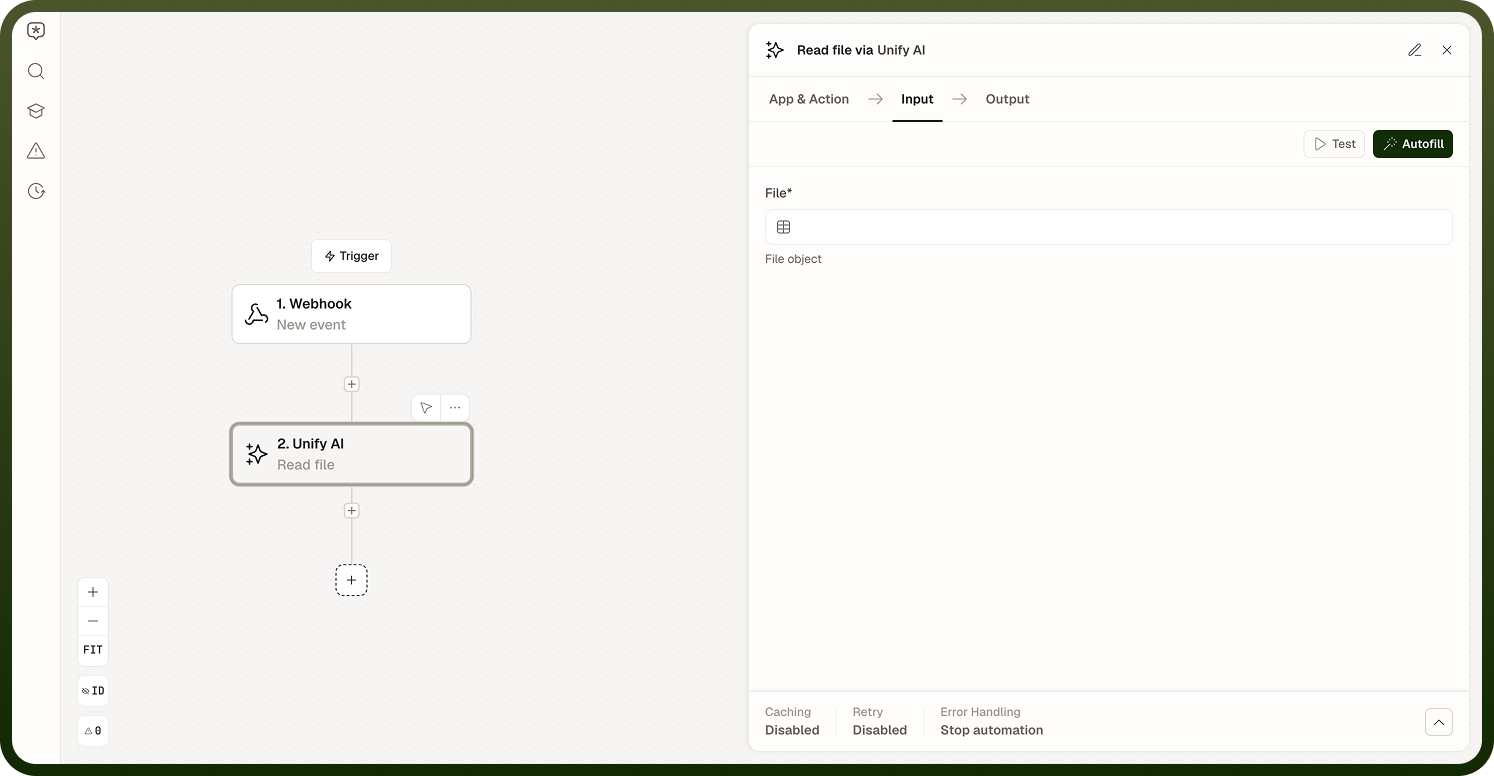
Input
Field | Type | Required | Description |
|---|---|---|---|
Document File | file | Yes | The document to read. Accepts many formats including PDF and others. |
Enable OCR | boolean | No | When true, applies OCR to image-based or scanned pages. Recommended for scanned documents. |
Extract Tables | boolean | No | When true, identifies and extracts table structure in addition to plain text. |
Reading multiple files at once
Read Document is also available as a batch action for pipelines that need to process a list of files in a single call instead of one file at a time.
Field | Type | Required | Description |
|---|---|---|---|
Files | array | Yes | A list of documents to read. Each file is processed the same way as the single-file operation. |
The batch variant's output is simpler than the single-file operation's: it returns a flat array of extracted chunk text across the supplied files, without the per-page, per-table, or per-element breakdown that the single-file operation can return.
Output
Returns the extracted text content from the document. When Extract Tables is enabled, table data is included alongside the plain text in a structured form. When Enable OCR is active, image-based pages contribute their OCR-derived text to the output.
Notes
Use Read Document for scanned files, multi-format pipelines, or when you need table extraction.
OCR increases processing time compared to reading embedded text directly. Enable it only when the source includes scanned or image-based pages.
For PDFs with selectable, embedded text and no table extraction needed, Read PDF Pages is faster and more direct.
Table extraction captures tabular layout from the document; quality depends on how consistently the source file structures its tables.
Pages that already contain an embedded text layer use that text directly regardless of the OCR setting.
To read several files in one call instead of looping single-file calls, use the batch variant's Files input — see Reading multiple files at once.