


The Excel node's create and write operations let you generate new spreadsheet files and populate them with data from your automation — whether you are building a report from scratch, filling a blank workbook, or writing data into an existing file. Create a new Excel file and Write data to New Excel file return file objects that can be passed to subsequent nodes for storage, conversion, or further processing.
Overview
Use the create and write operations when your automation needs to produce or update an Excel workbook. Create a new Excel file creates a blank workbook in XLSX, XLS or XLSB format. Write data to New Excel file is a standalone action: it writes data from a Data Source to a new XLSX or XLS file and uploads it to file storage, so you don't need a Create step first. Write JSON array to existing Excel file writes data into a sheet of a file you already have — for example, one returned by Create a new Excel file.
Operations
Operation | Description | Key inputs |
|---|---|---|
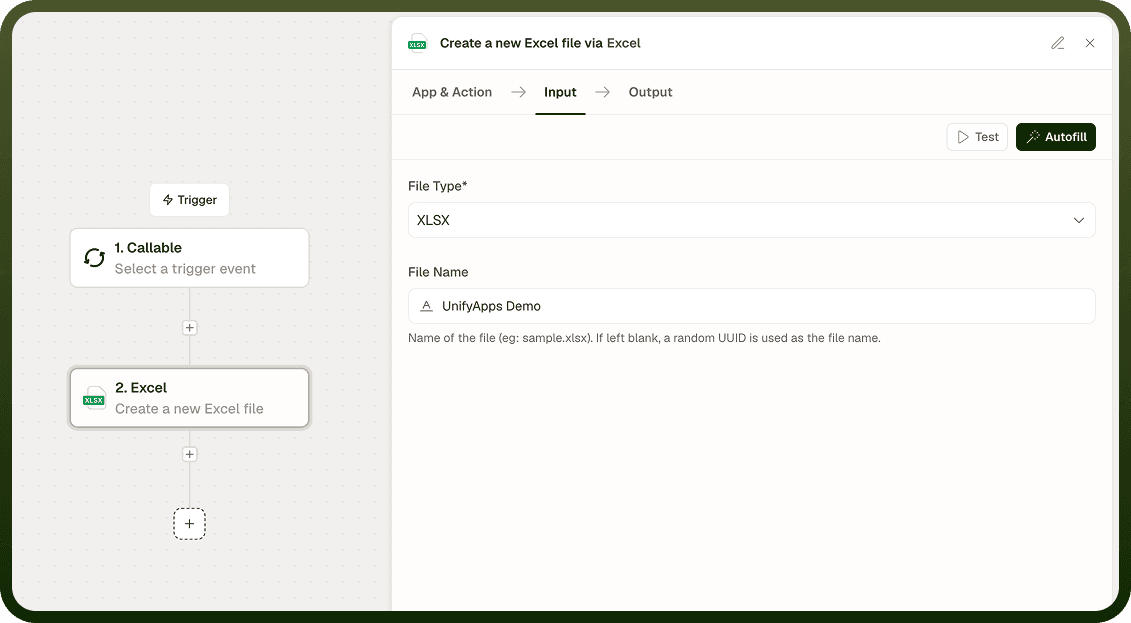
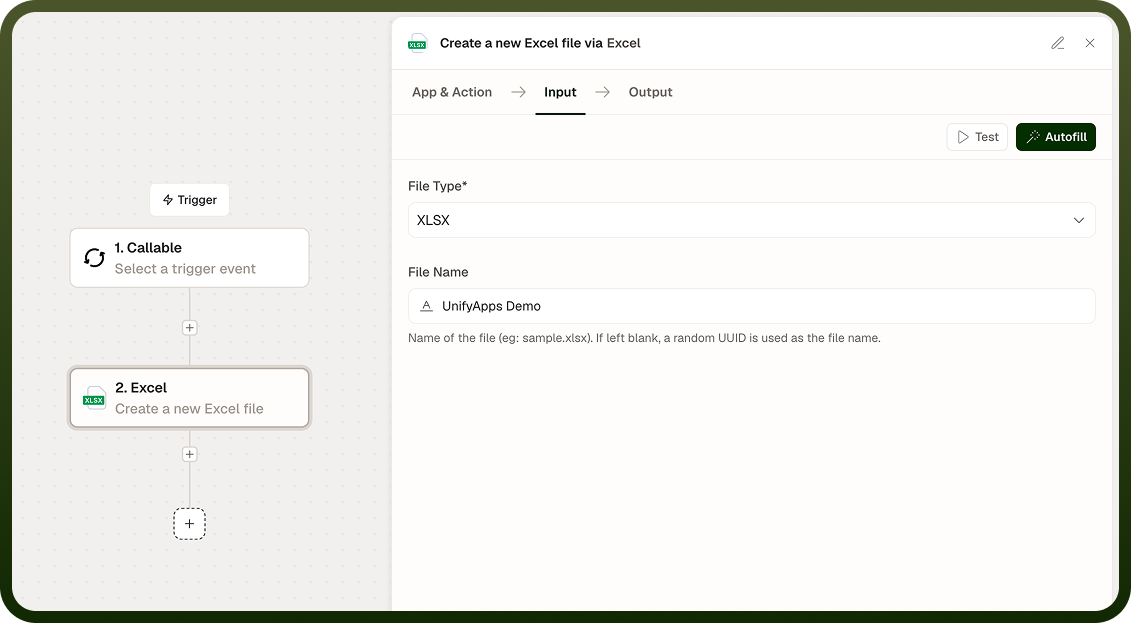
Create a new Excel file | Creates a blank Excel workbook and returns it as a file object. No data is written; use Write JSON array to existing Excel file to fill it. | File Type (XLSX / XLS / XLSB), File Name |
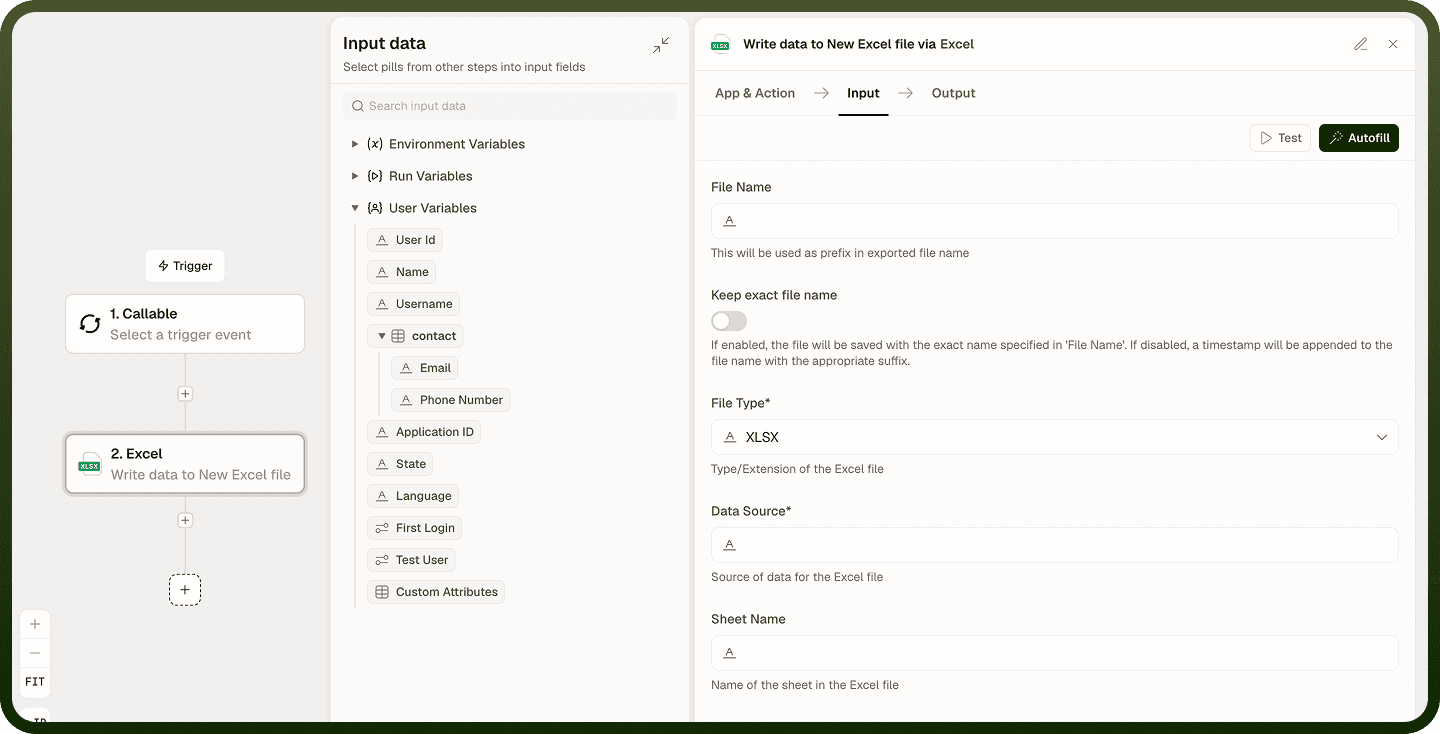
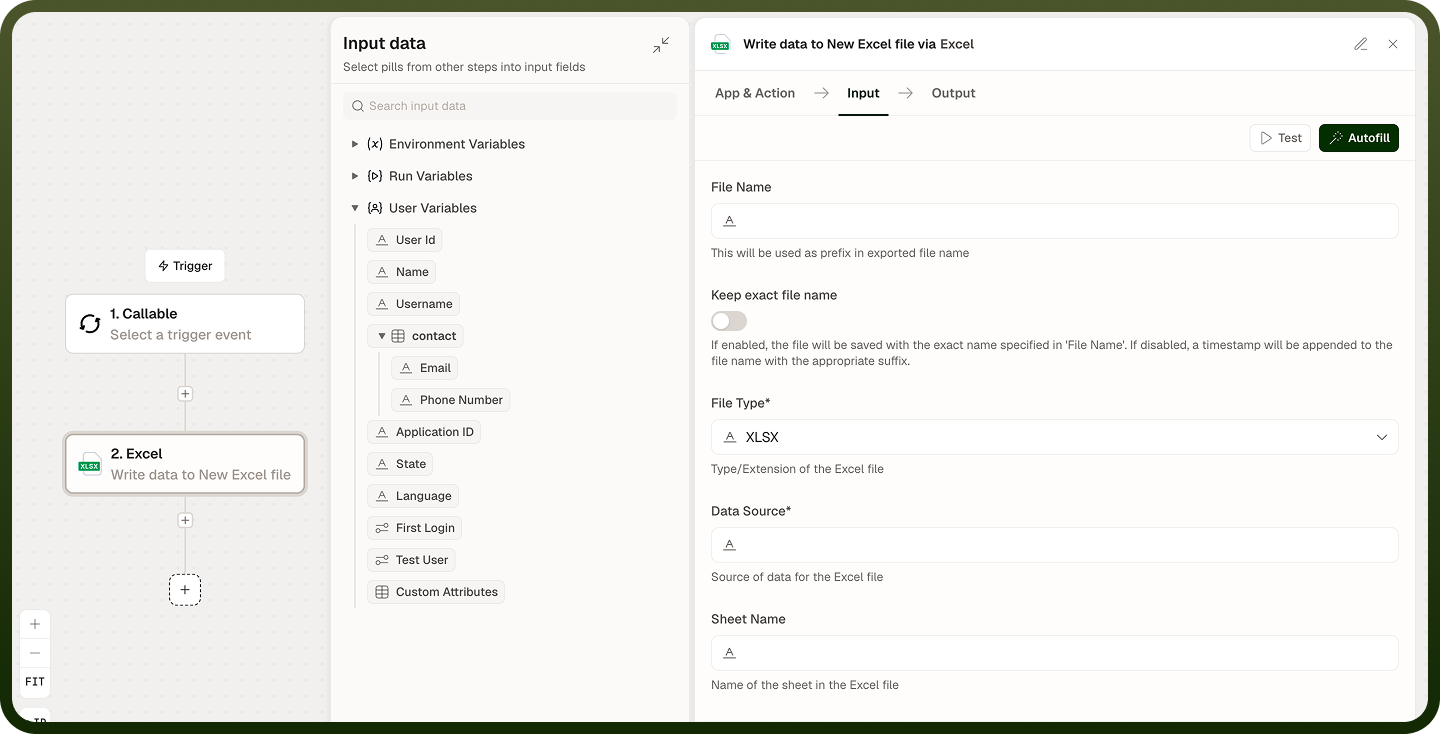
Write data to New Excel file | Writes data to a new Excel file and uploads it to file storage. It creates its own file and has no File input. | File Name, Keep exact file name, File Type (XLSX / XLS), Data Source, Header Type |
Write JSON array to existing Excel file | Writes data to a sheet of an existing Excel file. | File, File Type (XLSX / XLS / XLSB), Data Source, Header Type, Sheet Name, Row Offset, Column Offset |
Input
Field | Type | Required | Description |
|---|---|---|---|
File Name | String | No | Create a new Excel file: name of the file, with the extension (for example, sample.xlsx). If left blank, a random UUID is used as the file name. Write data to New Excel file: used as the prefix of the exported file name. |
Keep exact file name | Boolean | No — Write data to New | If enabled, the file is saved with the exact name in File Name. If disabled, a timestamp is appended to the file name. |
File Type | Enum | Yes | Type/extension of the Excel file. XLSX, XLS or XLSB for Create a new Excel file and Write JSON array to existing Excel file; XLSX or XLS for Write data to New Excel file. |
File | File object | Yes — Write JSON array | UnifyApps file object of the file to write to — for example, the output of Create a new Excel file. |
Data Source | String | Yes — Write ops | Source of data for the Excel file. |
Header Type | Enum | Yes — Write ops | Static or Dynamic (default: Static). With Static, define the headers as key-value pairs. With Dynamic, define the list of headers. |
Sheet Name | String | No | Name of the sheet in the Excel file. If the sheet does not exist, it is created. |
Row Offset | Integer | No — Write JSON array | Offset of rows in the Excel file. |
Column Offset | Integer | No — Write JSON array | Offset of columns in the Excel file. |
Skip Header / Skip Header Row | Boolean | No | Skip adding the header row. Off by default. Called Skip Header on Write JSON array to existing Excel file and Skip Header Row on Write data to New Excel file. |
Append to existing file | Boolean | No — Write data to New | Enable this to append data to an existing file, then set Existing File Details. |
Formatting options | — | No | Both write actions offer Auto-Size Columns, Column Width, Column Widths, Freeze Panes, Columns Format Mapping and Drop Downs. Write JSON array to existing Excel file also offers Sheet Password, Expand Table to Fit Data, Row Height, Row Heights, Add Border, Wrap Text, Sheet Font, Merge Cells, Column Fonts, Color Details and Advance Formatting Support (XLSX only). |
Output
Create a new Excel file and Write data to New Excel file return a file object for the Excel file. Pass it to a storage node, a conversion node, or another Excel operation in the same automation. Write JSON array to existing Excel file returns only a success flag, so keep passing the original file object to later steps.
Create a new Excel file — returns the blank workbook as a file object.
Write data to New Excel file — returns the new workbook as a file object.
Write JSON array to existing Excel file — returns Success (true or false). No file object is returned.
Notes
Create a new Excel file and Write JSON array to existing Excel file support XLSX, XLS and XLSB. Write data to New Excel file supports XLSX and XLS. Choose XLSX for maximum compatibility with downstream tools.
When writing a JSON array, all objects in the array should share the same keys for consistent column alignment. Objects with missing keys produce empty cells in those columns.
Writing begins at the position set by Row Offset and Column Offset; any existing data in cells at or after that position is overwritten.
To write data to a new file in one step, use Write data to New Excel file. To fill a file you already have — or a blank file from Create a new Excel file — use Write JSON array to existing Excel file and pass the file object in File.
For workbooks that will be read back by the Excel node, prefer XLSX to ensure formula evaluation and sheet features are fully supported.