


Version management tracks every deployed state of an automation, lets you see who deployed each version and when, and makes it possible to restore a previous version if a change causes problems.
Overview
Version management tracks every deployed state of an automation, lets you see who deployed each version and when, and makes it possible to restore a previous version if a change causes problems.
Every time you deploy an automation, the platform creates a new version — V1, V2, V3, and so on. The currently deployed version is tagged "current". Each version is immutable: once created, its configuration is preserved exactly as it was at the time of deployment, giving you a complete audit trail and a reliable rollback point.
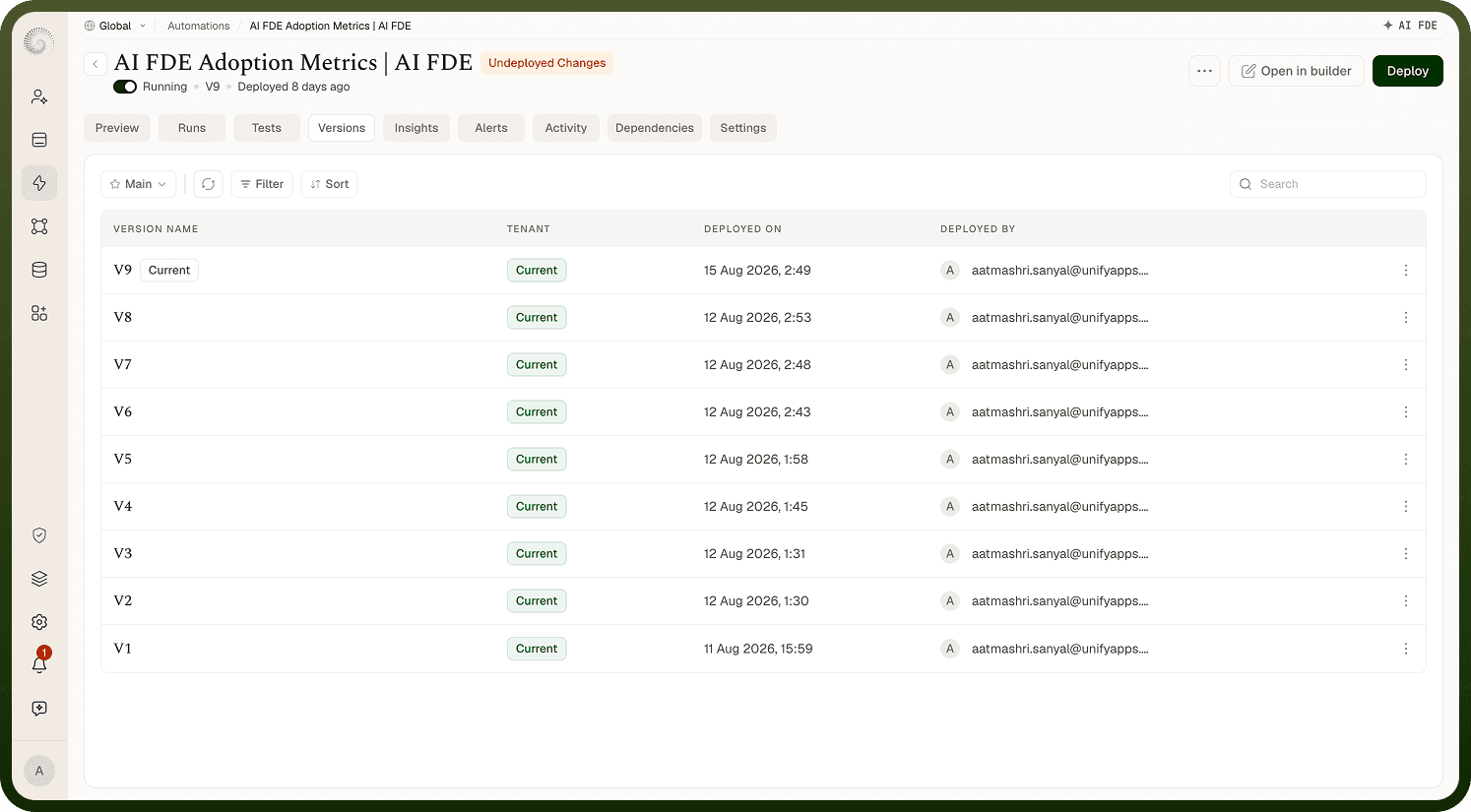
Version List
Each entry in the Versions tab shows:
Version number — V1, V2, V3, and so on, in chronological order
User — who deployed this version
Timestamp — the date and time of deployment
"current" tag — the version that is currently live
Restoring a Version
To restore a previous version:
Click the version you want to restore in the Versions tab.
Review the configuration summary to confirm it is the right version.
Click "Restore this version" in the top right corner of the version detail page.
The restored version becomes the new active configuration and a new version entry is created (restoring V2 on a V5 automation creates V6, which is identical to V2). The previous "current" tag moves to the restored version.
Note: Restoring a version does not delete any existing versions. The full history is preserved after a restore.
Notes
Version management turns deployment into a reversible action. To use it well:
Check the version history before making significant changes — if someone else recently deployed, understand their changes first.
Use version numbers as reference points when discussing issues in a team context ("the problem started in V4").
Restore immediately if a deploy causes unexpected behavior — restoration takes seconds and stops the impact.
Note that restoring a version restores the automation's configuration, not its run history; past runs are preserved in the Monitor tab regardless of which version is active.
Knowing you can restore in seconds makes it safe to deploy iteratively and improve automations continuously.