


Video by UnifyApps enables comprehensive video processing and manipulation within automation workflows.
Overview
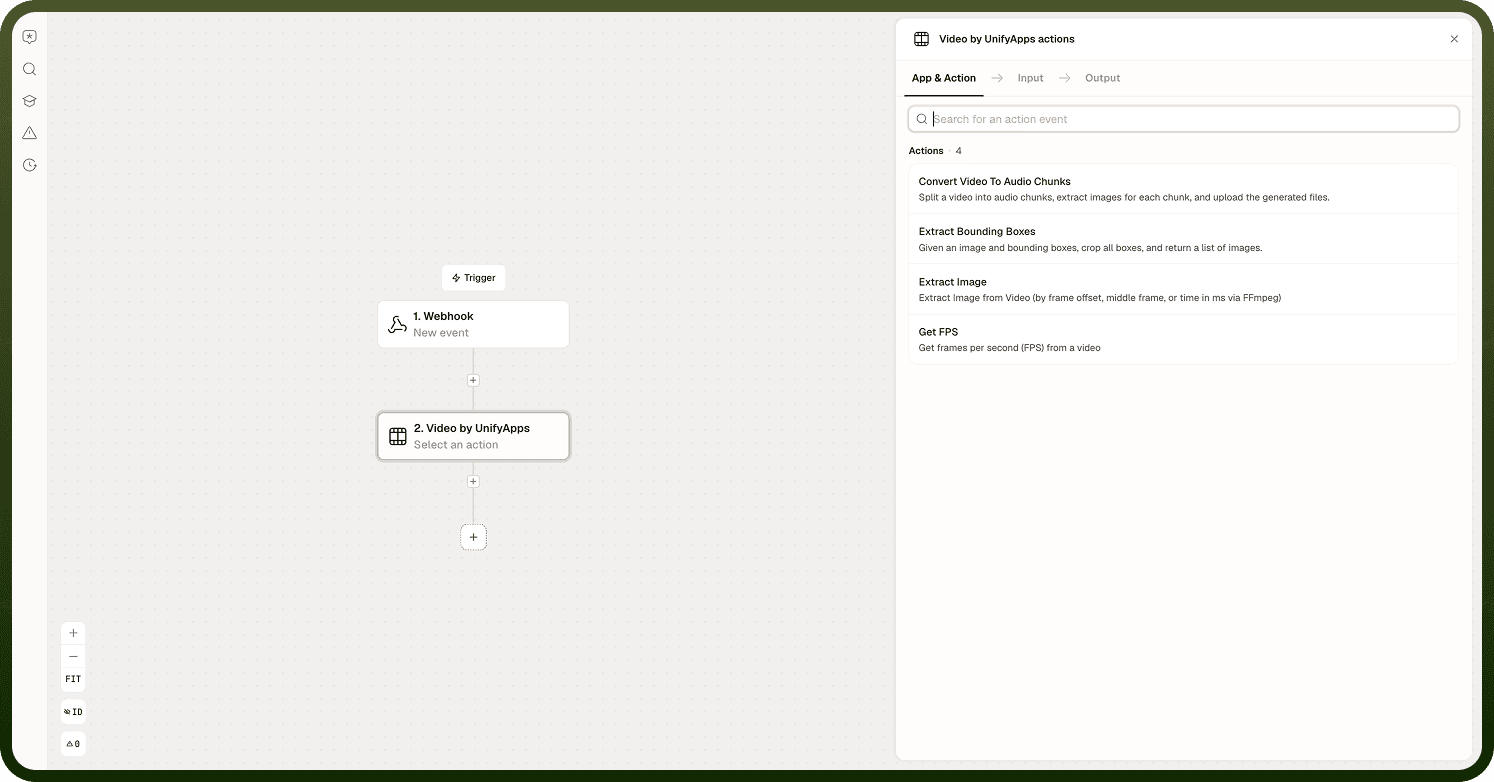
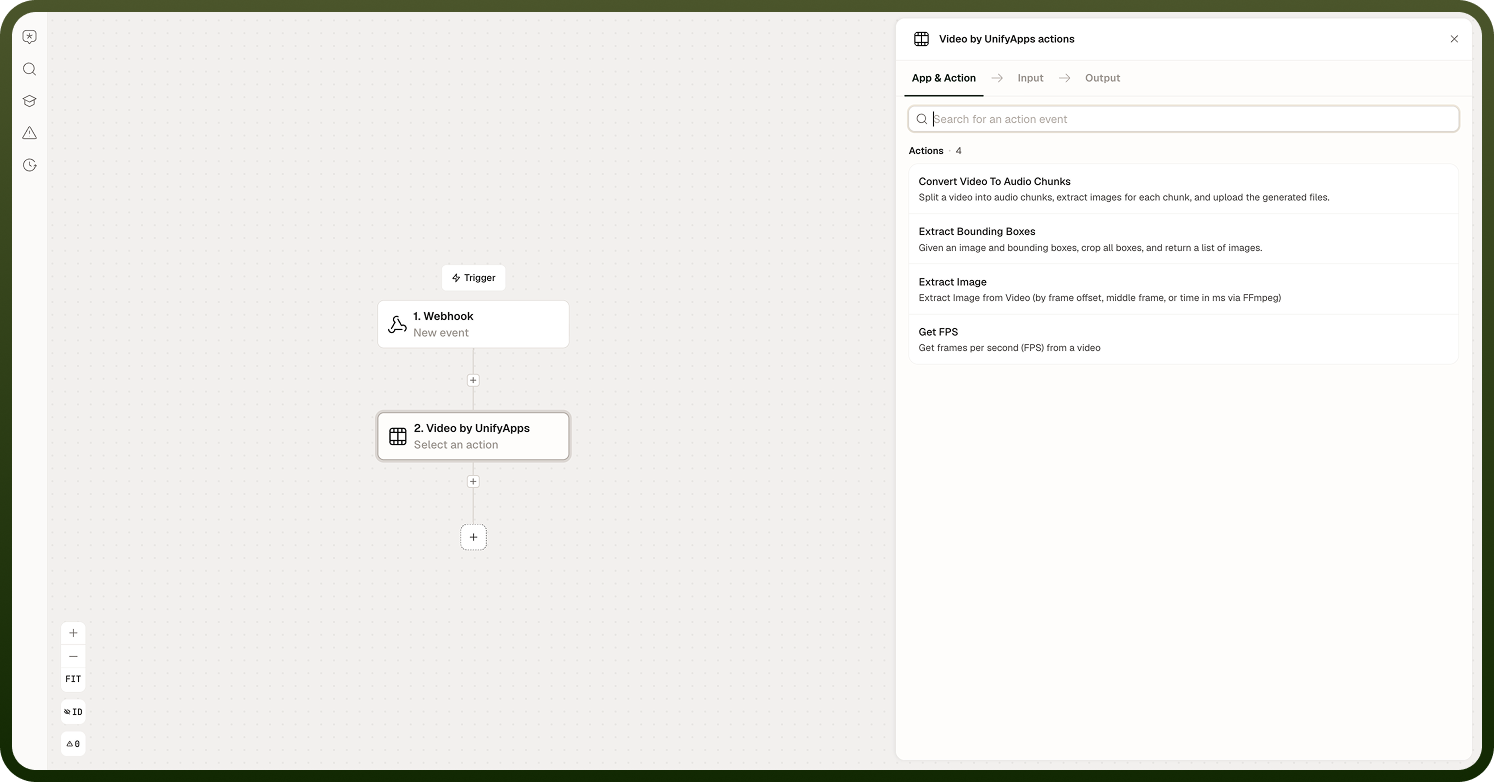
Video by UnifyApps enables comprehensive video processing and manipulation within automation workflows. The system allows extraction of frames from videos, processing of video content, and manipulation of video files for business applications. It supports multiple video formats and provides precise frame-level control, making it suitable for content analysis, thumbnail generation, quality control, and media processing tasks.
Use Cases
Automated Content Moderation — A social media platform processes uploaded videos by extracting key frames at specific intervals. The system analyzes representative images with AI vision models for inappropriate content and automatically flags videos requiring human review.
Product Catalog Generation — An e-commerce company automates product image creation from demonstration videos. The system extracts frames at optimal moments, processes them for consistent formatting, and generates product thumbnails and catalog images automatically.
Video Quality Assurance — A media production company implements automated quality checks by extracting frames from rendered videos at regular intervals. Extracted images are analyzed for color accuracy, resolution quality, and visual artifacts, triggering alerts to the production team when issues are detected.
Extract Image from Video
The Extract Image action provides frame-level control for capturing specific moments within videos, supporting various video formats and offering flexible configuration options.
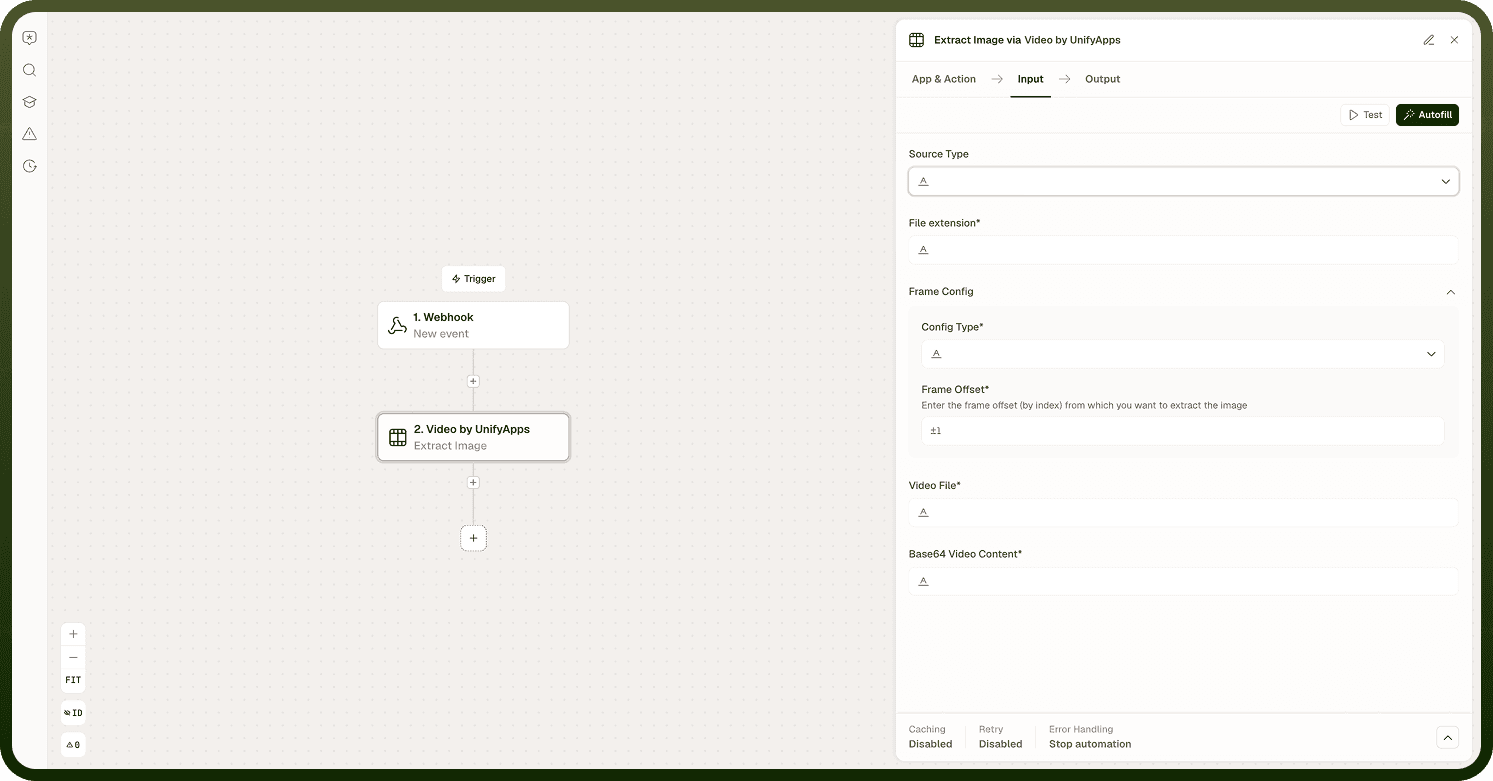
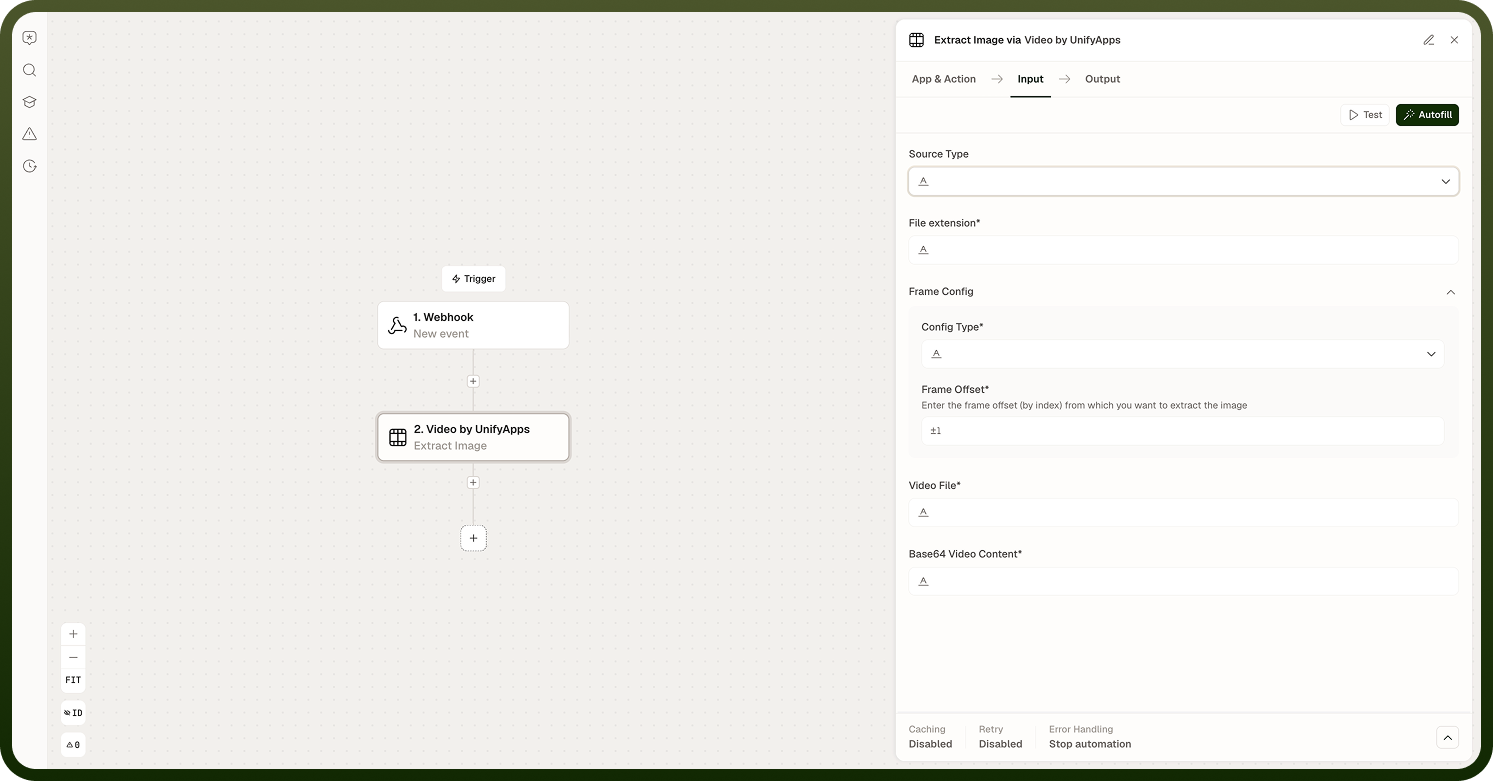
Extraction configuration interface for Extract Image from Video
Input Fields:
Source Type — File Upload, URL, Data Reference, or Base64
File Extension — mp4, avi, mov, mkv, webm, flv
Configuration Type — Time-based, Frame Number, Percentage-based, or Interval extraction
Frame Offset — Exact position for frame extraction (units vary by configuration type)
Advanced Options: Output Format (PNG, JPEG, WebP); Image Quality (1–100 for JPEG); Resolution Scaling; Color Space preservation or conversion.
Output: Extracted image files, image properties (resolution, format, file size), frame information (exact timestamp and frame number), processing metrics, and file references for subsequent steps.
Supported Formats
Input Video Formats: MP4, AVI, MOV, MKV, WebM, FLV, WMV.
Output Image Formats: PNG (lossless, with transparency), JPEG (lossy, smaller files), WebP (modern, superior compression).
Frame Extraction Methods
Time-Based — Extract frames at specific timestamps with millisecond precision
Frame Number — Target specific frames by sequence number for precise frame-by-frame analysis
Percentage-Based — Extract frames at relative positions, consistent across videos of different lengths
Interval — Extract multiple frames at regular intervals, generating frame sequences for analysis
Technical Specifications
File Size — Up to 1GB per video (varies by plan)
Resolution — Supports up to 4K video processing
Processing Speed — Typically 2–5 seconds for frame extraction
Success Rate — 99%+ extraction success for supported formats
Accuracy — Frame-perfect extraction with millisecond precision
Error Handling
Unsupported Video Format — Verify the format is in the supported list. Convert to a compatible format if needed.
Frame Offset Out of Range — Ensure the frame offset is within the video duration. Verify frame numbers don't exceed total frames; check that percentage values are between 0–100.
Large File Processing — Monitor file size limits for your plan. Consider video compression before processing and use chunked processing for very large files.
Quality Issues — Verify source video quality meets requirements. Check extraction settings for quality preservation and review the output format selection.
Notes
Keep the following in mind when using Video by UnifyApps:
Check the Supported Formats section before passing video files to the node; unsupported formats fail at runtime without a descriptive error message.
Use Frame Number or Time-Based extraction when you need a specific moment in the video; use Interval extraction when you need representative samples across the full duration.
Large video files (approaching the plan limit) increase extraction time significantly; test with a short clip before running the automation on full-length videos.
Set Image Quality to 85–90 for JPEG output when the extracted image will be processed by a vision model; higher quality does not always improve model accuracy but does increase file size.
Combine the Extract Image action with a Computer Vision step (such as Unify AI) immediately after to analyze the extracted frame automatically.