


Preview gives you a read-only summary of an automation's configuration, run history, and node-level outputs — without opening the builder. Use it to quickly understand what an automation does and how it has been performing.
Overview
Preview provides a read-only overview of an automation's configuration, run history, and node-level outputs — a fast way to understand what an automation does and how it has been performing without opening the builder.
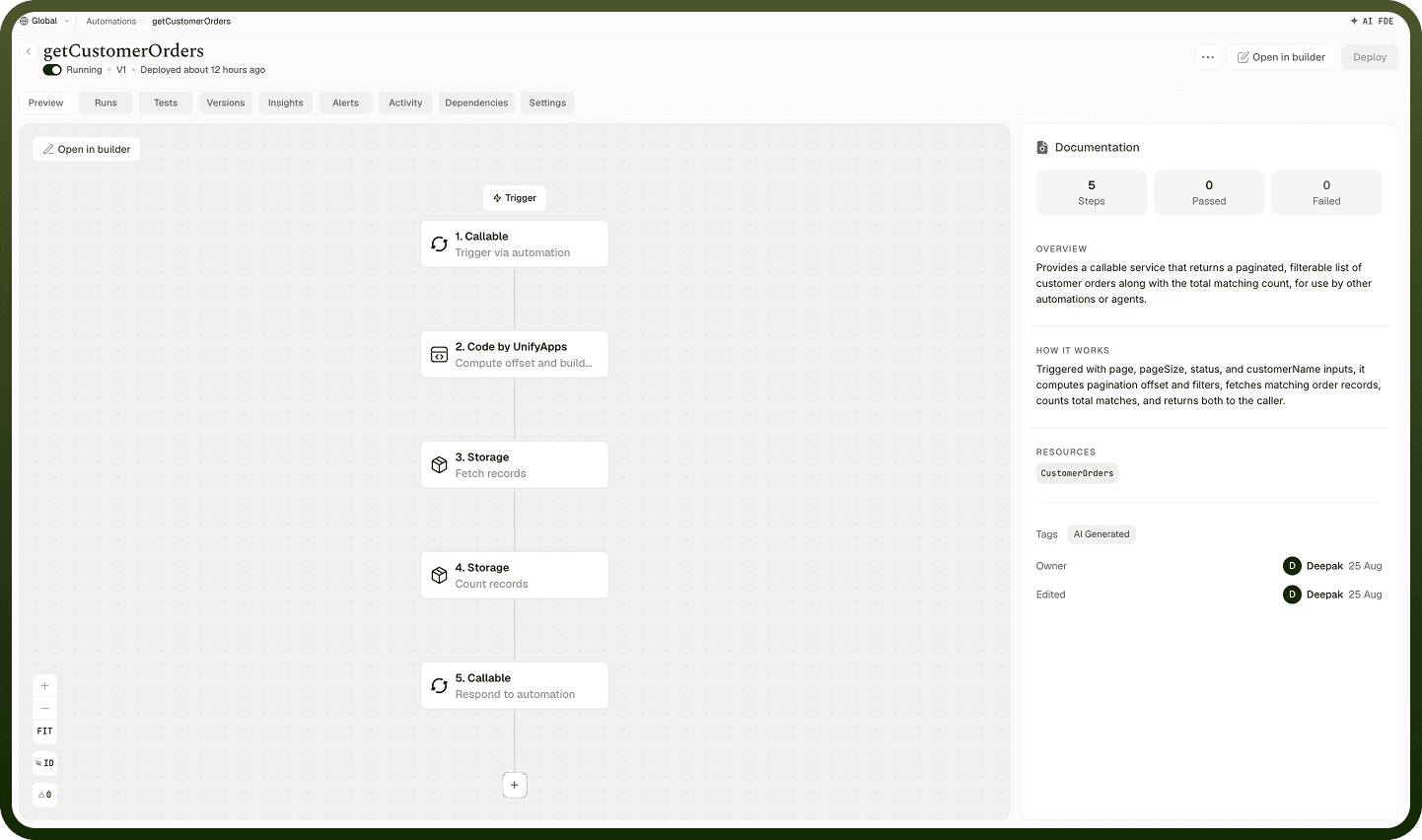
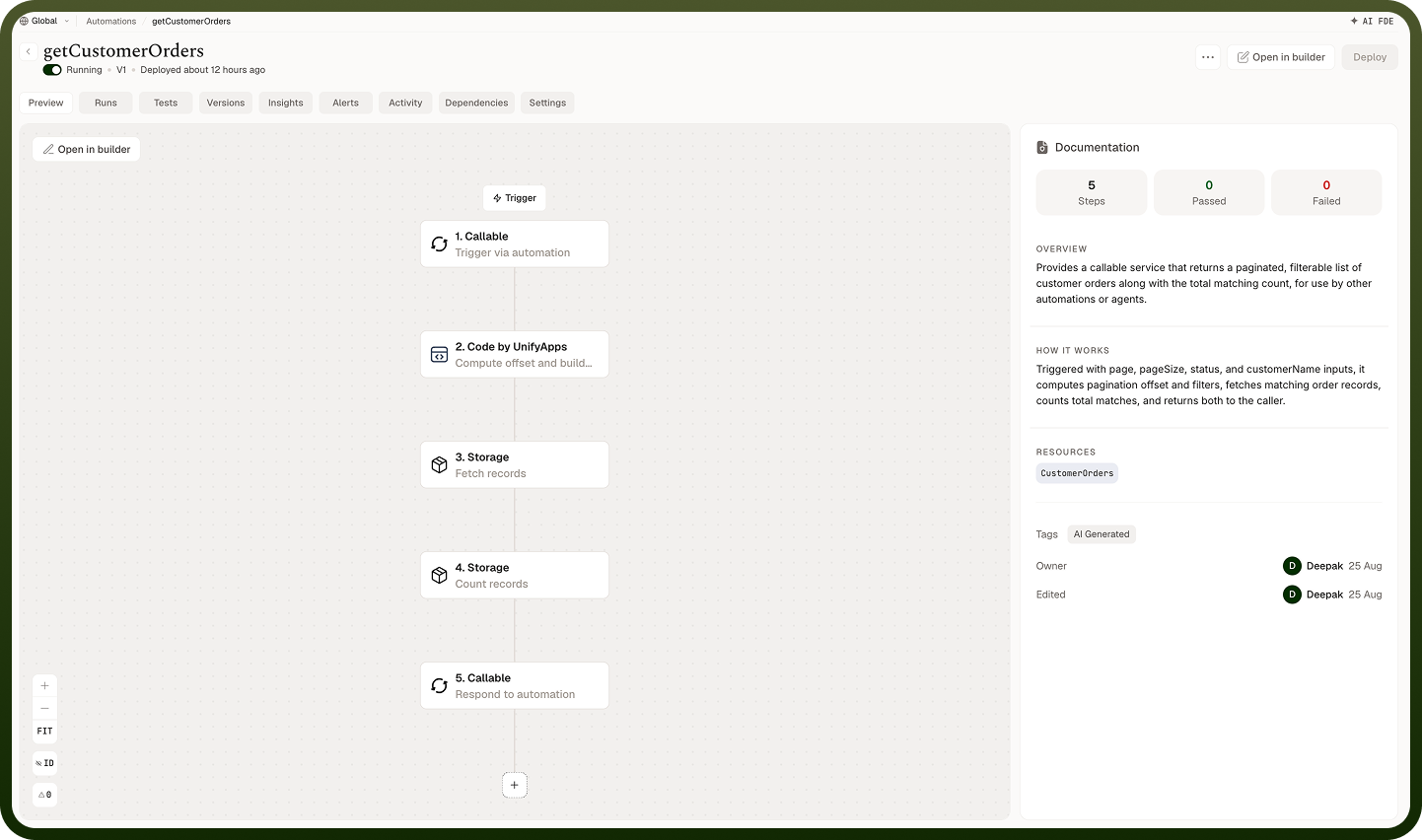
The Preview view surfaces the key facts about an automation in one place: how many runs have succeeded or failed, what trigger it uses, which apps it connects to, and when it was last changed. You can also click any node in the canvas to see exactly what input it received and output it returned on the most recent run.
Key Features
Run Summary — Shows the automation's current state (running or paused) alongside a count of successful and failed runs. Use this to quickly assess whether an automation is healthy before diving into individual runs.
Trigger Type — Identifies how the automation is started: Callable, Scheduler, Webhook, or the name of the connected app for connector-based triggers. This tells you whether you need a Callable setup, a schedule, or an app event to invoke the automation.
Apps Used — Displays the logo of every app the automation connects to. A quick scan shows which integrations are involved and whether any unexpected app has been added.
Created / Last Updated — Shows the user who created the automation and the timestamp of the most recent edit or deploy. Use this to trace who owns the automation and when it last changed.
Recent Activity — A log of recent deployments and configuration changes, with the user and timestamp for each. Click through to the full Activity tab for the complete history.
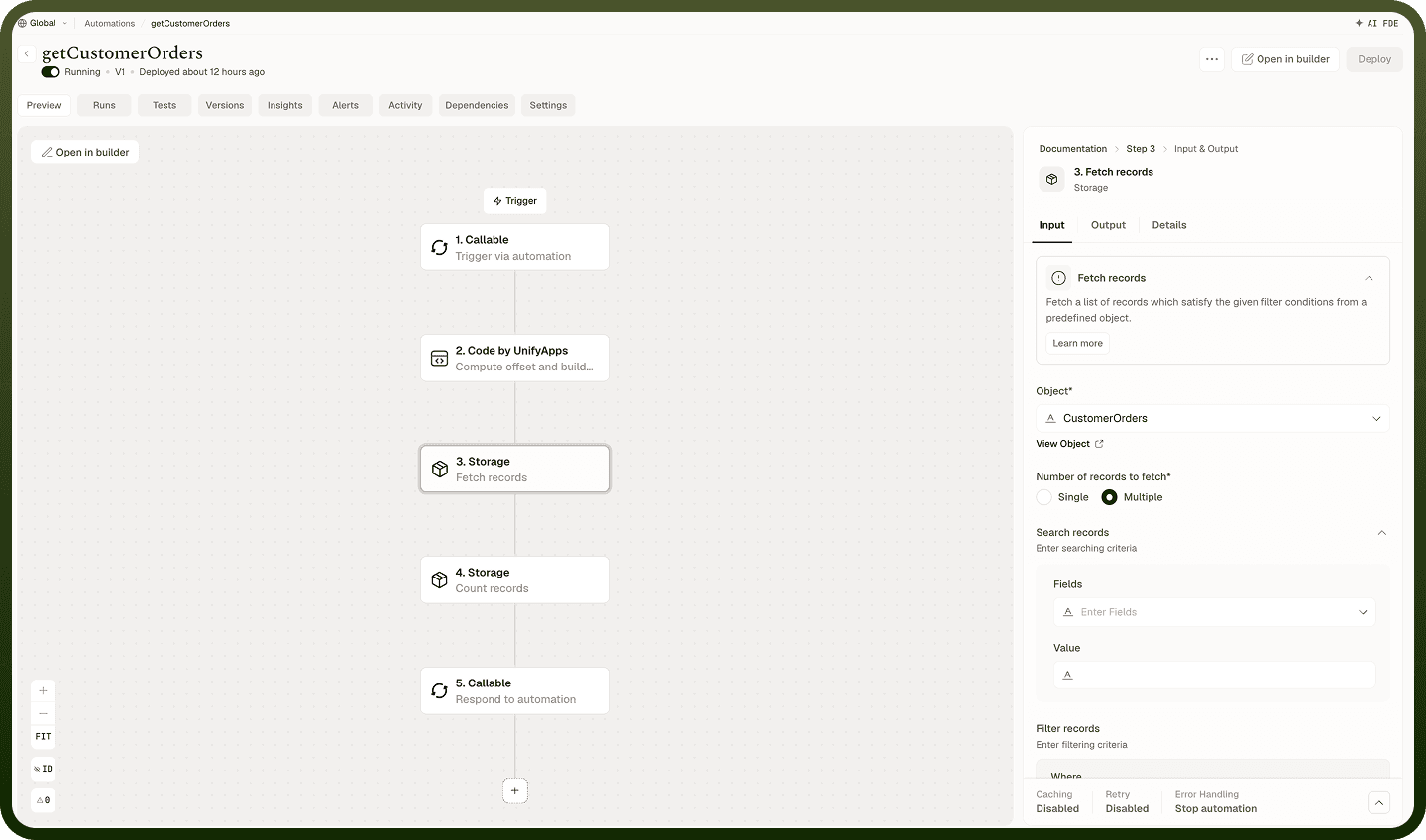
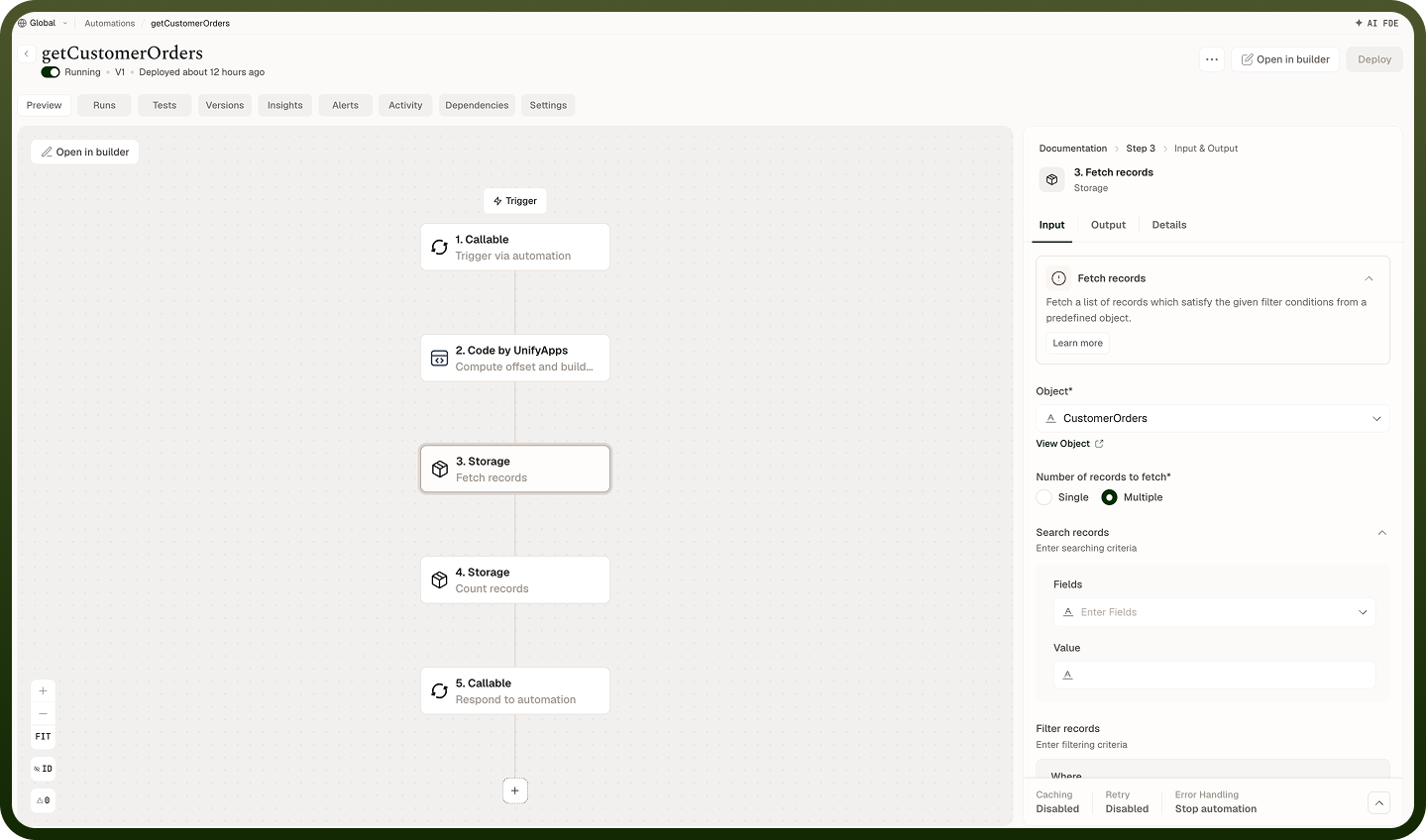
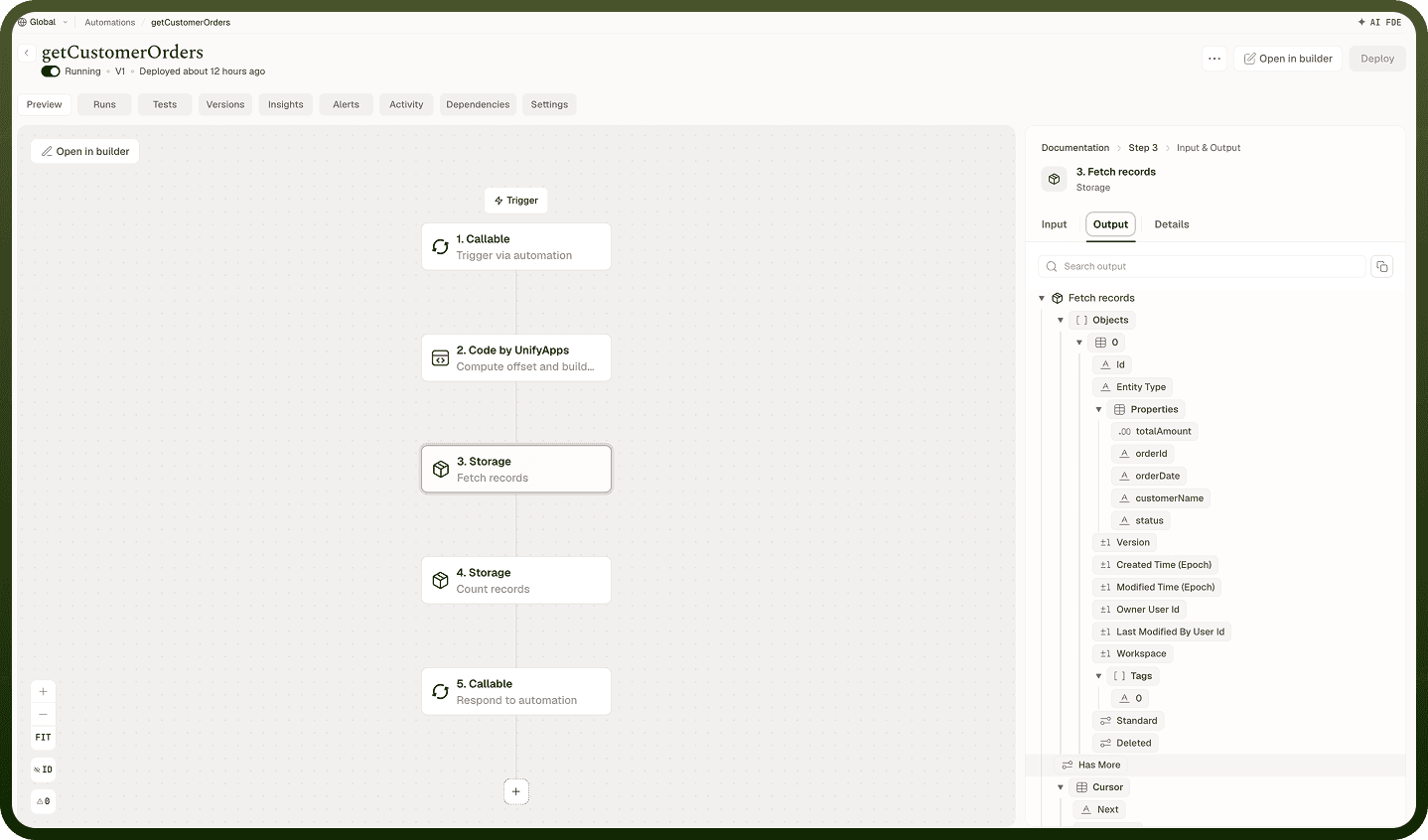
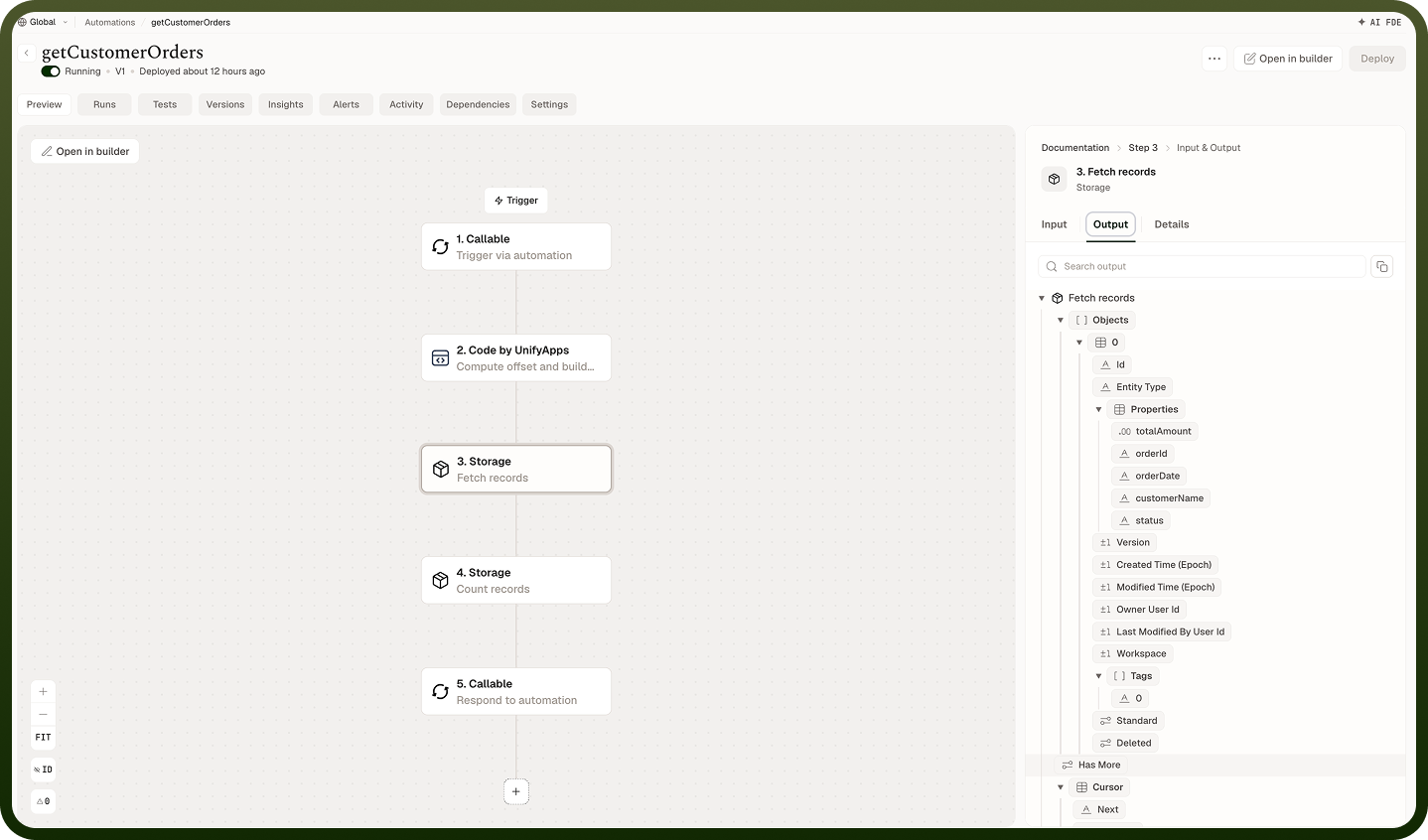
Node-Level Preview — Click any node on the canvas in Preview mode to open its detail view:
Input — the JSON payload the node received on the most recent run
Output — the data structure the node returned, available as data pills to downstream nodes
Details / Connection Details — for application nodes: the app name, the selected action, and the connection used; for internal nodes: the app name and selected action only
Notes
Preview is the right starting point when you want to understand an automation before editing it. To use it effectively:
Check Run Summary before making changes — if the automation is failing frequently, understand the failure pattern in Monitor before touching the configuration.
Use Node-Level Preview to confirm the output shape of a node before referencing its data pills in another automation.
Check Apps Used when auditing integrations — a logo you don't recognize may indicate a connection to an app that should be reviewed.
Use "Recent Activity" to find the last person who changed the automation — useful when a behavior changed unexpectedly.
Preview does not require the automation to be open in the builder, so it is safe to share with stakeholders who need visibility but should not be editing the automation.