


Error handling controls what the automation does when an individual step fails — whether to stop, continue to the next step, jump to a recovery path, or retry — so you can make resilience decisions per step rather than accepting a blanket stop-on-error.
Overview
Every step in an automation can fail — a downstream API may be unavailable, a required field may be missing, or a connector may time out. By default, a step error stops the entire run. Error handling lets you override that default per step, giving you precise control over what the automation does when a specific node fails.
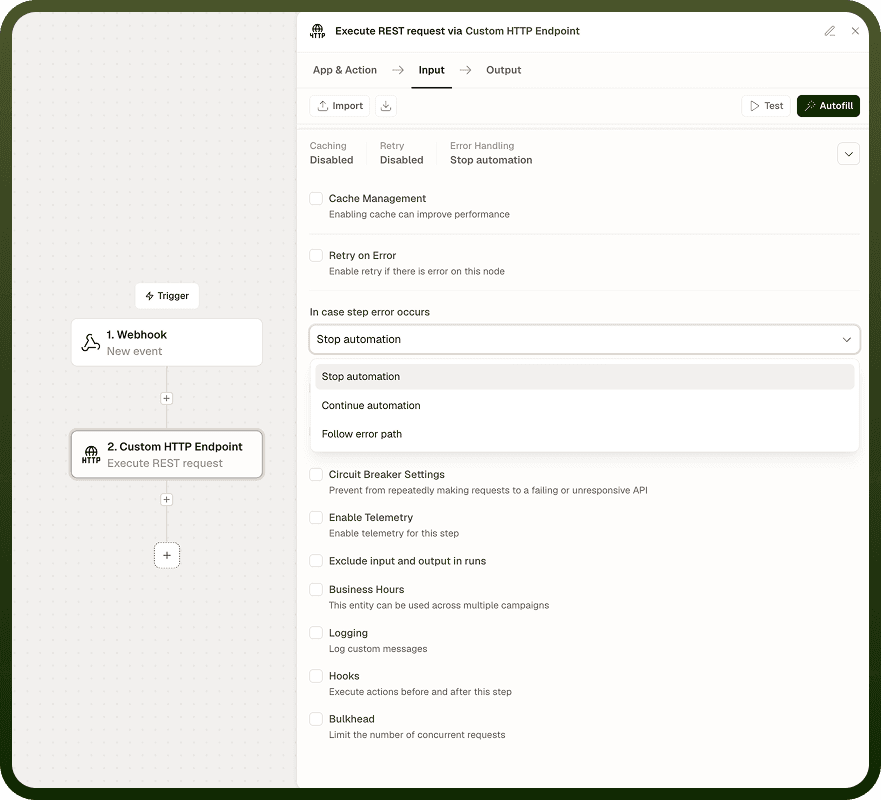
You configure error handling in each step's properties panel, using the In case step error occurs setting. The choice you make applies only to that step; other steps in the same automation keep their own settings independently.
Note: Error handling is a step-level setting. Automation-level failure protection (such as the circuit breaker) is configured separately in the automation's settings screen.
Error Handling Options
The In case step error occurs field offers four options. Choose the one that matches what the automation should do when this particular step fails.
Option | Behavior | When to Use |
|---|---|---|
Stop automation | The run ends immediately when this step fails. No subsequent steps execute. | The step is critical and there is no safe way to continue without its output — for example, a lookup that every later step depends on. |
Continue to next step | The error is swallowed and execution moves to the next step in sequence, as if the failing step had succeeded. | The step is optional or best-effort and its failure does not affect the rest of the run — for example, a non-critical notification or an enrichment step whose output is not required downstream. |
Go to specific step | Execution jumps to a step you designate, bypassing all steps in between. Use this to route the run to a dedicated error-handling branch. | You have built a recovery or alerting path in the automation — for example, a step that logs the failure to a monitoring system or sends an alert — and want the run to follow that path on failure rather than stopping silently or continuing blindly. |
Retry | The step is re-attempted automatically according to the Retry on Error configuration for that node. Once all retry attempts are exhausted, the outcome is determined by the error handling option configured within Retry on Error. | The failure is likely transient — a brief network interruption, a rate limit response, or a temporarily unavailable service — and re-attempting after a short delay is likely to succeed. |
Configuring Error Handling on a Step
Select the step on the automation canvas.
Open the step's properties panel on the right side of the canvas.
Locate the In case step error occurs setting.
Select the option that matches the desired behavior for this step.
If you select Go to specific step, choose the target step from the step selector that appears.
If you select Retry, configure the retry parameters in the Retry on Error section of the same properties panel.
Save the automation.
Note: Each step's error handling is configured independently. Changing the setting on one step does not affect any other step in the automation.
Combining with Retry on Error
Retry on Error is a complementary node-level mechanism that automatically re-executes a failing step a configurable number of times before escalating. When you set a step's error handling to Retry, the step follows the retry schedule — initial delay, back-off factor, and maximum delay — that you configure in the Retry on Error section of the properties panel.
Once all retry attempts are exhausted without success, the Retry on Error configuration determines what happens next: stop the automation, continue to the next step, or follow a designated error path. This means Retry on Error itself has its own error handling outcome, applied only after retries are spent.
A common pattern is to set the step's error handling to Retry for transient failures (network errors, rate limits, 503 responses) and configure Retry on Error to Go to specific step after exhaustion, routing to an alerting or logging node rather than silently stopping or continuing.
Notes
Error handling at the step level gives you fine-grained control over run resilience without writing conditional logic by hand. To make the most of it:
Reserve Stop automation for steps whose output is genuinely required by every subsequent step — use it selectively, not as a default.
Use Continue to next step only when you have verified that downstream steps do not depend on this step's output; continuing blindly on error can produce unexpected results in later nodes.
Build a dedicated error path (a sequence of steps that log, alert, or compensate) and use Go to specific step to route critical failures to it — this is safer than silently continuing and more informative than stopping with no context.
Use Retry for steps that call external services, where transient failures are common, and pair it with well-tuned Retry on Error settings rather than relying on the default values.
Review step-level error handling choices when you add or reorder steps — a Go to specific step target step reference may point to the wrong step after the canvas is reorganized.