


The Documentation Panel is an AI-generated summary of what an automation does — its purpose, how it works step by step, and the data flow between nodes — shown alongside the automation's flow so you can understand it without reading the builder configuration directly.
Overview
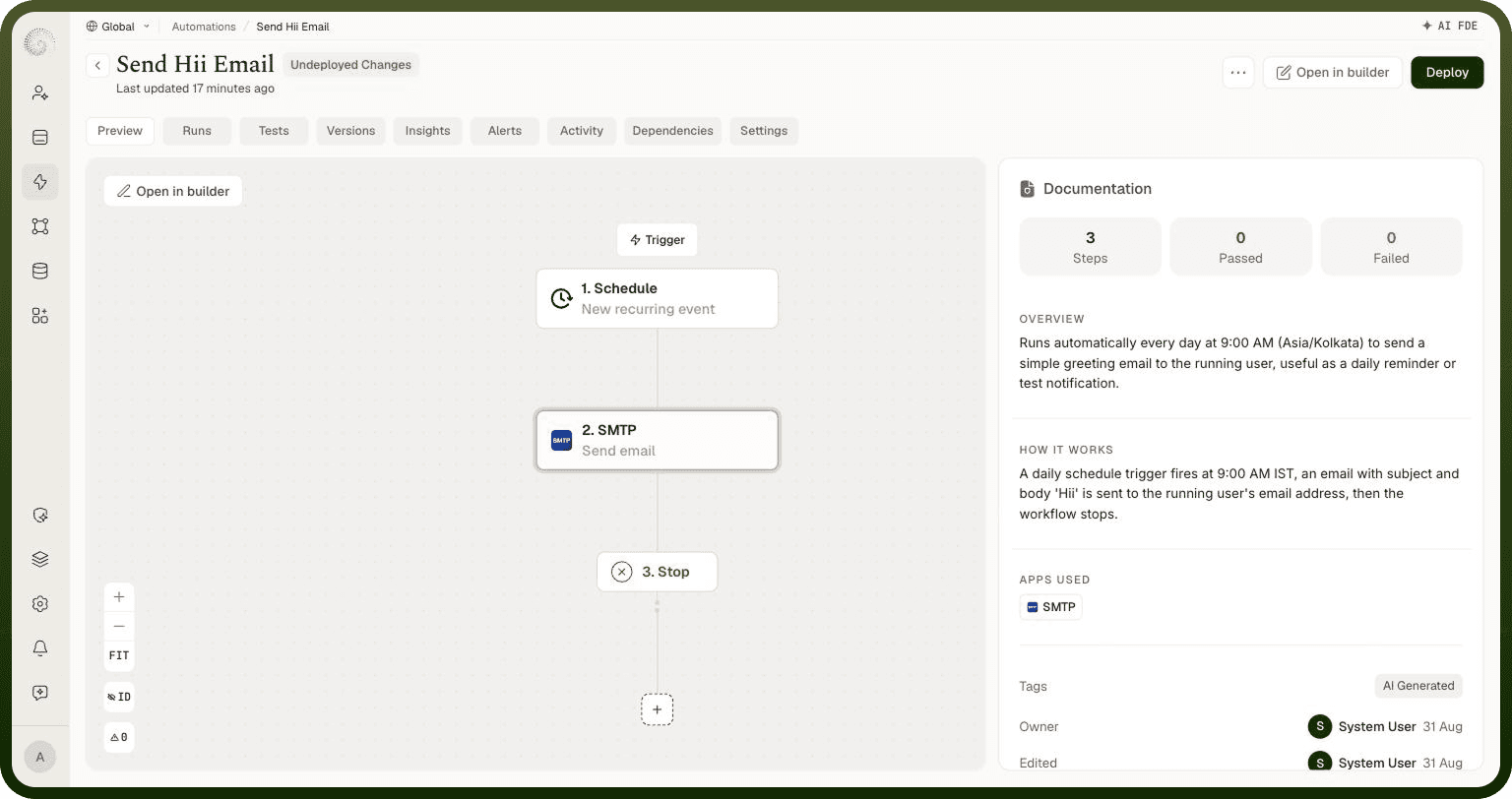
Every automation's detail view has a Documentation panel on the right side of the Preview tab. It summarizes the flow in plain language, so anyone opening the automation — including teammates who didn't build it — can understand what it does at a glance.
The panel is generated by AI from the automation's current configuration — its trigger, its nodes, and the connections between them — not written by hand, so it always reflects what the flow actually does rather than what it was originally intended to do.
What the Panel Shows
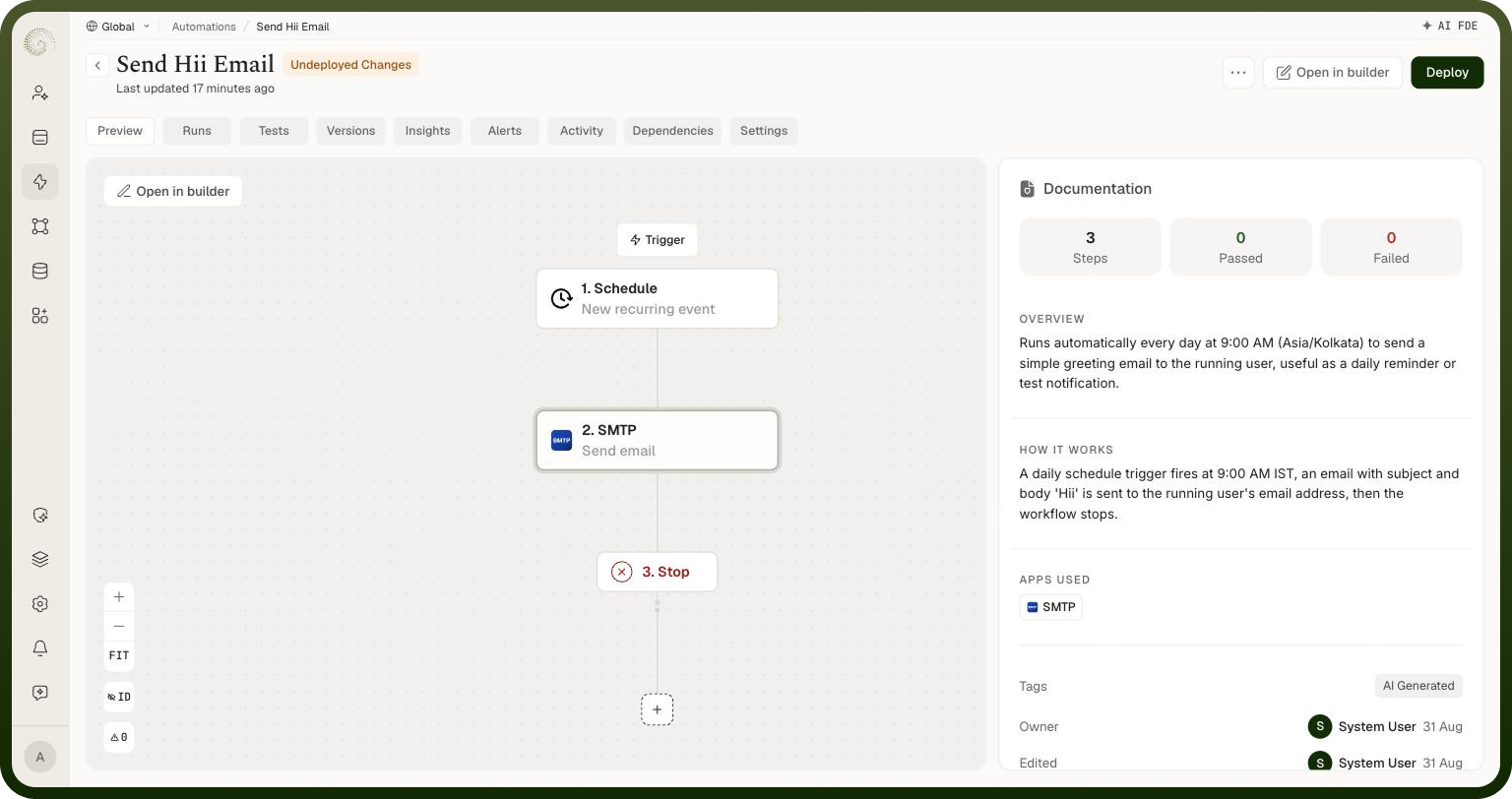
At the top of the panel, three tiles give you an at-a-glance read on the automation:
Steps — the number of nodes in the flow.
Passed — the count of successful run executions.
Failed — the count of failed run executions.
Below the tiles, the summary itself is split into two sections:
Overview — a short, high-level description of what the automation does and why.
How it works — a plain-language walkthrough of the automation's logic from trigger to finish.
Underneath the summary, the panel also lists the Apps Used by the flow, followed by the automation's Tags, Owner, and who last Edited it — the same metadata shown in the automations manager list, surfaced here for reference without needing to leave the flow view.
Generating and Regenerating the Summary
If no summary has been generated yet for an automation, the panel shows a Generate summary button in place of the Overview and How It Works sections. Click it to produce the initial AI-generated documentation.
If the flow has changed since the summary was last generated — nodes added, removed, or reconfigured — the panel shows a notice prompting you to Regenerate it. Regenerating replaces the summary with one that reflects the automation's current configuration.
Note: The summary is generated from the automation's configuration at a point in time. After making structural changes in the builder, regenerate it so the documentation doesn't describe an out-of-date version of the flow.
Inspecting Individual Steps
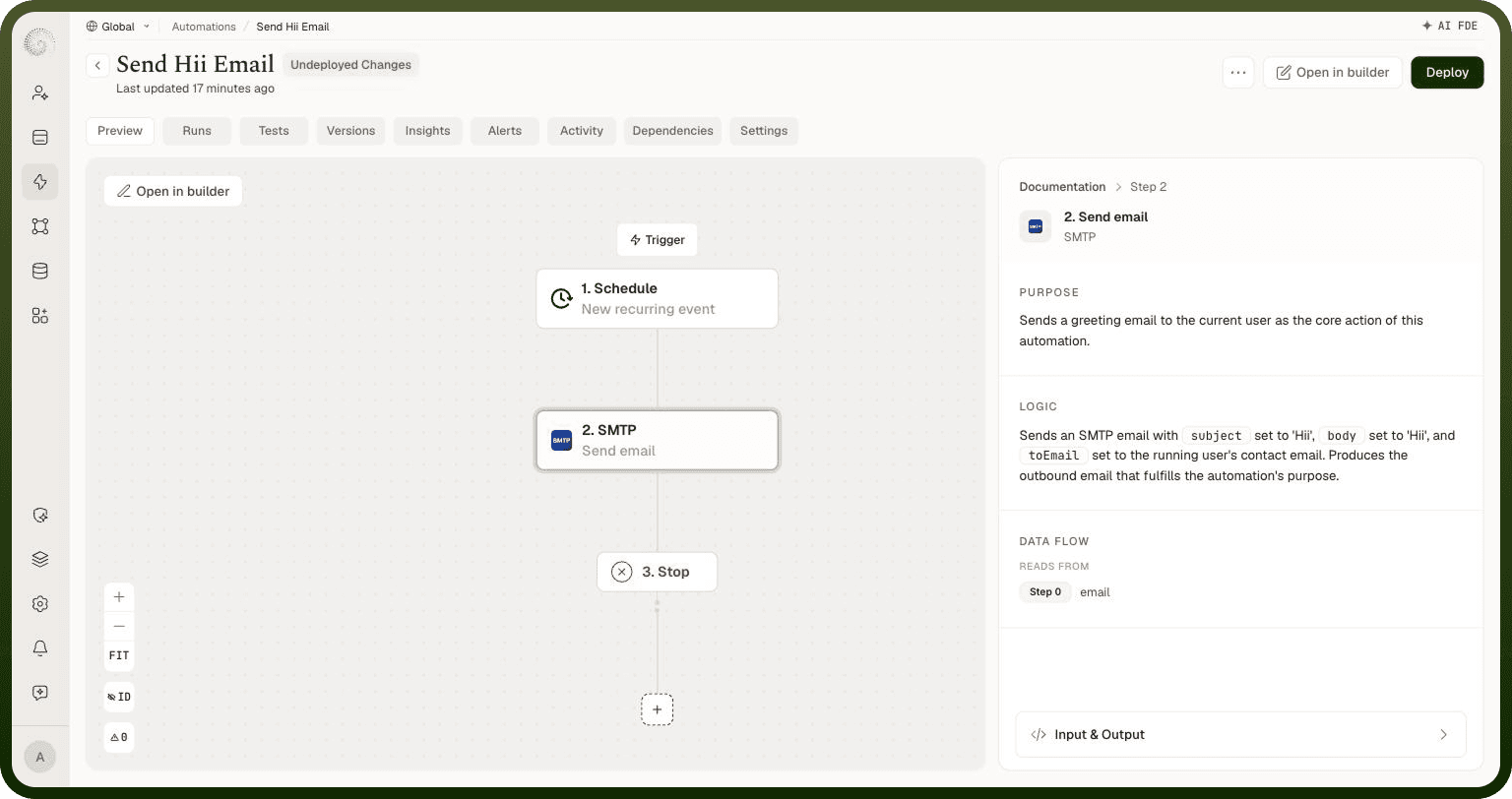
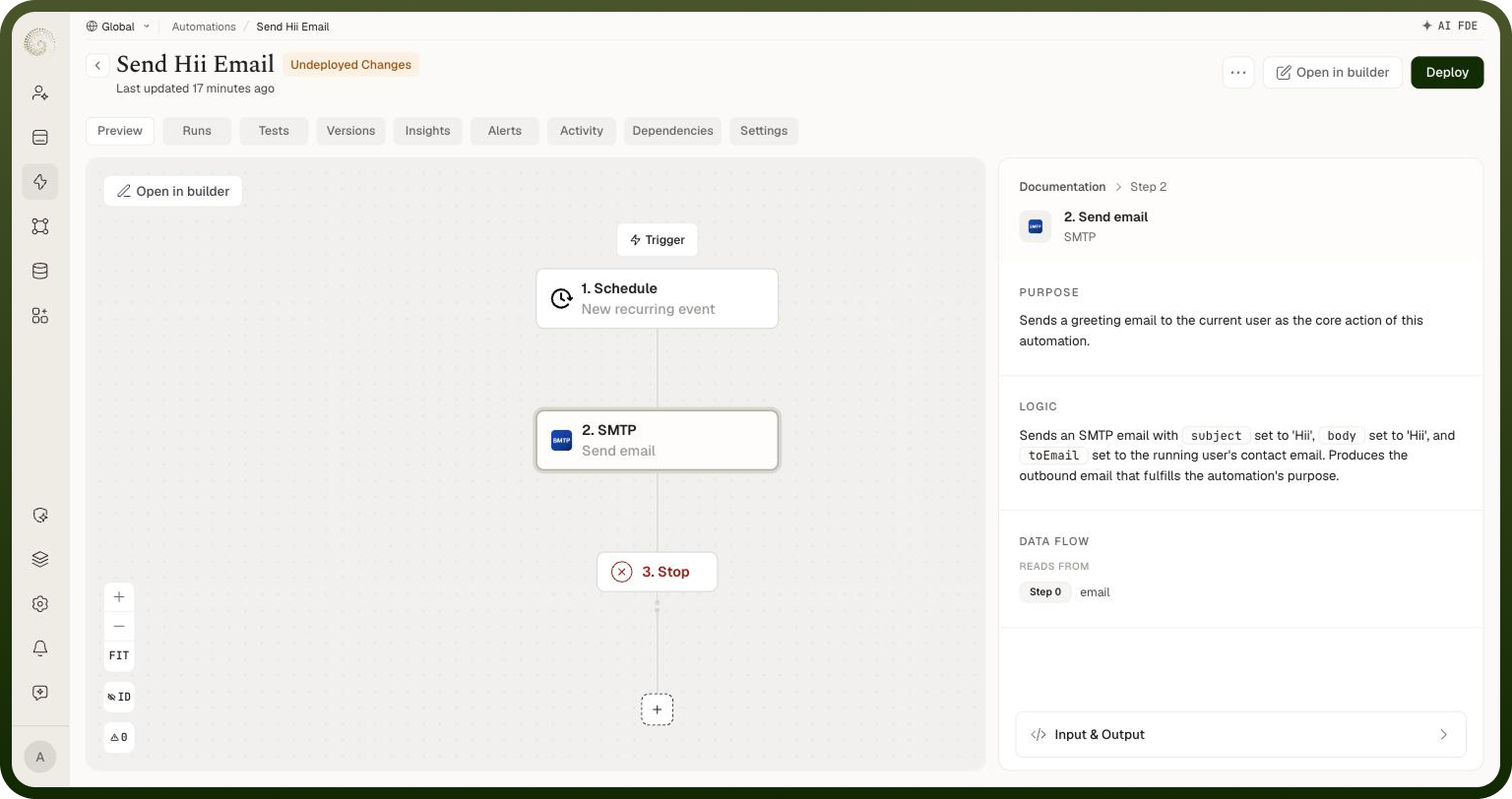
Clicking a node on the canvas — or a step referenced in the How It Works section — swaps the panel from the automation-level summary into a detail view for that step, with a Documentation › Step N breadcrumb at the top so you can navigate back.
The step detail view breaks the node down into three parts:
Purpose — a one- or two-sentence summary of what the step does within the automation.
Logic — a plain-language explanation of the step's actual configuration, naming the specific fields and values it uses and what it produces.
Data Flow — where the step's inputs come from and, when applicable, where its outputs go next:
Reads from — the upstream step and field each input value is pulled from.
Feeds into — the downstream step(s) that consume this step's output, where relevant.
A step's sections adjust to what actually applies to it — a trigger step, for example, has no Data Flow section since it has nothing upstream to read from.
At the bottom of the step detail view, an Input & Output row expands into the node's raw configuration across three tabs — Input, Output, and Connector Details — for when the plain-language summary isn't enough and you need to see the exact fields and values the step is configured with.
Notes
To make the most of the Documentation Panel:
Generate the summary before sharing an automation with teammates who didn't build it — it lets them understand its purpose without reading the builder.
Regenerate the summary whenever you add, remove, or reorder nodes, so it doesn't drift from what the flow actually does.
Use the per-step Reads from / Feeds into details when debugging unexpected outputs — they make the data dependencies between steps explicit without opening the builder.
Fall back to a step's Input & Output tabs when you need the exact configured values rather than the plain-language Logic description.