


An App Trigger starts an automation the moment an event happens in a connected third-party app — a new email arriving in Gmail, a ticket created in Zendesk, a record updated in Salesforce. It's the most common way to start an automation, because most workflows exist to react to something that already happened somewhere else.
What Is an App Trigger?
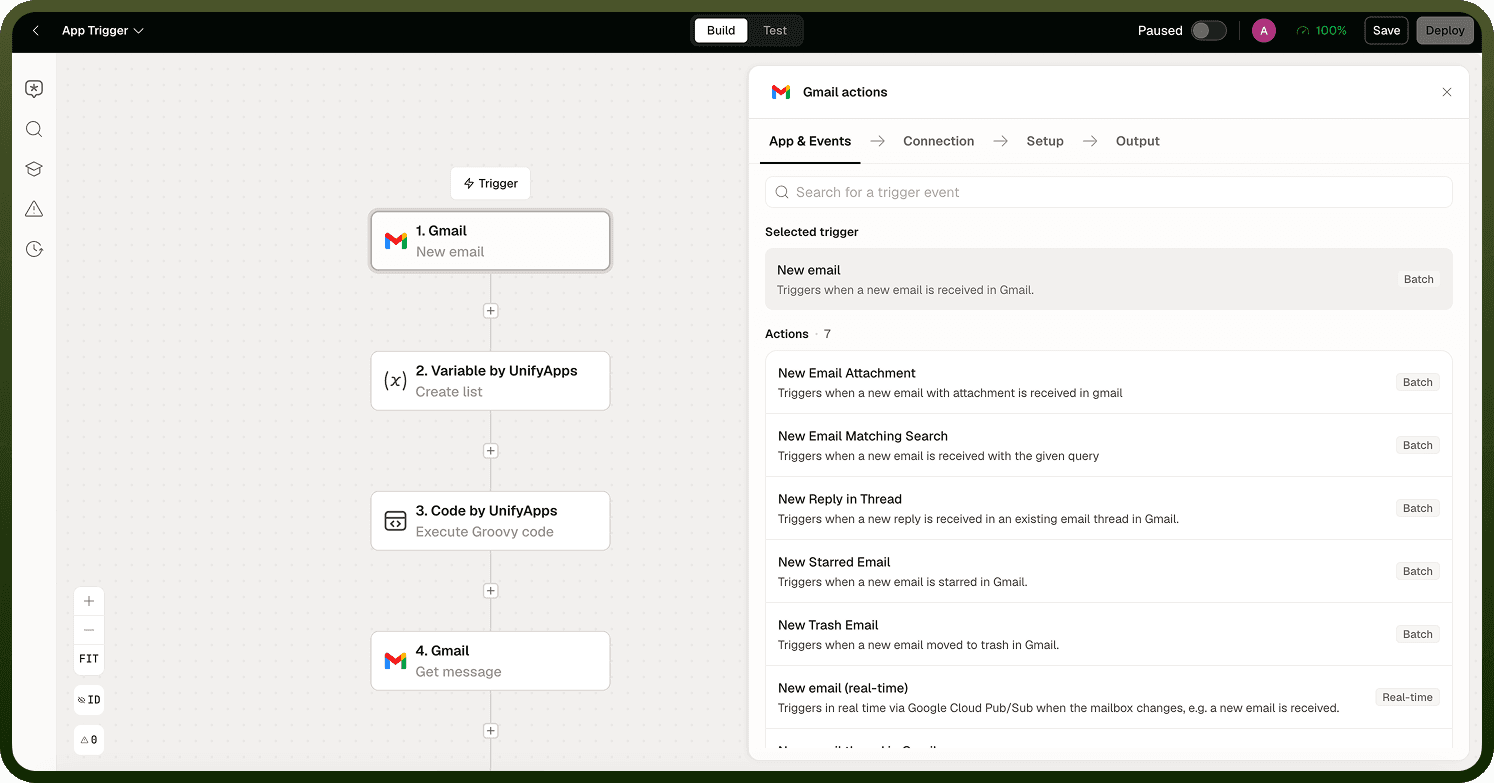
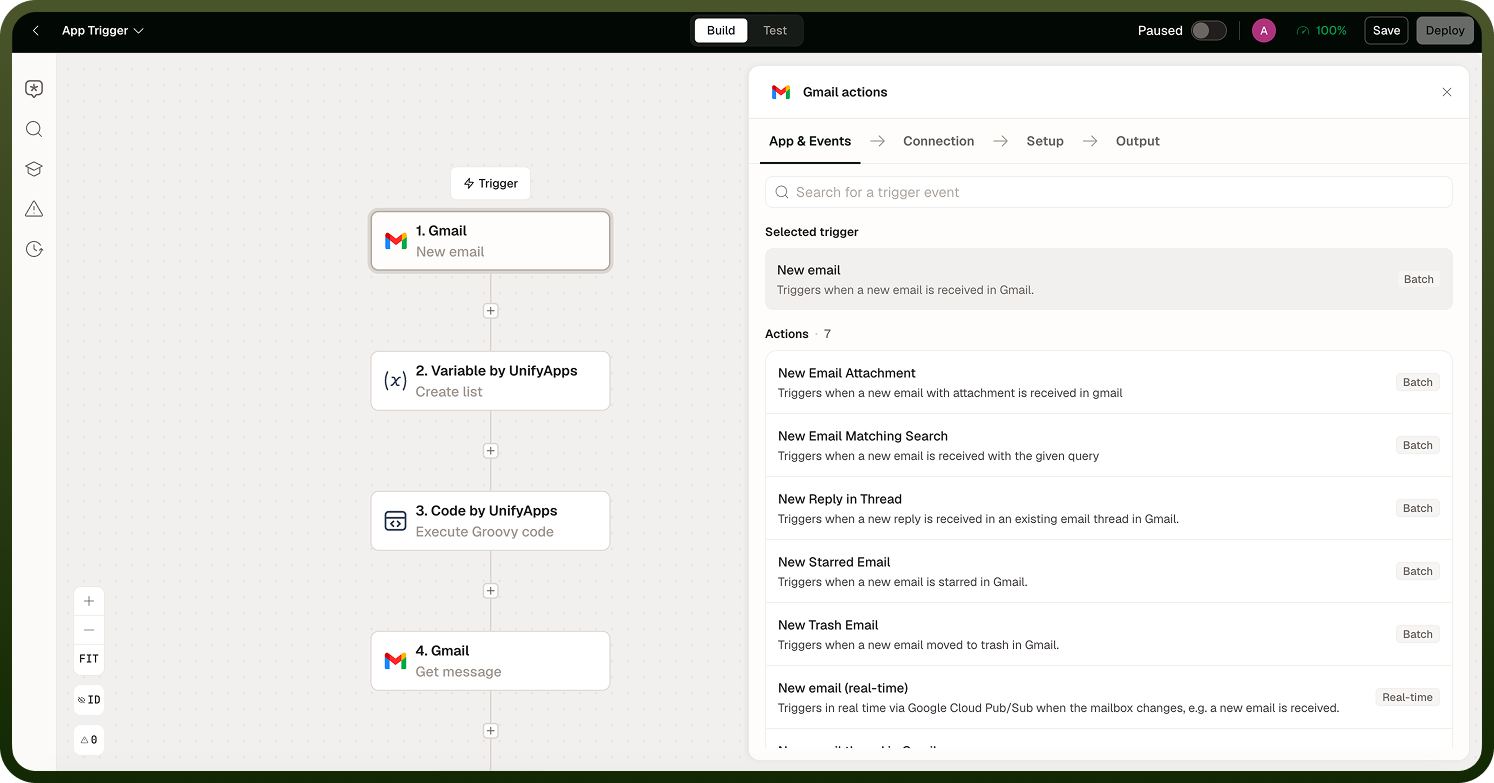
Every app that exposes trigger events shows up in the trigger step's app catalog alongside the actions it supports. Picking an app trigger subscribes your automation to one specific event from one specific app — not the whole app, and not every event it can raise. When that event occurs, the platform receives it, starts a new run, and makes the event's data available as data pills to every step downstream. In effect, the app trigger is a live subscription: you're not asking "did anything change?" on a schedule, you're being told the instant something did.
How It Works
Selecting the trigger step opens its properties panel to the App & event tab first. Search the catalog for the app you want to react to, then choose the specific event it exposes — for example, Gmail's "New Email" event, Zendesk's "Ticket Created" event, or Salesforce's "Record Updated" event. Once an event is chosen, the Setup tab unlocks, where you pick the connection to use and, for most events, one or more filter conditions that narrow which occurrences of the event should actually start a run — for example, status = Open or priority = High.
Filtering at the trigger means an automation only runs for the events it was built to handle, instead of running on everything and discarding the rest with a Condition step further down the flow — and since a filtered-out event never creates a run, it never shows up in run history either. A trigger subscribes to exactly one app and one event at a time; if a workflow needs to react to two different events, build two automations rather than trying to combine them, and share logic between them with a Callable automation if they overlap.
Many Examples: Apps, Events, and What They Kick Off
To make this concrete, here's how App Triggers look across a range of different connected apps:
App | Event | What Happens Next |
|---|---|---|
Gmail | New email matching a filter | Extract attachment data, file it, and create a follow-up task |
Zendesk | Ticket created | Route the ticket to the right team and notify them in Slack |
Zendesk | Ticket priority changed to High | Alert the on-call channel immediately |
Salesforce | Record updated (Opportunity) | Sync the updated deal stage to a reporting sheet |
Salesforce | New Lead created | Enrich the lead with company data and assign it to a rep |
HubSpot | Deal stage changed | Notify the account owner and update a forecast dashboard |
Slack | New message matching a keyword | Log the message and open a tracked follow-up item |
Stripe | Payment succeeded | Provision the customer's account and send a receipt |
Typeform | New form submission | Create a record in a CRM from the submitted answers |
GitHub | New issue opened | Create a linked ticket in a project tracker |
Calendly | New meeting booked | Send a prep email and add the meeting to a shared calendar |
RSS/Atom feed | New item published (polling) | Summarize the item and post it to a digest channel |
Notice the pattern in every row: one app, one specific event, and a run that starts with that event's data already available as data pills — the receiver's email, the ticket's new priority, the payment amount — ready for the next step to use directly.
Delivery: Real-Time vs Polling
Most App Triggers are real-time: the connector subscribes to the source app's own webhook or event stream, so the run starts the instant the event happens on the app's side — this covers the large majority of examples above (Gmail, Zendesk, Salesforce, Slack, Stripe, and so on). A smaller number of connectors don't offer a native event stream, so their trigger is polling-based instead — the platform checks for new or changed data on a fixed interval rather than reacting instantly. For example, an RSS/Atom feed's "new item" trigger polls on a configurable interval that defaults to 10 minutes, and a generic "new or changed file" trigger polls roughly once a minute.
Delivery model | How it fires | What to expect |
|---|---|---|
Real-time | Webhook-style subscription fires the instant the source event occurs. | Near-zero delay between the app event and the automation run starting. |
Polling | The connector checks the source on a fixed interval and starts a run for anything new since the last check. | Delay up to the length of the polling interval; several new items found in one check each start their own run. |
Check the specific connector's own event documentation when the delivery model matters to your use case — for example, when you're building an SLA-sensitive alert and need to know whether to expect instant or delayed delivery.
Connection Scope & Testing
An App Trigger is configured against one connection at a time — the single connection you pick on the trigger's Setup tab. If you work with two accounts of the same app (for example, two separate Salesforce orgs, or two Gmail inboxes), a single trigger can't watch both: build a separate automation per connection, or use a shared Callable automation for the logic they have in common so you're not duplicating the downstream steps.
Action steps have a Test button on their Input tab that runs just that step with sample input. The trigger doesn't show this option — the properties panel note for the trigger step points you to the automation itself instead. To confirm an App Trigger is wired correctly, run the automation (or wait for a live event) and check the run's history to see that it started with the payload you expected.
Common Use Cases
Support workflows — start an automation when a ticket is created or its priority changes, to route it, notify the right team, or open a linked record in another system.
Sales and CRM sync — start an automation when a record is created or updated in a CRM, to enrich it, sync it to another system, or notify the owning rep.
Inbox automation — start an automation on a new email matching a filter, to extract data, file an attachment, or create a follow-up task.
Cross-app handoffs — start an automation when a record changes in one app so its counterpart in a second connected app is created or updated in step.
Payment and commerce events — start an automation when a payment succeeds, to provision access, send a receipt, or update a ledger.
Notes
Only apps that expose at least one trigger event appear when you're configuring a trigger step — an app with actions but no events won't show up there.
An app trigger fires once per matching event, not once per batch — an automation with an app trigger runs once for every event that passes its filters.
Filter conditions are evaluated at the trigger, before the run starts — an event that doesn't match never creates a run, so it never appears in run history.
Plan for one automation per connected account when an app trigger needs to cover more than one instance of the same app.