


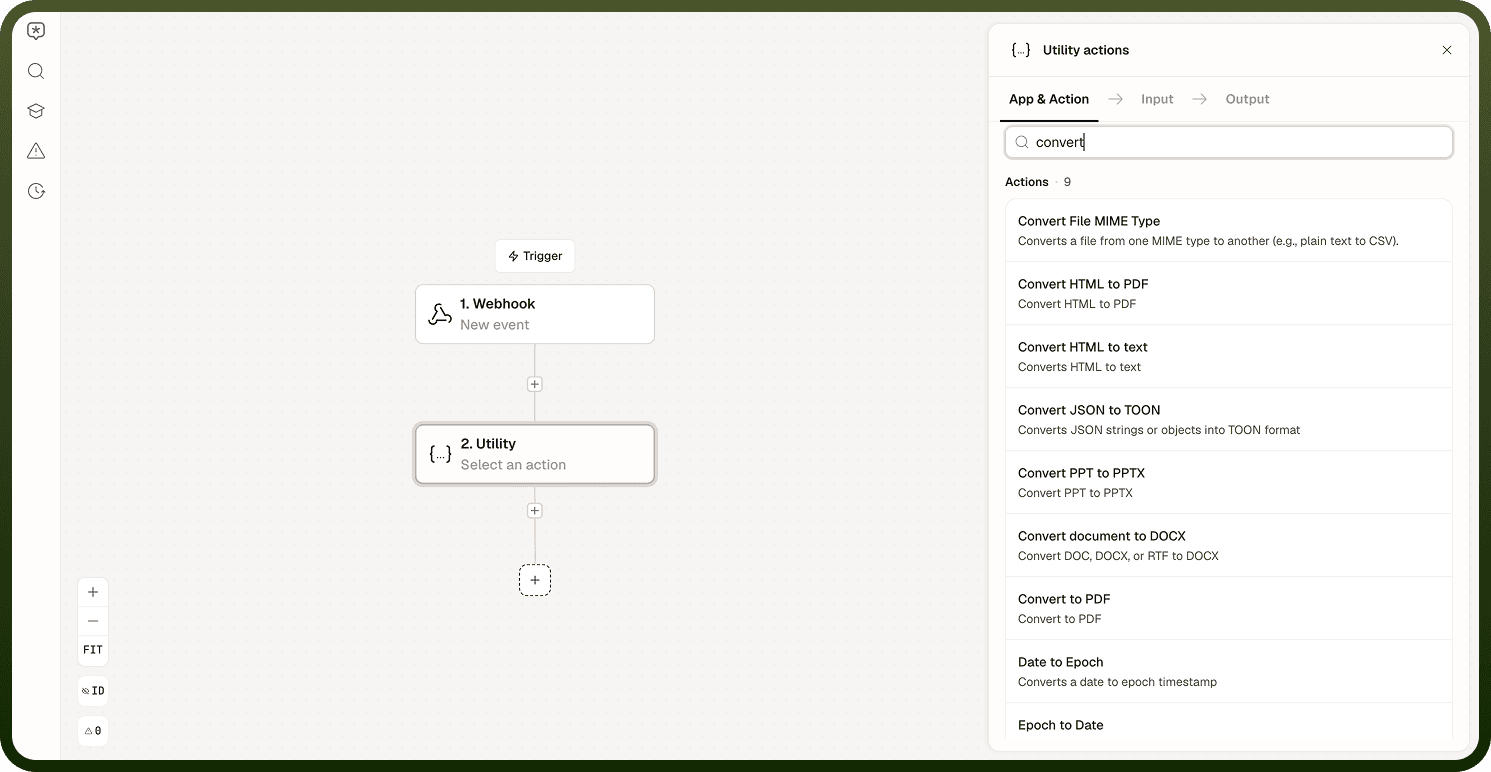
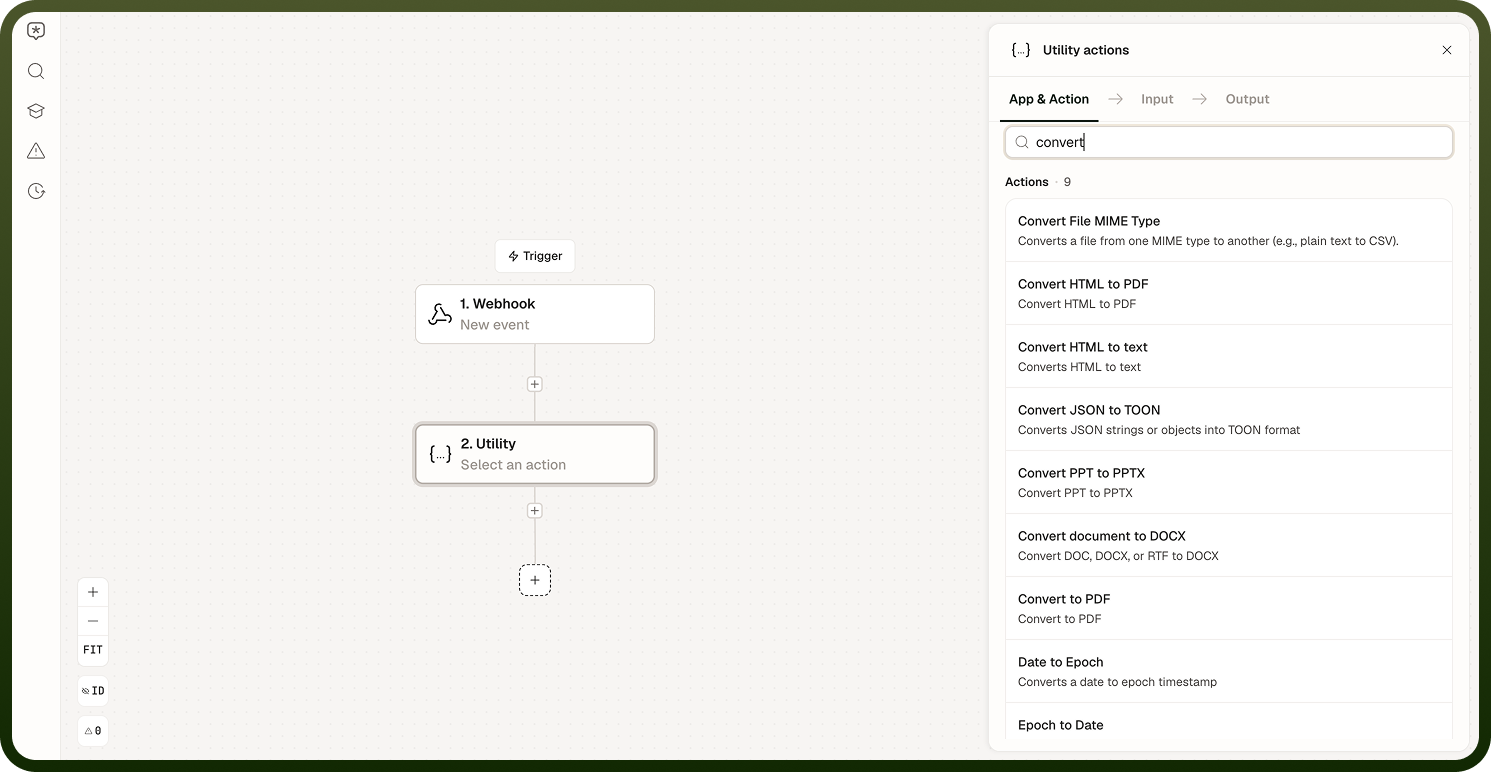
The File Format Conversion operations in the Utility node transform documents, markup, and structured data between formats — from Office documents to PDF, from HTML to readable text, from legacy presentation formats to their modern equivalents, and from one JSON shape to another. Select one conversion operation per node.
Overview
These seven operations handle the most common document- and data-conversion needs inside an automation: producing a PDF from any supported source, extracting readable text from HTML, upgrading older Office files, and converting JSON into the more compact TOON format. They integrate directly into the workflow so files can be converted in-flight without an external service.
Operations
Operation | What it does |
|---|---|
Convert to PDF | Converts Office documents (Word, Excel, PowerPoint), text files, and images to PDF. Documents are rendered through an office engine; images are placed on a PDF page. Conversions retry automatically on transient failure. |
Convert HTML to PDF | Converts an HTML string or file to PDF. JavaScript execution is disabled by default — pages that depend on JS for rendering may come out blank or partial. Enable the headless-browser option to render with a full browser (slower but runs JS). Enable the right-to-left option for RTL-language content. |
Convert HTML to text | Strips HTML tags and returns the plain-text content of an HTML string. |
Convert document to DOCX | Converts a supported document format to DOCX (Microsoft Word). |
Convert PPT to PPTX | Upgrades a legacy PowerPoint file (.ppt) to the modern Open XML format (.pptx). |
Convert File MIME Type | Changes the declared MIME type of a file without re-encoding its binary content. |
Convert JSON to TOON | Converts a JSON string or object into TOON format. Input: Format — String or Object, selecting whether the JSON to convert is provided as a JSON string or a JSON object (default: Object); JSON — the JSON string or object to convert. |
Notes
Keep the following in mind when using these operations.
Convert HTML to PDF does not run JavaScript by default. Enable the headless-browser rendering option for pages that build their content with JS; this mode is slower but produces accurate output.
Right-to-left language content in Convert HTML to PDF requires the RTL option to be enabled explicitly, or text may render jumbled.
Convert to PDF supports Word, Excel, PowerPoint, text, and image source files. Conversions retry automatically on transient failure.
Convert File MIME Type changes only the file's declared MIME type, not its binary content — the file data itself is not re-encoded.
Convert PPT to PPTX upgrades the container format only; test complex presentations to confirm visual fidelity in the output.