


A data source is a named, reusable request for data that lives on a page or on the whole app. Configure it once — which API to call, which records to query, with what inputs — and every block on that page can bind to its results. The data source owns the fetching: when it runs, when it re-runs, how its response is shaped, and what loading and error states it exposes while doing so.
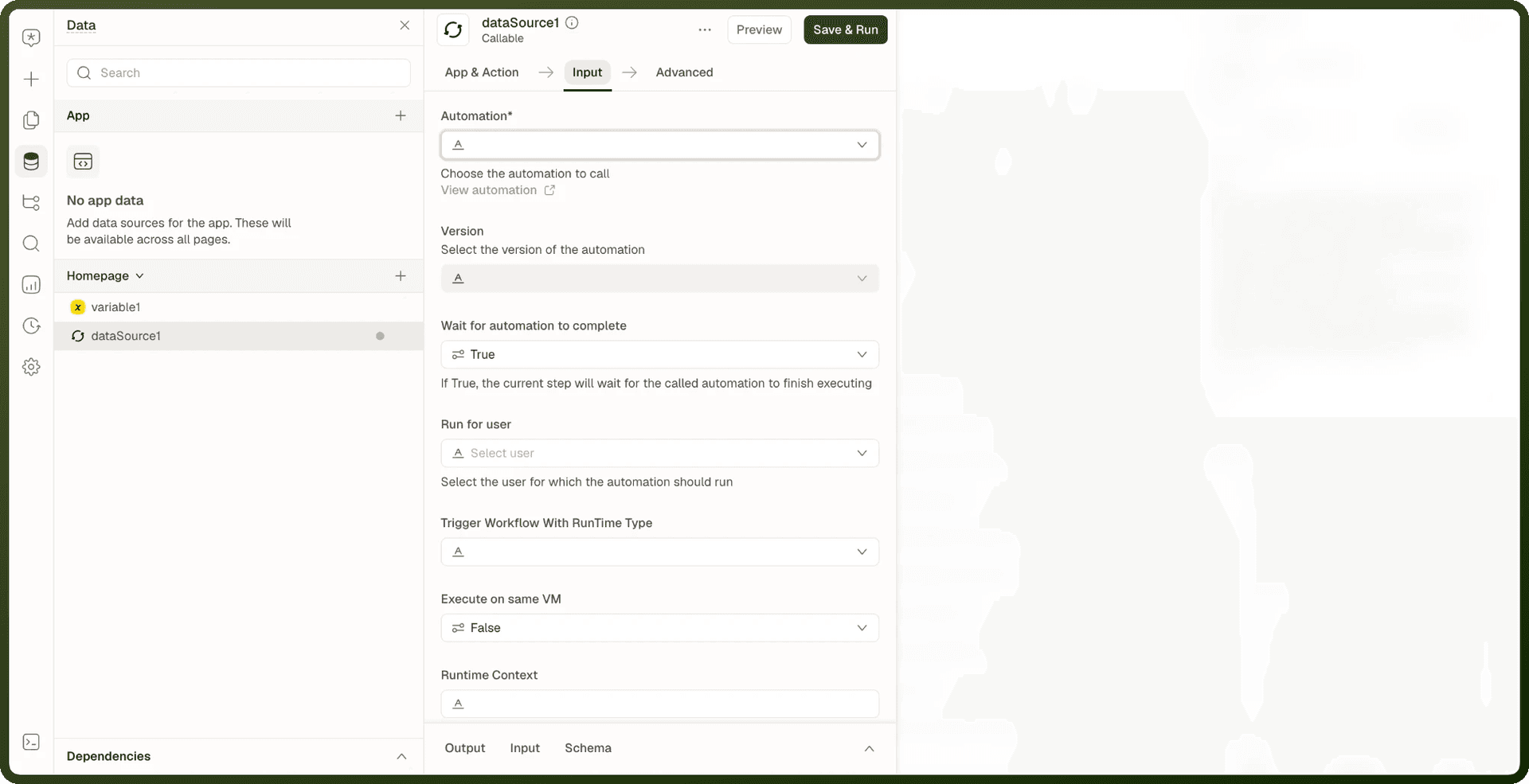
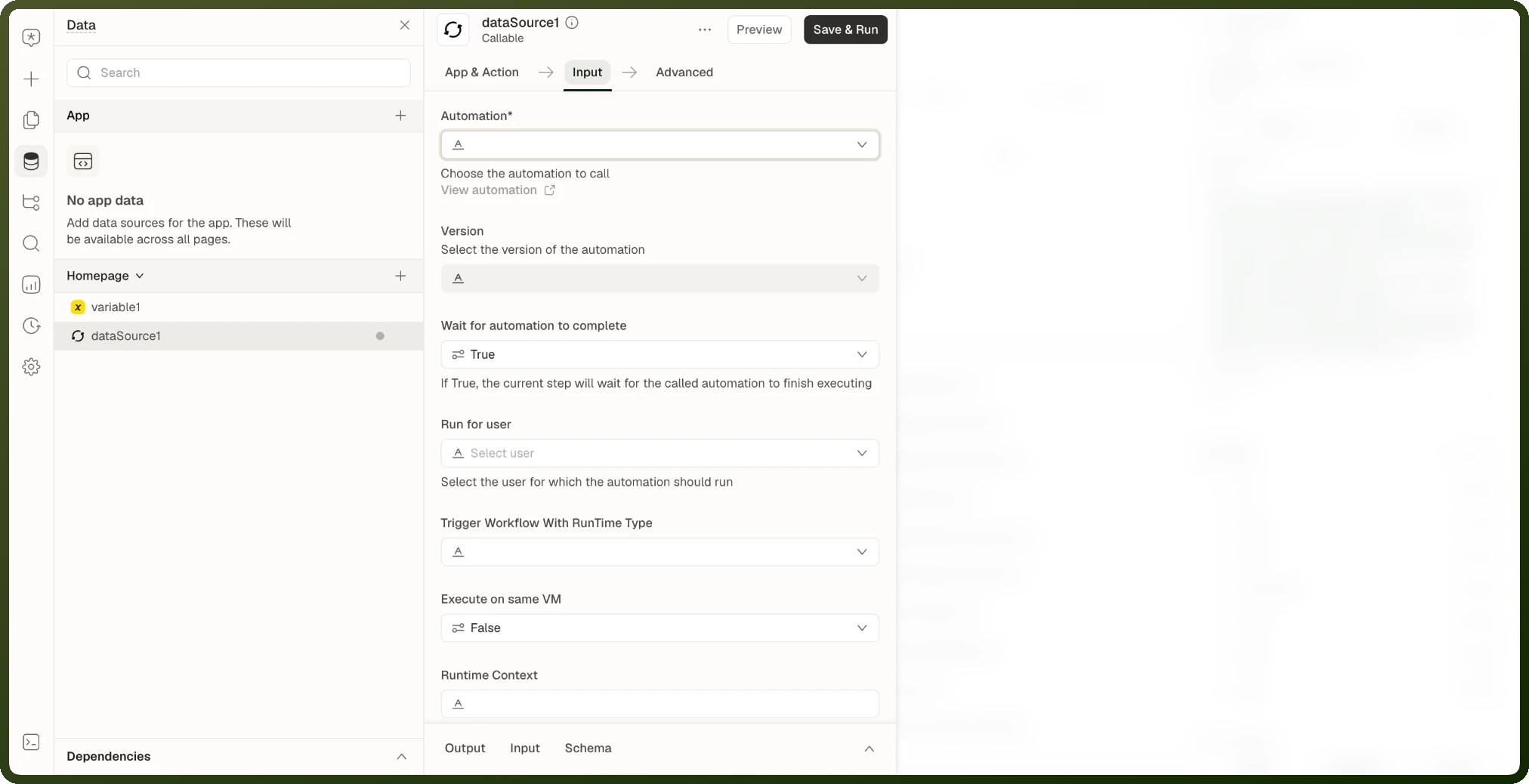
Note: Open the Data panel in the Application Builder. It has two lists: App (data shared across all pages) and a list named after the current page, such as Homepage (data specific to this page). Variables and functions live alongside data sources but are separate concepts.
What a Data Source Can Call
Every data source calls an app action. You pick the app and its action when you create the data source, from the Select an app picker (Most popular or All apps).
App | What it does | Typical use |
|---|---|---|
Storage by UnifyApps | Creates, fetches, updates, and deletes records in your data objects. | Reading and writing records the platform already stores. |
Analytics by UnifyApps | Queries reports or runs an analytics query. | Feeding charts and metrics. |
Callable | Calls a callable automation and returns its output. | Running your own logic and returning the result to the page. |
Custom HTTP Endpoint | Sends an HTTP request. | Reaching your own or a third-party REST API. |
Connectors | Runs an action of any connector in All apps. | Reading data from an external system. |
Page Scope vs App Scope
When you create a data source you choose where it lives:
| Scope | Lives in | Accessible from | Use when |
| Page Data | This page only | Blocks on this page | The query is specific to this page's concern |
| App Data | The app's global scope | Every page in the app | The same data is needed across multiple pages — create once, use everywhere |
Warning: A single page caps at 100 data sources. Hitting that limit shows a "Data source limit reached" dialog. The recommended fix is to split heavy pages, share data via App Data, or combine related queries where possible.
The Lifecycle: Configure → Run → Bind → Refresh
Every data source moves through the same four stages regardless of what it calls or its scope.
Configure: Define what to fetch: the endpoint or query, its inputs, and its run behavior. Inputs can be static values or expressions bound to page state, other data sources, or user input. Inputs configured as expressions make the data source reactive — it re-runs automatically when the referenced value changes.
Run: The data source executes. An automatic data source runs on its own — on page load and again whenever an input it depends on changes. A manual one runs only when something explicitly triggers it, such as a button action.
Bind Results: Blocks read the response through the data source's name in a
{{ }}expression. Alongside the response, each data source exposes its live request state:data(the response),isLoading(true until the first result arrives),isFetching(true while any run is in progress, including later refetches) anderror(the request error, or empty when the request succeeded). Data sources that use infinite loading also exposeisFetchingNextPageandhasNextPage.Refresh: Data stays current through three mechanisms: polling (re-run on an interval), focus refetch (re-run when the user returns to the tab), or an explicit trigger from an action. See Caching & Refetch.
Optional Lifecycle Capabilities
Two optional features extend the standard lifecycle:
Capability | What it does | See |
|---|---|---|
Response Transform | A JavaScript snippet that reshapes the raw response before blocks read it — flatten nesting, rename fields, compute derived values. | |
Infinite Loading | Turns the response from a fixed window into an append-only list; consuming blocks pull additional pages on demand. |
How to Add a Data Source
Open the Data panel: In the Application Builder left rail, select the Data panel.
Click + → Data Source: Click + on the App list or the page's list and choose Data Source. The Select an app picker opens, with Most popular and All apps — for example Storage by UnifyApps, Analytics by UnifyApps, Callable, Custom HTTP Endpoint and your connectors.
Pick the app and action: Select the app, then choose its action. The data source is created and opens with the tabs App & Action, Input and Advanced. A Connection tab also appears for apps that need a connection, such as connectors.
Configure inputs, run behavior, and advanced options: On the Input tab set run behavior (Automatic / Manual), configure the action's inputs, and optionally add a response transform or event handlers. The Advanced tab controls timing, caching, retries, and disable conditions.
Save and run: Click Save & Run (shown as Save for a manual data source, or Run when there are no unsaved changes) to test the data source, then check the Output and Schema tabs at the bottom of the panel.
Binding to a Data Source
Example — Binding a table to a data source result
Assuming a data source named orders_query that returns a list of orders:
// Bind the Table's data property to all records {{ orders_query.data.objects }} // Show a loading spinner conditionally {{ orders_query.isLoading }} // Show the error message when the query fails {{ orders_query.error.message }} // Count results {{ (orders_query.data.objects || []).length }}
Success & Failure Events
After a run finishes, the data source fires its On Success or On Failure event. These are ordinary action lists where you chain toasts, navigation, or further actions off the fetch outcome. Attach them on the Input tab under Event Handlers.
Tip: Put "what happens after a save" logic (show a success toast, navigate back) in the data source's On Success event — not chained inline after a trigger action — so it only runs when the fetch actually succeeded.
Common Gotchas
| Gotcha | Explanation |
| Automatic is not "always fresh" | An automatic data source re-runs when its bound inputs change — not when the server's data changes. Use polling or an explicit refresh to pick up server-side changes. |
| Manual data shows nothing until triggered | A block bound to a manual data source shows nothing until something fires it. Bindings resolve to empty values before the first run. |
| Legacy mode is automatic-like but different | Data sources created before run behavior existed have no mode set. The platform treats them like automatic sources, but triggering them from an action differs slightly. Set an explicit mode to remove ambiguity. |
| Automatic can mean many runs | Every distinct change to a bound input triggers a re-run. An input bound to rapidly changing values (unthrottled typing) re-fetches on each keystroke. Prefer binding to settled values or use manual run behavior. |
Related Concepts
Data Source Types — The apps and actions a data source can call.
Query Builder — Configuring a Storage Fetch records query: object, fields, filters, sorting, and paging.
Run Behavior & Triggering — Automatic vs manual, page-load behavior, dependency ordering, triggering from actions.
Caching & Refetch — Polling, background and focus refetch, retries, and action-driven refreshes.
Response Transforms — Reshaping a response with JavaScript before blocks read it.
Infinite Loading — "Load more" pagination — the has-more flag, the cursor, and how blocks consume pages.
Data Binding — The
{{ }}expression syntax that connects data source results to UI blocks.Managing Data Sources — Creating, copying, organizing and deleting data sources in the Data panel.