


Iframe
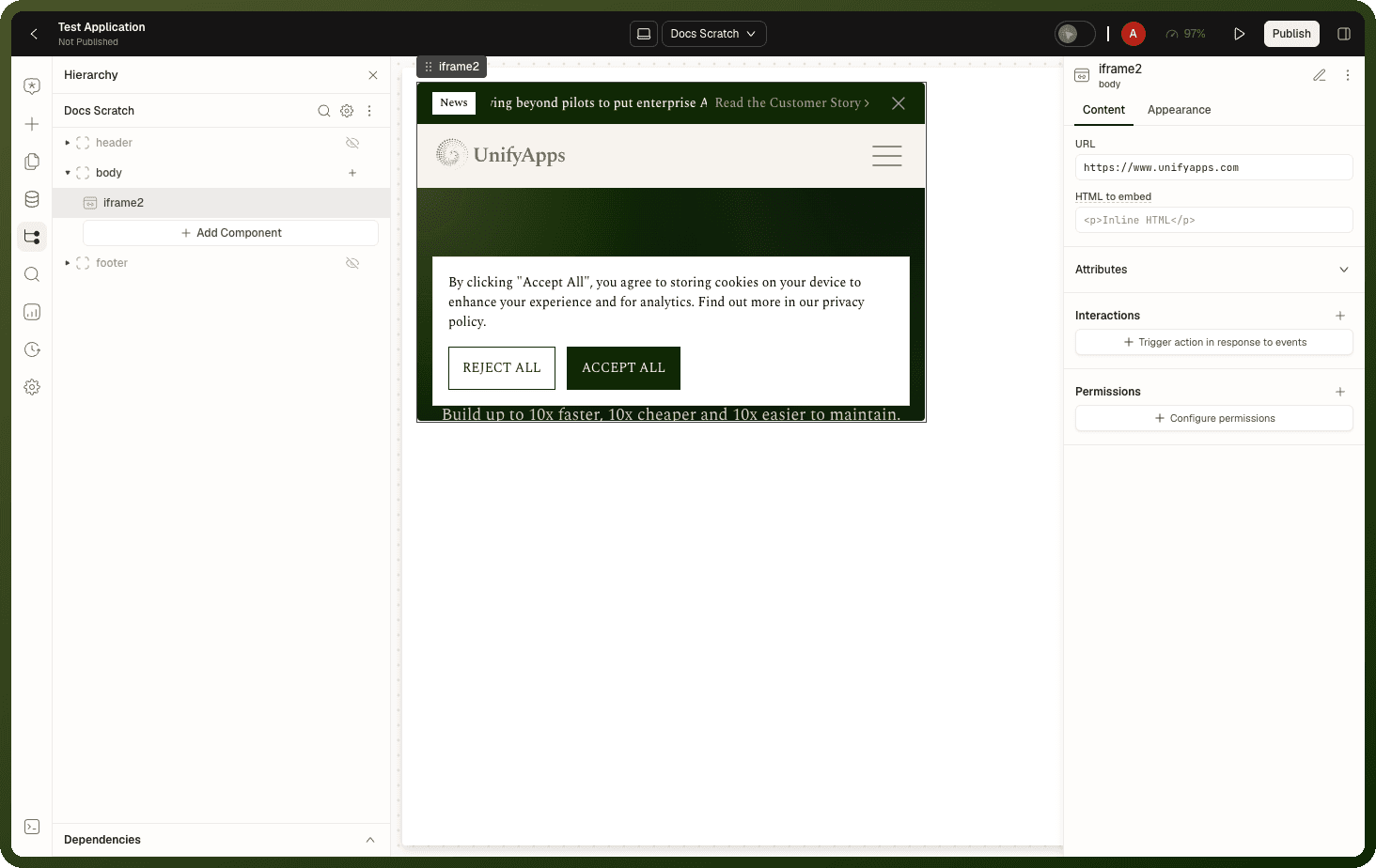
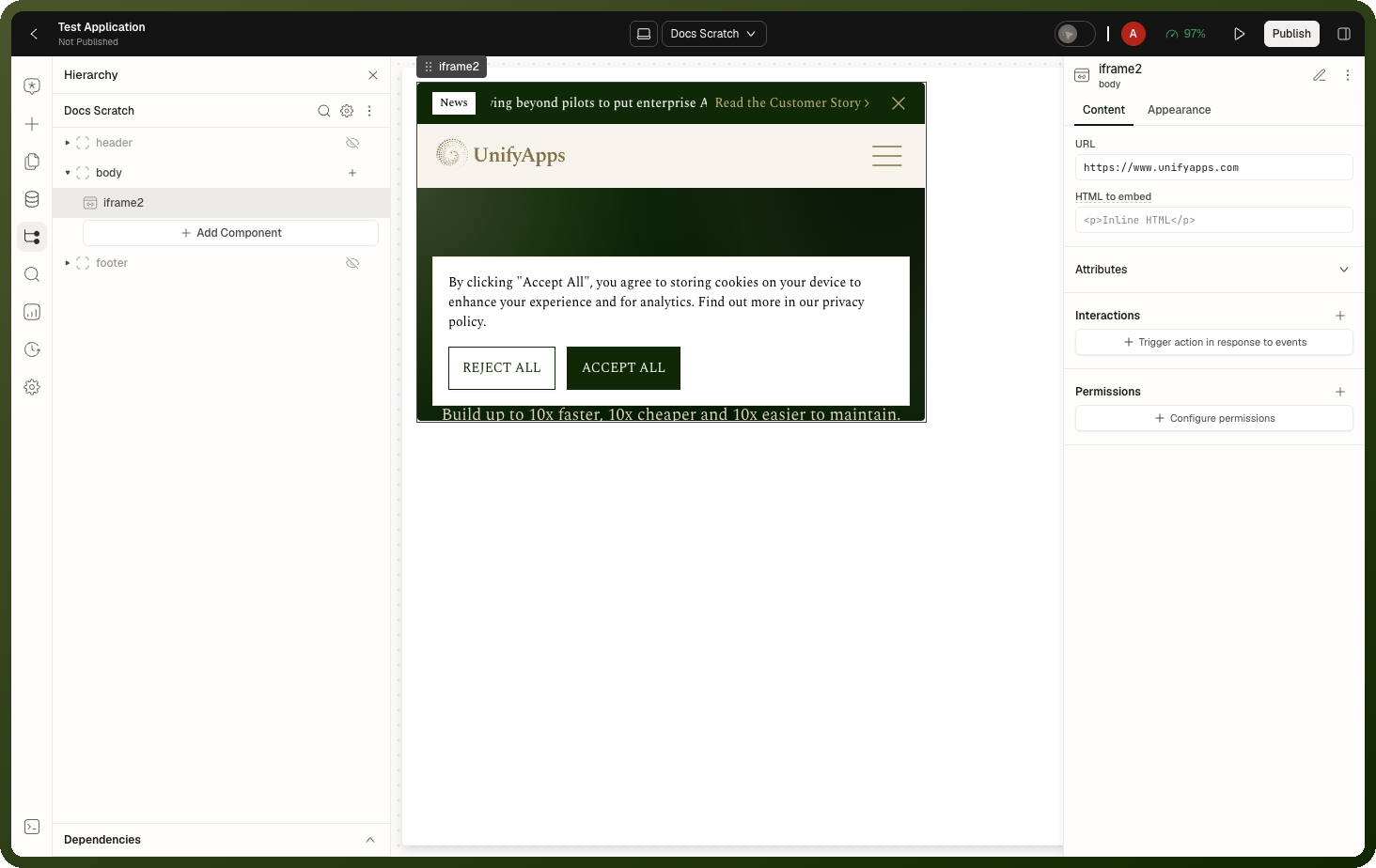
The Iframe block embeds another web page — or a snippet of raw HTML — inside your app. You point it at a URL or paste HTML to embed, control what the embedded content can do through permission toggles, and react to messages the embedded page sends your app. Inline HTML embeds can additionally be made editable, turning the block into a live HTML editing surface.
Tip: When to use Iframe: Embed an external tool, dashboard, map or documentation page without leaving your app. Render raw HTML you already have (email preview, generated markup). Build a two-way integration with an embedded page via postMessage. For displaying a single image or video, use Image or Media blocks instead — they're lighter and not sandboxed.
Properties
Content — Source
Property | Type | Default | Description |
|---|---|---|---|
|
|
| Shown as URL. The URL of the page to embed. |
|
| — | Shown as HTML to embed. Inline HTML to embed. When it is filled, the HTML is shown instead of the URL. To use Content Editable, also clear the URL. |
|
|
| Shown as Content Editable, only when URL is empty and HTML to embed is filled. Lets the user edit the embedded HTML directly in place. |
Content — Sandbox Permissions (Attributes)
All permissions start off, except Storage and Cookies, which is always on in web apps (see gotchas). Enable only what the embedded content requires.
Toggle | What it allows |
|---|---|
| File downloads from within the embed. |
| Form submissions inside the embed. |
| Opening new windows or tabs. |
| Print, alert, confirm, and prompt dialogs. |
| Fullscreen display. |
| Links and code navigating your whole app away. |
| Navigating away only from a user click. |
| Navigation to custom URL protocols like mailto: or tel:. |
| Camera use within the embed. |
| Microphone use within the embed. |
| Location access within the embed. |
| Browser storage and cookies (always on — see gotchas). |
Appearance
| Property | Type | Default | Description |
styles | style set | 540×360 px | Width, height, min/max, margin, padding, border, radius. |
Events
Event | Trigger | Payload |
|---|---|---|
| The embedded page calls | The message data sent from the embedded page, at |
| An inline embed with Content Editable on loses focus | — |
| The embed finishes loading | — |
Exposed State
State key | Type | Description |
|---|---|---|
| string | The current HTML of the embed, including the user's edits. Inline embeds with Content Editable on only. |
The Iframe block has no methods. It can receive messages from the embedded page, but it cannot send messages into it.
Behavior & Gotchas
Warning: Many external sites block iframe embedding. If the target site sends an X-Frame-Options: DENY or a restrictive Content-Security-Policy, the browser refuses to embed it and the block shows a blank frame with no error. Test embedding before designing a flow around it.
Warning: In web apps, Storage and Cookies is always on. The embed always runs with allow-scripts and allow-same-origin, so switching this toggle off does not block browser storage or cookies. Embed only content you trust.
Note: Content Editable only appears for inline HTML embeds, which means the URL field must be empty. A new Iframe block has https://www.unifyapps.com in URL, so clear it after you paste your HTML into HTML to embed. Read the user's edits from {{ id.html }}.
Warning: Your app's Content Security Policy can block the embed. If the app's CSP doesn't allow the embedded host, the block shows "Blocked by Content Security Policy", the blocked host and an Open CSP settings button that takes you to the CSP settings. Add the host to the app's CSP (frame-src) under Settings → Security → Content Security Policy. See App Settings & Privacy.
Code Editor
The Code Editor block provides a syntax-highlighted code editor for viewing or editing code and structured text in your app. It supports 13 languages (JSON, JavaScript, TypeScript, C, C++, HTML, Java, Markdown, PHP, Python, Shell, SQL, YAML), optional line numbers, light or dark theme, and an editable or read-only mode.
Tip: When to use: Show API responses, configuration, or logs with proper syntax highlighting (turn Editable off for a read-only viewer). Let users author a script, query, or JSON payload inside your app. Prefer a plain text area when the content isn't code.
Properties
Property | Type | Default | Description |
|---|---|---|---|
|
| — | Sets the editor's value on initial render. If the default value is a dynamic expression, the editor content updates when the value changes. |
|
|
| The language used for syntax highlighting. |
|
| On | Whether the user can type in the editor. When off, the editor is read-only. A new Code Editor is editable. |
|
| On | Shows or hides line numbers in the gutter. A new Code Editor shows them. |
|
|
| Choose Dark for a dark editor. Inherit and Light both render the light theme. |
Events
The Code Editor fires no events. Read {{ id.value }} from the action that needs it, for example a Save button's On Click.
Methods
Method | Params | Effect |
|---|---|---|
| Text | Inserts the text at the cursor. It does not replace the content. |
| Reset to Default | With Reset to Default on, restores the default value. With it off, clears the editor. |
Exposed State
| State key | Type | Description |
{{ id.value }} | string | The current content of the editor. |
JSON Schema Editor
The JSON Schema Editor block gives your users a visual editor for building an object schema — they add, nest, reorder and configure fields in a tree view instead of writing JSON by hand. You seed it with a starting schema through the Input property, the user edits it on screen, and every edit updates the block's state and fires On Change so you can save the result. A freshly dropped block arrives pre-filled with a sample schema containing a single name text field.
Tip: When to use: Let end users define or edit a data structure — custom object fields, API payload shapes, form schemas — without writing JSON. Build admin screens where the schema authored here is saved and later drives another surface (e.g. a Form block bound to it). For collecting plain values rather than designing a schema, use a Form block instead.
Properties
| Property | Type | Default | Description |
input | string (schema object, bindable) | Sample schema with name field | The schema the editor starts from. The user's edits build on it. |
Events
| Event | Trigger | Payload |
On Change | Any edit — a field added, removed, renamed, retyped or reordered | input — the full edited schema |
Exposed State
State key | Type | Description |
|---|---|---|
| object | The current schema after any user edits. |
Behavior & Gotchas
Note: The Input binding seeds the editor; it doesn't override edits. If you bind Input to a data source value, the editor is populated on first load. But subsequent changes by the user are tracked in the block's state ({{ id.content.input }}), not written back to your data source. Save explicitly on On Change.
Related blocks
Block | Relationship |
|---|---|
Display a single image without the sandbox overhead of an iframe. | |
Display images, video and other media without the sandbox overhead of an iframe. | |
Collects values from users; use instead of Schema Editor when collecting data, not designing schemas. | |
Plain multi-line text input for prose — use instead of Code Editor when the content isn't code. |