


What Is a Function?
A function is a named piece of JavaScript defined in the builder that computes a value from your page's live context. Where a variable stores a value, a function computes one. You bind to a function's result anywhere in the builder that accepts a binding expression, and the platform keeps that result up to date.
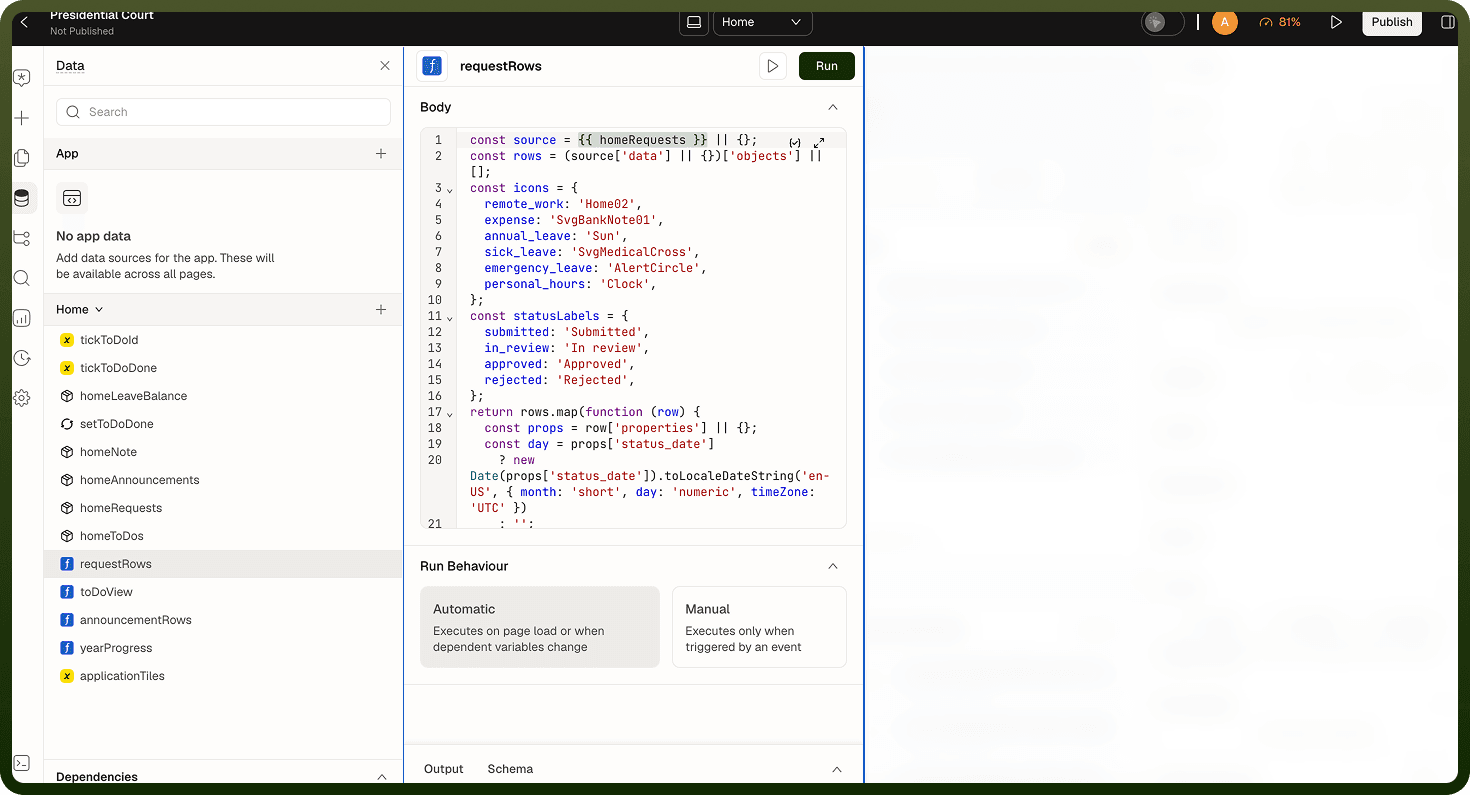
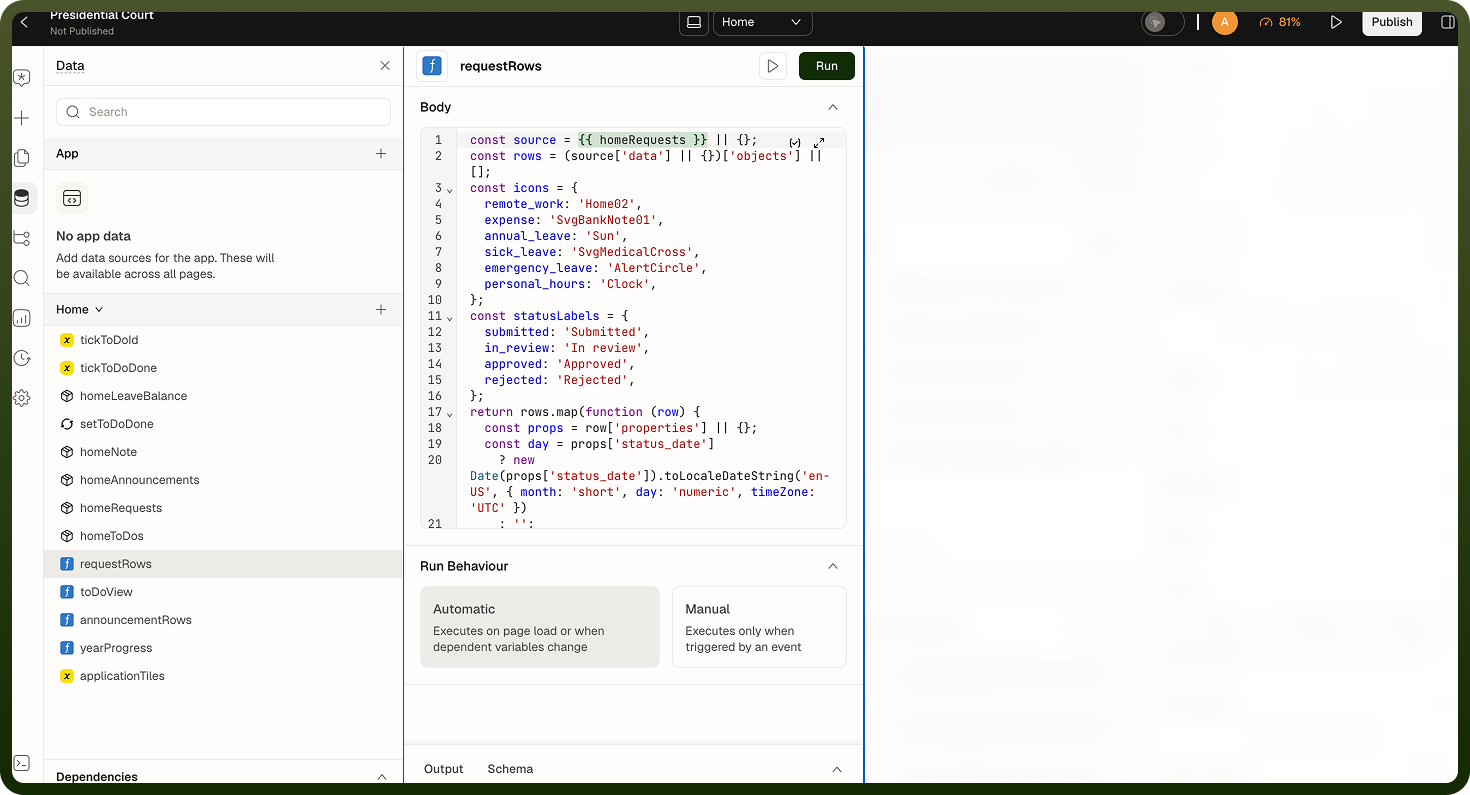
Functions let you encapsulate computation that is too complex or too verbose to write inline in a binding expression. Instead of scattering long JavaScript in dozens of component properties, you write it once in a function and reference the function by name wherever you need the result.
For the stored configuration, trigger payloads and more examples, see Page Functions (Unify Applications).
| Concept | Variable | Function |
| Stores a value | Yes — written by actions | No — computed from context |
| Updated by | Set Variable action | Automatic (reactive) or Trigger Function action |
| Can be read in bindings | Yes | Yes |
| Can be changed in bindings | No (read-only in bindings) | No (read-only in bindings) |
| Has side effects | N/A | Not recommended — use action chains for side effects |
Creating a Function
Functions are created from the Data panel in the builder's left rail (the same panel that lists data sources and variables).
Open the Data panel: Click the Data icon on the left icon rail (or press E). The Data panel shows one list per scope: App at the top for resources shared by every page, then the current page. Each list mixes data sources, variables and functions.
Add a new function: Click + (Add Resource) beside your page's name — or beside App for an app function — and choose Function. A new function entry appears with a generated name. Click the name to rename it — choose something descriptive like
totalRevenueorfilteredOrders.Write the function body: The function body is plain JavaScript. A new function starts with a sample body that reads
{{ userContext.name }}. End the body with areturnstatement. Whatever it returns becomes the function's value; a body with no return producesundefined.Set the run behavior: Under Run Behaviour, choose Automatic (re-runs whenever a referenced dependency changes) or Manual (only runs when triggered by the Trigger Function action). New functions are Automatic.
Save and test: Click Save & Run to save the function and evaluate it. (A manual function with unsaved changes shows Save, and a saved function shows Run.) The Output tab shows the computed value or any error with its message and stack trace.
Writing the Function Body
The body is standard JavaScript. Reference page state inside {{ }} in the body — for example {{ ordersQuery.data }}. The braces are removed before the body runs, and they are how the platform finds what the function depends on. Insert references from the editor's autocomplete so they use the identifier the builder expects.
💻 Function body examples
// Sum line items from a data source query result const items = {{ ordersQuery.data }} ?? []; return items.reduce((sum, item) => sum + item.amount, 0); // Filter a list based on a variable const query = {{ searchVariable.value }}.toLowerCase(); return {{ productsQuery.data }}.filter(p => p.name.toLowerCase().includes(query) ); // Format a date from a page parameter const raw = {{ pageParams.startDate }}; return new Date(raw).toLocaleDateString('en-US', { month: 'short', day: 'numeric', year: 'numeric' }); // Derive a status label from multiple fields const { shipped, delivered, cancelled } = {{ orderQuery.data }} ?? {}; if (cancelled) return 'Cancelled'; if (delivered) return 'Delivered'; if (shipped) return 'Shipped'; return 'Processing';
What Functions Can and Can't Do
Functions are meant for computation. This makes them predictable and safe to re-run automatically. A function body can read variables, data sources, block state, other functions, page inputs and userContext (the signed-in user's profile). Keep everything else out of it:
Writing state — a function body can call a variable's
setValue(), but don't: side effects belong in an action chain (for example the Control Variable action). In an automatic function, writing to something the function reads can make it re-run in a loop.API calls — function bodies aren't blocked from browser APIs the way bindings are, but the body runs synchronously and a returned Promise is discarded, so the result of
fetchnever becomes the function's value. Fetch data with a data source.Authentication checks — function bodies have no auth-check helper. Use a Run Script action instead.
Imports and libraries — there is no
importorrequire, and no third-party libraries are available.
Function State
Every function exposes a state object that blocks and other functions can read in bindings. The state object has three fields:
Field | Type | Description |
|---|---|---|
| Any | The result of the latest run. |
| Object or null | If the last run threw an error, this contains the error message and stack trace. |
| Boolean |
|
{} Binding to function state
// Read the computed value {{ totalRevenue.value }} // Show a loading skeleton until the function has run {{ totalRevenue.isEvaluated ? totalRevenue.value : '...' }} // Display an error message if the function threw {{ totalRevenue.error?.message ?? '' }} // Use the value in a conditional {{ totalRevenue.value > 10000 ? 'High volume' : 'Normal' }}
Automatic Functions
An automatic function behaves like a spreadsheet cell with a formula — it re-evaluates whenever any of its dependencies change. This is the default run behavior.
How Dependency Tracking Works
The platform detects dependencies by parsing the binding syntax ({{ }}) in the function body. Any page state referenced in a standard binding expression becomes a tracked dependency. When that state changes, the function is scheduled for re-evaluation.
Warning: Dependency tracking reads only the bindings that appear in standard {{ }} syntax. If you construct a state reference dynamically inside your JavaScript (for example, by accessing window.someGlobal or by computing a property name at runtime), the platform does not detect that dependency and the function does not re-run when it changes.
Waiting for Data Sources
Automatic functions wait for automatic data sources to resolve before running for the first time. This prevents the function from computing a result based on an empty data set and then re-running once the data arrives. Manual data sources (those set to run only when triggered) do not hold back automatic functions.
Re-run Coalescing
When multiple dependencies change in rapid succession — for example, when a page loads and several variables initialize at once — the platform coalesces the pending re-runs into a single evaluation rather than running the function once for each change. This keeps the function's output stable and avoids unnecessary intermediate states.
Automatic Functions Have No Row Context
An automatic function runs once per page evaluation cycle. It does not run once per row of a list or table. If you need to compute a per-row value, write the expression directly in the cell's binding, or use a manual function triggered from a row event.
Note: For values that must be computed per row — for example, a formatted price label for each row of a table — write the expression inline in the cell's binding using the row context, such as {{ currentRow.price }}. See Row-scoped Bindings. An automatic function bound to the cell's property would receive the whole list, not the individual row.
Manual Functions
A manual function does not re-run on its own. Its value stays undefined and isEvaluated stays false until the first Trigger Function action fires. Subsequent triggers re-evaluate it and update its state.
When to Use Manual Functions
Use a manual function when the computation should respond to an explicit user action rather than tracking data changes continuously. Common examples:
Validating a form when the user clicks Submit — compute validation errors on demand.
Computing a preview value when the user clicks a Preview button.
Running an expensive derivation only when explicitly requested, not on every keystroke.
The Trigger Function Action
Wire the Trigger Function action to any event — a button click, a form submit, a timer, or any other trigger. The action has a single required configuration: which function to run. After the function evaluates, you can branch on its result using the action chain's success and error branches.
| Branch | When it fires | Available context |
| On success | The function evaluated without throwing | The function's value is available in downstream bindings |
| On error | The function threw an exception | The function's error state is populated with message and stack |
Function Scope: Page vs. App
Functions exist in two scopes. Choosing the right scope determines where a function's result can be referenced.
| Scope | Defined in | Visible to | Context available |
| Page function | Data panel on a specific page | Only the page it belongs to | Full page context: variables, data sources, block state, page parameters |
| App function | The App section at the top of the Data panel | Any page in the application | App-level context only (no individual page variables or data sources) |
Use page functions for logic that is specific to one page's data model. Use app functions for utility computations that multiple pages need — for example, a date formatting helper, a currency converter, or a permission checker.
Gotchas and Edge Cases
Functions behave predictably when you follow the constraints above, but there are a few edge cases worth knowing before you rely on them in production.
Asynchronous Code Is Not Supported
Function bodies run synchronously. If your body returns a Promise, the promise is discarded and the function's value stays undefined. Do not use async/await, .then(), or setTimeout inside a function body. For asynchronous operations, use a data source configured to run on a trigger.
⚠ Async patterns that do NOT work in function bodies
// WRONG — async function body; Promise returned, value stays undefined async function() { const result = await fetch('/api/data'); return result.json(); } // WRONG — .then() chain; Promise returned, value stays undefined return fetch('/api/data').then(r => r.json()); // CORRECT — read from a data source that was already queried return dataSourceName.data;
Errors Are Captured, Not Fatal
If a function body throws a JavaScript error, the platform captures it rather than crashing the page. The error message and stack trace are stored in the function's error state, and its value is cleared to undefined until a later run succeeds. For manual functions, the On error branch of the Trigger Function action fires. For automatic functions, the error is captured silently.
Tip: If a function is producing unexpected output, check its error state in a binding or in the Data panel's output viewer. Errors that appear silently in an automatic function are easy to miss without explicit monitoring.
Unchanged Result Does Not Trigger Downstream
If a function re-runs and produces a result that is identical to its previous value (compared by deep equality, so a new object or array with the same contents counts as unchanged), the platform does not notify downstream bindings. This prevents unnecessary re-renders, but it also means you cannot use a function as a "something ran" signal. Use a variable write or an action trigger for that purpose.
No Side Effects, Including in Manual Functions
Even manual functions are best kept free of side effects. Although a body can call a variable's setValue(), writes, navigation and API calls belong in an action chain, where they run in order and their errors are handled. Manual functions are about deferred computation, not deferred actions.
Functions vs. Variables: Choosing the Right Tool
The choice between a function and a variable often comes down to one question: is the value derived from other state, or is it maintained as its own state?
▶ Decision guide
| Situation | Use |
| You want to count selected rows in a table | Function — it reads the table's state and computes a count |
| You want to track whether a modal is open | Variable — the open/closed state is maintained by actions, not derived |
| You want to format a date from page parameters for display | Function — it takes the raw parameter and produces a formatted string |
| You want to store the user's typed search text | Variable — the value comes from user input, not computation |
| You want to filter a list based on the search variable | Function — it reads the variable and derives a filtered subset |
| You want to compute validation errors for a form on submit | Manual Function — run only when the user submits, not on every keystroke |