


Inline editing lets users change cell values directly in a Table block. Edits aren't written anywhere by themselves: they collect in the table's changeset — the pending changes, tracked per row and field — until the user clicks Save in the floating bar and your On Save handler runs your update call.
Making a Column Editable
The Editable toggle is shown in a column's settings when the column's type is one of the editable types: Text, Number, Percent, Currency, Tag, Boolean, Date Time, Date, Time, Mapped. In a nested table, only top-level columns can be editable.
The toggle is greyed out until both of these are set. Its tooltip tells you which one is missing.
The table has a Primary Key configured (edits are tracked per row key).
The column has a Field Key set.
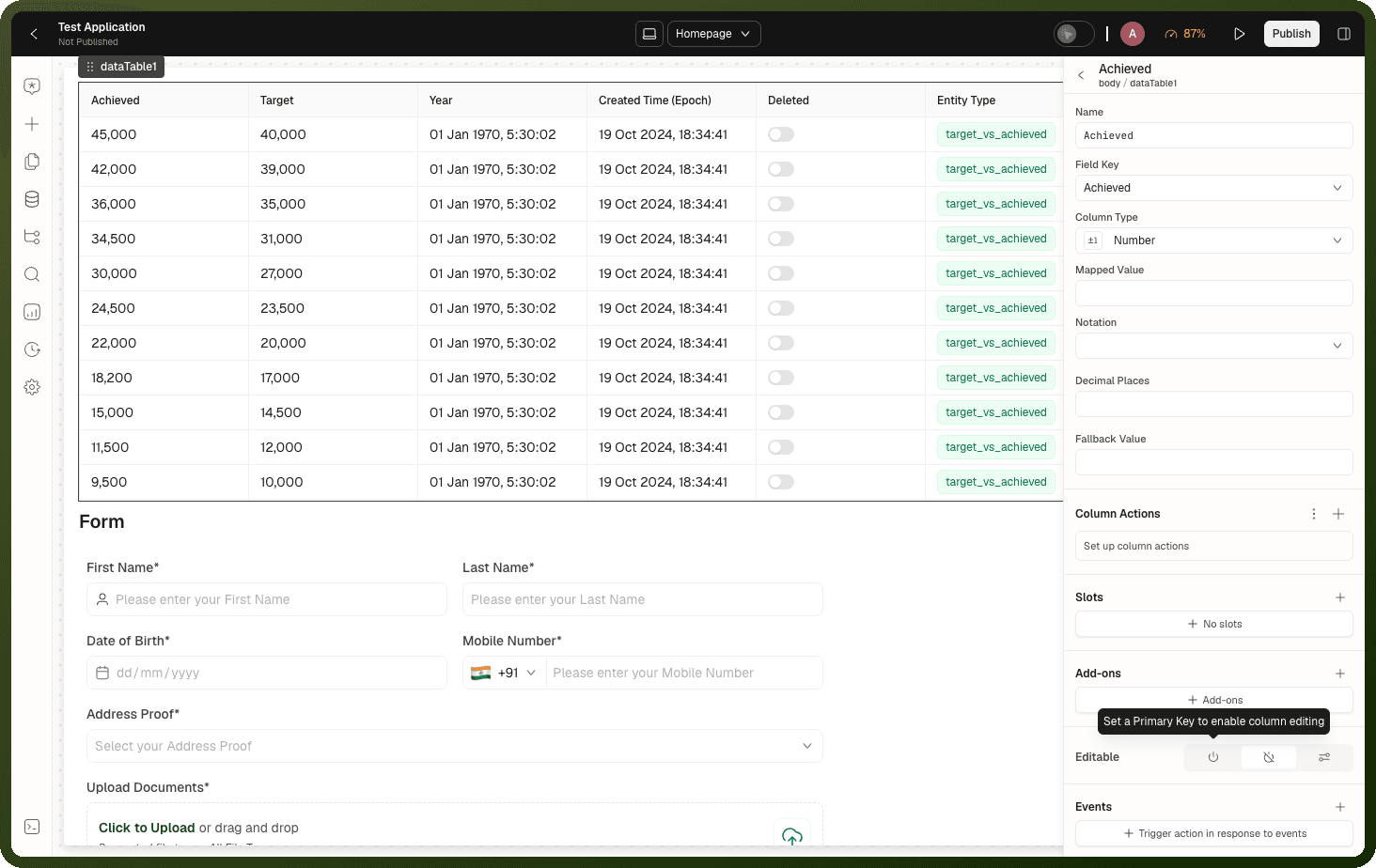
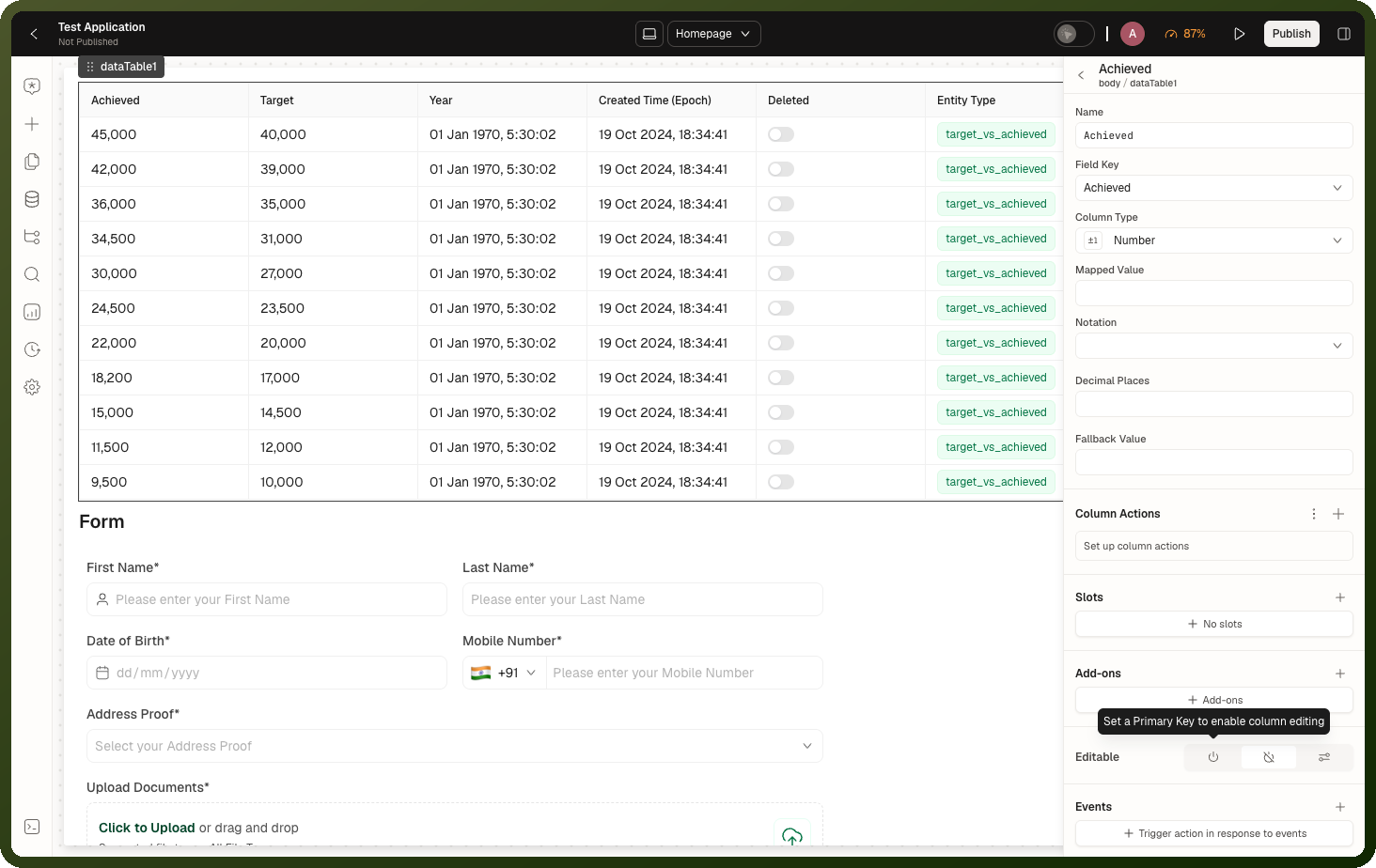
The toggle also accepts conditions, so a column can be editable only for specific rows — for example only while {{ orders.context.currentRow.status }} === 'draft'.
| Edit Property | Default | Description |
| Editable | off | Boolean or condition. Turns on inline editing always or per row |
| Placeholder Text | — | Hint shown in the empty edit control |
| Validity Conditions | — | Rules an entered value must pass. Failing values are rejected on commit and never enter the changeset |
| Step size (in minutes) | 15 | Time columns only: minute increments for the time picker dropdown (does not constrain typed input) |
| Date Selection Limits | — | Date columns only: restrict the selectable date range |
The Save Action Add-On
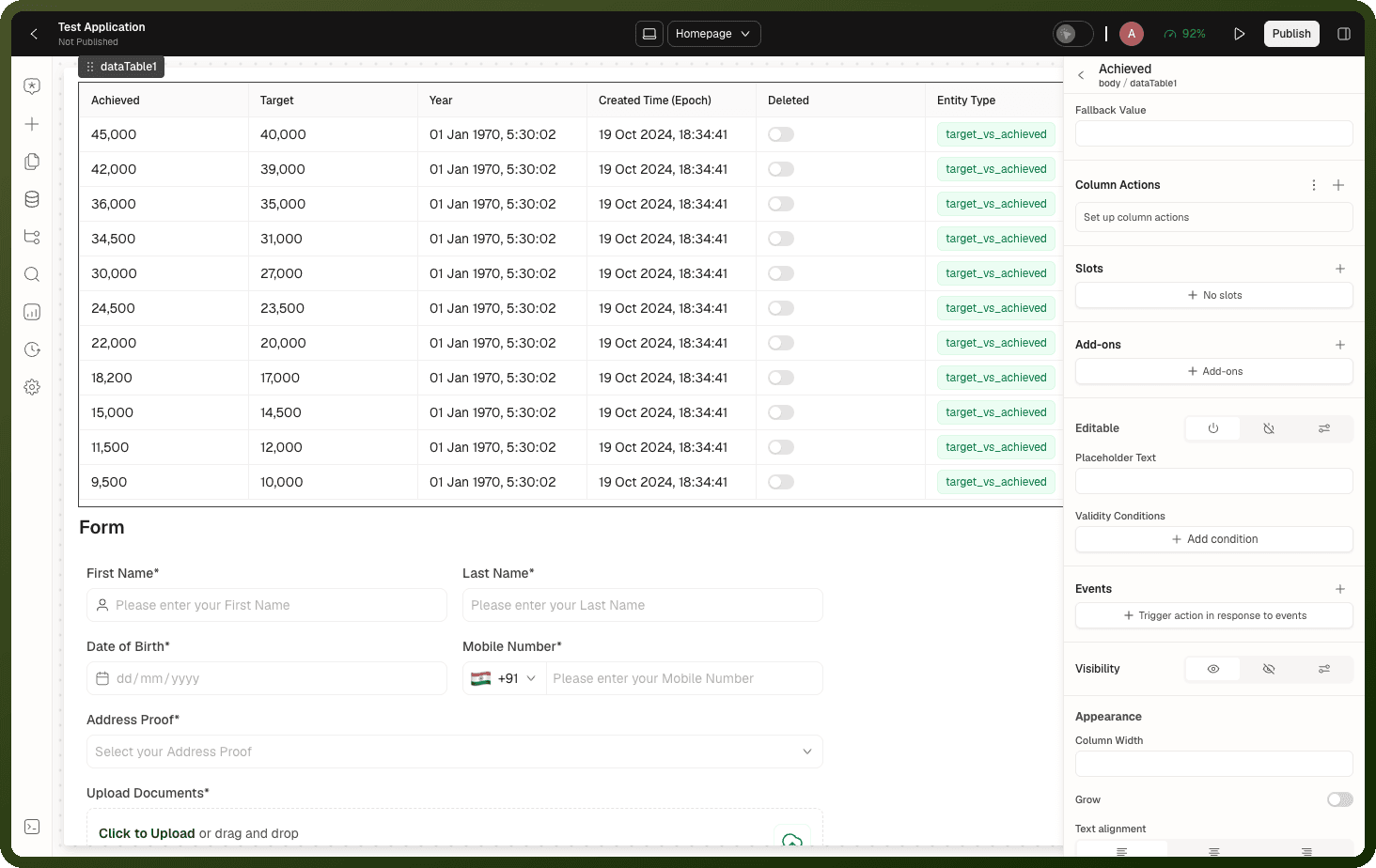
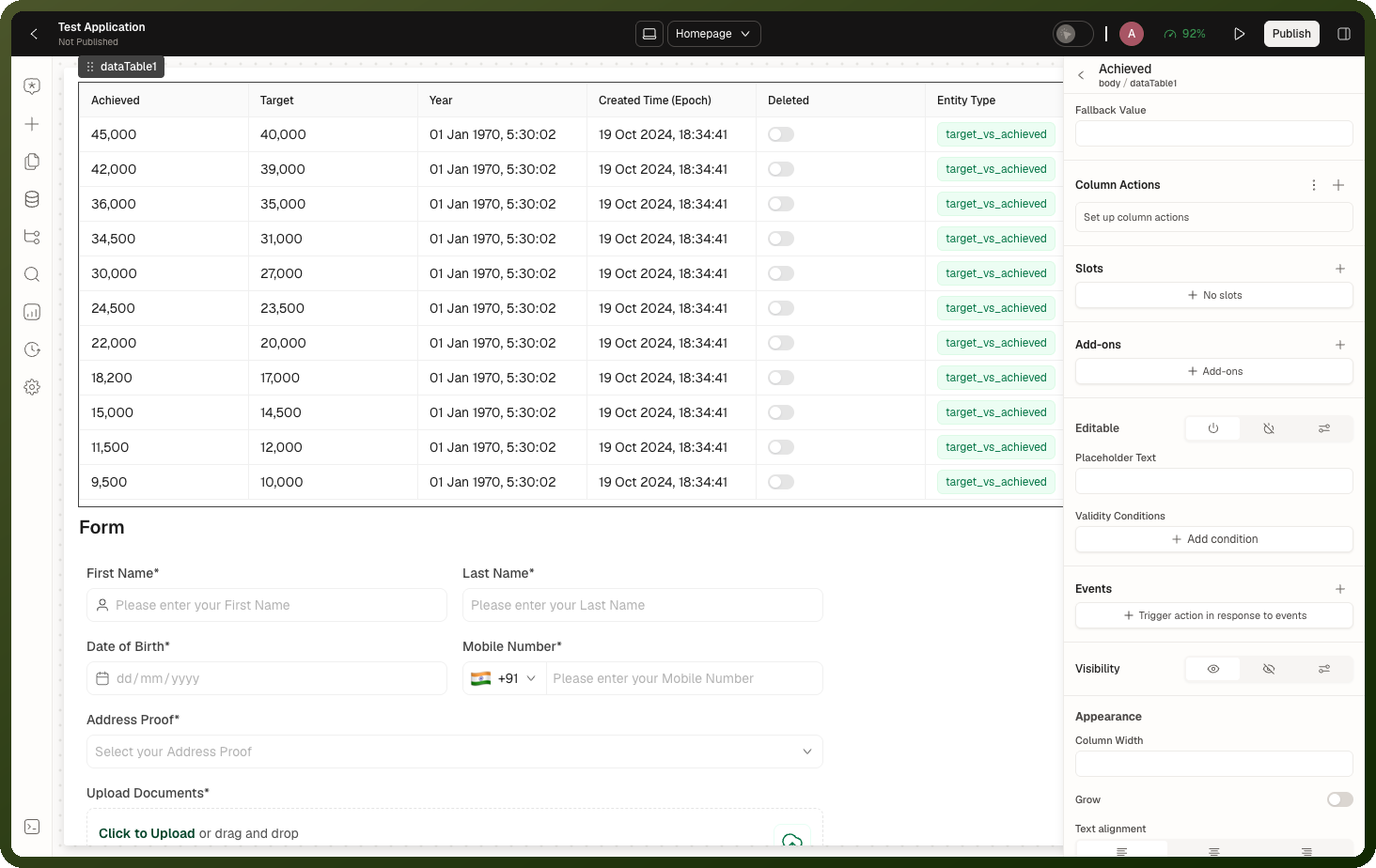
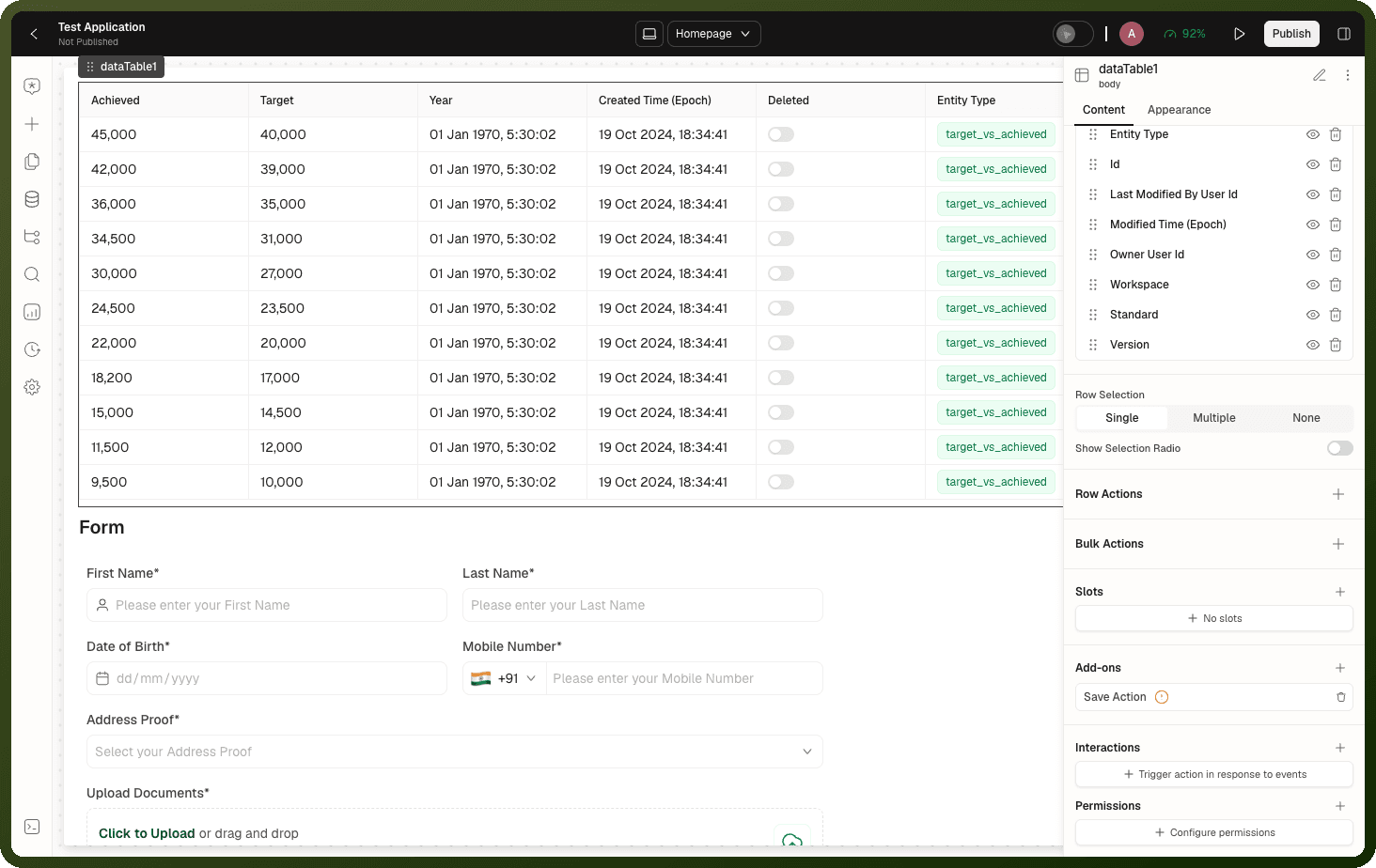
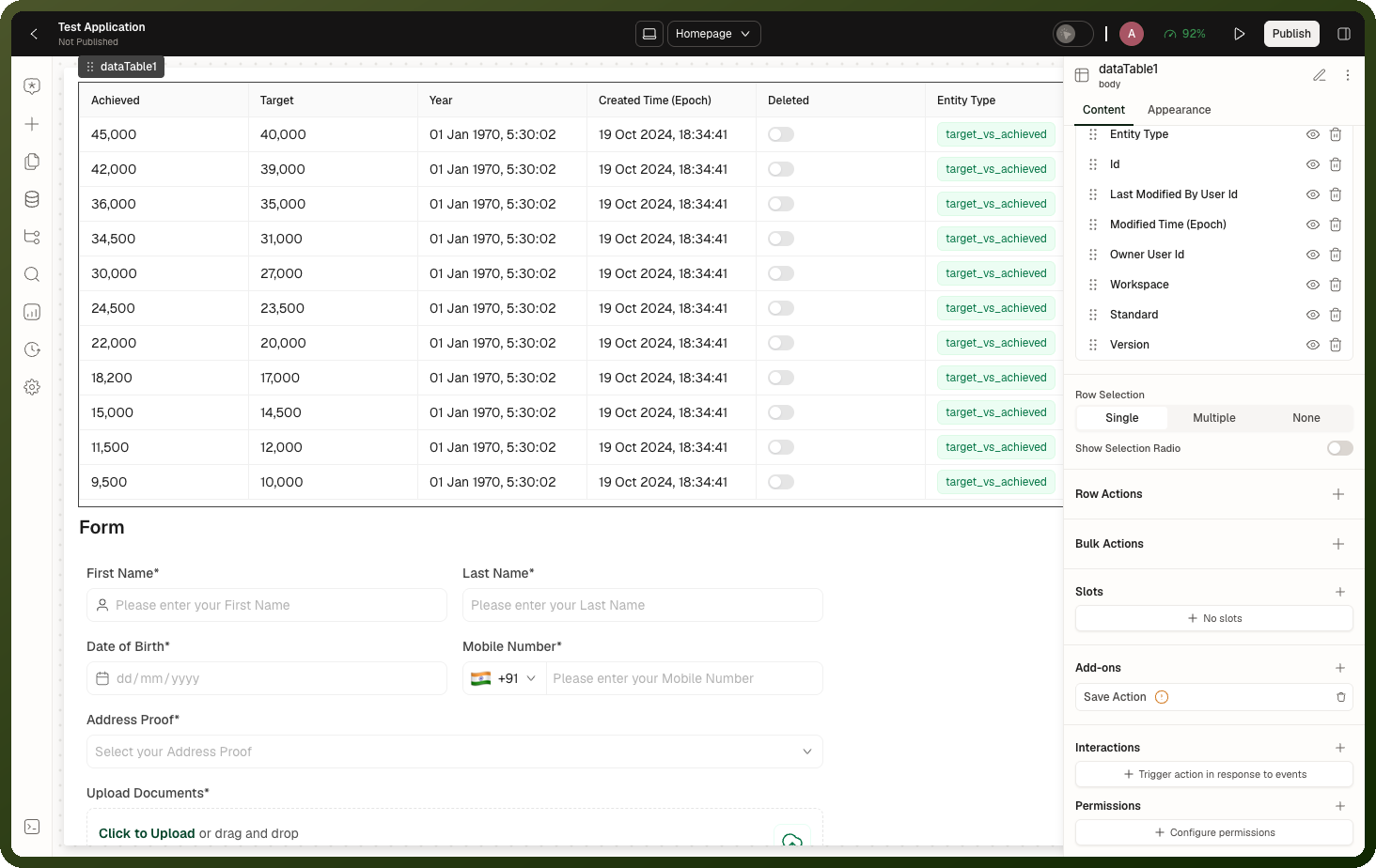
Once at least one column is editable, a Save Action add-on appears under Inspector → Content → Add-ons.
| Property | Default | Description |
| On Save (event) | — | The handler that runs when the user clicks Save. Wire your update call here, binding {{ id.changesetList }} as its input |
| Disabled | — | Condition to disable the Save button |
| Loading | — | Condition to show a spinner on the Save button |
| Clear changeset on successful save | true | Clears pending changes automatically once the save's data refresh completes |
Warning: Without an On Save handler, there is no Save bar. The floating Save/Cancel bar only renders when an On Save handler is configured. Without one, users can edit cells, the edits pile up in the changeset, but nothing on screen offers to save or cancel them. The inspector shows a warning in this case.
The Typical Save Flow
The user edits one or more cells. Each edit fires On Change Cell Value (table-level) and the column's own change event.
A dark floating bar appears at the bottom of the table: "N changes", Cancel, Save. The count is the number of changed fields, not rows.
Cancel discards all pending edits. Save fires your On Save event — read
{{ id.changesetList }}there and pass it to your update call.End the On Save handler by calling the table's
refetchDatamethod to reload the grid.With Clear changeset on successful save on (the default), the pending changes clear automatically once the data refresh completes.
Undo and redo
With a table cell selected in a running app or preview, press Ctrl/Cmd+Z to undo a pending edit. Press Ctrl+Y, Cmd+Y or Ctrl/Cmd+Shift+Z to redo it. The table keeps up to 20 steps. Undo and redo are not available in the builder canvas.
Each undo or redo fires On Change Cell Value. Cancel, Save and clearing the changeset empty the undo history.
What the Changeset Exposes
| Binding | Type | Description |
{{ id.changesetList }} | array | Pending changes as a list ready for an update call. The recommended binding |
{{ id.changesetMap }} | object | The same edits keyed by row primary-key value, then field key. Resolves at runtime only — not surfaced as a first-class binding suggestion |
{{ id.rowOrderChangesetList }} | array | Pending drag-reorder changes — each entry has the row's primary key and its target index |
changesetList Entry Shape
Each entry in changesetList names the row under a property named after your Primary Key field, plus an updateFields array with one item per changed field:
[ { "id": "ord-1042", "updateFields": [ { "fieldName": "status", "actionType": "SET", "value": "Shipped" } ] } ]
This is one row with one changed field, in a table whose Primary Key is id. actionType is always SET.
Warning: Changeset values are always text. Each value in updateFields is a text string regardless of the column's real type — a number or date edit still arrives as text. Convert it on the way into your update call if the target expects a typed value.
Using changesetMap for Pending Values in Other Columns
changesetMap is keyed by the row's primary-key value, then the field key. It only holds values that differ from the original data (unedited rows have no entry). Use it to show a pending value in a different column before saving:
{{ orders.changesetMap?.[orders.context.currentRow.id]?.status ?? orders.context.currentRow.status }}
This reads the current row's pending status value (the row key comes from the table's row context) and falls back to the saved value when the row has no pending edit. Here orders is the table's ID, id its Primary Key field and status the edited column's Field Key.
The Changeset Cursor
A changeset cursor is a position in changesetList. Calling clearChangeset(N) removes the first N entries and keeps the rest — useful when you process edits one batch at a time without an On Save handler.
Note: Without an On Save handler, the changeset grows as a log. Every edit appends a new entry (instead of merging per row). Use the cursor to consume and trim: read the current list, process the first N entries, then call clearChangeset(N). Any edits made while the call was running survive at position N and later.
Copy, Cut and Paste
Click a cell or select a range of cells, then press Ctrl/Cmd+C to copy or Ctrl/Cmd+X to cut. While a range is selected, copy and cut apply to the whole range.
Users can also paste a block of cells copied from Excel or Google Sheets: click a cell to focus it, then press Ctrl/Cmd+V. The clipboard is read as a grid (tab-separated columns, one row per line) and applied as bulk edits starting at the focused cell. Only cells whose column is editable receive a value. Pasted values enter the changeset exactly as typed edits do.
Row Ordering Changeset
When the Row Ordering add-on is enabled, users can drag rows to new positions. Pending reorder moves accumulate in {{ id.rowOrderChangesetList }}. Each entry has:
Field | Description |
|---|---|
<your Primary Key field> (e.g. | The row's primary key value, under a property named after your Primary Key field |
| The row's new position (0-indexed) |
For example, with a Primary Key field named id: [ { "id": "42", "targetIndex": 0 } ]
Process and clear reorder changes with clearRowOrderChangeset(cursor?) — same cursor semantics as clearChangeset.
Behavior & Gotchas
Auto-clear waits for the data refresh, not the save call
"Clear changeset on successful save" clears once the table's data source finishes its next refresh after On Save fires — typically the refetchData call. If On Save never refreshes the data, pending changes linger. If it fails mid-way but a refresh still happens, they clear anyway. Bind {{ id.changesetList }} as your update call's input in the same step — do not read it in a later step after the save, because auto-clear will have emptied it by then.
Editing a cell back to its original value removes it from the pending list
The pending-values map compares each edit against the row's original data. Type the old value back and the entry disappears, lowering the change count. The user cannot "save" a no-op edit through the changeset.
One cell edit fires two change events
An edit emits both the table-level On Change Cell Value and the edited column's own change event. Wire your handler at one level only to avoid running it twice per edit.
Validation runs on commit, not on every keystroke
Validity Conditions run when the user commits the cell (Enter, Tab, or click away). A failing value shows an error on the cell and keeps focus there; it never enters the changeset. Save is never blocked by invalid input because invalid values never reach it.
Second click on a non-editable cell shows "This cell can't be edited"
The first click on any cell focuses it. A second interaction with a non-editable cell (click, Enter, or typing) makes the cell shake briefly and shows an anchored tooltip for about a second. This is not configurable and cannot be turned off; the only exception is Custom columns which never show it.
Related Pages
Page | Relationship |
|---|---|
Which types are editable and their edit-time options | |
Primary key, events and methods in full | |
Save Action add-on and its relationship to the toolbar | |
A shorter walkthrough of the same feature, written for a bulk-edit use case |