


Registering a Component
Registering a component adds a developer-built component to the project so builders can use it on pages. You do this in the Custom Components manager by creating a new component, naming it, and defining its first version.
Steps to register
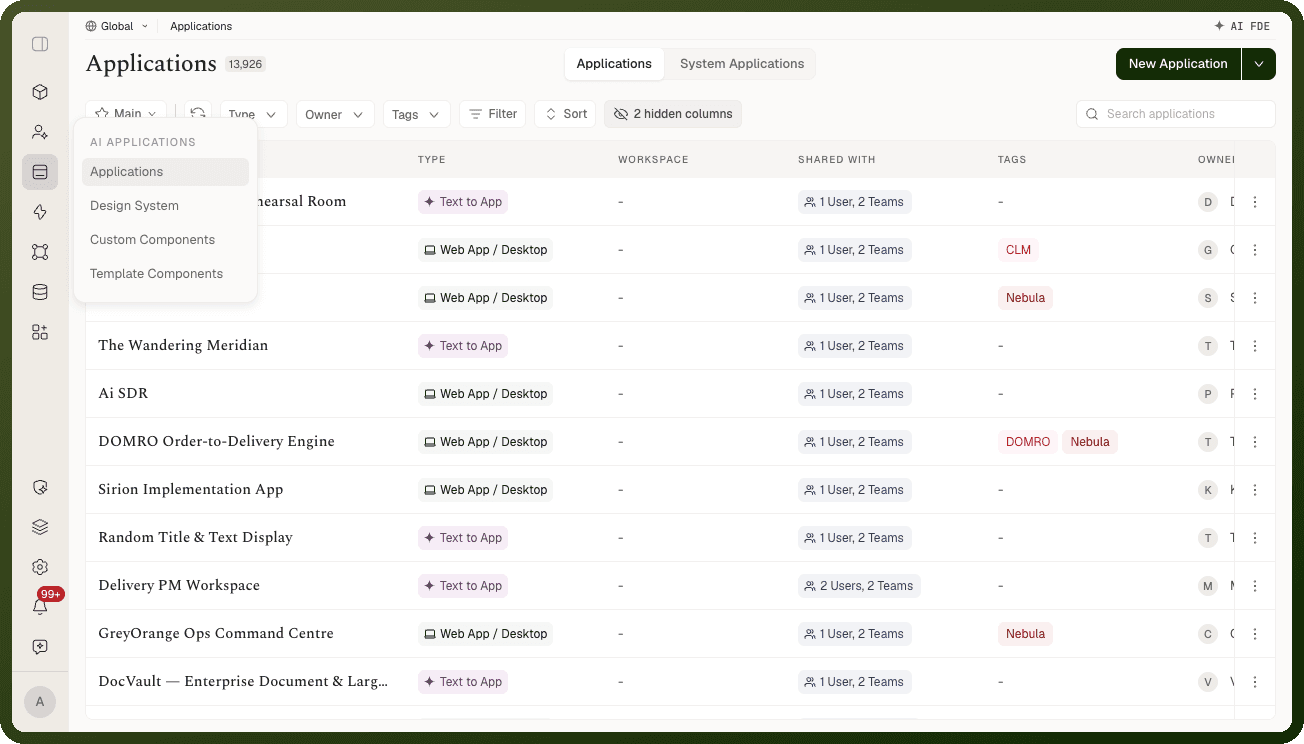
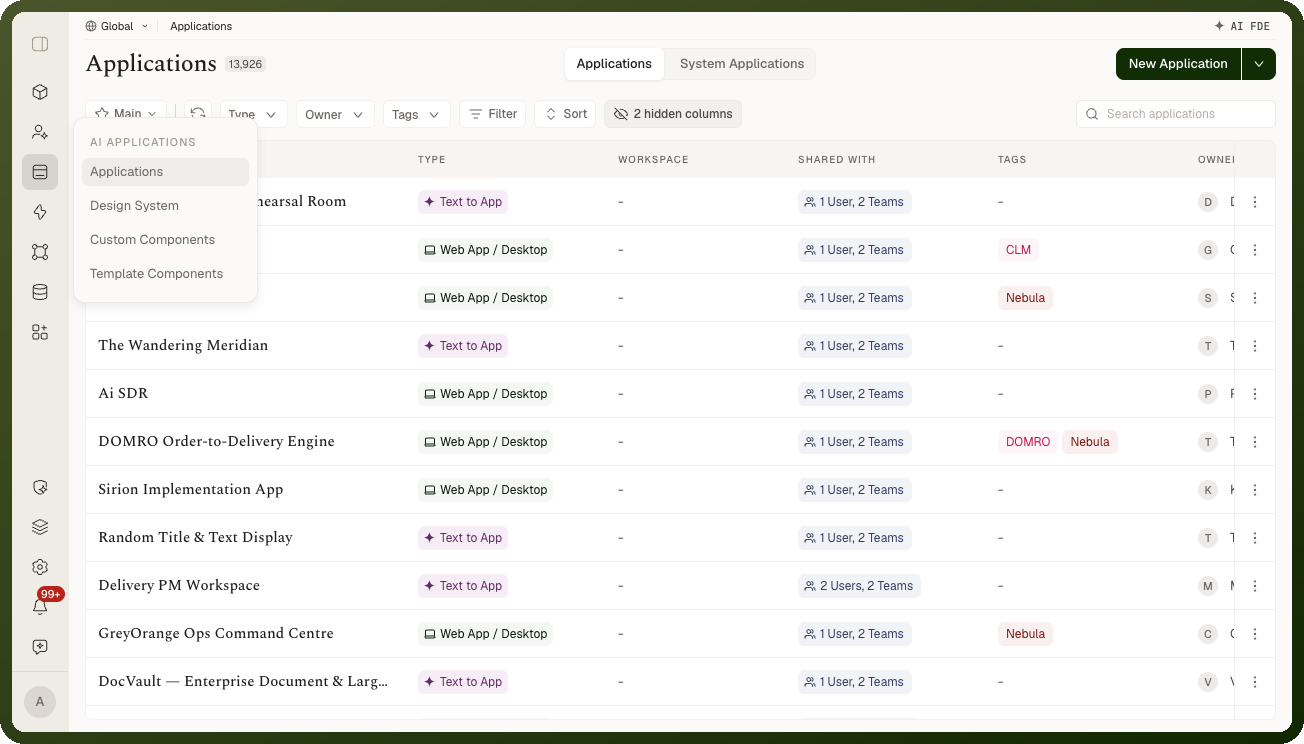
Navigate to Applications → Custom Components.
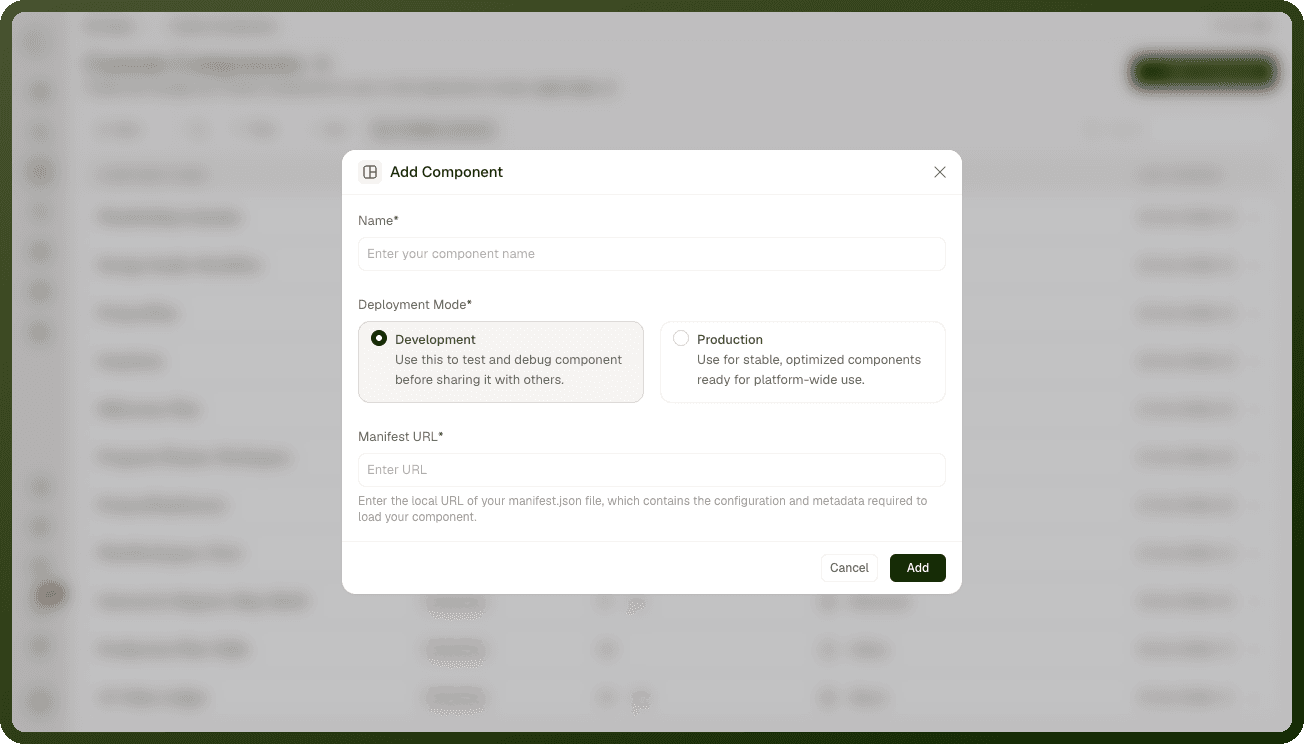
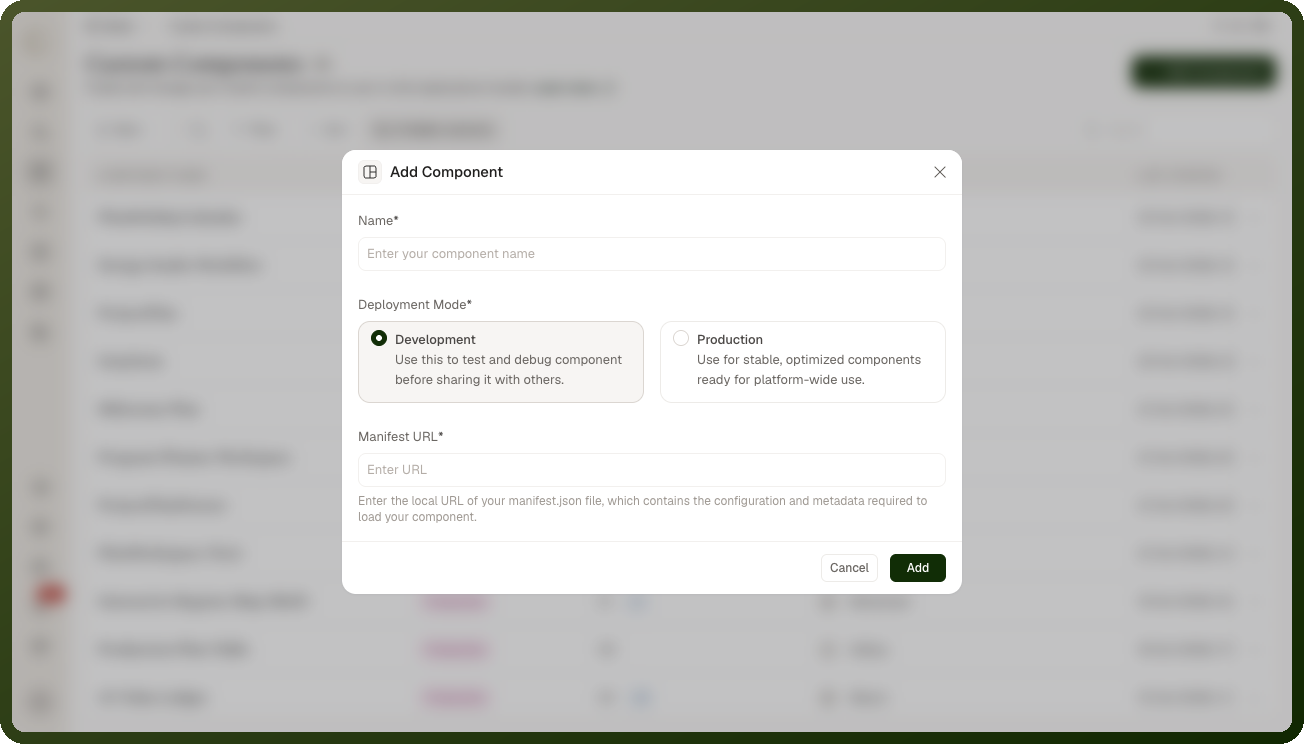
Click Add Component.
Enter a Name for the component.
Choose a Deployment Mode (see below).
Provide the mode-specific input (manifest URL or package upload).
Click Add to register.
Development vs. Production Mode
Development mode
The mode for testing and debugging before sharing. You provide a Manifest URL pointing at the component's live build. The builder loads the component straight from that address — changes you redeploy at that URL show up without a formal release.
Warning: Because the test version renders live from its Manifest URL, a redeploy at that address silently changes what everyone testing the component sees. There is no snapshot until promotion.
Production mode
The mode for a stable, optimized component ready for use across the project. You upload a packaged build as a .zip archive and can add a version tag and release notes.
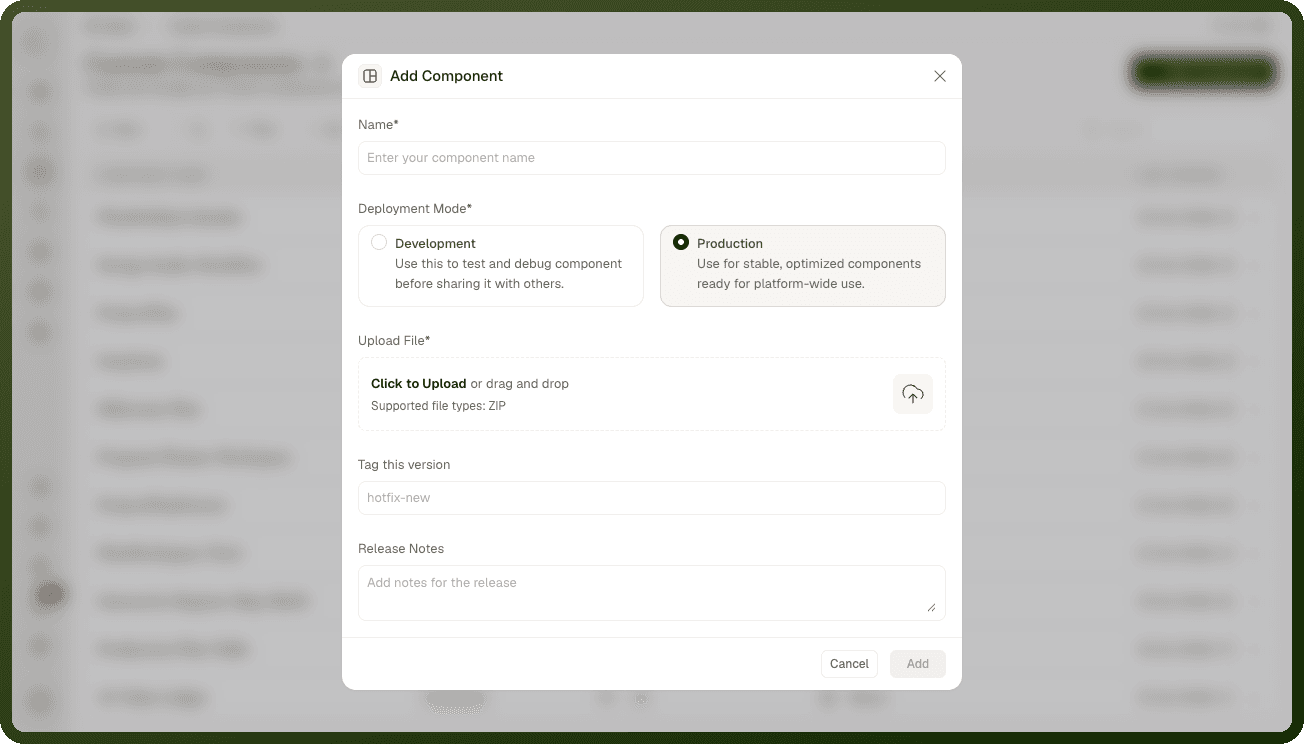
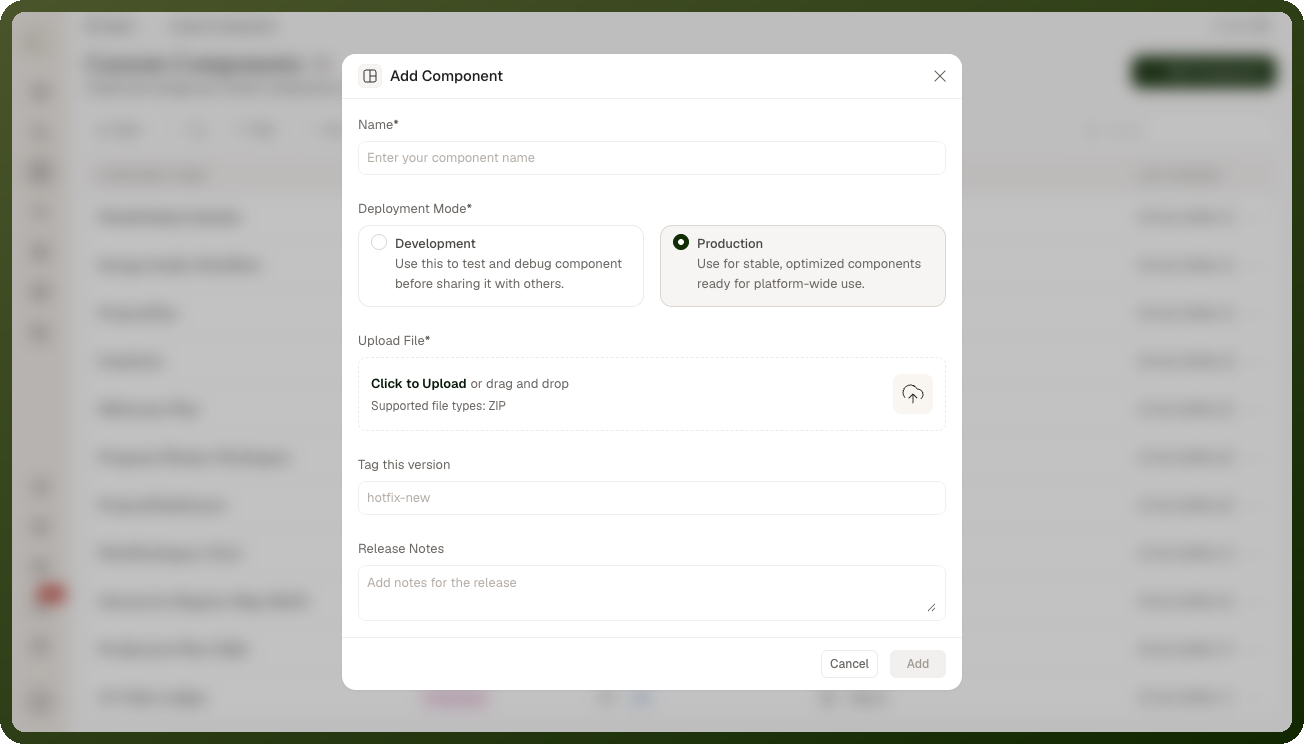
When you upload a production build, the platform runs automated checks:
| Check | What it verifies |
| Manifest present | The manifest.json file is found in the archive |
| Component type defined | The manifest's type field is set |
| UI code present | The main entry file is found |
| Icon available | A component icon is resolved |
The Add button stays disabled until the upload finishes and all checks pass.
The Test Version
The test version — shown in the component's detail view as the Development Version — is a single, live, in-progress version defined by a Manifest URL. The builder loads it straight from that address, so whatever your developer redeploys there is what the test version shows — no upload, no numbering.
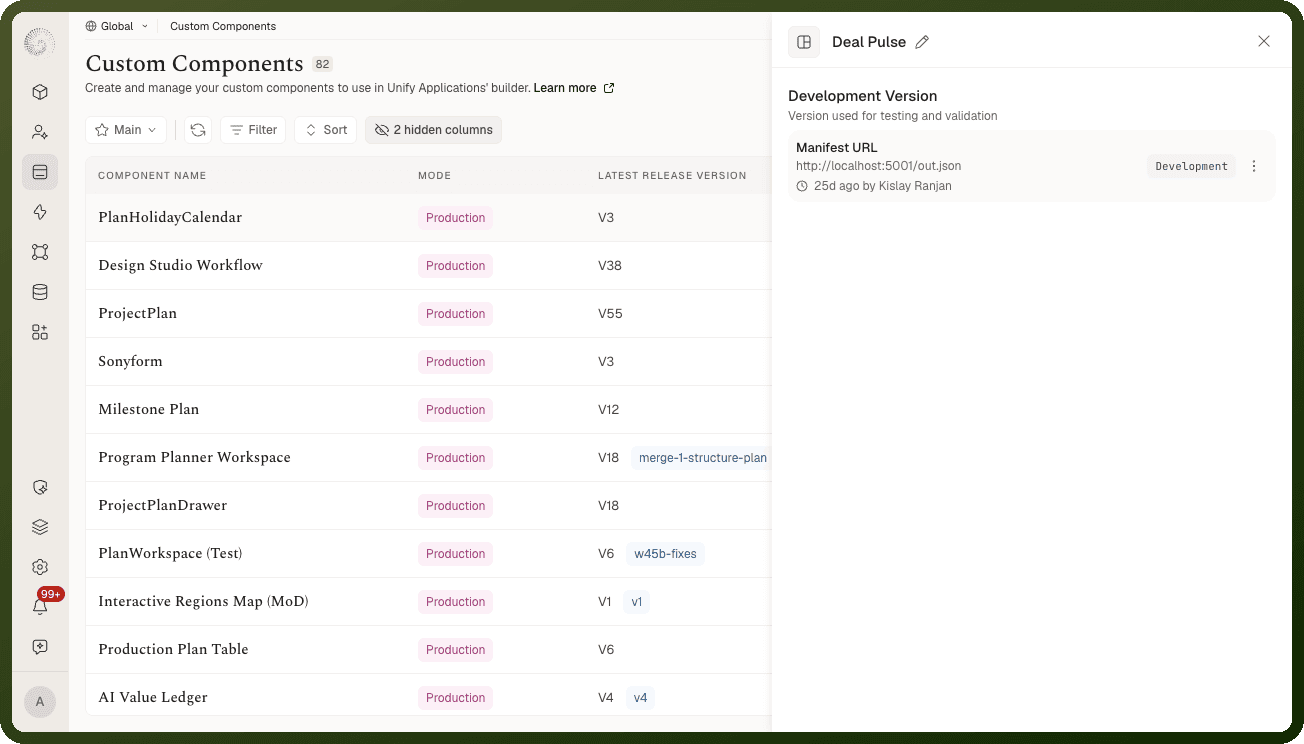
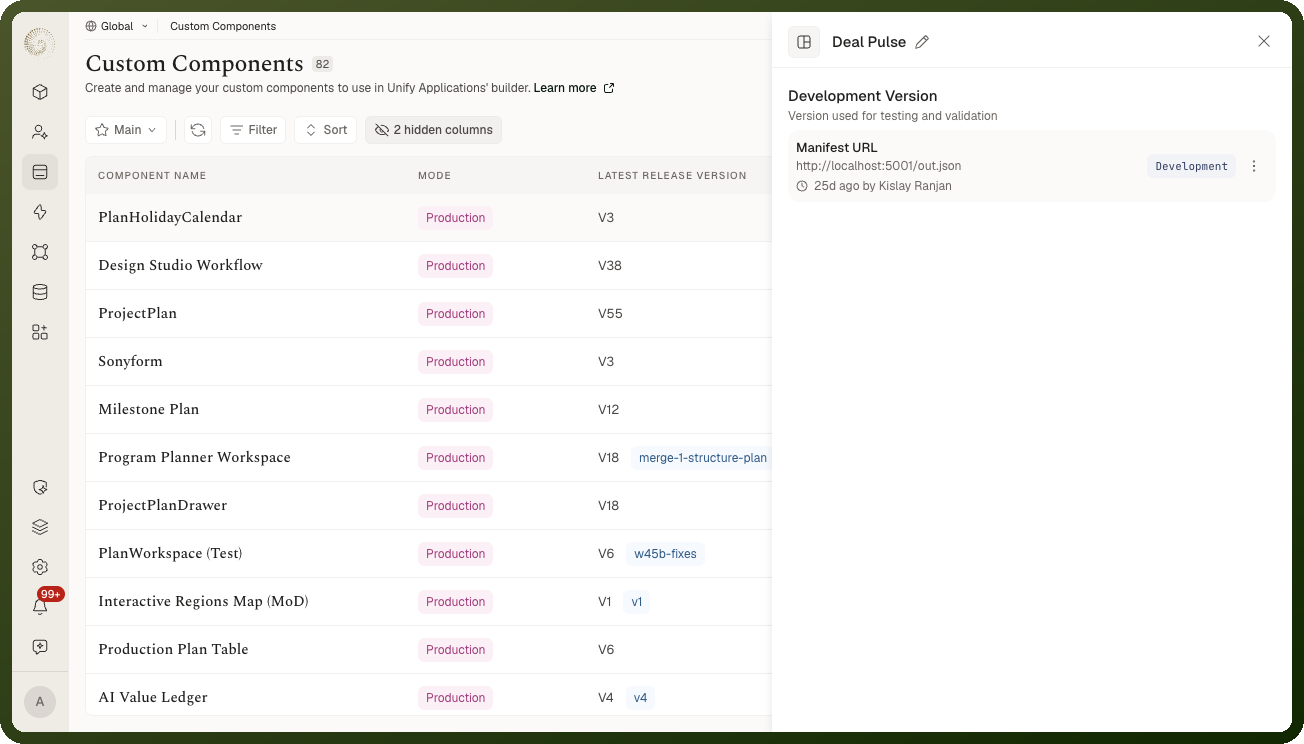
From the three-dot menu on the Development Version row you can:
Edit — update the Manifest URL. The component reloads from the new address.
Move to Production — promote the test version to a numbered production version.
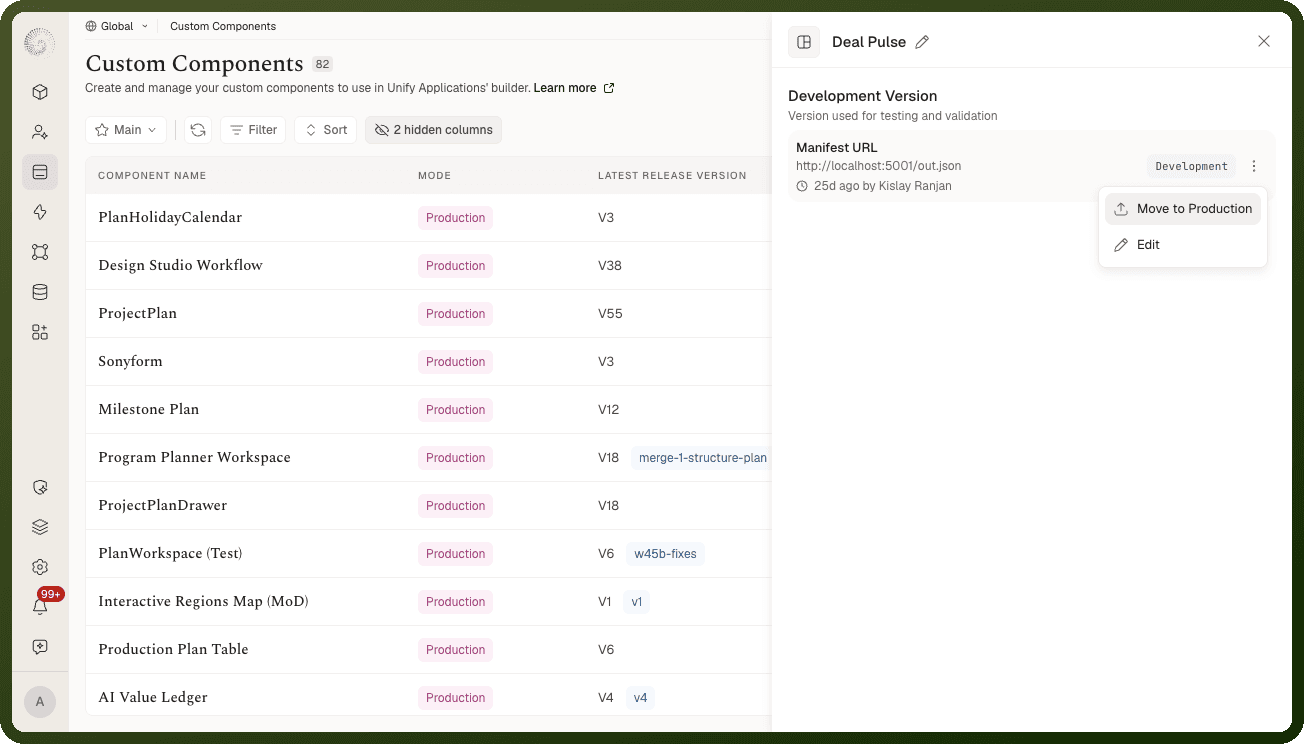
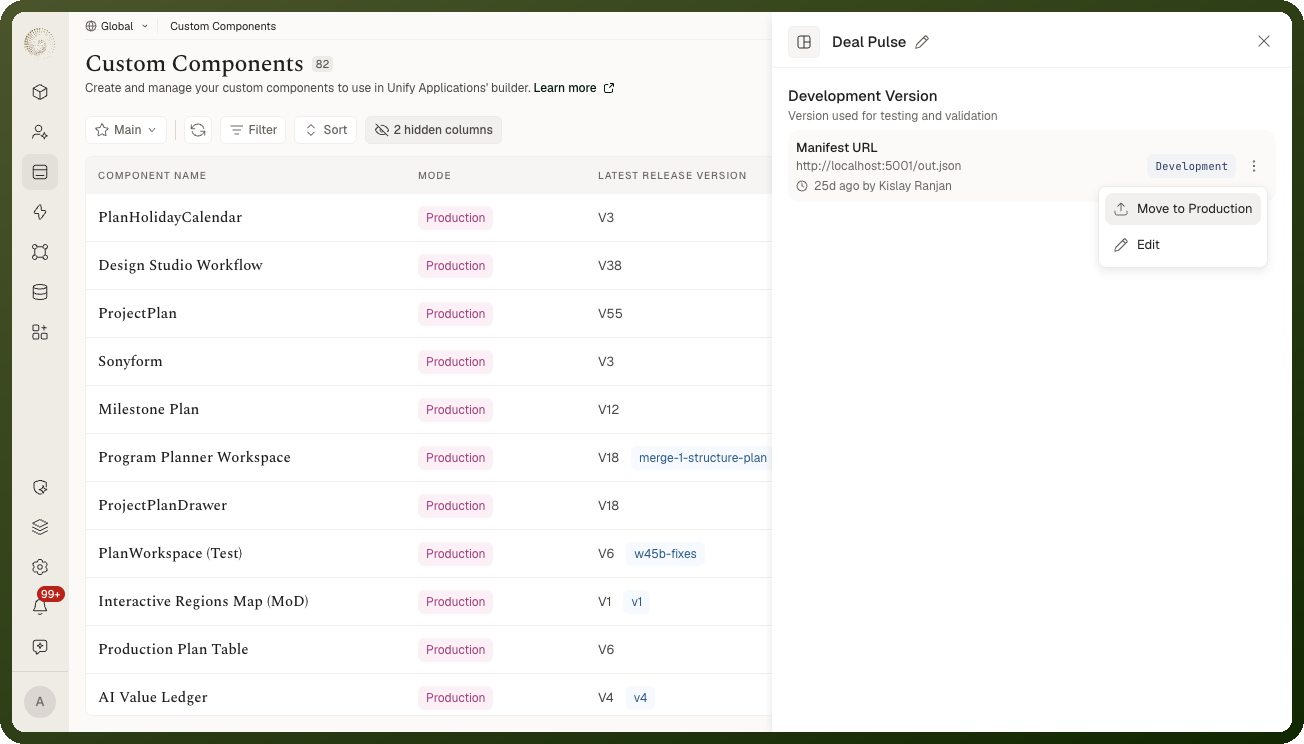
Note: Only one test version exists at a time. While a test version is pending promotion, you cannot start another one. Move the pending test version to production first.
Production Versions
A production version is a fixed snapshot of the component, created by uploading a packaged build. Each one is numbered and kept in the version history — it never changes after creation. Apps pinned to a production version keep rendering exactly that build.
When creating a production version you can add:
Version tag — a short label (e.g.,
v1.2.0)Release notes — a description of what changed
Adding a New Version
In the component's detail view, click + New Version. The New Version dialog asks for a Name and a Deployment Mode:
Production — upload a new packaged build with Upload File, and optionally fill Tag this version and Release Notes. Use this to add a numbered production version directly, without going through a test version.
Development — enter a Manifest URL to start a new test version, for example after your last test version was promoted.
While a Development Version exists, Development is disabled in this dialog and a note reads "Test mode is disabled — To create a new test version, publish the current test version to production first." Use Move to Production on the existing Development Version instead.
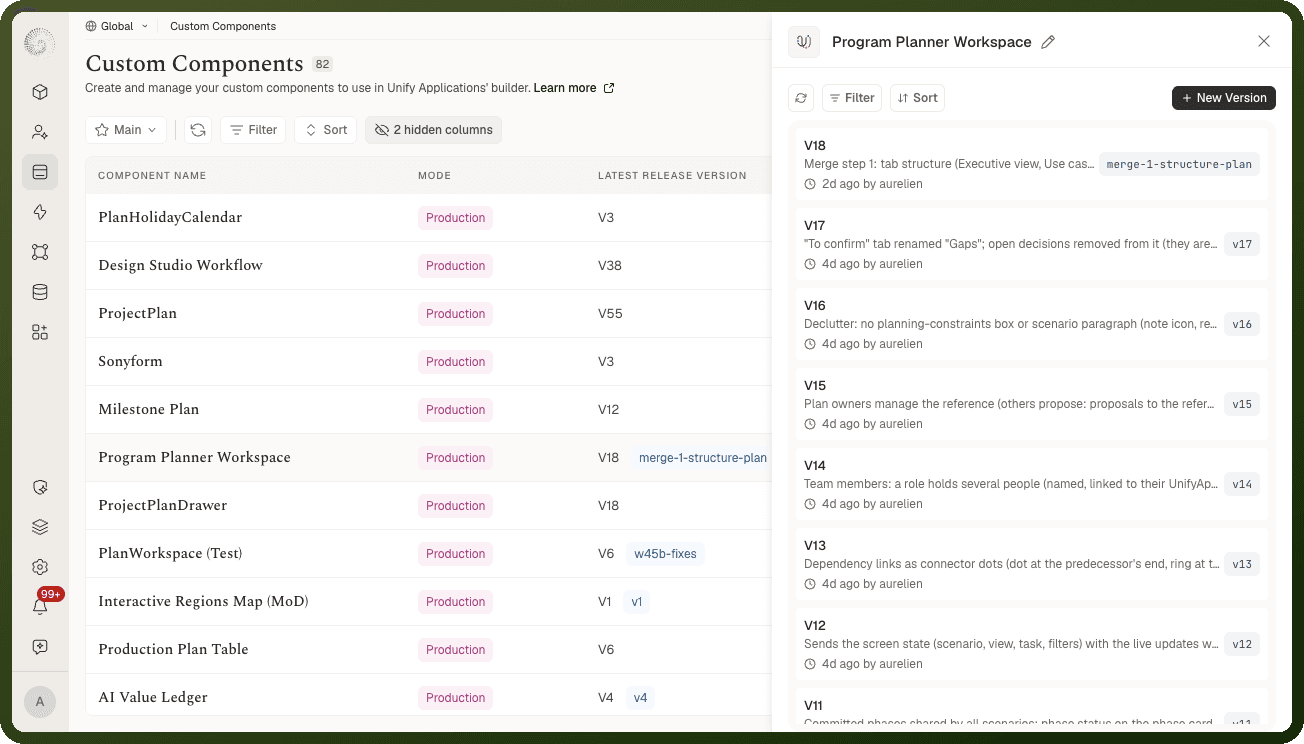
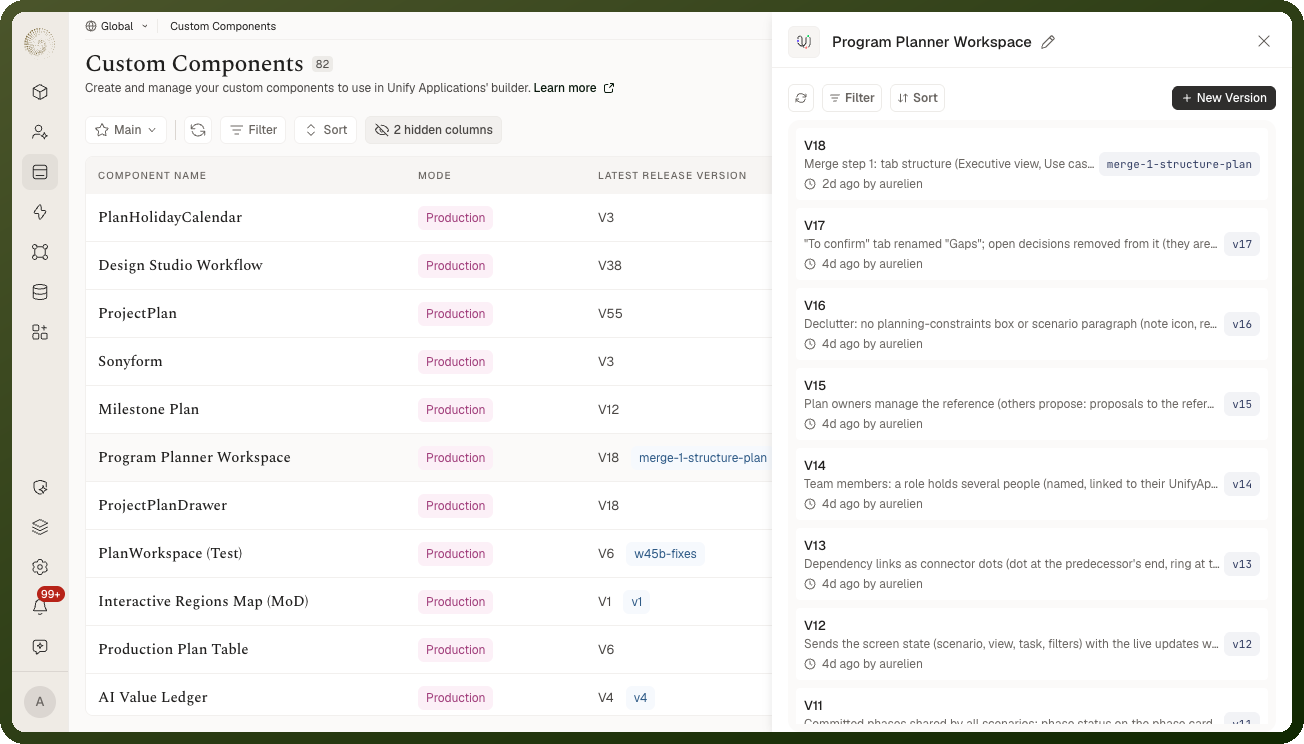
Promoting the Test Version to Production
In the component's detail view, open the three-dot menu on the Development Version row and choose Move to Production.
Check the Name field. It is required and prefilled with the component's name.
Use Upload File to upload the component's packaged build (the
.ziparchive of your built code).Optionally fill Tag this version and Release Notes.
Click Add. The platform deploys it as the next numbered production version.
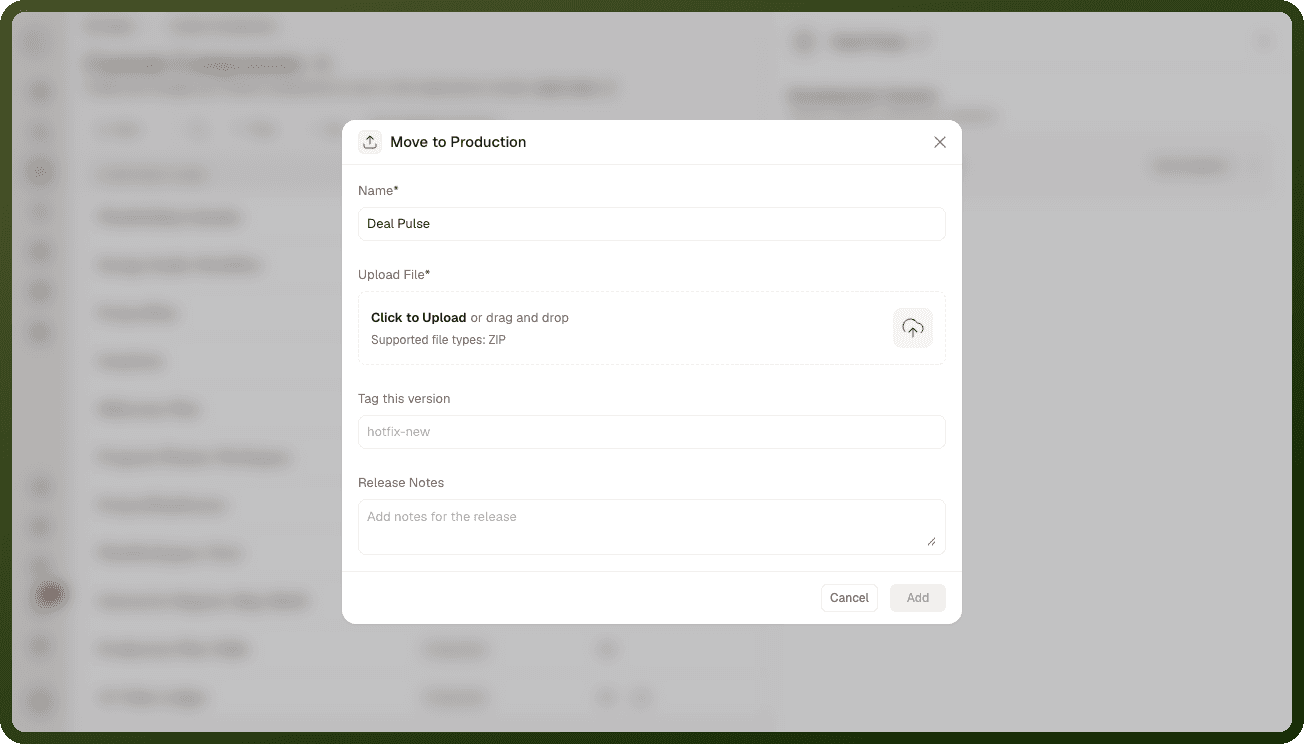
Warning: Promotion requires a packaged build, not the test URL. Moving to production takes an uploaded package — not a capture of the running test URL. Make sure the package you upload matches what you tested. The two are separate artifacts.
Once promoted, the Development Version section disappears. To start a new test version, click + New Version and choose Development.
Content Security Policy (CSP) for Dev Hosts
If the content security policy blocks the host serving your Manifest URL while you create or edit a version, a Blocked by content security policy dialog appears: "{host} is not permitted by the active content security policy. Reload the page to apply the updated allowlist, then re-enter the URL." Click Reload to allow. The page reloads and the dialog reopens with what you entered.
On a page in the builder, a blocked dev host shows a Custom component blocked message with an Allow & reload action instead. See Using Custom Components in the Builder for what that action does.
Note: An unreachable URL and a blocked URL look different. An unreachable address produces a validation error asking for a valid URL. A reachable-but-blocked address produces the Blocked by content security policy dialog. Only the second case is fixed by allowing the host.
Related Pages
Custom Components Overview — the full lifecycle and the two-halves model
Using in the Builder — placing and configuring the component on a page