


This page covers two separate Table features. Column groups put a shared header over related columns. Custom filter fields tell the toolbar's Filter & Sort action which fields to offer when the table's own source can't supply them.
Column Groups
A grouped column puts a shared header above a set of related columns — users see a two-tier header where the group label spans its child columns (for example "Address" spanning Street, City and Zip). Grouping affects only the header; rows are not grouped or aggregated.
Note: Grouped columns ≠ grouped rows. To band rows under collapsible headings (orders grouped by customer), add a Group Table block instead of a Table. To nest child rows under a parent row, use Sub Rows — see Row Actions & Selection. Grouped columns only arrange headers.
Creating a Column Group
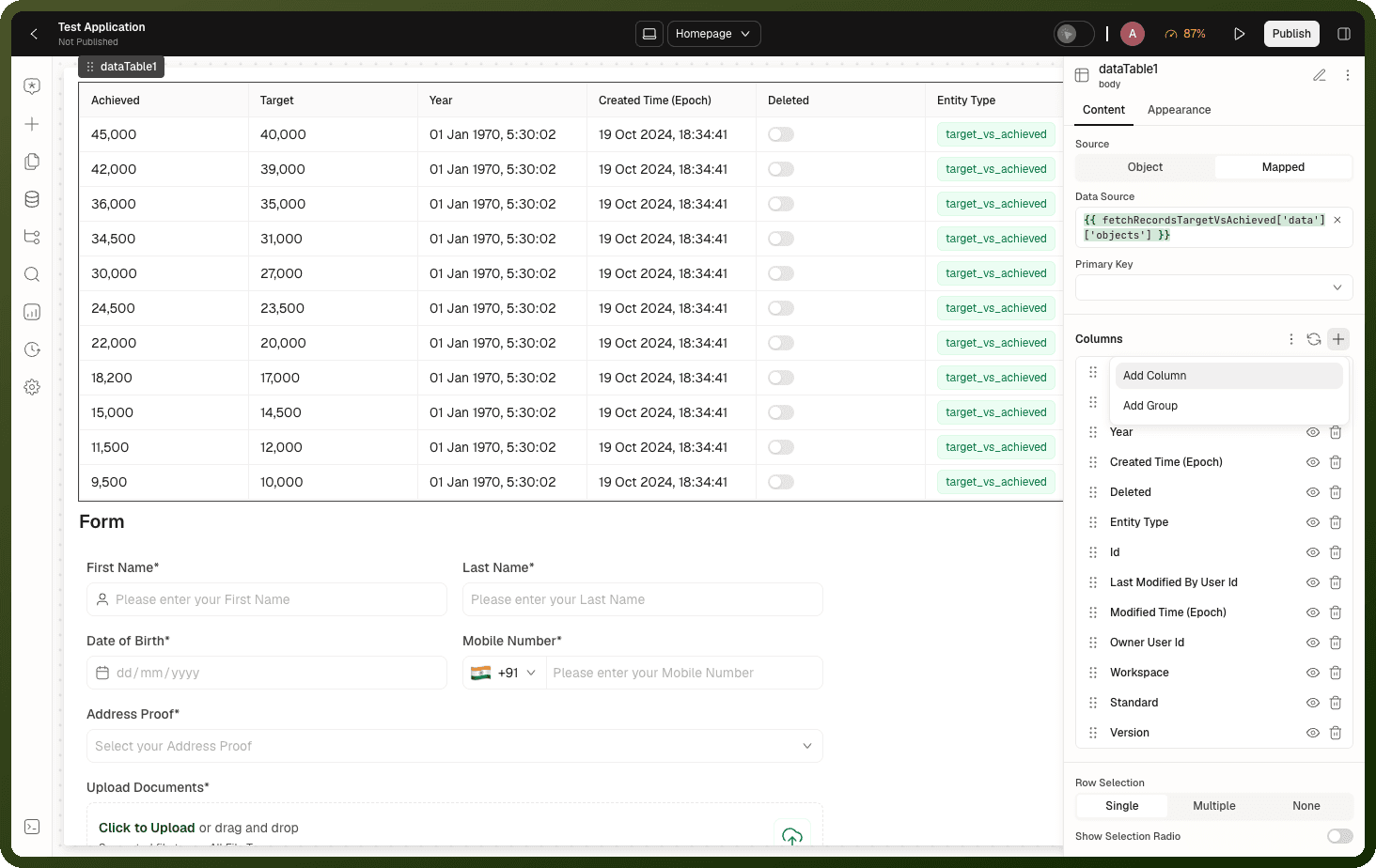
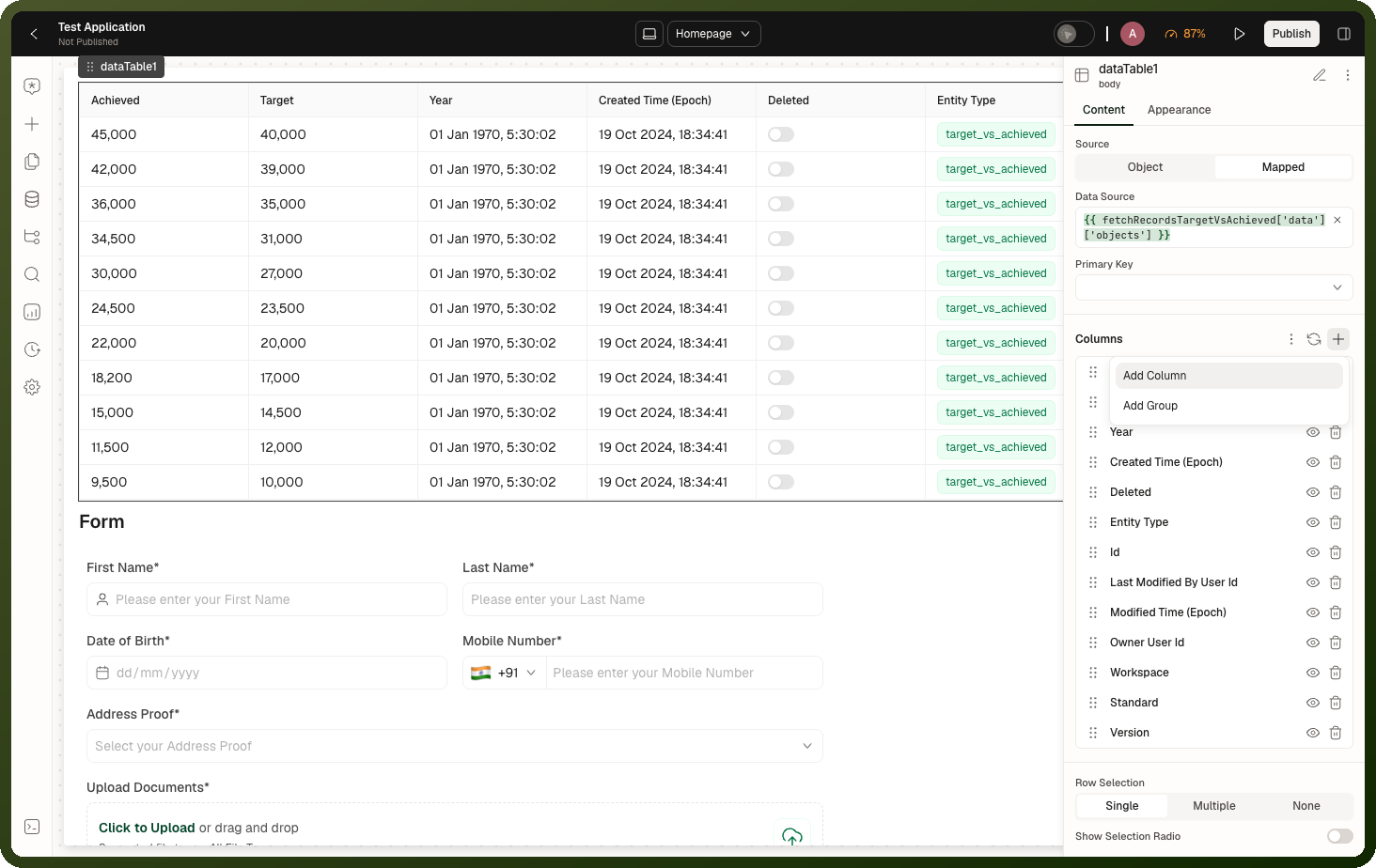
Open Inspector → Content → Columns and click the add button.
Pick Add Group (instead of Add Column). The group arrives with a starter child column and a placeholder name.
Drag existing columns into the group, or add new ones inside it. Each child is configured like any other column — see Column Types.
Group Configuration
| Property | Default | Description |
label | — | The spanning header text. Translatable |
visibility | shown | Hides the group and every column inside it |
appearance.align | center (new groups), left (schema default) | Alignment of the group label |
appearance.header | text-xs / medium / text-primary / light brand background | Font, color and background of the spanning header |
slots.Custom Header | — | Replace the group header text with a block of your own |
permissions | — | Restricts who sees the group and its columns |
Nesting Groups
A group's children can themselves be groups. Use Add Group inside an existing group to create a third (or deeper) header tier. Every rule applies through the whole subtree: hiding a group hides all columns at every depth inside it, a group disappears when nothing inside it is visible, and a group stretches when anything inside it stretches.
Column Group Behavior
Warning: A group with no visible children disappears entirely. Hide every child through visibility conditions, permissions or the column-visibility menu and the group header vanishes with them.
Warning: Hiding the group hides all of its columns. The group's own visibility condition gates the whole subtree.
Note: The group stretches when any child stretches. If any child column is set to grow into available space, the whole group grows with it.
Custom Filter Fields (Filter Source)
Object-backed tables already know their fields, so their filter and sort menus fill themselves. A Mapped source, expression-fed source, or aggregation-style query knows nothing — until you hand it a field list in the Filter & Sort action's Fields section. Once set, the toolbar's filter and sort menus and a quick filter's Data condition offer exactly the fields you supplied.
Setting | Value |
|---|---|
Where to set | Inspector → Content → Add-ons → Toolbar → Filter & Sort action → Fields |
Source | Manual (type the fields) or Mapped (bind Data to a source that returns the field list). Default: Manual |
Appears when | The table's own source cannot supply a field list (typically a Mapped source) |
Note: Older tables that still use the legacy Data filter / Sort actions show a toolbar-level Filter Source setting instead.
Setting Up Custom Filters
In Inspector → Content → Add-ons → Toolbar, add the Filter & Sort standard action.
Open the action and go to its Fields section.
Set Source to Mapped and bind Data to a data source that returns field metadata — an aggregation query, a report query, or any source whose response includes an
aggregationFieldsarray. Or choose Manual and list the fields yourself.The action's filter and sort pickers now list your custom fields.
With Source set to Mapped, you can also bind Data directly to a page variable or function that returns the field descriptor array.
Field Descriptor Structure
Every entry in the supplied list is one filterable/sortable field. Entries that break any rule are dropped silently without a warning.
| Property | Rule |
name | Required. The field's key in your rows and its id in filter/sort conditions |
displayName | Optional. The label users see in the menus. Falls back to name when missing |
fieldType | Required. One of: TEXT, NUMBER, LONG, DOUBLE, BOOLEAN, DATE, DATE_TIME, KEYWORD, TIME_DURATION. Missing = entry dropped |
filterable | Must be true. Any falsy value hides the field from the Data filter menu |
sortable | Set true to put the field in the Sort menu. Independent from filterable |
searchable | Set true to include the field in keyword search. Independent from the others |
lookup | Required when fieldType is KEYWORD. A reference that resolves the keyword's allowed values. Aggregation sources supply this automatically |
Warning: Filter Source fills the menu, not the query. On a Mapped source, supplying a field list makes fields appear in the menus but does not make filtering happen. The applied filter only reaches your rows when you bind {{ id.filters.filter }} into your data source's own inputs.
Note: When the list comes from a data source response, the platform reads the field array from a key named aggregationFields in the response. A custom endpoint that puts the array under a different key supplies nothing and the menus stay empty.
Filter Source Overrides Auto-Detection
When you supply a field list, the menus use only that list — fields the table's main data source could have auto-detected are no longer used. Clear the field list to go back to auto-detection.
How Filters Are Applied
Object-source tables
Filter, search and sort are applied to the query server-side automatically. The table sends the current filter, sort and search values to the server with every refetch. You do not need to wire anything.
Mapped-source tables
The table never filters its rows client-side. It only writes the current filter state to {{ id.filters }}. You must bind these values into your data source's inputs for filtering to have any effect:
| Binding | Description |
{{ id.filters.filter }} | The current data filter (null when no filter is applied) |
{{ id.filters.sort }} | The current sort configuration |
{{ id.filters.search }} | The current keyword search text |
{{ id.filters.timeFilter }} | The current date range filter |
Note: When the filter is cleared, {{ id.filters.filter }} becomes null — not an empty object. Handle the null case in your data source binding to return the full unfiltered set.
Note: These are the Table's own toolbar state keys, read from {{ id.filters.* }}. The separate Filters block publishes its state under a different path, {{ filters1.state.filter }} — see Filters Block (Sort and Filter). A binding copied from one to the other reads nothing.
Related Pages
Page | Relationship |
|---|---|
Where the Filter & Sort standard action is added; Quick Filters for one-click filtering | |
Child columns inside a group use standard column configuration | |
Sub Rows nest rows, not headers — a common source of confusion with column groups | |
Data binding: Object vs Mapped source, and how filters integrate | |
A standalone filter toolbar with its own state path |