


What Is the Overview Tab?
Every application in UnifyApps has a set of management tabs accessible from the Applications Manager. The Overview tab is always the first and is the default landing screen when you open an app's record.
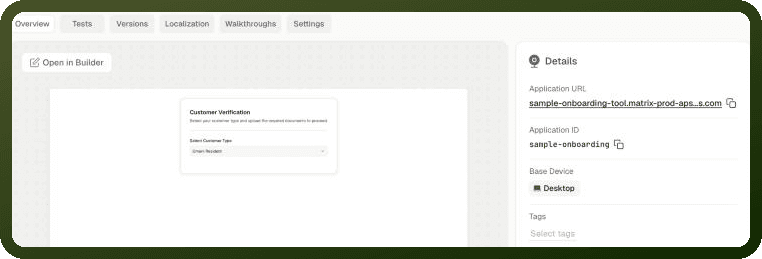
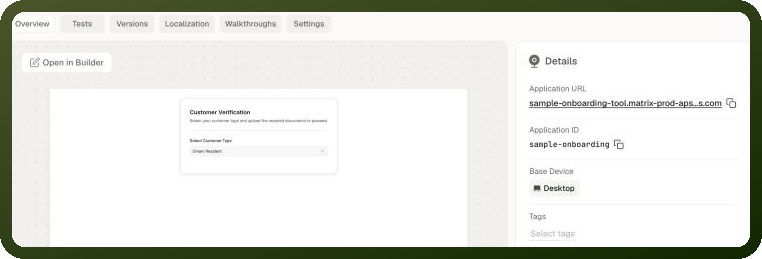
The Overview tab is divided into two areas:
Preview pane (left) — A live, non-interactive render of the app's default page. This lets you see the app's latest saved state at a glance, which may include changes you haven't published yet, without opening the builder or navigating to the live URL.
Details sidebar (right) — Key facts about the app — its URL, ID, workspace, tags, and modification history. Some fields are editable directly from this panel.
Note: The overview preview pane is read-only. You cannot interact with components, fill in forms, or navigate between pages from this view. To make changes, click Open in Builder.
Header Actions
Two primary actions appear in the Overview tab header:
Preview
Opens the app in a full browser tab as an end user would see it — fully interactive, with live data, navigation, and events working as configured. The preview shows the app's latest saved state, which may include changes you haven't published yet.
On mobile app types, clicking Preview shows a QR code instead of opening a browser tab. Scan the code with the UnifyApps Preview app on your mobile device to open the app.
Open in Builder
Opens the Application Builder for this app, where you can edit pages, components, data sources, and settings. This button is visible only if you have edit access to the app. If you have view-only access, the button does not appear.
App Tabs Reference
The tabs available for an app depend on its type, your permissions, and whether certain features are enabled. The tabs appear in the following order when present:
Tab | Appears For | Condition |
|---|---|---|
Overview | All app types | Always present. |
Insights | All app types | Visible only when App Analytics is enabled in Builder Settings → Advanced Settings → Analytics. |
Tests | Apps and packages | Visible to users whose role can view test cases. |
Versions | All app types | Always present. |
Releases | Mobile apps only | Prepare and track App Store and Google Play releases. |
Localization | All app types | Always present. |
Walkthroughs | Web apps only | Shown for web applications; not for mobile, Copilot or Display apps, modules or packages. |
Settings | Apps, modules and packages | Modules show Privacy only. Not present for template components. Handles access control, security, and governance for the app. |
Note: Template components have a shorter tab set: Overview, Versions, and Localization only. They do not have a Settings tab, a Tests tab, Insights, or Walkthroughs.
Details Sidebar
The Details sidebar on the right of the Overview tab shows metadata about the application. Most fields are read-only identifiers; a few are editable directly in this panel.
Field | Editable | Description |
|---|---|---|
Application URL | No | The web address at which the published app is accessible. Displayed as a full URL or a relative slug. The URL is set when the app is created and can't be changed. To use a different URL, clone the app with a new sub-domain. Not shown for modules. |
Application ID | No | A unique, system-generated identifier for this app. Click the copy icon to copy it to the clipboard. Useful when referencing the app in API calls, automation, or support requests. Not shown for modules. |
Base Device | No | The base variant the app was created with. The Overview sidebar shows Desktop or Mobile (Tablet apps appear as Mobile). It determines the default canvas dimensions in the builder. Not shown for Copilot apps. |
Workspace | Yes | The project (workspace) this app belongs to. You can move the app to a different workspace by editing this field. Moving affects which team members have access based on workspace-level permissions. Not shown for system apps. |
Tags | Yes | Labels for organizing and filtering apps in the Applications Manager. Click the field to add existing tags or type to create a new tag inline. Tags are workspace-scoped. |
Created on | No | The date and time the app was created, with the display name and avatar of the user who created it. |
Last Modified By | No | The display name and avatar of the user who most recently saved a change to the app (in the builder), with the modification date and time. |
Note: Copilot apps do not display a Base Device field because they are not canvas-based — they are delivered as floating chat assistants embedded in other apps or web pages.
Creating and Editing Tags
Tags let you group related apps so you can filter the Applications Manager quickly. To add a tag:
Click the Tags field in the Details sidebar.
In the dropdown, select an existing tag or type a new tag name.
Press Enter or click the new-tag option to create the tag and apply it simultaneously.
Repeat for additional tags. Tags save automatically — there is no separate Save button for this field.
To remove a tag, click the × beside it in the Tags field.
Opening the App in the Builder
The Overview tab is the quickest path from the Applications Manager to the Application Builder for a specific app.
Steps: Open an App in the Builder from the Overview
From the Applications Manager, locate the app you want to edit. You can search by name, or filter by type, owner or tag.
Click the app's row to open its management screen. The Overview tab is shown by default.
In the Overview tab header, click Open in Builder.
The Application Builder opens on the app's default page.
See Applications Manager for the search, filter and sort controls.
Note: Open in Builder is only visible if you have edit access to the app. If you only have view access, use the Preview button to inspect the app without making changes.