


URL Structure
Every page in your app has a slug — a short path segment that determines the page's URL. The page's full URL is the app's base URL followed by the slug:
Example — Page URL from slug
App address: <app address> Page slug: order-details Full page URL: <app address>/order-details
The slug is set when the page is created and can be changed in Page Settings at any time — but changing it breaks any external links or bookmarks pointing at the old address. Your app's address is shown, read-only, in Settings → General → App URL; see Path Tree and URLs for how the full URL is built.
Warning: No two pages can have the same URL. If the slug you enter is already used at that path, the message "Page url cannot be the same as other pages url" appears under the slug field. Choose a different slug to resolve it.
The Navigator Panel
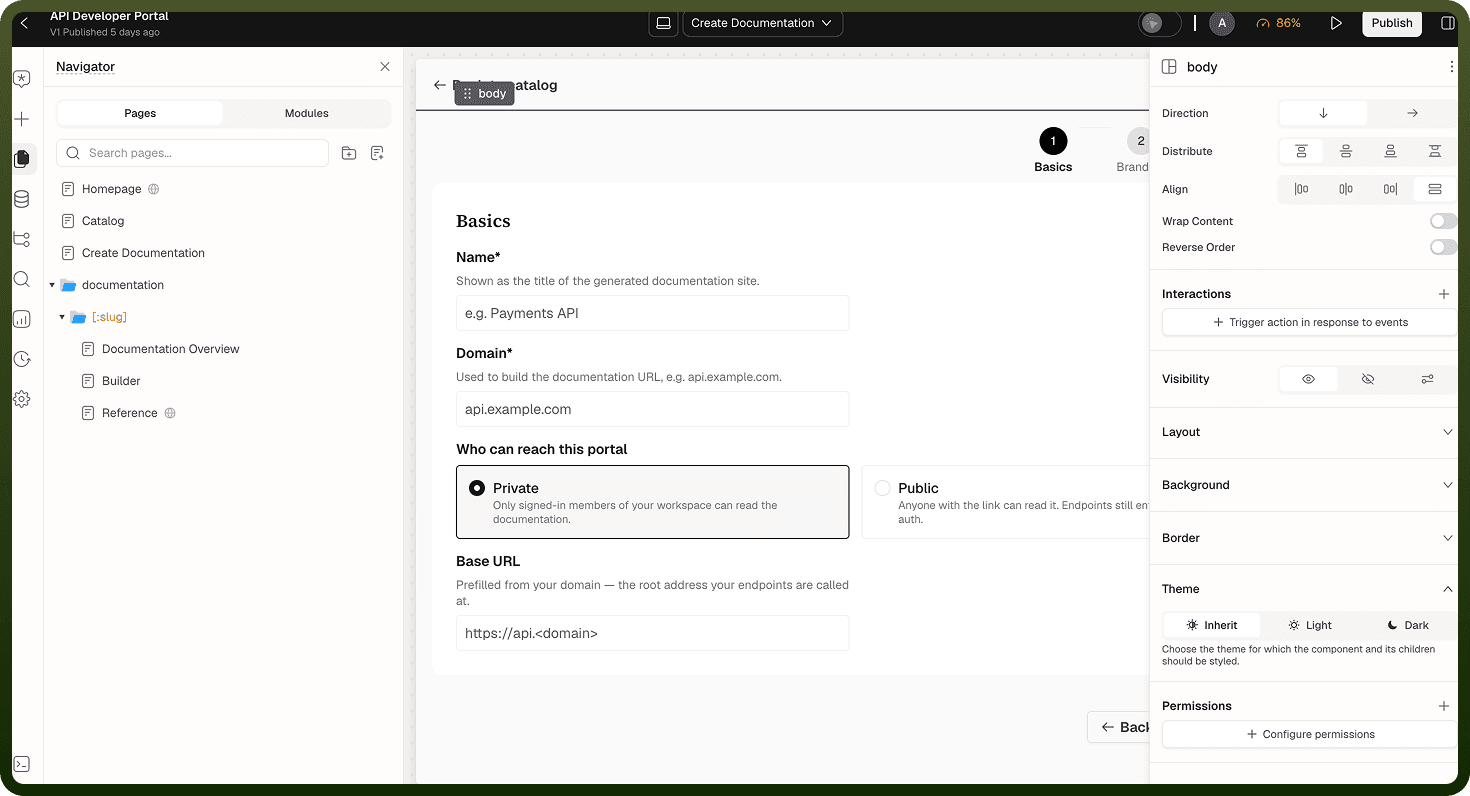
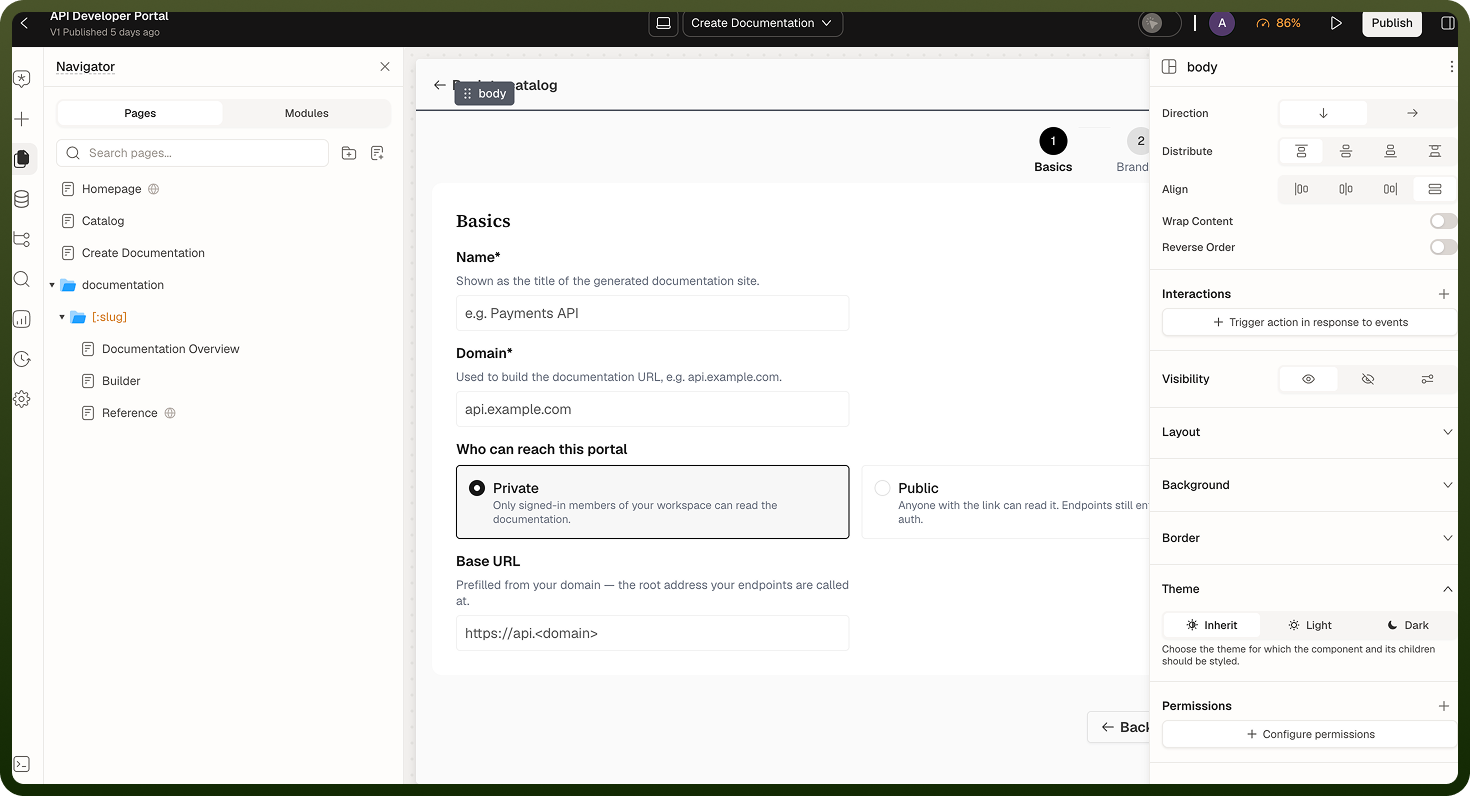
The Navigator panel (left rail in the builder) lists all pages and modules as a tree. Pages can be organized into folders. Click a page to open its Page Settings. The page actions below are in the ⋮ menu at the top of the Hierarchy panel, the separate left-rail panel that lists the blocks of the page you have open:
Action | What it does |
|---|---|
Rename Page | Changes the display name of the page. Does not change the slug. |
Set Export Layout | Sets the header and footer used in exported output. Web apps only. |
Publish as template | Opens the Publish as Template flow to save this page's design to the template library. Shows as Manage template once the page is published as a template. |
Delete Page | Permanently removes the page. Navigation items pointing at it become broken. This option isn't shown for the app's default (home) page, so you can't delete that page. To delete it, first choose another default page in Settings → Development → Navigation → Content → Default Page. |
The Page Settings panel menu also has Clone Page, which creates a copy of the page, and Delete Page. To set the app's default (home) page, go to Settings → Development → Navigation, open the Content tab and, under Default Page, choose a page for Logged in User. Logged out User is optional: it must be a Public page, and if you leave it unset, signed-out visitors see the login page. Only pages with static paths can be default pages.
Creating a New Page
In the Navigator panel, click the Create New Page icon next to the search box. You can also click + in the page switcher in the top bar and choose Page. The Add a New Page dialog opens: choose a starting point under Start with (Blank Page, Figma Frame or Data) or pick one of your workspace's page templates. The Page Setup dialog then asks for these fields; click Confirm to create the page.
Field | Required | Notes |
|---|---|---|
Page Name | Yes | Display name. Shown in the Navigator and used as the browser tab title by default. |
Parent Folder | No | Organizes the page within a folder in the Navigator. The folder's name becomes part of the page's URL (for example /orders/details). Moving the page to another folder changes its URL. |
Page Slug | Yes | Auto-generated from the page name. As you type, it is converted to lowercase letters, digits and hyphens. It can't match another page's URL. The dialog previews the full address under Page URL:. |
Privacy Settings | Yes | Private ("Pages accessible after user login") or Public ("Pages accessible to everyone"). Default is Private. |
Add page to navigation | No | Shown for Private pages. Adds the page to the app's nav bar ("Page will be visible in application's nav bar"). Lets you set a Navigation icon and where to Nest under. |
Page Settings
After a page is created, open Page Settings by clicking the page in the Navigator to configure it further. Settings are organized into sections:
General Settings
| Setting | Description |
| Page Slug | The URL path segment for this page. Must be unique. Changing it breaks existing links and bookmarks to the old URL. |
| Parent Folder | Move the page to a different folder in the Navigator tree. |
| Privacy | Private or Public. See Privacy and Access below. |
| Document Title | The text shown in the browser tab. See Document Title below. |
| Query Parameters | Declares named page inputs that arrive via the URL query string (e.g., ?orderId=123). Only declared parameters are read — undeclared params are ignored. The name pageInputs is reserved and cannot be used. |
| Transition Behavior | Mobile-only animation style for this page when navigating to it. |
Events
The Interactions section of Page Settings is where page triggers (Events, such as On Page Load and On Page Focus) and Keyboard Shortcuts are configured. See Loading States & Triggers for full details.
Permissions
In Governance → Permissions, limit the page to users who hold specific permissions. A rule names one or more permission groups and the permissions a user must hold; the user needs every permission listed. Permissions layer on top of the Privacy setting. A signed-in user without them sees an Access Denied screen ("You do not have access to this page"), and menu items that point at the page are hidden for them. See Slugs and Visibility.
Custom Code
Add raw HTML to this page in two slots: Head Code is added at the end of the <head> tag, and Footer Code is added before the </body> tag. The HTML can include <script> and <style> tags. The code ships with this page only. Use it for third-party analytics snippets, meta tags or page-specific styles. See Page Layout & Folders for examples and a security warning.
Dynamic URLs
Dynamic URLs let a single page represent many different records by capturing a variable value from the URL path. This is how you build detail pages — one page design, many records.
Folder Types for Dynamic Segments
Dynamic URL segments are created by setting a folder's type in the Navigator:
| Folder type | URL segment | Example URL | Use |
| Static param | Literal text | /orders/details | Grouping pages under a named path prefix without capturing a value |
| Dynamic param | Captures a value as a named parameter (:paramName) | /orders/:orderId/details | Record detail pages — the segment value becomes available in the page as a dynamic param |
To create a dynamic folder:
Add the folder: In the Navigator panel, click the Create new folder icon next to the search box. To nest it inside an existing folder, open that folder's + menu and choose Add sub-folder.
Open its settings: Click the folder to open Folder settings.
Name it: Enter the Folder name, for example
orderId. This becomes the parameter name.Make it dynamic: Under Type, choose Dynamic param. A Mock value field appears.
Enter a Mock value: Type a sample value, for example
ORD-2847. It is used only in the builder to preview URLs.Save: Click Save in the folder settings panel.
Add pages inside it: Open the folder's + menu and choose Add page, or set an existing page's Parent folder to this folder.
Dynamic folders have a Mock value setting — a placeholder value used in the builder so the page can preview correctly without a real record ID.
Folder Redirects
A folder can be configured to Redirect to another page. When a URL matching the folder's path is visited without a child page match, the visitor is redirected to the target page. Path parameters captured from the URL can be passed to the redirect target.
Example — Dynamic URL structure for an order detail page
Folder: orders/ (static segment) Folder: :orderId/ (dynamic segment — captures order ID) Page: details (slug: "details") Resulting URL pattern: /orders/:orderId/details Example URL: /orders/ORD-2847/details In-page access: {{ pageParams.orderId }} → "ORD-2847"
Navigating Between Pages
In-app navigation is controlled by the Go to Page action (and related navigation actions), configured in any interaction or event handler.
Go to Page Action
| Option | Description |
| Page | The destination page. Select from all pages in the app. |
| Open in new tab | If enabled, opens the destination in a new browser tab instead of the current one. |
| History — Push | Adds the destination to the browser's navigation history. The user can press Back to return. This is the default behavior. |
| History — Replace | Replaces the current entry in the browser's history instead of adding a new one. Back does not return to the current page. |
| Page Inputs | Pass values to the destination page's declared query parameters. Appear in the destination URL as ?name=value. |
| Dynamic Params | Fill in dynamic URL segment values for destinations that use a dynamic path. For example, pass a record's ID to a detail page. |
Example — Navigating to an order detail page from a table row
// In a row action's On Click handler in the orders_table Table: Action: Go to Page Page: Order Details Dynamic Params: orderId: {{ orders_table.context.currentRow.id }} // The resulting URL will be something like: // /orders/ORD-2847/details // In the Order Details page, access the param: // {{ pageParams.orderId }} → "ORD-2847" // Then use it as a data source input to fetch the order.
Related Navigation Actions
| Action | What it does |
| Go to URL | Navigates to any URL — internal or external. For external links, enable Open in new tab. |
| Navigate Back | Equivalent to the browser's Back button. Goes to the previous entry in history. |
| Set URL Parameters | Updates the current page's query string without navigating away. Changes URL params that the page reads without triggering a full page reload. |
Deep Linking
Because every page and every record has a deterministic URL, sharing deep links is built in. To share a link to a specific record:
Navigate to the detail page for the record
Copy the URL from the browser address bar
Share it — anyone with access to the app who opens the link lands on that exact record's detail view
This works because the dynamic URL segment captures the record ID in the path, and the On Page Load trigger uses that ID to fetch the correct record from the data source.
Example — Fetching a record from a deep-linked URL
// Shared URL: // /orders/ORD-2847/details // In the Order Details page, on Page Load: // Run data source: order_query // Input — orderId: {{ pageParams.orderId }} // order_query fetches the specific order with id ORD-2847. // The page displays that order's data — same as if the user // had clicked through from the Orders list.
Privacy and Access
Every page has a Privacy setting that controls who can open it:
| Privacy | Who can open it | Default page requirement |
| Private | Signed-in users only. Unauthenticated visitors are redirected to the login page. | Can be the logged-in default page. |
| Public | Anyone with the link. No sign-in required. | Required if set as the logged-out default page. |
Permissions (Page Settings → Governance → Permissions) layer on top of Privacy. A Private page is first gated by sign-in; Permissions then decide which signed-in users can open the page. Users without the required permissions see an Access Denied screen.
Document Title
The document title is the text shown in the browser tab when this page is open. It's available in web apps only, and you can edit it only for the page that is currently open in the builder. It can be:
| Mode | How to configure | When to use |
| Default (page name) | Leave the Document Title field blank or set it to the page name | Static pages where the title never changes |
| Fixed string | Type any text into the Document Title field | When you want a custom title different from the page name |
| Dynamic expression | Bind the field to a data expression: {{ order_query.data.orderNumber }} | Detail pages — the tab title should reflect the specific record being viewed |
Example — Dynamic document title on an order detail page
Document Title: Order {{ order_query.data.orderNumber }} — Acme App // While the page is loading: // Browser tab: "Order — Acme App" (orderNumber not yet resolved) // After data loads: // Browser tab: "Order ORD-2847 — Acme App"
The title updates automatically when the bound expression resolves — no extra actions required.
Query Parameters (Page Inputs)
Pages can accept input values via the URL query string. These are declared as Query Parameters in Page Settings and received by the page as named inputs.
| Concept | Details |
| Declared parameters | Only parameters explicitly declared in Page Settings are read from the query string. Any undeclared parameters in the URL are silently ignored. |
| Reserved name | pageInputs is a reserved query parameter name and cannot be used for a declared page input. |
| Passing values | Use the Page Inputs field in the Go to Page action to pass values when navigating. Or include them in the URL query string directly for deep links. |
| Reading values | Read a declared input with {{ pageInputs.orderId }}. |
Routing Summary
Note: Dynamic params (URL path segments like /orders/:orderId) are best for identifying the main subject of the page — the record being viewed. Query parameters (URL query string like ?tab=overview) are best for supplemental context like active tab, filter state, or display preferences. Both are readable in the page via expressions.
| Scenario | Mechanism | Example URL |
| Fixed page with no context | Static slug | /dashboard |
| Detail page for a specific record | Dynamic URL segment | /orders/ORD-2847/details |
| Page with supplemental context | Query string parameter | /dashboard?tab=overview |
| Detail page with supplemental context | Both — dynamic segment + query param | /orders/ORD-2847/details?tab=history |
| External URL or legacy link | Go to URL action | Any absolute URL |