


The toolbar ships enabled on every new table with the title "Table Title". Everything lives in one inspector panel: Inspector → Content → Add-ons → Toolbar. Remove the Toolbar add-on to hide the whole strip.
Warning: Selecting rows swaps the toolbar for the bulk-actions bar. While rows are selected on a table with bulk actions, the whole toolbar (title, search, filters, custom actions) is replaced by the bulk-actions bar until the selection is cleared.
Title & Record Count
Property | Type | Default | Description |
|---|---|---|---|
Title ( | string | "Table Title" | The heading shown at the left of the toolbar. Translatable |
Show Total Records ( | boolean | — | Object source only. When on, the count is fetched from the object automatically |
Total Records ( | number, bindable | — | Mapped source only. Bind the count yourself |
Warning: The toolbar's record count badge and the pagination add-on's Total Records are two separate values. A mapped-source table that shows both needs the count bound in both places.
Standard Actions
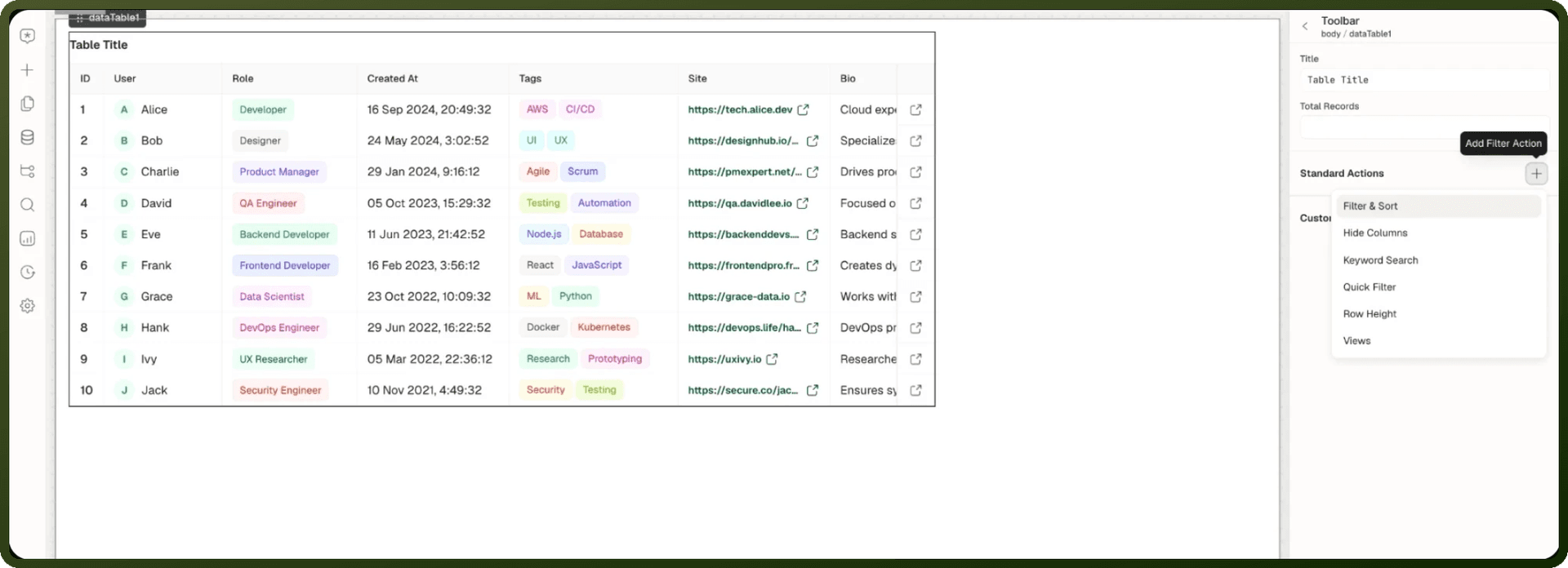
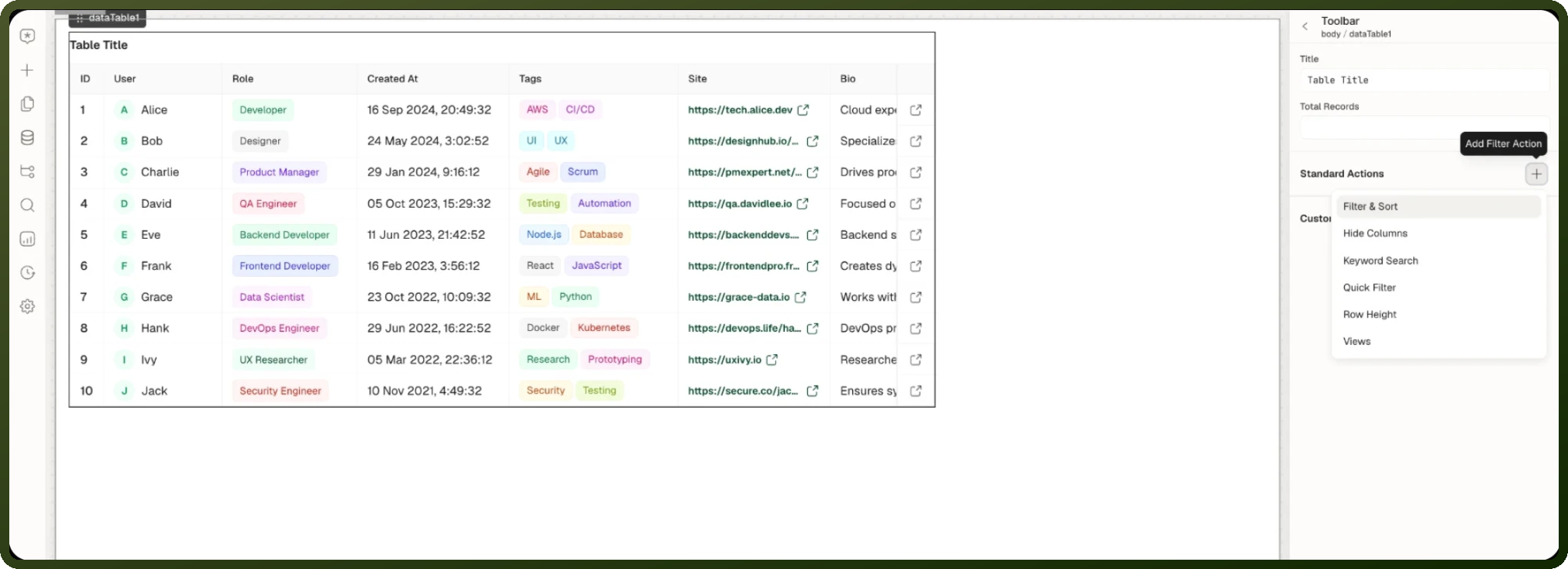
Add any of these under Inspector → Content → Add-ons → Toolbar → Standard Actions. Each standard action can only be added once (it leaves the add menu after being added), except Quick Filter, which can be added multiple times.
Action (menu label) | What the user gets |
|---|---|
Filter & Sort | A combined filter builder and sort menu over the table's columns |
Hide Columns | A menu to show/hide columns |
Keyword Search | A keyword search box |
Quick Filter | A one-click filter pinned in the toolbar. Add one per filter you want to pin |
Row Height | A density toggle (Compact / Comfortable / Spacious) |
Views | The saved-views switcher — Data Table variant only |
Filter & Sort Options
Property | Default | Description |
|---|---|---|
Fields | Manual source | The fields users can filter and sort on. Source is Manual (pick the fields in the panel) or Mapped (bind them from Data). Each field can be set as filterable and sortable |
Filter | On | Shows the filter menu. Choose the Filter menu fields it offers |
Default value | — | A filter applied by default when the table loads |
Inline filters | — | Fields shown as standalone filters on the toolbar, outside the Filter menu |
Sort | On | Shows the sort menu. Choose the Sort menu fields it offers |
Note: Tables that still use the older separate filter and sort actions show different options, such as Show only visible columns and Hide Filter Menu.
Note: Date filtering: The data filter offers absolute date operators only (Before, After, Between, etc.) — there is no "last N days" relative operator. For relative date ranges, add a Quick Filter with Filter Type = Date; it carries presets (Today, Yesterday, Last 7/15/30/90 days, This month, custom Upcoming / Previous ranges).
Keyword Search Options
| Property | Default | Description |
| Placeholder | "Search" | Hint text inside the search box. Translatable |
| Initial Value | — | A search term applied when the table loads. Bindable |
Warning: Search is never applied in the browser. Typing in the search box only writes to {{ id.filters.search }}. An Object-backed table sends the text to the server automatically. A Mapped table does nothing with it on its own — you must bind {{ id.filters.search }} into your data source's inputs.
Quick Filter Options
A quick filter is a predefined filter rendered as its own control in the toolbar — users apply it with one click instead of opening the filter builder.
Property | Default | Description |
|---|---|---|
Label | Quick Filter | Text on the quick filter control. Translatable |
Filter Type | Date | Date : applies a date range. Data : applies a condition filter over a field. A new quick filter starts as Date with the Last 30 days preset selected. |
Source | Custom | Custom : build the value in the panel. Mapped : bind it from data |
Value | — | The filter this control applies |
Apply by default | — | Applies this quick filter when the table loads |
Warning: A data quick filter replaces the data filter — the two never combine. Applying it overwrites the current filter, and editing the data filter by hand clears the quick filter. If multiple quick filters are marked Apply by default, only the first date one and the first data one are applied on load.
Custom Actions
Your own buttons at the right of the toolbar. Each fires its On Click event when pressed. New actions start as visible buttons. To move one into the toolbar's overflow menu, drag it from Visible Actions to Hidden in overflow — there is no toggle inside the action's detail panel.
In Inspector → Content → Add-ons → Toolbar, go to Custom Actions and add an action.
Open the action and set its Type and Label, plus any Disabled, Loading or Visibility conditions.
Under its On Click event, add the actions to run when users press it.
| Property | Default | Description |
| Type | button | Visible actions: text button or icon-only button. Overflow entries get a menu-item variant |
| Label | — | Button text or menu entry text. Translatable |
| On Click | — | Handler that runs when pressed |
| Disabled / Loading | — | Conditions to disable or show a spinner |
| Visibility | — | Condition to show/hide the action |
| Permissions | — | Restricts who sees the action |
Saved Views
Views let each user save the table's current setup — filters, sort, search, page size, column widths and column order — under a name and switch between setups. Enable views by adding the Views standard action. Views are per user: one person's saved views are not visible to another.
Note: Views are only available on the Data Table block variant. The Nested Table and Group Table variants do not offer the Views standard action.
What a View Captures
| Captured | Details |
| Filters | The data filter, sort order and keyword search currently applied |
| Page | Current page number and page size |
| Column sizing | Column widths the user has dragged |
| Column order | Column positions the user has rearranged |
Not captured: column visibility, row selection, or pending inline edit values.
The Main View
Every table with views enabled starts with a built-in Main view. Switching to it clears every applied change back to the table's configured defaults. Main cannot be renamed, updated or deleted by users, but it can be hidden once at least one other view exists. You can relabel it and give it an icon in the Views action's options.
Each saved view has its own menu with these actions:
Set as default view : makes the view open by default.
Rename
Delete
Hide main view / Show main view : hides or shows Main from the views list.
Users can also reorder their views.
Views Exposed State & Methods
| Binding / Method | Description |
{{ id.views }} | The user's views as { id, name } pairs, in display order |
{{ id.activeView.id }} | ID of the view currently applied (main for the Main view) |
{{ id.activeView.name }} | Name of the current view |
{{ id.activeView.isDirty }} | True when the table's current setup differs from what the view saved |
createView(name) | Saves the table's current setup as a new view and switches to it |
updateView(id) | Overwrites the given view with the table's current setup (entire snapshot, not just filters) |
deleteView(id) | Deletes the given view; if active, the user lands back on Main |
Views Behavior
Warning: Views cannot be pre-created or shared by the builder. Every user starts with just Main and builds their own list at runtime. There is no way to ship a table with ready-made views for all users. To give everyone the same starting state, configure the table's defaults (default filter, sort, hidden columns) instead.
Note: Signed-in users keep views across devices; anonymous users don't. For signed-in users, views live in server-side preferences and follow them across sessions. On public pages, views are stored in that browser only (local storage) and don't follow the visitor to other browsers or devices.
Warning: Updating a view captures the whole current setup — filters, sort, search, page, column sizing and order. A user who only meant to save a filter tweak also saves their current column widths.
Related Pages
Page | Relationship |
|---|---|
The block this toolbar belongs to | |
Custom filter fields for Mapped tables; grouped columns | |
Bulk actions replace the toolbar while rows are selected | |
A separate filter toolbar block with its own state path |