


Capture photos and video, scan barcodes and QR codes through the camera, or render scannable barcodes from your data.
This page compares the five blocks. Each one is covered in full on its own page: Camera & Photo Booth and QR Code, Barcode & Scanner.
Choosing the Right Block
Block | Purpose | Platform |
|---|---|---|
Camera | Live feed photo capture and video recording. Supports Face Detection (web) and Recording add-ons. | Web + Native mobile |
Photo Booth | Richer mobile capture experience with crop, drawing, flash, and gallery. Designed for native mobile apps. | Native mobile only |
Scanner | Decode barcodes and QR codes from the camera feed. Accumulates decoded values in a | Web + Native mobile |
Barcode | Render a scannable barcode graphic from a text value. Display-only — no camera, no scanning. | Web |
File Upload | Pick existing files from the device (no camera). See File Upload. | Web + Native mobile |
Camera Block
The Camera block shows a live camera feed and captures photos or records video clips. Captured photos are uploaded automatically and exposed as a file object. Two add-ons extend its capabilities: Recording for video, and Face Detection (web only) to gate the shutter until a face is properly framed.
Content properties
Property | Type | Default | Description |
|---|---|---|---|
|
| user (Front) | Which camera the feed starts on. Front for selfies; back (environment) for document or environment capture. |
|
| true | Flips the preview and, on web, the captured photo. Turn it off for back-camera capture (documents, labels) or the text will come out reversed. Has no effect in mobile apps. |
|
| — | Shows a preview page after capture with edit options. Mobile apps only. |
Add-ons
| Add-on | Platform | Key settings |
| Face Detection | Web only | Orientation (portrait/landscape) and Detect Face toggle. When enabled, the shutter is hidden until a face is detected, centered, and aligned — live guidance messages coach the user. Any Recording settings disable Face Detection. |
| Recording | Web only (offered in mobile apps but produces no clip) | Auto Record (start on open, once), Include Audio, Duration (ms), FPS, Loop (restart after each clip), Loop Iterations. Enables video output instead of photo capture. |
Appearance properties (mobile only)
| Property | Default | Description |
showTorchButton | false | Shows a torch on/off button. |
showSwitchCameraButton | false | Shows a front/back switch button. |
showGalleryButton | false | Lets the user pick from the device gallery instead of capturing. |
Events
| Event | When it fires |
| On Photo Capture | After a captured photo finishes uploading. The file is in {{ id.uploadedImage }}. Does not fire if upload fails. |
| On Recording Start | When recording begins (manual, auto, or via method). |
| On Recording Stop | When recording ends. |
| On Recorded File Capture | After a finished clip is saved and uploaded. |
| On Permission Denied | When the user denies camera access. |
| On Face Detected | When Face Detection reports a face (Face Detection add-on only). |
Note: In mobile apps the Camera block captures photos only. On Recording Start, On Recording Stop and On Recorded File Capture produce no clip, and On Permission Denied and On Face Detected don't fire. Watch {{ id.hasCameraPermission }} for refusals, and use Photo Booth with Video Mode for video on mobile.
Methods
| Method | Description |
| switchCamera | Switches between front and back cameras. Ignores the facingMode parameter — always toggles to the other camera. |
| startRecording | Starts a recording. |
| stopRecording | Stops the current recording. |
Exposed state
Key ({{ id.* }}) | Type | Description |
previewImage | string | Last captured image as inline data — available immediately at capture time. |
uploadedImage | object | Uploaded photo file details (name, url, type). Set only after upload completes. |
isCameraRecording | boolean | Whether a recording is in progress. |
recordedVideoFile | object | The last finished video clip. Holds only the most recent clip in a loop — save each one in On Recorded File Capture. |
hasCameraPermission | boolean | Whether the user has granted camera access. Starts true; flips to false on denial. |
hasGalleryPermission | boolean | Whether gallery access is granted (mobile). |
Warning: On Photo Capture fires after upload, not at the shutter. {{ id.previewImage }} is set immediately when the photo is taken. {{ id.uploadedImage }} and the event fire only after upload completes. On slow connections there is a visible gap. Gate downstream actions on the event, not on button click.
Note: Auto Record runs once per page visit. With Auto Record on, recording starts automatically once the camera opens — but only once. After the first clip completes it will not auto-start again. Use startRecording to capture another take, or enable Loop with Loop Iterations.
Photo Booth Block
The Photo Booth block is a richer capture surface designed for native mobile apps. It supports photo and video modes together, crop and annotation add-ons, quality presets, gallery picking, flash, and camera switching. It is not available in web apps.
Content properties
Property | Type | Default | Description |
|---|---|---|---|
|
| user (Front) | Which camera opens first. |
|
| 4k | Capture resolution. |
|
| 4_3 | Frame shape of the capture. |
|
| true | Enables photo capture. Add-ons for crop, drawing, and flash only appear when this is on. |
|
| On (for new blocks) | Known limitation: has no effect today. The captured photo is not flipped. |
|
| false | Enables video recording. When on, exposes: Recording Method (Tap/Hold), FPS (30/60), Max Duration (ms). Known limitation: Recording Method has no effect today. Recording is always tap to start, tap to stop. |
Add-ons
Available from Inspector → Content → Add-ons. View Gallery and Switch Camera are always offered. Photo Crop, Drawing Support, and Flash Light appear only when Photo Mode is on.
Events
| Event | When it fires |
| On Photo Capture | After a photo finishes uploading (after any crop/draw step). Cancelling crop or drawing discards the capture and fires nothing. |
| On Recording Start / Stop | Wraps the recording itself. Use Stop for UI feedback. |
| On Recorded File Capture | After the video uploads. Use this event to act on the video — it fires separately from On Recording Stop. |
| On Permission Denied | Declared but does not fire in the native runtime — watch {{ id.hasCameraPermission }} instead. |
Exposed state
Key ({{ id.* }}) | Description |
previewMedia | Local preview of the latest capture (image or video frame), set at capture time. |
uploadedMedia | Uploaded file details (URL, name, type). Set once upload completes. |
isCameraRecording | Whether a recording is in progress. |
hasCameraPermission | Whether camera access is granted. |
hasGalleryPermission | Whether gallery access is granted. |
Scanner Block
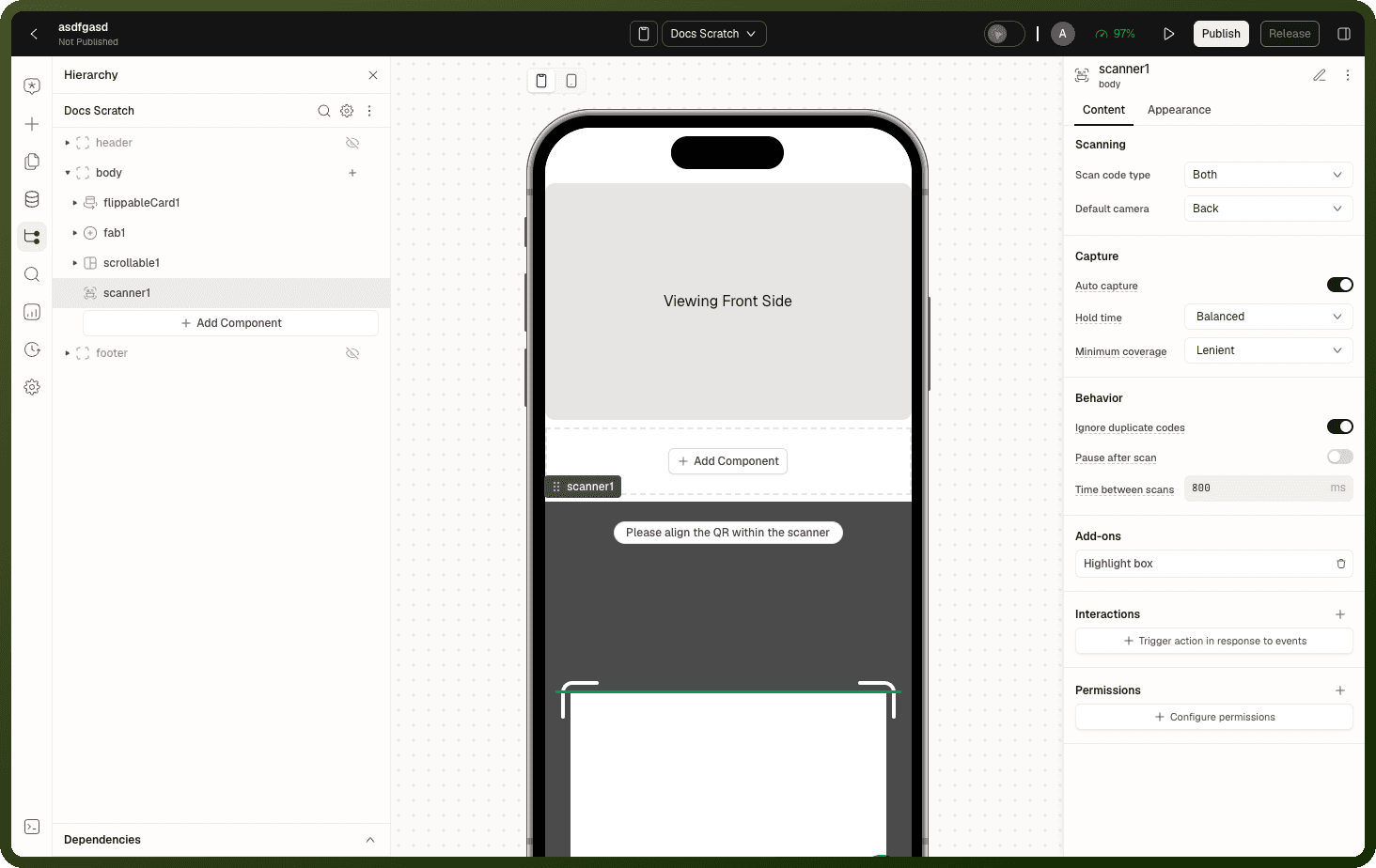
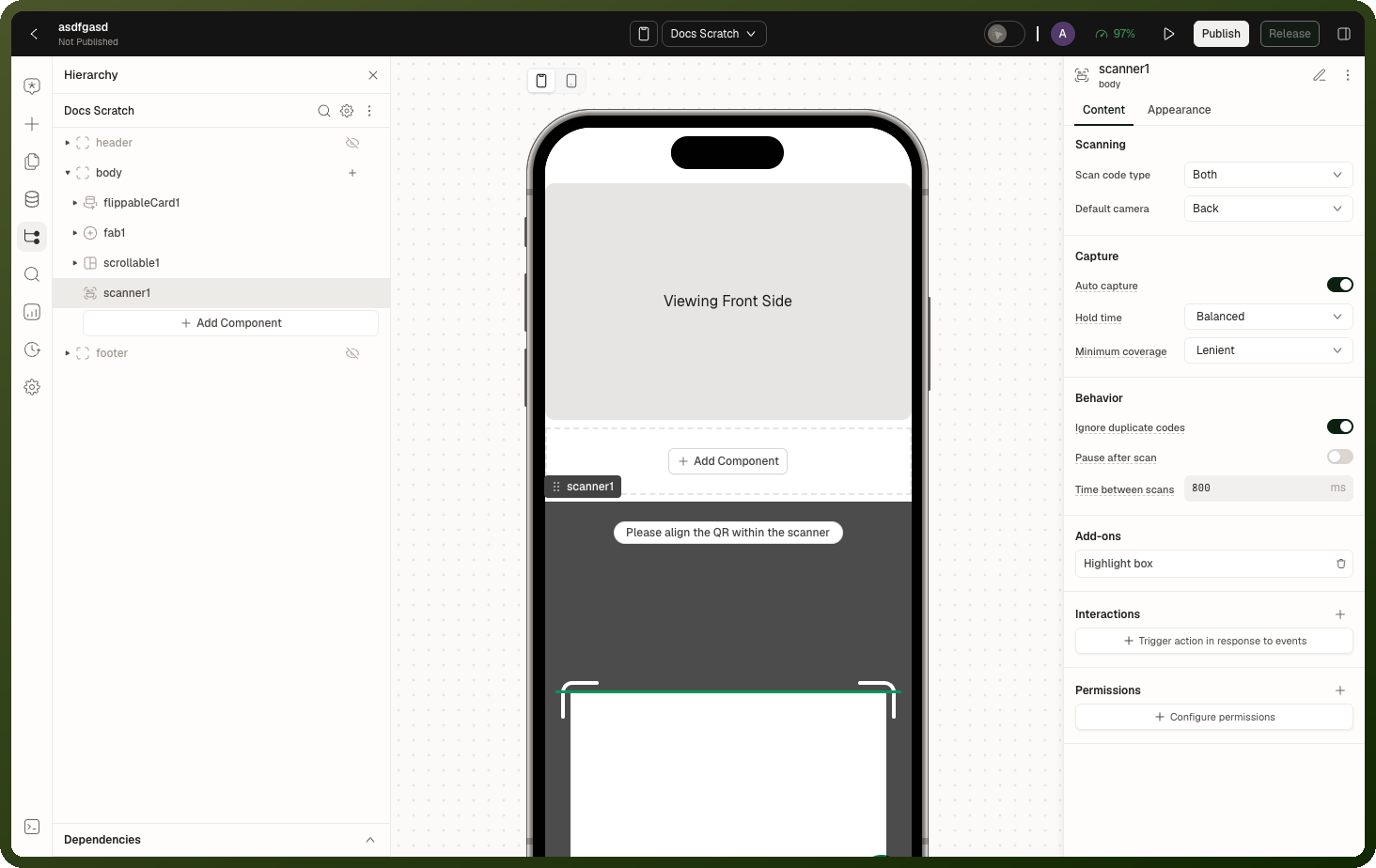
The Scanner block opens a live camera feed with a framed scan region and decodes barcodes and QR codes as they enter the frame. Each accepted read appends to the block's data array and fires On Scan. Duplicates are skipped by default. The block can operate in continuous mode (keeps scanning) or single-shot mode (pauses on first hit).
Content properties
Property | Type | Default | Description |
|---|---|---|---|
|
| environment (Back) | Which camera the feed opens with. Back camera is typical for scanning physical items. |
|
| BOTH | Which code family to decode. Codes in unsupported formats are silently ignored. |
|
| true | On: scans automatically. Off: only the Capture method triggers a scan. |
|
| 300 (Balanced) | How long a code stays steady before it's read: Fast (150), Balanced (300), Patient (600), or a custom value. Shown when Auto capture is on. |
|
| 15 (Lenient) | How much of the code must be in frame to count: Lenient (15 %), Balanced (50 %), Strict (75 %), or a custom value. Shown when Auto capture is on. |
|
| false | Freeze on the first successful read (single-shot). Call Resume to read the next item. Mutually exclusive with timeBetweenScans. |
|
| true | Skip a code already present anywhere in the |
|
| 800 | Delay the scanner waits after a read before accepting the next one. Applies only in continuous mode (pauseAfterScan off). |
Add-ons
Add-on | Settings | Description |
|---|---|---|
Highlight box | Enabled, Color | Outlines the code the scanner has chosen to read. On by default for new blocks. |
Scan region appearance
The framed target area is configured under Appearance → Scan Region. Width and height default to 336×336 px. Frame corner brackets (Color, Radius, Gap) and the animated scan line (Line Color) are independently styled. For a gradient scan line, supply a lineStyles.linearGradient object via Custom CSS.
Events, Methods & State
Name | Type | Description |
|---|---|---|
On Scan | event | Fires once per accepted read after the value is stored. No payload — read the value from |
Pause | method | Freezes scanning with a paused overlay. The feed stays live but no reads are accepted. |
Resume | method | Resumes scanning after a pause or after pauseAfterScan hit. |
Capture | method | Reads the code currently in the frame. Required when Auto capture is off. |
Clear | method | Empties the |
| string[] | Every accepted scan value in order. Starts empty on mount; only the Clear method empties it. No way to seed or override from outside. |
Platform differences
Web supports: Code 128, Code 39, EAN-13, EAN-8, UPC-A, UPC-E, ITF, Code 93, Codabar, and QR. Mobile apps support: EAN-13, EAN-8, Code 128, Code 39, Code 93, Codabar, and QR — but not UPC-A, UPC-E, or ITF. Test your specific symbology on the platforms you ship to. A code in an unsupported format is silently ignored.
Warning: Duplicate checking spans the full history. With Ignore Duplicate Codes on, a value already anywhere in data is not added again — even if the user genuinely rescans the same item later. To allow re-scanning the same code, either turn the setting off or call Clear between sessions.
Barcode Block
The Barcode block renders a scannable one-dimensional barcode from a text value. It is a display block only — no camera, no events, no methods. Dropping it creates a stack: the barcode graphic plus a separate caption text block underneath, both prefilled with a sample value.
Properties
| Property | Type | Default | Description |
text | string | UnifyApps | The value encoded into the bars. Bindable. If the value is empty or invalid for the format, the block keeps showing the last barcode it drew (or stays blank if none). Validate bound values upstream. |
type | format enum | CODE128 | Barcode format: CODE128, CODE128A/B/C, EAN13, EAN8, UPC, CODE39, ITF14, ITF, MSI, MSI10, MSI11, MSI1010, MSI1110, pharmacode. Each format has its own character and length rules. |
barWidth | pixels | 2px | Width of the thinnest bar. |
colors.barColor | color | near-black | Color of the bars. Accepts conditional expressions. |
colors.backgroundColor | color | transparent | Background behind the bars. |
Warning: The caption under the bars is a separate block. Changing the barcode's Text does not update the caption text block — they are independent. Bind or edit the caption block separately, or the label and the bars will say different things.
Events, methods and state
The Barcode block has no events, no methods and no exposed state keys.
Common Gotchas
Photo Booth is native mobile only
The Photo Booth block is not available in web apps. It does not appear in the web block library and a page using it has no web fallback. For web photo capture, use the Camera block instead.
switchCamera always toggles — it ignores the facingMode parameter
Both Camera and Photo Booth expose a switchCamera method that takes a facingMode parameter in its UI, but both blocks ignore the parameter and simply toggle to whichever camera is not currently active. Call it twice and you're back where you started.
Face detection and recording are mutually exclusive on Camera
If the Recording add-on has Auto Record, Duration, Loop, or Loop Iterations set, face detection stops working even when its toggle is on. Recording wins. Choose one capability per Camera block.
On Photo Capture fires after upload, not at the shutter press
For both Camera and Photo Booth, the event fires after the upload completes, not when the shutter is pressed. previewImage / previewMedia updates immediately at capture time, but use the event and the uploadedImage / uploadedMedia state for anything that needs the real backend URL.
Barcode keeps the last valid barcode for invalid or empty text
If the Text doesn't satisfy the selected format's rules — for example letters in an EAN13 that needs only digits — no error is shown. The block keeps displaying whatever it last rendered successfully, or stays blank. Validate bound values upstream when the format is strict.
On Permission Denied does not fire in the Photo Booth native runtime
A camera-permission refusal updates hasCameraPermission to false and shows an access-denied panel, but the On Permission Denied event handler is not invoked on native. Watch {{ id.hasCameraPermission }} instead of relying on the event for Photo Booth on mobile.