


What Is a Page?
A page is the fundamental unit of navigation in a UnifyApps application. Everything a visitor sees at any given moment belongs to exactly one page. Your application is, at its core, a collection of pages connected by navigation.
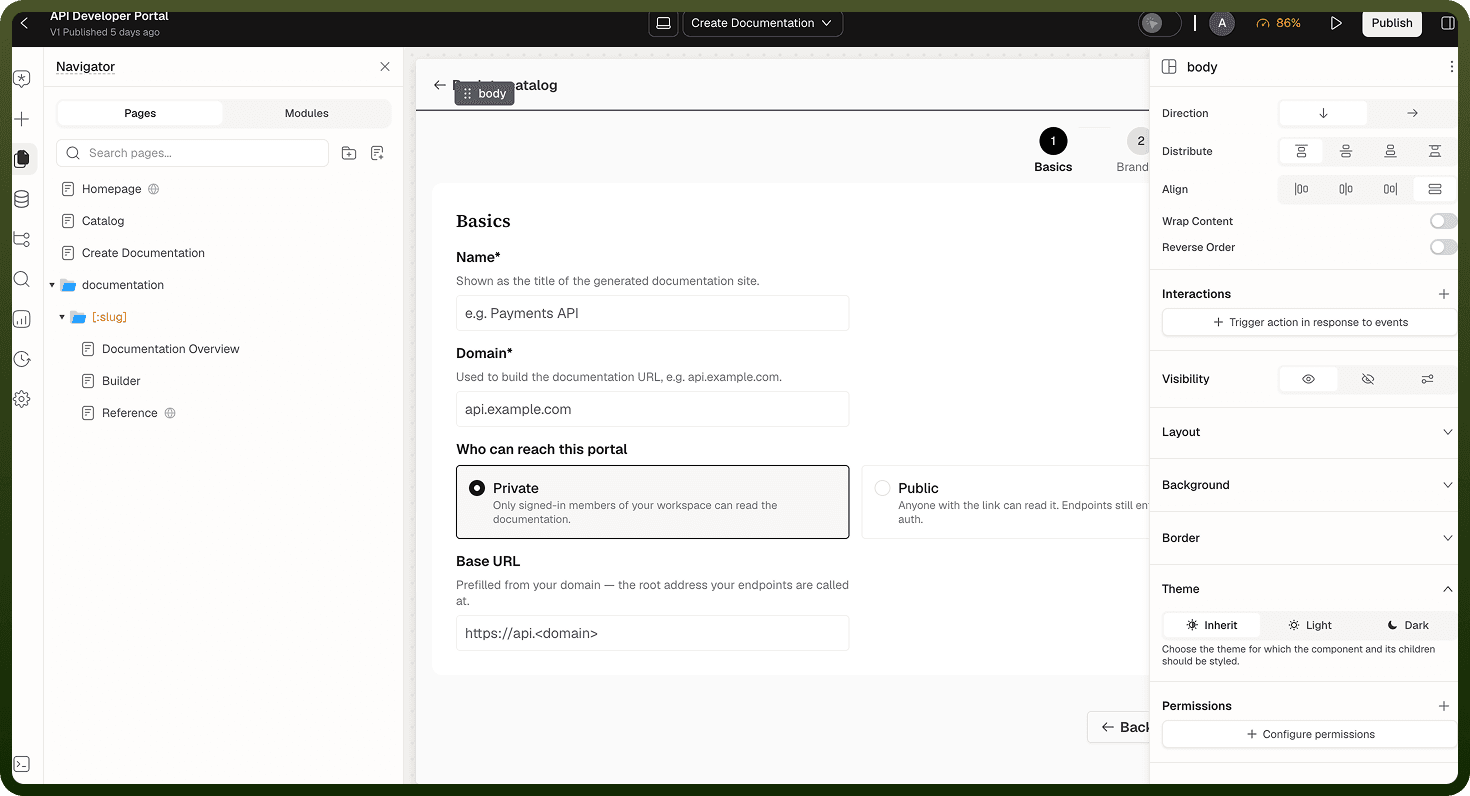
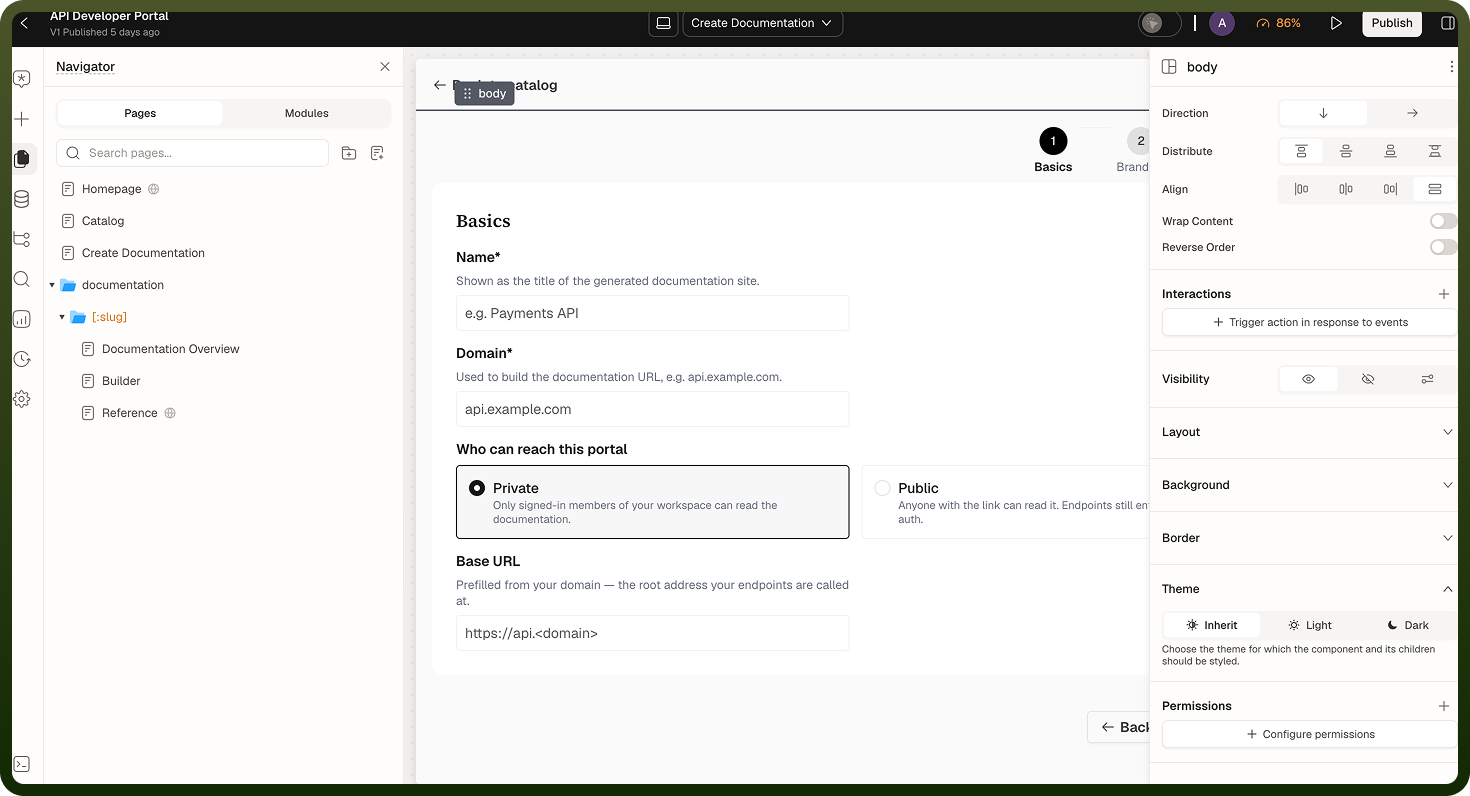
Each page has its own URL, its own layout of blocks, and its own private state: parameters that arrive from outside the page and variables that are scoped to the page and reset every time the page closes. Pages do not share state directly — they communicate through inputs, outputs, and events.
Note: An application equals a set of pages plus navigation between them. If you have built with traditional web frameworks, a page in UnifyApps maps closely to a route — but with built-in state, typed parameters, and lifecycle events managed by the platform.
What a Page Bundles
Every page is a self-contained unit that brings together four things:
| Bundle component | What it includes |
| An address | A slug that maps to a URL segment, plus an access setting (Private or Public). |
| Inputs and outputs | Typed parameters the page accepts from the URL or from a navigation call; values the page publishes to its opener; named events the page can emit or receive. |
| Variables | Named, typed values scoped exclusively to this page. Blocks read them and actions write them. Variables reset whenever the page opens fresh. |
| A layout | Header, body and footer regions on the canvas; optional Head Code and Footer Code in Page Settings → Custom Code. |
Note: A page does not own a data source directly. Data sources are attached separately and queried through the Data panel. The page's On Page Load trigger is the conventional place to fire queries that need to run when the page opens.
Page Lifecycle
When a visitor navigates to a page, the platform runs through a predictable initialization sequence. Understanding this sequence helps you know where to put each piece of logic.
Resolve parameters from the URL: The platform reads the URL — both path segments and query string — and matches values to the page's declared parameters. Undeclared parameters are ignored. Type conversion runs: numeric strings become numbers,
"true"/"false"become booleans, JSON text becomes objects or arrays.Apply variables' initial values: Each page variable's initial value expression is evaluated. Variables that reference page parameters at this point receive the resolved values from step 1.
Render the layout: Header, body, and footer blocks render using the now-initialized parameters and variables. Blocks that depend on data sources that have not resolved yet render in their loading state.
Fire On Page Load trigger: The On Page Load trigger fires. Any action chains attached to it execute — typically data source queries, variable updates, or conditional navigation. Data sources that a block reads run automatically when that block appears, unless the source is set to manual. On Page Load fires before those queries return, so use it for work that doesn't need their results.
Warning: In web apps, navigating away from a page tears down its entire state. When the visitor returns — even via the browser back button — the page reinitializes from scratch. If you need state that survives navigation, store it in a URL parameter, a browser storage variable, or a server-side record. In mobile apps, a page you navigate away from stays in the navigation stack and keeps its state when you go back.
Navigator Panel and the Page Tree
The Navigator panel lists every page and module in your application as a tree. Pages can be organized into folders, and folders can nest inside other folders. The tree structure reflects the URL hierarchy of your application.
From the Navigator you can:
Click a page to open its Page Settings.
Click the arrow icon on a page row to open the page on the canvas.
Use a folder's + menu to add a page (Add page) or a sub-folder (Add sub-folder).
Move a page to another folder with Parent folder in its Page Settings.
Rename or delete a page from the ⋮ menu at the top of the Hierarchy panel (the separate panel that lists the open page's blocks). The Page Settings menu also has Clone Page and Delete Page.
Creating a New Page
In the Navigator panel, click the Create New Page icon next to the search box. You can also click + in the page switcher in the top bar and choose Page.
Choose a starting point: In the Add a New Page dialog, choose Blank Page, Figma Frame or Data under Start with, or pick a template from the gallery. Click a template to preview it, then click Use Template. The Page Setup dialog opens.
Set the page name: The page name appears in the Navigator and becomes the default document title (shown in the browser tab). It does not affect the URL — the slug controls the URL.
Set the parent folder: Choose which folder the page lives in. The folder determines the URL prefix for the page. A page at the root level has no folder prefix.
Set the page slug: The slug becomes the URL segment for this page. The dialog previews the full address under Page URL. As you type, the slug is converted to lowercase letters, digits, and hyphens. Changing the slug after sharing the link breaks any existing bookmarks or external references.
Set Privacy Settings: Private (default): only signed-in users can access the page. Public: anyone with the link can access the page without signing in. Permissions can be layered on top of this setting.
Configure navigation options: For Private pages, you can turn on Add page to navigation to add the page to the app's nav bar, then set a Navigation icon and where to Nest under. The new item appears in Settings → Development → Navigation → Content, where you can reorder it like any other item (see Nav Slots and Order).
Confirm: Click Confirm. The new page opens in the builder.
Page Settings Reference
After creating a page, open Page Settings by clicking the page in the Navigator. The settings panel is divided into several sections.
| Setting | Description |
Page Slug | The URL segment for this page. Changing this breaks existing external links. Lowercase letters, digits, and hyphens only; other characters are converted as you type. |
Parent Folder | Which folder contains this page. Changing the folder changes the page's URL prefix. |
Privacy | Private (requires login) or Public (open to all). Apply additional Permissions for role-based control. |
Query Parameters | Declare typed page inputs here. Each input has a name and a type: String, Number, Integer, Boolean, Icon, Date, Date Time, Object, Array, Single Select Dropdown or Multi Select Dropdown. |
Document Title | What appears in the browser tab. Defaults to the page name. Can be a fixed string or a dynamic expression bound to page state. |
Events | In the Interactions section: Events (On Page Load, On Page Focus and other triggers) and Keyboard Shortcuts. |
Permissions | In Governance → Permissions: the permission groups and permissions a user must hold, layered on top of the Public/Private setting. |
Custom Code | Head Code and Footer Code slots for HTML, JavaScript or CSS that ships with this page. |
Transition Behavior | Mobile animation style when navigating to/from this page. |
Navigation Actions
Pages connect to each other through navigation actions wired to events. The primary navigation action is Go to Page.
| Action | Description |
| Go to Page | Navigate to a specific page in your app. Configure: target page, open in new tab, history mode (Push or Replace), page inputs to pass, and dynamic path param values. |
| Go to URL | Navigate to an absolute or relative URL. Use for external links or links outside the app's page tree. |
| Navigate Back | Equivalent to the browser back button. Pops the history stack. |
| Set URL Parameters | Update query string parameters for the current page without a full navigation. Triggers a re-read of the updated parameters. |
Go to Page — Option Details
| Option | Values | Effect |
Open in new tab | true / false | When true, the target page opens in a new browser tab. The current page remains open. |
History | Push / Replace | Push adds an entry to the history stack (back button works). Replace replaces the current entry (back button returns to the page before the current page). |
Page Inputs | Key-value pairs | Values passed to the destination page's declared inputs. Appear in the URL as query string parameters. |
Dynamic Params | Key-value pairs | Values for dynamic path segments in the target page's folder hierarchy. |
Topics in This Section
The Pages section of these docs covers everything you need to build, configure, and connect pages. Here is what each topic covers:
Topic | What you'll learn |
|---|---|
URL structure, the Navigator panel, creating pages, Page Settings, dynamic URLs, navigation actions and deep linking. | |
Declaring query parameters, reading pageInputs and pageParams in bindings, and passing values with Go to Page. | |
How folders and slugs build a page's URL, dynamic segments, query parameters and current-URL bindings. | |
Editing a page slug, Privacy Settings, page permissions and menu visibility. | |
Header, body and footer regions, Custom Code, Export Layout, static and dynamic folders, folder redirects. | |
Starting a page from a template and publishing a page as a template. | |
Transition Behavior for pages in native mobile apps. | |
Page triggers such as On Page Load and On Page Focus, and the template component loader. | |
Adjusting a page for Mobile and Tablet in the builder. | |
Named JavaScript functions on a page, run modes and scope. | |
The app's navigation menu and default pages. | |
Adding, ordering and nesting navigation menu items. | |
Styling the navigation menu. | |
Navigation styles for web and mobile apps. | |
Showing navigation items per breakpoint. |