


Where Modules Live
Every module in an app is listed under the Modules tab of the builder's navigator, kept separate from the app's pages. Opening a module from this tab launches it in the module builder.
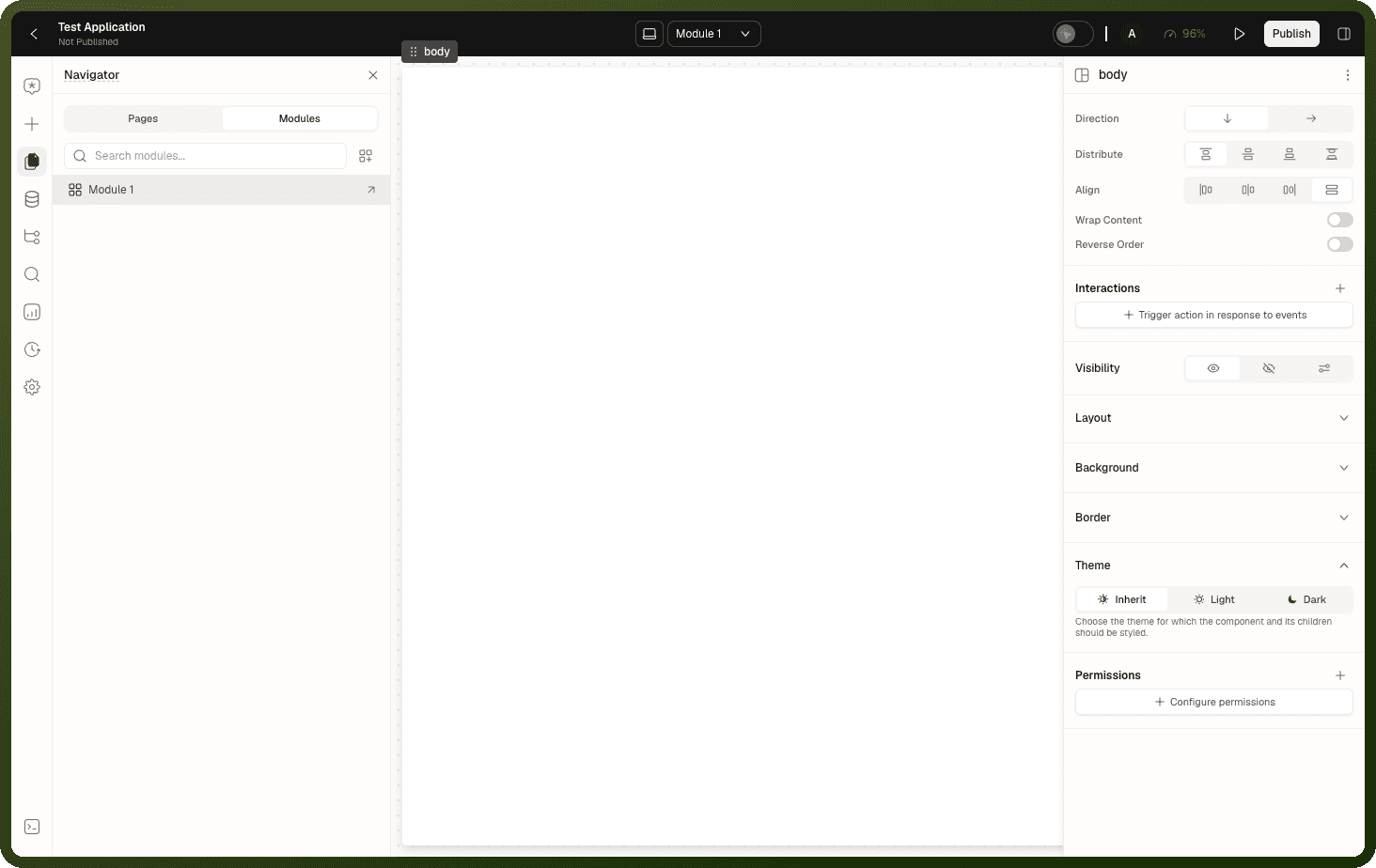
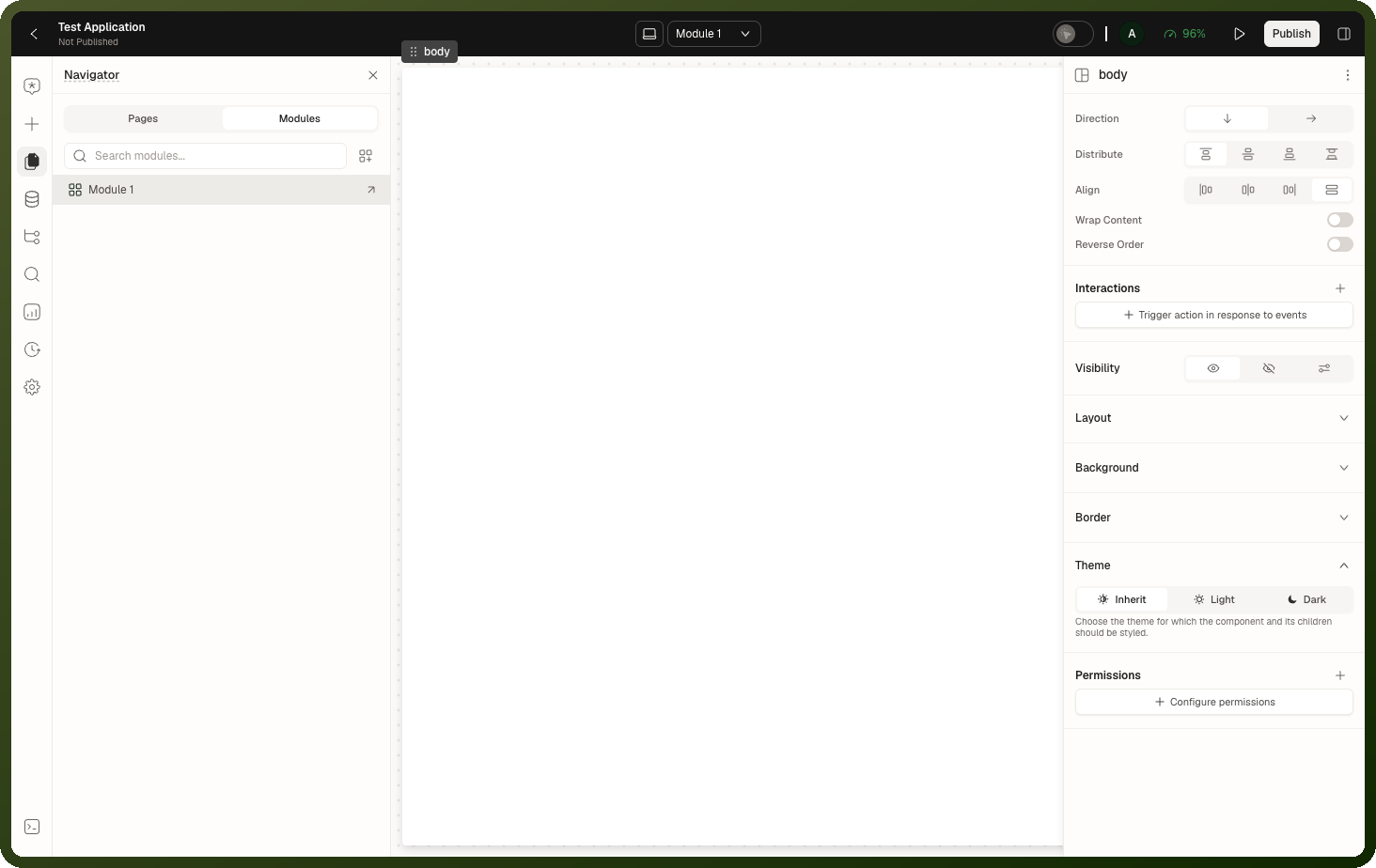
A module you create from the Modules tab belongs to this app. You can embed it on any page of the app.
To use a module in other apps too, make it a global module. In the navigator, click the module in the Modules tab to open its Page Settings, open the menu at the top of the panel and choose Move to global. Turn on Remove from this application to delete the app-level module; existing placements switch to the new global module automatically. Leave it off to add an independent copy to the global library; later edits to the app-level module won't sync to it.
You can also create a global module directly from the Applications manager with Create Module. See Packages & Modules Screen.
Creating a New Module
Open an application in the builder.
In the left navigator, click the Modules tab.
Click the Create new module button next to Search modules....
A new, empty module is added to the app and you are taken straight into its builder.
The module belongs to the app from the moment it's created and can immediately be embedded on any page of that app.
The Module Builder Workspace
The module builder gives you the same toolset as the page builder, scoped to the one module:
| Element | Description |
| Canvas | The center area where you drop and arrange blocks. The module's entire layout lives here. |
| Left tool rail | AI Assistant, Design, Data, Hierarchy, Finder, Analytics, Saved Versions, and Settings — the same tools a page has. |
| Property panel | On the right, for the selected block. |
| Header | Shows the app name with a Module tag, the module's publish status, a device switcher, and a publish control. A back control returns you to the host app. |
Note: A module is a single design surface. The module builder has no page switcher — a module holds one canvas, not a set of pages. When you need to reuse several distinct screens, build several modules, one per screen.
Module Inputs and Outputs
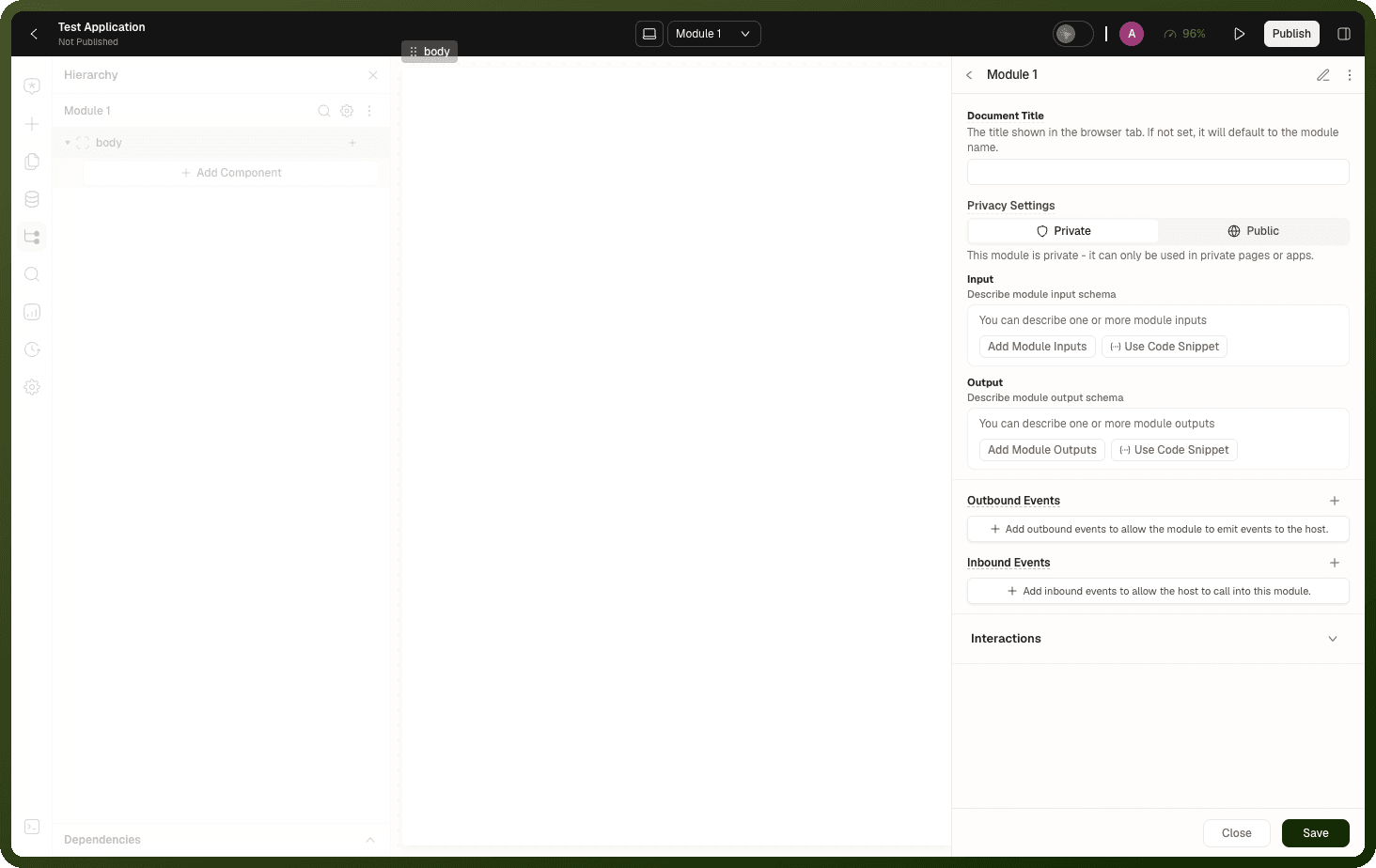
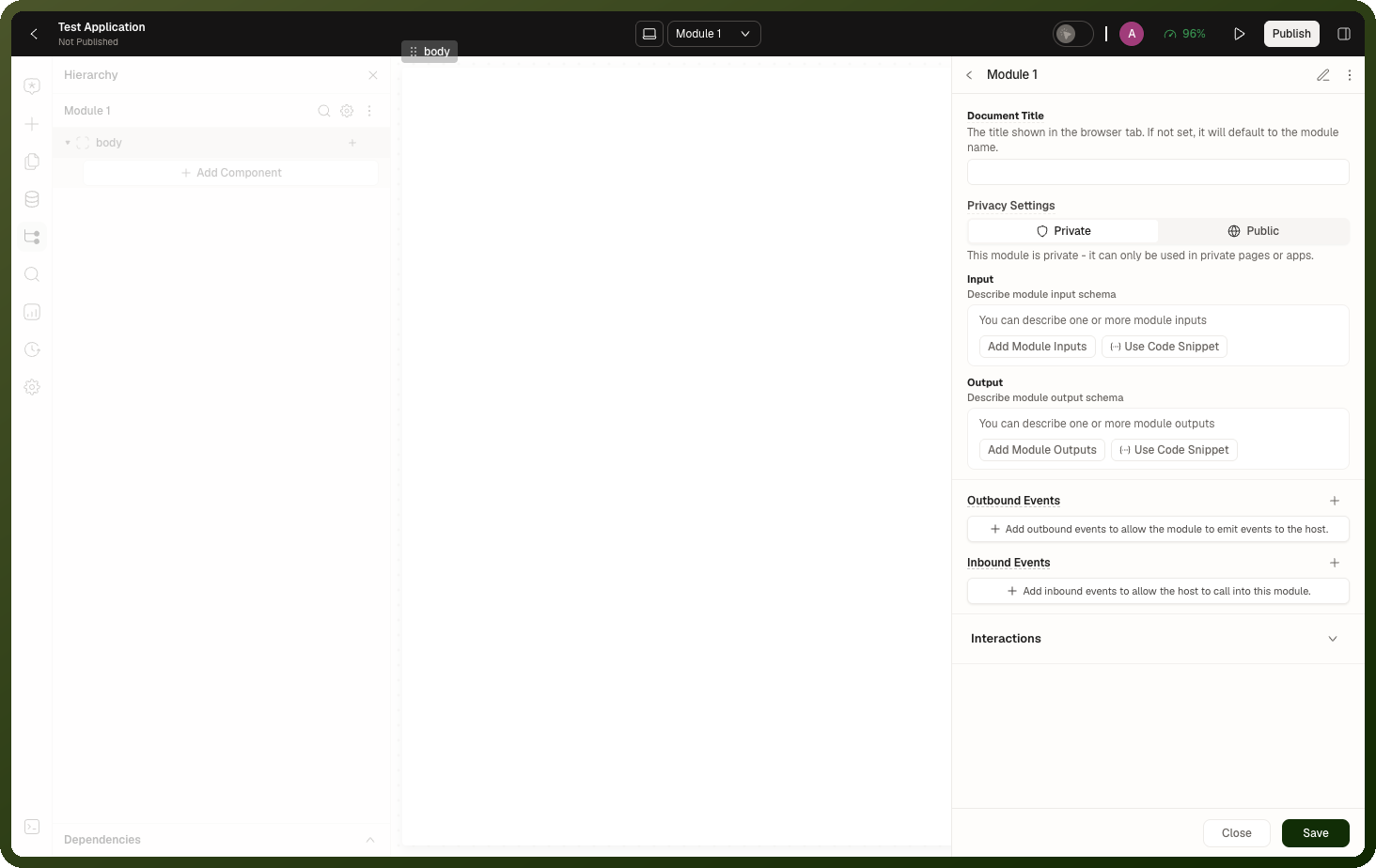
A module is not a sealed box. It exchanges values with wherever it is placed. You declare this contract in the module's settings. To open them, click the Module Settings (gear) icon next to the module's name at the top of the Hierarchy panel.
Privacy Settings
Choose whether the module can be embedded in public pages or apps. A Private module can only be used in private pages or apps. A Public module can be used in both public and private pages or apps. If you place a private module on a public page, visitors may not be able to see it.
Inputs
Named values the module accepts from each placement. Under Input, click Add Module Inputs to declare each field (name, type), or Use Code Snippet to describe the schema as code. Each placement supplies its own values. Inside the module, blocks read inputs as:
{{ pageInputs['inputKey'] }}
Output
Named values the module publishes back to the surrounding page. Under Output, click Add Module Outputs or Use Code Snippet to describe them. The module updates these at runtime, and the parent page reads them from the Module block's state:
{{ moduleBlockId['output']['outputKey'] }}
The Module block fires an On Output Change event whenever the output changes, regardless of how many output fields you declared.
Outbound events
Custom events the module can emit upward to its parent. You declare them in the module's settings under Outbound Events, each with an event type and a human-readable label.
Inbound events
Custom events the parent can push down into the module. You declare them in the module's settings under Inbound Events. The parent sends them via the Emit Inbound Event method on the Module block, specifying the event and an optional payload.
Tip: On the Module block's Events list you'll find On Output Change and each outbound event the module declares. Add a handler for the event you need. The event's payload is available as eventPayload.
Embedding a Module on a Page
Open any page in the app builder.
Add a Module block from the block picker.
In the block's properties, select which module to embed. The picker lists modules from the **Current app** and **Common** (global) modules.
Under Module Inputs, bind each input field to a value — a static value, a data source result, or an expression from the surrounding page.
Under Events, add a handler for On Output Change to react when the module publishes new output values, or for any outbound event the module declares.
Optionally enable Remember state when hidden if the module should preserve its state across hide/show cycles.
Web and Mobile Modules
The builder matches the app's platform. A module in a web app opens in the web module builder; a module in a mobile app opens in the mobile module builder with controls suited to that platform. The authoring model is the same — canvas, tools, header — but the surface reflects where the module will run.
Publishing a Module
A module has its own Publish button in the header, next to its publish status. In the builder, every placement shows the module's latest auto-saved design. The live app shows the module as it was last published, so publish the module to send your changes to visitors.
Editing the module changes every placement, because each placement is a live view of the module. There is no per-placement copy to edit in isolation — the per-placement lever is the module's inputs.
Trade-offs & Gotchas
Editing the module changes every placement. A change to the module — a new block, a restyle, a data-source swap — shows up in every placement in the builder as soon as it auto-saves, and in the live app once you publish the module. Plan module changes knowing every placement inherits them.
One module = one design surface. The module builder holds a single canvas with no page switcher. If a reusable flow needs several distinct screens, model each as its own module.
Input/output/event names must match exactly. The input names you bind under Module Inputs on the placement must match the input fields declared in the module. Output keys for reading must match the module's output field names. There is no compile-time validation — mismatches silently produce
undefined.The module's output is read off the block ID, not the module event name. Use
{{ moduleBlockId['output']['key'] }}— not the event type string.
Related Pages
Modules Overview — the concept and use cases
Packages & Modules Screen — creating global modules from the Applications manager
Custom Navigation Module — using a module as your app's nav bar