


Camera
The Camera block shows a live camera feed and lets the user capture photos or record video clips. Captured photos are uploaded automatically and exposed as file objects your actions can use. Adding the Recording add-on converts the block from a photo capture surface to a video recorder — with optional auto-start, fixed duration, looping, and audio inclusion. On web apps, a Face Detection add-on can coach the user into a well-framed selfie before allowing the shutter.
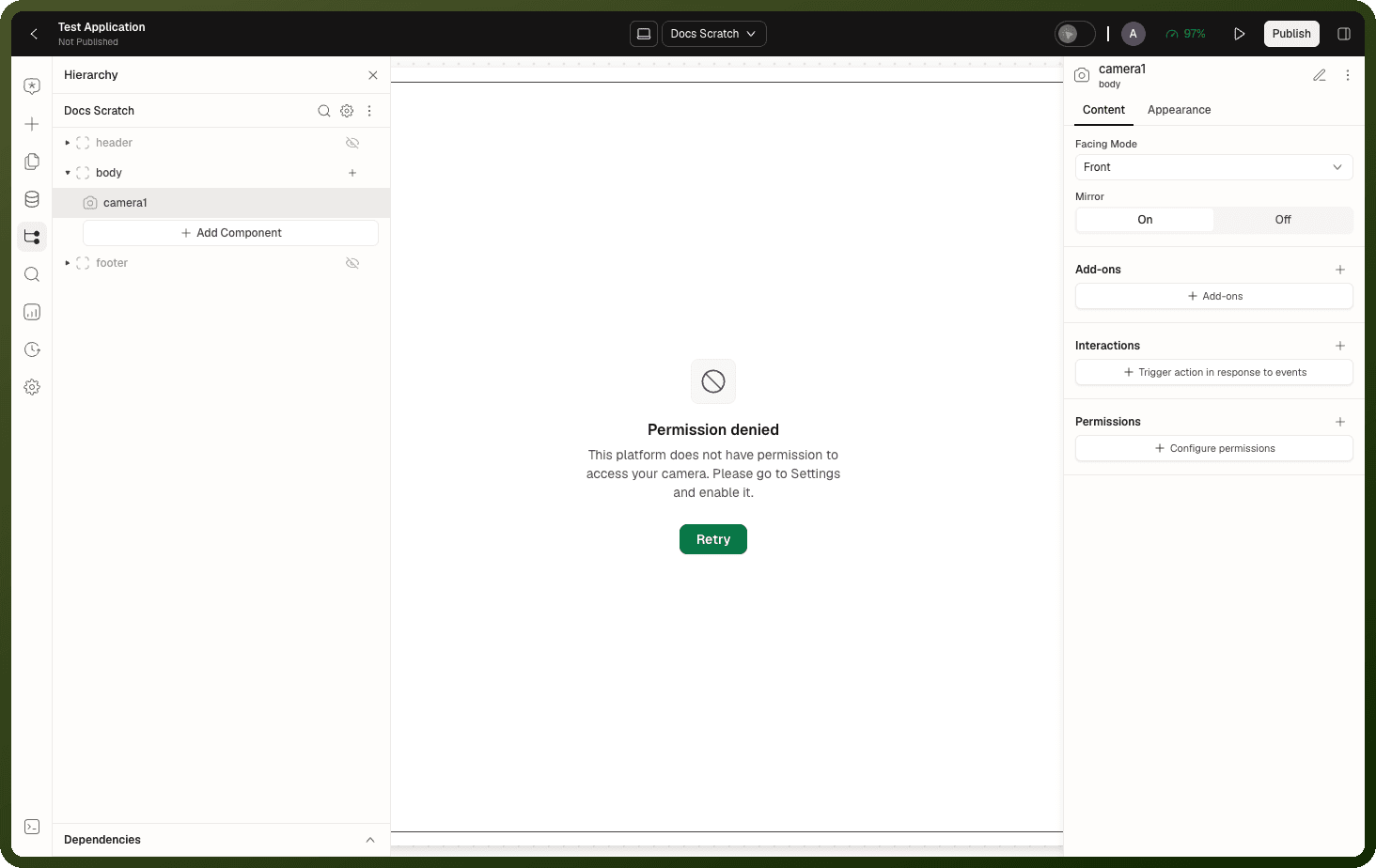
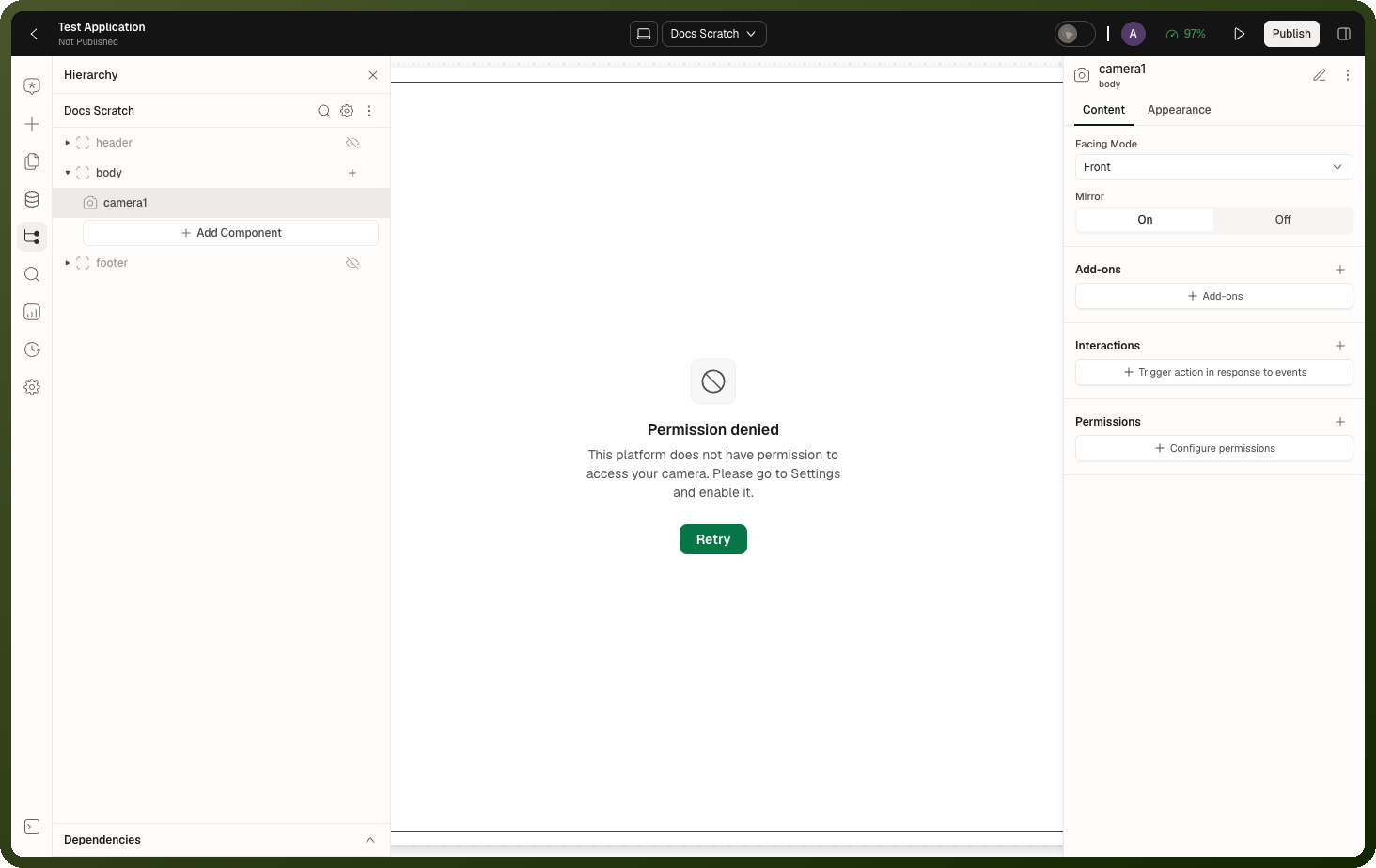
A new Camera block starts on the front camera, mirrored, and fills its container at 100% width and height.
Tip: When to use Camera: Capture a photo as part of a flow — profile pictures, document scans, proof-of-delivery. Record short video clips (with the Recording add-on), hands-free if needed with Auto Record. Gate capture behind face alignment (Face Detection add-on, web only). For picking an existing file rather than capturing, use the File Upload block instead. For a richer mobile capture experience with crop and drawing, use the Photo Booth block.
Warning: In mobile apps the Camera block captures photos only. The Recording add-on is offered but produces no clip, and On Permission Denied and On Face Detected don't fire. Use Photo Booth with Video Mode for video on mobile, and watch {{ id.hasCameraPermission }} for refusals.
Properties
Content
Property | Type | Default | Description |
|---|---|---|---|
|
|
| Which camera the feed opens with. |
|
|
| Flips the preview and, on web, the captured photo. Most users expect this for front-camera selfies. Turn it off for back-camera capture (documents, labels) or the text will come out reversed. Has no effect in mobile apps. |
|
| off | Shows a preview screen after capture so users can review the photo before uploading. Mobile apps only. |
|
| Off | Web apps only. When Detect Face is on, the shutter is hidden until a face is detected, centered, and properly aligned. Shows live coaching messages to the user. |
|
| Off | Converts the block to a video recorder. Auto Record starts on page load (once per visit). Duration stops recording after a fixed millisecond count. Loop restarts recording after each clip; Loop Iterations sets the total clip count. |
Appearance
| Property | Type | Default | Description |
showTorchButton | boolean | false | Torch on/off toggle. Mobile apps only. |
showSwitchCameraButton | boolean | false | Front/back camera switch. Mobile apps only. |
showGalleryButton | boolean | false | Gallery picker button. Mobile apps only. |
styles | style set | 100% width, 100% height | Block dimensions and visibility. |
Events
| Event | Trigger | Payload |
On Photo Capture | A captured photo finishes uploading | Read from {{ id.uploadedImage }} |
On Recording Start | Recording begins | — |
On Recording Stop | Recording ends | — |
On Recorded File Capture | A finished video clip is saved | Read from {{ id.recordedVideoFile }} |
On Permission Denied | User blocks camera access | — |
On Face Detected | Face detection finds a face | — |
Methods
| Method | Params | Effect |
switchCamera | facingMode | Toggles to the other camera. Note: the facingMode param is ignored — the method always flips. |
startRecording | — | Starts a video recording. |
stopRecording | — | Stops the active recording. |
Exposed State
| State key | Type | Description |
{{ id.previewImage }} | string | The last captured image, set immediately at capture. |
{{ id.uploadedImage }} | object | The uploaded photo file (name, url, type), set once upload completes. |
{{ id.isCameraRecording }} | boolean | Whether a recording is in progress. |
{{ id.recordedVideoFile }} | object | The most recently uploaded video clip. |
{{ id.hasCameraPermission }} | boolean | Whether camera access is granted. Starts true; flips to false on denial. |
{{ id.hasGalleryPermission }} | boolean | Whether gallery access is granted (mobile). |
Behavior & Gotchas
Warning: On Photo Capture fires after the upload, not at the shutter. There is a gap between pressing capture and the event firing — on a slow connection this can be several seconds. {{ id.previewImage }} is set immediately at capture; {{ id.uploadedImage }} only arrives on upload success. If the upload fails, the event never fires.
Warning: switchCamera ignores the facingMode param. Calling the method always toggles to the opposite camera regardless of what you pass in the payload. Call it twice to return to the original.
Warning: Recording and face detection are mutually exclusive. If the Recording add-on has Auto Record, Duration, Loop or Loop Iterations set, face detection stops working even when its toggle is on. Recording wins.
Note: Auto Record runs once per page visit. With Auto Record on, the shutter disappears and recording starts once. After the first clip completes, it will not auto-start again. Call startRecording to record another take, or enable Loop with Loop Iterations to chain multiple clips.
Note: Looped recording emits one file per clip. Each finished clip fires On Recording Stop and On Recorded File Capture, then restarts. {{ id.recordedVideoFile }} always holds the latest clip only — save each one in your event handler if you need all clips.
Example: Save a Captured Photo
Add a Camera block to the page. This example calls it
camera1.Add a data source that saves the photo to your object. In its Input tab, set the file field to
{{ camera1.uploadedImage }}.On the Camera block, add a Trigger Data Source action to the On Photo Capture event and pick that data source.
Add a Show Snackbar action after it to confirm the save.
Because On Photo Capture fires only after the upload completes, {{ camera1.uploadedImage }} is always set when the data source runs.
Photo Booth
The Photo Booth block is a richer camera surface for native mobile apps only. It supports both photo and video capture, selectable quality and aspect ratio, a gallery picker, flash control, and optional editing steps — crop and drawing — before the upload. Every capture is uploaded automatically and exposed as a file object in state.
Warning: Native mobile apps only. Photo Booth does not appear in the web block library and has no web fallback. If your app targets web or responsive, use the Camera block instead.
Tip: When to use Photo Booth: Capture photos or short videos inside a mobile flow — ID verification, field inspections, support tickets. Let users annotate a capture before it uploads. For picking existing files without a camera UI, use a File Upload block instead. For web apps, use the Camera block.
Properties
Content
Property | Type | Default | Description |
|---|---|---|---|
|
|
| Which camera opens first. |
|
|
| Capture resolution. |
|
|
| Frame shape of the capture. |
|
| true | Enables photo capture. Mirror option appears when on. |
|
| On (for new blocks) | Known limitation: has no effect today. The captured photo is not flipped. |
|
| false | Enables video recording. Unlocks recording method, FPS and max duration settings. |
|
|
| Shown as Recording Method. Known limitation: has no effect today. Recording is always tap to start, tap to stop. Visible when Video Mode is on. |
|
| 30 | Recording frame rate. Visible when Video Mode is on. |
|
| — | Recording stops automatically at this length. When blank, a recording stops after 60000 ms (60 s). Visible when Video Mode is on. |
Add-ons
| Add-on | Appears when | Description |
View Gallery | Always | Pick an existing photo or video from the device gallery instead of capturing. |
Switch Camera | Always | Adds a front/back switch button to the capture UI. |
Flash Light | Photo Mode on | Adds a flash toggle to the capture UI. |
Photo Crop | Photo Mode on | Opens a crop editor after capture, before upload. |
Drawing Support | Photo Mode on | Opens a drawing/annotation editor after crop (or after capture if no crop), before upload. |
Events
Event | Trigger | Payload |
|---|---|---|
| Photo finishes uploading (after any crop/draw step). | Read from |
| Video recording begins. | — |
| Video recording ends. | — |
| Recorded video finishes uploading. | Read from |
| Camera access refused. Note: does not fire in the native runtime — watch | — |
Methods
| Method | Params | Effect |
switchCamera | facingMode | Toggles to the opposite camera (param is ignored). |
startRecording | — | Starts a video recording programmatically. Video Mode must be on. |
stopRecording | — | Stops the active recording. |
Exposed State
| State key | Type | Description |
{{ id.previewMedia }} | string | Local preview of the latest capture, set immediately at capture. |
{{ id.uploadedMedia }} | object | The uploaded file (URL, name, type), set after upload completes. |
{{ id.isCameraRecording }} | boolean | Whether a video recording is in progress. |
{{ id.hasCameraPermission }} | boolean | Whether camera access is granted. |
{{ id.hasGalleryPermission }} | boolean | Whether gallery access is granted. |
Behavior & Gotchas
Warning: On Photo Capture fires only after the upload AND all editing steps. Taking a photo opens crop (if enabled), then drawing (if enabled), then uploads. The event fires after upload completes. Cancelling crop discards the capture. Closing the drawing screen returns to crop when Photo Crop is on; otherwise it discards the capture. No event fires for a discarded capture.
Warning: On Permission Denied does not fire in the native runtime. Camera permission refusals update the state keys but do not invoke the event handler. Watch {{ id.hasCameraPermission }} with a conditional to respond to denial.
Note: Recording and photo editing add-ons are separate. Mirror, Photo Crop, Drawing Support and Flash Light are tied to Photo Mode — they disappear from the inspector when it is off and never affect video recordings.
Note: Known limitations: Mirror and Recording Method appear in the inspector but have no effect today. Photos are never flipped, and recording is always tap to start, tap to stop.
Note: Recording events come in pairs, the file event later. On Recording Start and On Recording Stop wrap the recording itself. On Recorded File Capture fires separately after the video uploads. Use the stop event for UI feedback and the file event to act on the video.
Related blocks
| Block | Relationship |
| Scanner | Camera-based code decoding instead of photo/video capture. |
| File Upload | Pick existing files without opening a camera. |
| Audio Recorder | Record audio without video. |
| Meeting | Live video meeting with an AI agent — manages its own camera preview. |
For a side-by-side comparison of Camera, Photo Booth, Scanner and Barcode, see Camera, Photo Booth, Scanner & Barcode. Scanner is covered in full in QR Code, Barcode & Scanner.