


The Copilot block is a complete, embeddable AI-assistant experience — a full chat surface backed by an AI agent (or a human Live Chat inbox) with streaming responses, a message composer, conversation history, citations, a chain-of-thought drawer, an optional side canvas for previewing documents and interfaces, and built-in voice mode with microphone, camera, screenshare, and live transcription.
It is a composite block: it arrives as an assembled set of child blocks — header, welcome, input panel, suggestions, message footer and actions, follow-up prompts, and a floating video avatar — that you can restyle in place. It exposes the whole conversation as bindable state plus a large set of methods so the rest of your interface can drive it.
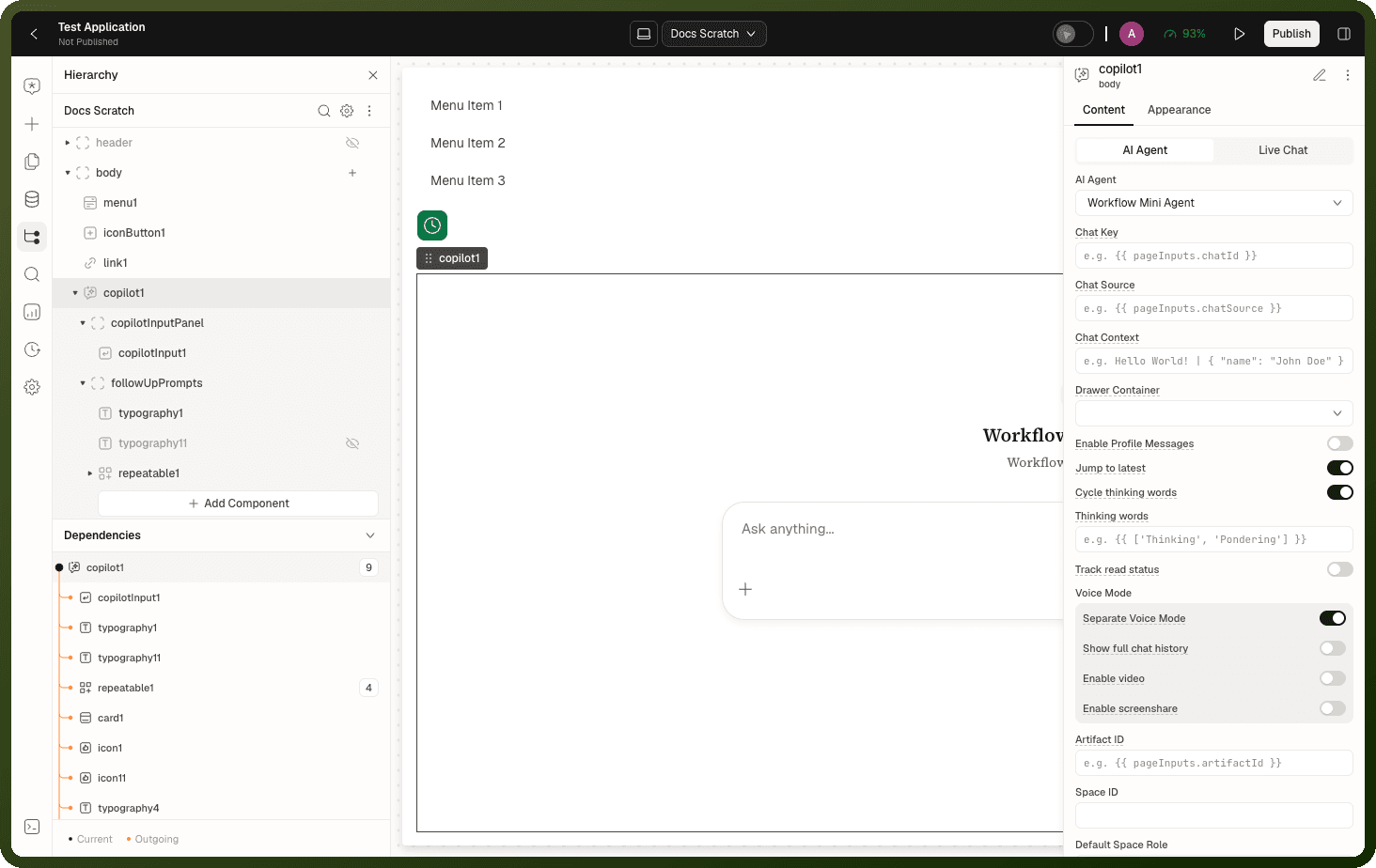
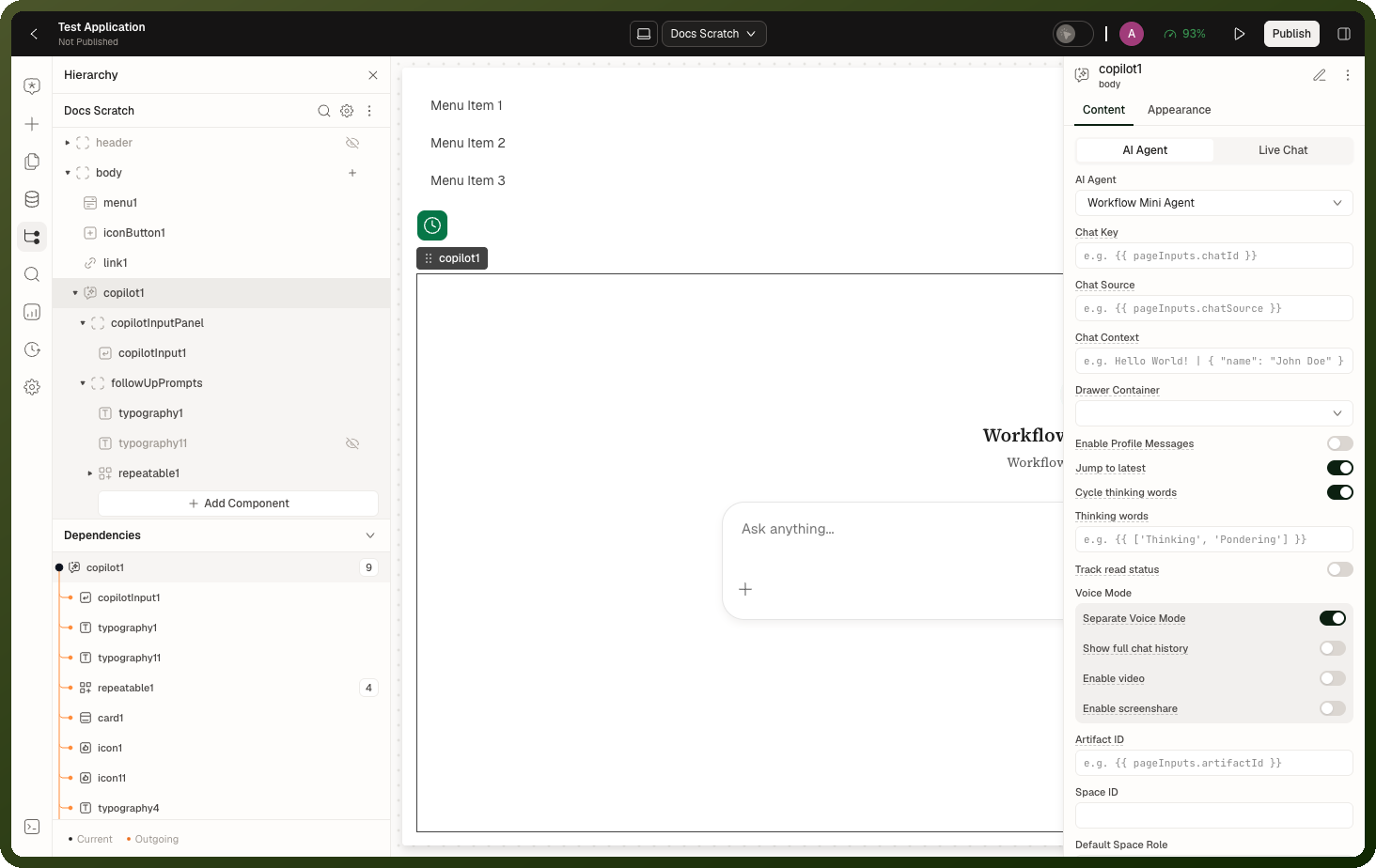
Tip: When to use Copilot: Embed a full AI assistant into an interface — pick the AI Agent variant, choose an agent, and get streaming answers, citations, thoughts, suggestions, and follow-up prompts. For human conversations (agent-to-customer, group, inbound support), switch to Live Chat. For a plain human messaging widget with no AI framing, use the Chat block. For composable pieces only — just the input box, a single response, a thread — use the individual copilot blocks.
Add a Copilot to a page
Open the block picker and drag Copilot onto the page.
Keep the variant on AI Agent. In AI Agent, choose the agent that answers. The first available agent is filled in when you add the block.
Optional: set Chat Key to resume a specific chat, and Chat Context to pass context to the agent when a new chat starts.
Preview the page and send a test message.
Publish the app so your users see the copilot. See Preview & Publish.
Properties
Content — Core
Property | Type | Default | Description |
|---|---|---|---|
Variant ( | AI Agent / Live Chat | AI Agent | AI assistant or human conversation surface. |
AI Agent ( | agent (bindable) | First available agent | The AI agent that answers messages. Appears when Variant is AI Agent. |
Conversation Type ( | Inbound / Outbound / Group | Inbound | Nature of the human conversation. Appears when Variant is Live Chat. |
Chat Key ( | string (bindable) | — | Resume a specific chat session. If unset, a new chat is created. |
Chat Source ( | string (bindable) | — | Tags every conversation this block creates. A chat history only lists conversations whose Chat Source matches its own, so leave this blank unless a Copilot History block uses the same value. Existing conversations keep the tag they were created with. |
Chat Context ( | string / JSON (bindable) | — | Context passed to the AI agent when a new chat is created. |
Drawer Container ( | block reference | — | Stack or Container used as the mount point for the chain-of-thought and citations drawer. |
Enable Profile Messages ( | boolean | Off | When on, all of the user's chats are visible in the chat list. |
Jump to latest ( | boolean | On | Shows a button that returns the reader to the newest message once they scroll away from it. |
Cycle thinking words ( | boolean | On | Rotates through words like "Pondering" and "Brewing" while the agent works. Turn it off to keep a plain "Thinking" label. Applies only when the agent is not showing its reasoning steps. |
Thinking words ( | list (bindable) | Built-in words | Appears when Cycle thinking words is on. Your own words, for example |
Track read status ( | boolean | Off | Marks the open chat as read for the viewer, so a chat list can show which chats have new messages. |
Artifact ID ( | string (bindable) | — | Opens the canvas directly to this artifact instead of restoring the last preview. Usually bound to a page input or query parameter. |
Space ID ( | string (bindable) | — | The collaboration space the conversation belongs to. |
Default Space Role ( | role | — | The role a participant joins the space with. |
Allowed Space Roles ( | list of roles | — | The space roles that may take part. |
Voice Mode Parameters
Property | Type | Default | Description |
|---|---|---|---|
Separate Voice Mode ( | boolean | On | Voice mode opens in a dedicated view (on) or stays in context with the conversation (off). AI Agent only. |
Show full chat history ( | boolean | Off | Load all existing messages into the voice transcript on connect. |
Enable video ( | boolean | Off | Allow camera and agent video tracks during voice mode. |
Enable screenshare ( | boolean | Off | Allow screenshare controls during voice mode. |
Add-Ons
| Add-on | Available on | What it adds |
| Message Timestamp | Both variants | Shows a timestamp on each message. |
| Agent Avatar | Both variants | Thinking / idle avatar imagery for the agent. |
| Conversation Starters | Both variants | Seed prompts shown at the start of a chat. |
| Mentions | Both variants | @-mentions — agents (AI Agent) or users (Live Chat). |
| Response Actions | AI Agent | Per-response actions such as copy / good / bad feedback. |
| Reply To Message | Live Chat | Reply-to-message threading. |
| Pin Messages | Live Chat | Pin / unpin messages. |
| Reference | Both variants | A context pill above the composer. |
Composable Slots
| Slot | Region |
| Header | Top bar of the chat. |
| Welcome | Empty-state welcome area. |
| Copilot Input | The message composer panel. |
| Suggestions | Suggested prompts. |
| Message Footer / Message Actions | Below-message chrome and per-message actions. |
| Follow Up Prompts | Follow-up chips after a response. |
| Video Avatar | Floating agent-video overlay during voice mode. |
Appearance
Property | Type | Default | Description |
|---|---|---|---|
Message Variant ( | Default / Bubble | Default | Message bubble styling. AI Agent only. |
Thoughts Variant ( | Overlay / Inline / Loader / Plain Text | Inline | How the agent's thinking is displayed. |
The tables on this page list the main settings and are not exhaustive. The Copilot block has more, such as Routine ID, Show Message Actions, Pause auto-scroll on response, canvas and table settings, and extra add-ons. It also exposes state such as {{ id.isEmpty }}, {{ id.activeArtifactId }} and {{ id.isDrawerOpen }}.
Events
Event | Trigger |
|---|---|
| User submits a message in the composer. |
| User gives feedback on a response. |
| The copilot's canvas surface opens. |
| The copilot's canvas surface closes. |
| A voice session connects successfully. |
| Connecting to a voice session fails. |
| The user leaves voice mode. |
| The agent joins or leaves the voice session. |
| Starting a screen share in voice mode fails. |
| User clicks a citation chip in a response. |
There is no event for a finished response. To react when the agent stops responding, watch {{ id.isGeneratingResponse }} turn false.
This table lists the main events. The Copilot block has more, such as On Case Created, On Button Click, On Select Agent, On Mention Select, On View Skill and events for the canvas (maximize, minimize, preview mode, artifact delete and clone, back).
Methods
Method | Params | Effect |
|---|---|---|
| message | Sends a chat message to the AI agent programmatically. |
| — | Starts a fresh chat session. |
| chatId | Switches to an existing chat session. |
| mode | Switches between text and voice mode. |
| state | Mutes or unmutes the user's microphone. |
| state | Turns the user's camera on or off. |
| — | Starts sharing the user's screen. |
| — | Stops the active screen share. |
| messageId | Scrolls the transcript to a specific message. |
| isAgentObserving | Turns the agent's screen-watching on or off. |
| — | Cuts off the agent while it is speaking or responding. |
This table lists the main methods. The Copilot block has more, such as Stop Response Generation, Set Reference, Open Artifact, Close canvas, Open agent panel and Toggle voice mode closed captions.
Exposed State
| State key | Type | Description |
{{ id.chatId }} | string | The active chat session's identifier. |
{{ id.isGeneratingResponse }} | boolean | True while the agent is streaming a response. |
{{ id.voiceMode.isVoiceModeActive }} | boolean | Whether a voice session is running. |
{{ id.voiceMode.isMicrophoneEnabled }} | boolean | Whether the user's microphone is live. |
{{ id.voiceMode.isCameraEnabled }} | boolean | Whether the user's camera is on. |
{{ id.voiceMode.agentState }} | string | The agent's connection/speaking state. |
Behavior & Gotchas
Note: Conversation context only applies to brand-new chats. The value in Chat Context is handed to the agent when a new chat is created. Resuming via Chat Key does not re-send it.
Note: Each slot holds the child blocks for one region of the chat, such as Header, Welcome or Copilot Input. Restyle those blocks or swap in your own child blocks to change that region. The region itself stays where the Copilot places it.
Headless Copilot
The Headless Copilot block is an AI copilot engine with no built-in chat window — you design the interface yourself. It connects your app to an AI agent, manages the chat session and a real-time voice mode (microphone, camera, screen share, live transcription), and exposes everything through slots, methods and state so your own blocks act as the copilot's face.
Tip: When to use Headless Copilot: Headless Copilot is not offered in the block picker, so you cannot add a new one to a page; it remains only in older pages. For a new custom voice experience, use the Copilot Voice block (see Copilot Building Blocks). Otherwise, for a ready-made chat interface, use the standard Copilot block.
Properties
Content
Property | Type | Default | Description |
|---|---|---|---|
AI Agent ( | string (bindable) | First available agent | The AI agent that powers the copilot. |
Chat Key ( | string (bindable) | — | The unique identifier used to resume a specific chat session. |
Chat Context ( | string (bindable) | — | Context handed to the AI agent when a new chat is created. |
Show full chat history ( | boolean | Off | Load all existing messages into the voice transcript on connect. |
Enable Video ( | boolean | On | Enables the user's local camera sharing in voice mode. |
Enable Screenshare ( | boolean | On | Enables the user's local screen-share controls in voice mode. |
Room Name | string | — | The voice room to join. Leave empty to start a new room; give the name of a live room to join the people and agent already in it. |
Real time translation | boolean | Off | Joins the room for translated transcripts only. Suggested replies arrive in the voiceMode.suggestedReply state, and replies are sent with the Send RTT Message method. |
Custom Voice Session
Enable Custom Voice Session to provide voice session credentials manually instead of having them managed automatically — for joining existing rooms with other people or agents.
Property | Type | Description |
|---|---|---|
Session URL ( | string | Address of the voice service to connect to. |
Session Token ( | string | Credential used to authenticate and join the session. |
Room ID ( | string | Room identifier for the direct voice connection. |
Slots
| Slot | Description |
| Body | The main canvas for your custom copilot UI. |
| Voice Mode Actions | Holds voice controls; arrives pre-filled with working mic, camera, screenshare, and voice-mode toggles. |
Methods
Method | Params | Effect |
|---|---|---|
| message | Sends a chat message to the AI agent. |
| — | Starts a fresh chat session. |
| chatId | Switches to an existing chat session. |
| mode | Switches between text and voice mode. |
| state | Mutes or unmutes the user's microphone. |
| state | Turns the user's camera on or off. |
| — | Starts sharing the user's screen. |
| — | Stops the active screen share. |
| isAgentObserving | Turns the agent's screen-watching on or off. |
| — | Cuts off the agent while it is speaking or responding. |
| Payload type, Suggestion ID or Message text | Sends a reply to the agent when Real time translation is on. |
Start Screen Share and Stop Screen Share do the same as Start screenshare and Stop screenshare on the Copilot block. Only the label's capitalisation differs between the two blocks.
Exposed State
| State key | Type | Description |
{{ id.chatId }} | string | The active chat session's identifier. |
{{ id.voiceMode.isVoiceModeActive }} | boolean | Whether a voice session is running. |
{{ id.voiceMode.isMicrophoneEnabled }} | boolean | Whether the user's microphone is live. |
{{ id.voiceMode.isCameraEnabled }} | boolean | Whether the user's camera is on. |
{{ id.voiceMode.isScreenSharingEnabled }} | boolean | Whether a screen share is active. |
{{ id.voiceMode.agentState }} | string | The agent's connection/speaking state. |
{{ id.voiceMode.availableDevices }} | object | Detected microphones, speakers and cameras. |
Behavior & Gotchas
Warning: Send Message fails without an agent, but a blank message passes silently. No AI agent selected = the action fails. An empty or whitespace message is silently skipped but the action still reports success — chained actions run as if the message went through.
Warning: Long-running agent responses stop updating after 30 minutes. The block polls for the agent's response for up to 30 minutes. A response still pending after that stops updating in your UI.
Note: Voice transcripts start empty unless you turn on chat history. Turn on Show full chat history to load the existing conversation into the transcript on connect.
Related Blocks
Block | Relationship |
|---|---|
The transcript component embedded inside Copilot. | |
The standalone message composer for custom compositions. | |
The voice engine block for fully custom voice UI. | |
Lists past conversations to jump back into. | |
Shows the live video or screen-share feed from a voice session. | |
Embeds the AI agent editor for in-app agent management. |