


A slug is the URL-safe identifier for a page — the segment of the URL path that corresponds to that page. When you create a page named "Order Details", UnifyApps auto-generates the slug order-details, so the page's URL is <app address>/order-details. See Path Tree and URLs for how the app address and folders form the full URL.
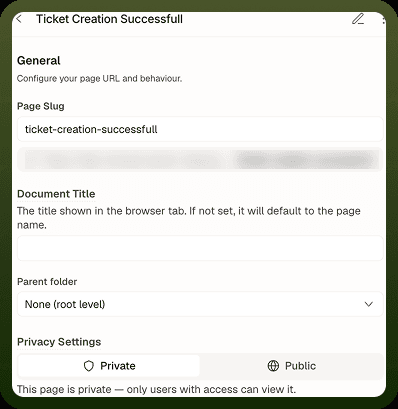
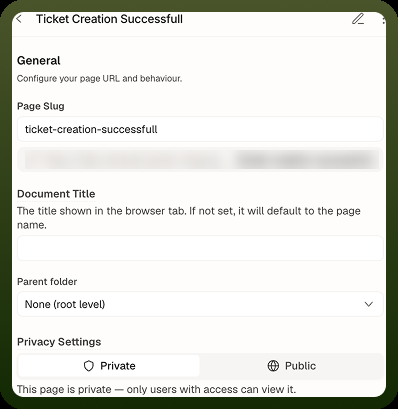
Slugs and page names are independent: you can rename a page in the Pages panel without changing its slug (and therefore without breaking its URL), and you can customise the slug independently of the display name. This separation is intentional — the display name is what users read in the UI; the slug is a technical contract that should be stable once the page is published.
Configuring a slug
Auto-generated slugs are good starting points but you will often want to customise them — to match an API path convention, to keep URLs short, or to use a preferred canonical form.
Open the page's settings: In the Navigator panel, click the page whose slug you want to change. Its Page Settings open in the panel.
Edit the Page Slug: Type the new value in the Page Slug field. The field formats what you type as you go: it lower-cases letters, removes apostrophes, turns spaces and other characters into hyphens, and trims hyphens from the start and end.
Resolve any conflict: If the slug makes the page's URL match another page's URL, the message "Page url cannot be the same as other pages url" appears under the field. Change the slug until the message goes away.
Save: Click Save in the Page Settings panel. Visitors to the published app see the new URL after you next publish.
Update existing links: If this page is already published and may have been bookmarked or linked externally, changing its slug breaks those links. Update any external links that point to the old URL.
Slug validation rules
The Page Slug field applies these rules as you type, so a slug you can save always meets them:
Rule | Detail |
|---|---|
Allowed characters | Lowercase letters |
No hyphen at the start or end | Leading and trailing hyphens are trimmed automatically, so this rule never shows an error. |
One segment | A slug is a single path segment. If you type |
Unique full URL | The folder path plus the slug can't match another page's or module's URL. Two pages in different folders can share a slug. |
Tip: Slugs that read as nouns (orders, order-detail, settings) produce cleaner, more bookmarkable URLs than verb-based slugs (view-orders, edit-settings). Prefer concise identifiers over descriptive phrases.
Visibility settings
Visibility is made up of three controls, each set independently: whether visitors must sign in, which signed-in users may open the page, and whether the page appears in the navigation menu.
Control | Where to set it | What it does |
|---|---|---|
Privacy Settings | Page settings | Private pages require users to sign in. Public pages are open to any visitor, including users who aren't signed in. Use Public for landing pages, login pages and public-facing content. |
Permissions | Page settings → Governance | Limits the page to users who hold the permissions you choose. A rule names one or more permission groups and the permissions a user must hold — the user needs every permission listed. A signed-in user without them sees an Access Denied screen ("You do not have access to this page"). |
Navigation menu | Settings → Development → Navigation | Decides whether the page appears in the menu. A page that isn't in the menu can still be opened by its URL or through a Go to Page action. |
Setting a page's visibility
Visibility is set in different places depending on the type of control you need:
Public or signed-in users only: Page settings → Privacy Settings. Choose Private or Public. This is the primary access gate.
Users with specific permissions: Page settings → Governance → Permissions. Choose the permission groups and the permissions a user must hold. Permissions layer on top of Privacy Settings — a Private page with an admin-only permission rule is available only to signed-in users who hold the admin permissions. Anyone else who opens its URL sees the Access Denied screen.
Hidden from the menu: In Settings → Development → Navigation, remove the page's item from the Content tab, turn off its Breakpoint Visibility toggles, or hide it at a breakpoint with the eye toggle in the Appearance tab. Pages you never add to the navigation don't appear in it.
Showing menu items to some users only
You can control who sees each navigation menu item, and on which screen sizes:
By user: In Settings → Development → Navigation → Content tab, select the item and set its Permissions in the Governance section. Users who don't hold those permissions don't see the item. An item that links to a page also follows that page's permissions.
By screen size: Use the item's Breakpoint Visibility toggles (Desktop, Tablet Horizontal, Tablet Vertical, Mobile).
📄 Example — Admin-only menu item
Select the menu item for your "Admin Console" page and, under Governance → Permissions, choose the permission group and the admin permissions. Users without those permissions won't see the "Admin Console" item in the menu at all.
Warning: Hiding a page from the navigation menu does not prevent a user from navigating to it directly by URL. To restrict access, configure the page's Permissions in Page Settings. A user who guesses or discovers the URL can still reach the page if no permission rule blocks them.
How visibility affects navigation components
When the published app runs, UnifyApps matches the navigation menu to each user's access:
Restricted items are removed from the menu for users who don't hold the required permissions. The menu closes the gap — no placeholder or lock icon is shown. This filtering happens only in the published app; the builder and preview always show every item.
Hidden items (removed from the menu or hidden at a breakpoint) don't appear as greyed-out items.
Mobile apps allow at most 15 primary menu items. For adding, ordering and per-breakpoint visibility of menu items, see Nav Slots and Order and Responsive Navigation.