Unify Logo Footer.svg
Unify Applications
Logo
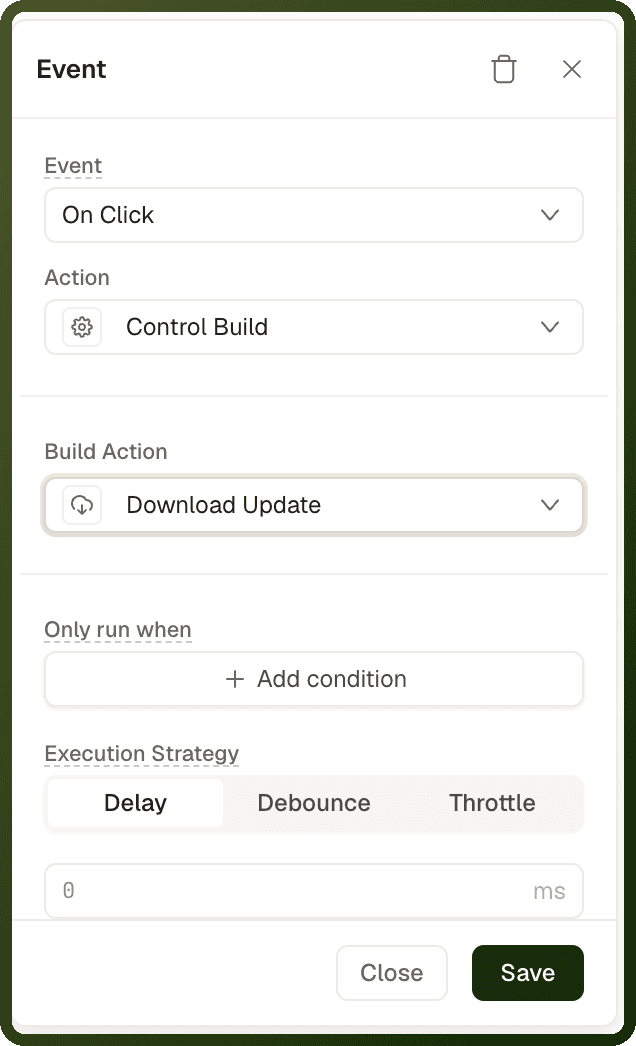
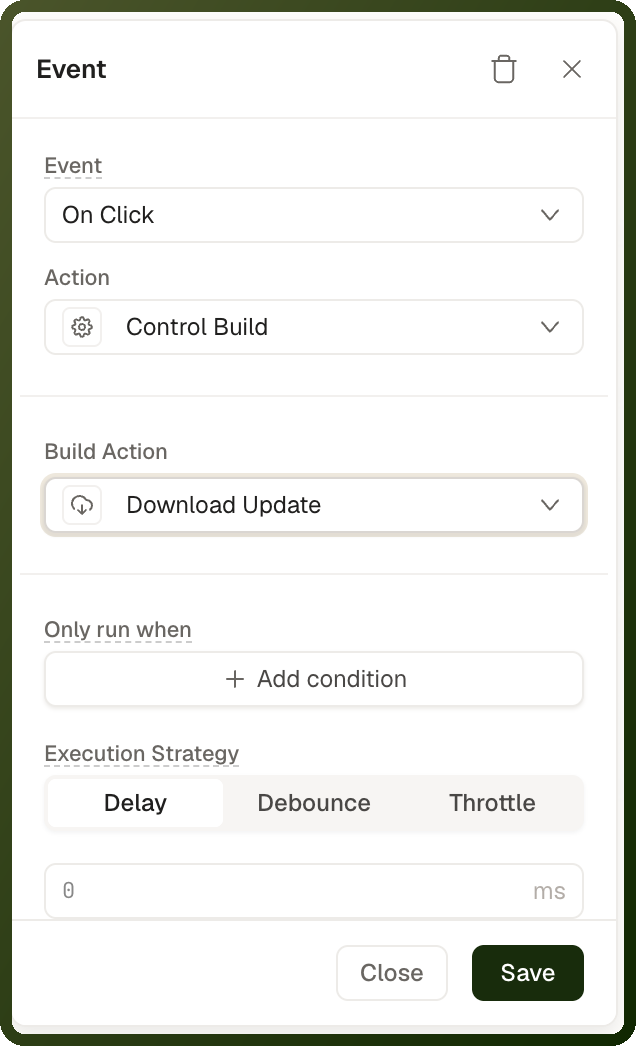
Control Build

Control Build

Logo

3 mins READ

Overview

The controlBuild action instructs a Code Editor block (or any custom block that registers a build control method) to compile and render its current content. It is the programmatic equivalent of the user pressing a "Run" or "Preview" button that you place in your UI.

The action is asynchronous: it fires the build request and then continues the action chain unless you explicitly gate the chain on the onSuccess or onError callbacks. The block's state.buildStatus variable is updated throughout — "idle""building""success" or "error".

Parameters

ParameterTypeRequiredDefaultDescription
blockRefstringRequired (required)The block ID of the Code Editor or custom component block to build. Use the block picker — only blocks that support the build capability are listed. Missing or invalid IDs cause a console warning and no-op.
buildTarget"preview" | "production"Optional (optional)"preview"preview produces a fast, unoptimised build suitable for live editing — source maps included, minification skipped. production runs the full optimisation pipeline: tree-shaking, minification, and bundle splitting. Use production only when the user explicitly publishes or exports the result.
onSuccessActionChainOptional (optional)A nested action chain that fires when the build completes successfully. The callback receives buildOutput — an object containing bundleUrl, buildTime (ms), and warnings (array). Reference with {{ onSuccess.buildOutput.bundleUrl }}.
onErrorActionChainOptional (optional)A nested action chain that fires when the build fails. The callback receives buildError — an object with message, line, column, and file. Use it to display a user-friendly error notification.

Note: Build state variable: The Code Editor block exposes state.buildStatus ("idle" | "building" | "success" | "error") and state.lastBuildError. Bind a loading spinner's visibility to {{ b_codeEditor.state.buildStatus === 'building' }} to give users feedback while the build runs.

Step-by-Step Usage Guide

  1. Add a Code Editor block to your page: From the block palette, drag a Code Editor block onto the canvas. Note its block ID (e.g. b_codePlayground). Configure the language, theme, and initial value in the block's Settings panel.

  2. Add a "Run" button: Place a Button block adjacent to the editor. Set its label to "Run" or "Preview". In its onClick event, add a Control Build action.

  3. Configure the action: Set blockRef to b_codePlayground. Set buildTarget to "preview" for live editing. Add an onError callback that fires a Show Notification action displaying {{ onError.buildError.message }}.

  4. Display the build output: In the onSuccess callback, set a page variable var_previewUrl to {{ onSuccess.buildOutput.bundleUrl }}. Bind an iframe or preview panel's src attribute to this variable.

Use Cases

In-App Code Playgrounds

Internal developer tools often need a sandboxed area where users can write and immediately test code snippets — SQL queries, JavaScript expressions, regex patterns, or configuration DSLs. The Code Editor block paired with controlBuild provides this without leaving the application.

Dynamic Component Preview

Configuration builders where the user customises a component (changing colours, layout, content) can use a Code Editor to hold the generated configuration markup. A "Preview" button triggers controlBuild to render the current markup in a sandboxed frame alongside the editor.

Live Configuration Builders

When your application allows end-users to define chart configurations, email templates, or workflow scripts in a code-like DSL, controlBuild provides a "validate and preview" step before the configuration is committed to the database.

Examples

Trigger a preview build with error handling

{ "actionType": "controlBuild", "payload": { "blockRef": "b_codePlayground", "buildTarget": "preview", "onSuccess": [ { "actionType": "setPageVariable", "payload": { "variableId": "var_previewUrl", "value": "{{ onSuccess.buildOutput.bundleUrl }}" } } ], "onError": [ { "actionType": "showNotification", "payload": { "type": "error", "title": "Build failed", "description": "{{ onError.buildError.message }} (line {{ onError.buildError.line }})" } } ] } }

Trigger a production build and save the bundle URL

{ "actionType": "controlBuild", "payload": { "blockRef": "b_codePlayground", "buildTarget": "production", "onSuccess": [ { "actionType": "triggerDataSource", "payload": { "dataSourceId": "ds_saveBundle", "params": { "bundleUrl": "{{ onSuccess.buildOutput.bundleUrl }}", "buildTimeMs": "{{ onSuccess.buildOutput.buildTime }}" } } } ] } }

Tip: Debounce live builds: If you trigger builds on every keystroke (onChange event), add a Delay action of 500–800 ms before the controlBuild action to debounce the build requests and avoid overwhelming the build service.