


What Is Custom Navigation?
Custom navigation lets you replace your app's built-in navigation bar with a module you design yourself. Instead of the standard nav, the app renders a module in its place — so the tabs, buttons, and layout of the nav bar become blocks you lay out in the module builder, wired to whatever data and logic you want.
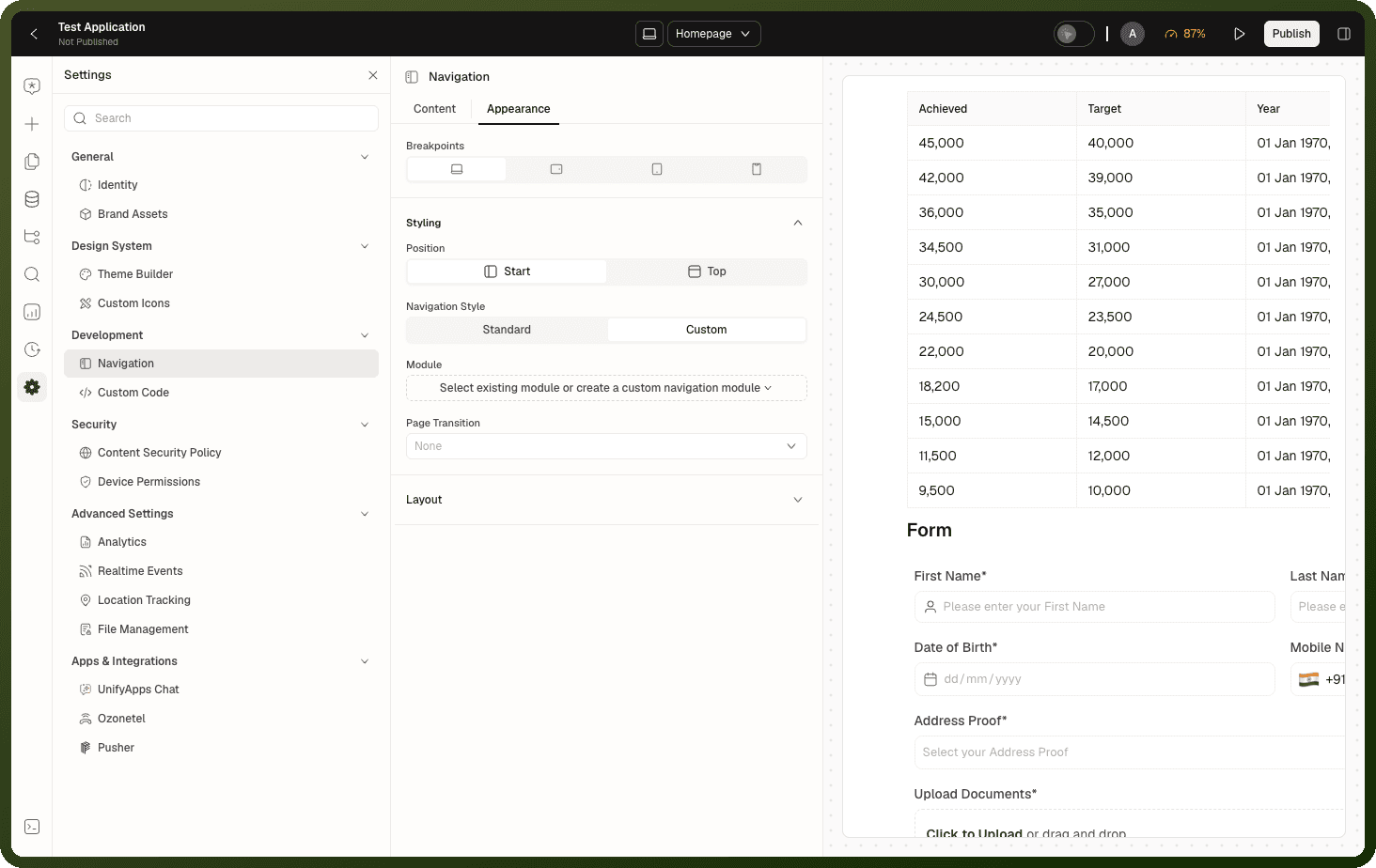
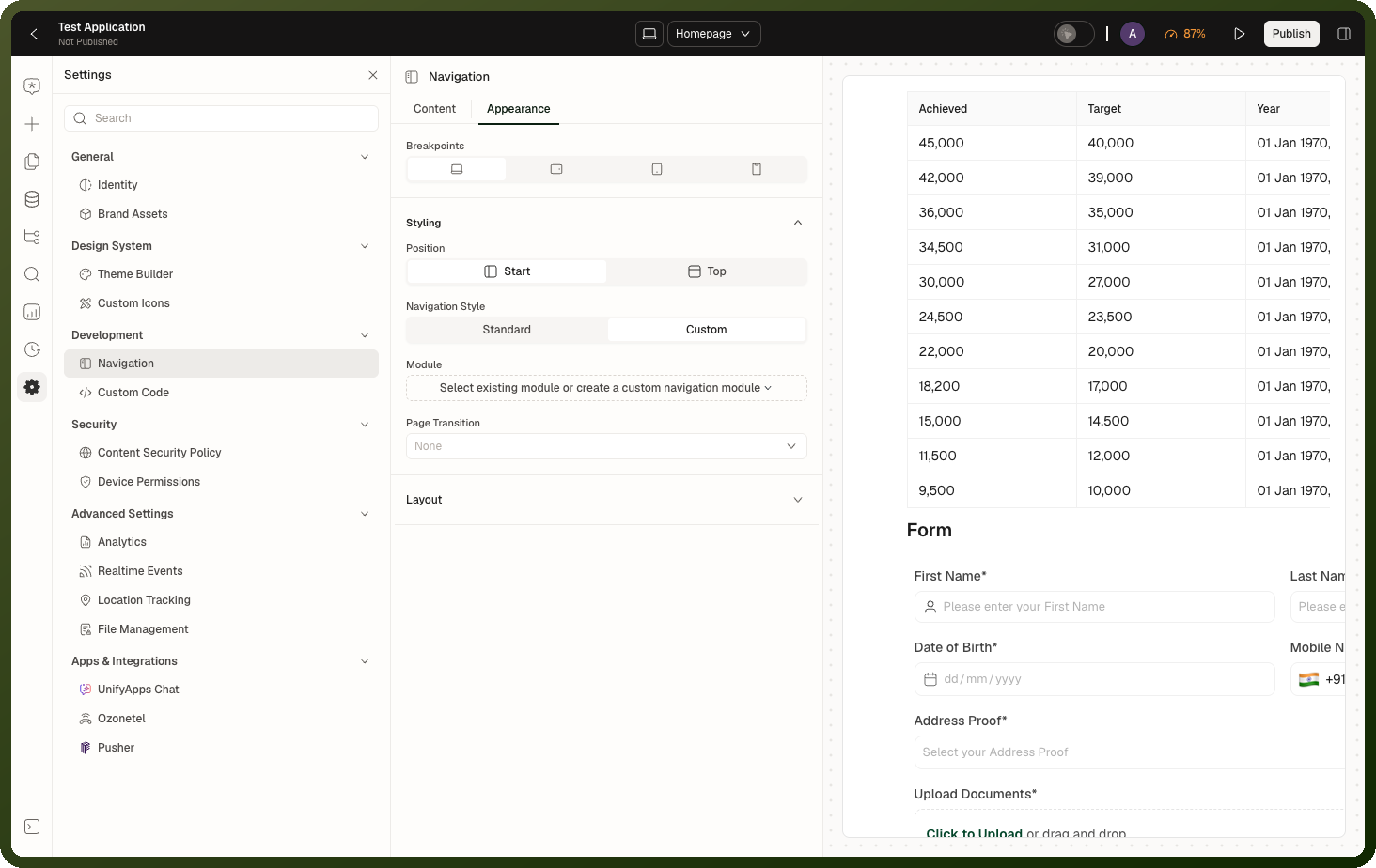
Use custom navigation when the built-in navigation is not flexible enough for your needs — for example, when you need dynamic items, custom styling beyond what the theme provides, or behavior tied to your app's data.
How It Works
You turn on custom navigation from your app's navigation settings, then assign a module to act as the nav bar:
App type | What's required |
|---|---|
Mobile apps | Assign a module — the navigation bar renders inside the Bottom Bar or Drawer shell. |
Web apps (XL, LG, MD) | First set Navigation Style to Custom, then assign the module. Both steps are required. Custom navigation isn't available at SM on web apps. |
Once both are set, the app draws your module wherever its navigation would normally appear.
Configuration Per Screen Size
On web apps, custom navigation is configured independently for each of the larger screen sizes — the largest desktop width XL, then LG and MD. You can:
Assign a custom module on one size and keep the built-in navigation on others
Assign a different module per size
Leave some sizes on the default navigation while customizing others
Tip: A common setup: a custom module on XL and LG, with the standard navigation left in place on MD and on phone-sized screens (SM), where you can choose Bottom Bar, Drawer or None.
Setting Up Custom Navigation
Open the app in the builder and go to Settings → Development → Navigation, then open the Appearance tab.
Select the screen size you want to configure (XL, LG or MD on a web app; mobile apps use SM only).
On a web app, set Navigation Style to Custom.
Assign a module as the navigation — either pick an existing module or create a new one for this purpose.
A Customise link appears, which takes you straight into the module builder for the assigned module.
Build your navigation inside the module builder using any blocks and logic you need.
Publish the module, then publish the app to see the custom navigation in the live app.
Building the Navigation Module
The navigation module is an ordinary module — it has all the same tools and freedom as any other module. Key design considerations:
Navigation items — use buttons, icon buttons, or link components wired to page navigation actions.
Active state — a custom navigation module doesn't highlight the active item for you. Compute it yourself, for example by comparing
{{location.pathname}}with each item's page path in a condition. See Responsive Navigation.Dynamic items — bind navigation items to a data source if your nav structure changes based on user permissions or other data.
Responsive layout — use flex layout to arrange items horizontally (top nav) or vertically (side nav) based on the module's container size.
Note: The Customise link in Navigation settings opens the assigned module's builder directly, so you can jump from assigning to designing the nav in one step.
Removing Custom Navigation
Removing the assigned module from a screen size reverts that breakpoint to the built-in navigation.
When you delete the module that was serving as navigation, its assignment is cleared from every screen size at once — not just the one you were looking at. A deleted nav module never leaves a dangling reference on another breakpoint.
Trade-offs & Gotchas
Custom navigation is per screen size — skipped sizes keep the built-in bar. Assigning a navigation module on XL does nothing for LG or MD. When you intend the same custom nav everywhere, set it on each size you support.
Choosing Custom without a module falls back to the standard navigation. Setting Navigation Style to Custom and assigning the module are two separate steps. If Custom is selected but no module is assigned, the published app shows the standard navigation — both parts must be set before your module appears.
Deleting a nav module removes it from the whole app, not one screen size. Remove the assignment on a single size instead if you only want to stop using it there.
The navigation module is live-linked like any other module. Editing it changes the nav bar across every page immediately — treat it like any shared module and test changes before publishing.
Related Pages
Modules Overview — the module concept
Building a Module — authoring module content
Packages & Modules Screen — creating modules from the Applications area
Responsive Navigation — navigation style per breakpoint and the active-state expression