


When inline editing is enabled on a Table block, the changeset system tracks every cell edit before anything is saved — giving users (and your app) a chance to review, batch-save, or discard all changes at once. This page covers the changeset data model, state bindings, save/discard actions, and the recommended pending-changes UX pattern.
Overview
Cell edits aren't saved when the user leaves the cell. Every edit is held in a client-side buffer — the changeset — and a floating bar at the bottom of the table shows how many changes are pending, with Cancel and Save. Nothing is written until Save runs your On Save handler. This makes bulk editing safer: users review their edits, then save or discard them all at once.
Note: There's no separate changeset mode and no setting that saves each cell immediately. Edits always collect in the changeset. Configure an On Save handler on the table's Save Action add-on to give users the Save bar. Without one, no bar appears and the changeset grows as a log of every edit — see Inline Editing & Changesets.
Changeset State Variables
Access changeset state from anywhere on the page using the table block's ID:
| State Key | Type | Description |
{{ id.changesetList }} | array | Pending changes as a list ready for an update call — the recommended binding to pass into your On Save handler. |
{{ id.changesetMap }} | object | The same edits keyed by row primary-key value, then field key. Resolves at runtime only. |
{{ id.rowOrderChangesetList }} | array | Pending drag-reorder changes — each entry has the row's primary key and its target index. |
changesetList Entry Shape
Each entry in {{ id.changesetList }} names the row under a property named after your table's Primary Key field, plus an updateFields array with one item per changed field — fieldName, actionType (always SET) and value. One row with one changed field, in a table whose Primary Key is id:
[ { "id": "prod-1042", "updateFields": [ { "fieldName": "price", "actionType": "SET", "value": "24.99" } ] } ]
Warning: Changeset values are always text. A number or date edit still arrives as a text string, so convert it on the way into your update call if the target expects a typed value.
Configuration Properties
| Property | Type | Default | Description |
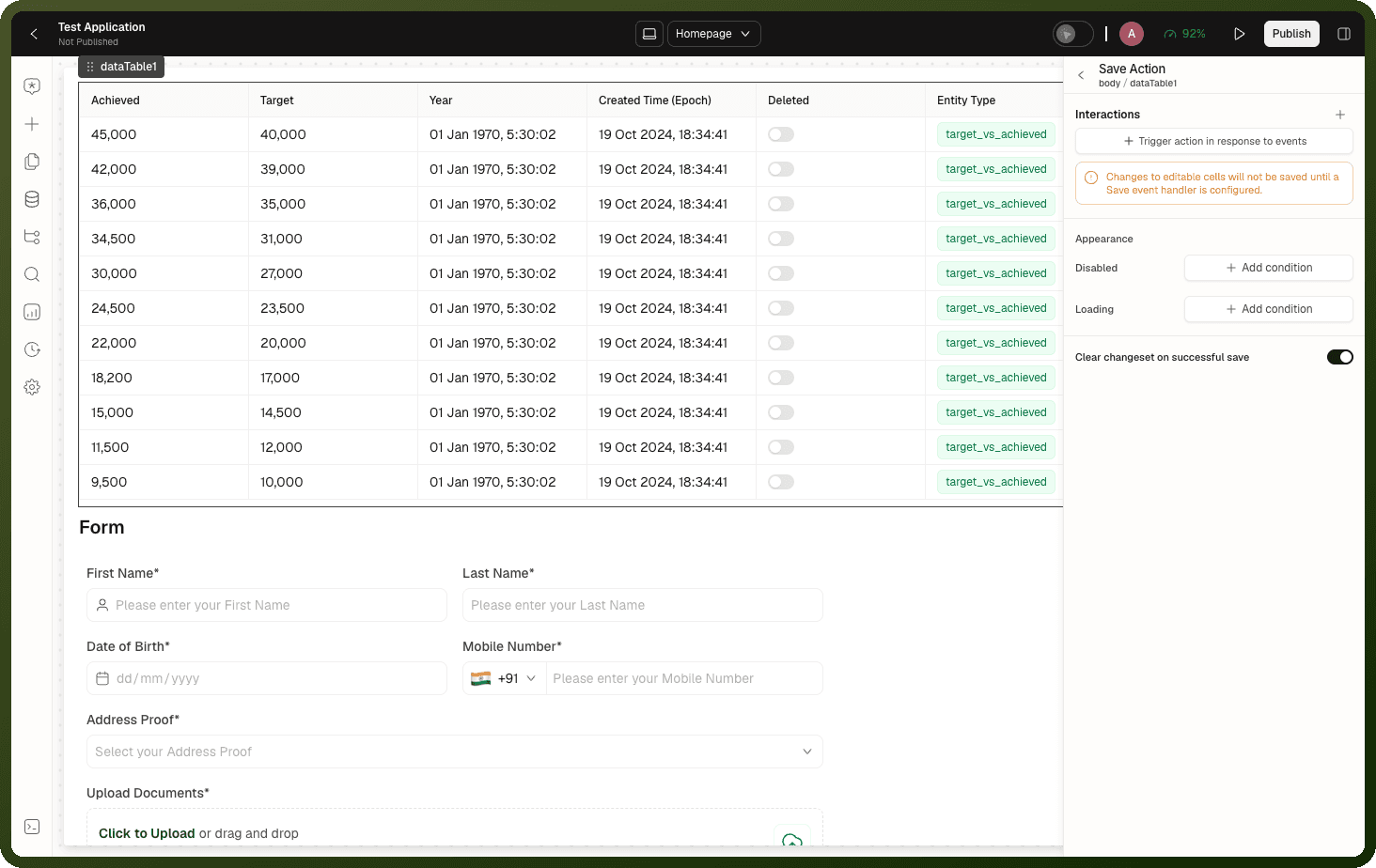
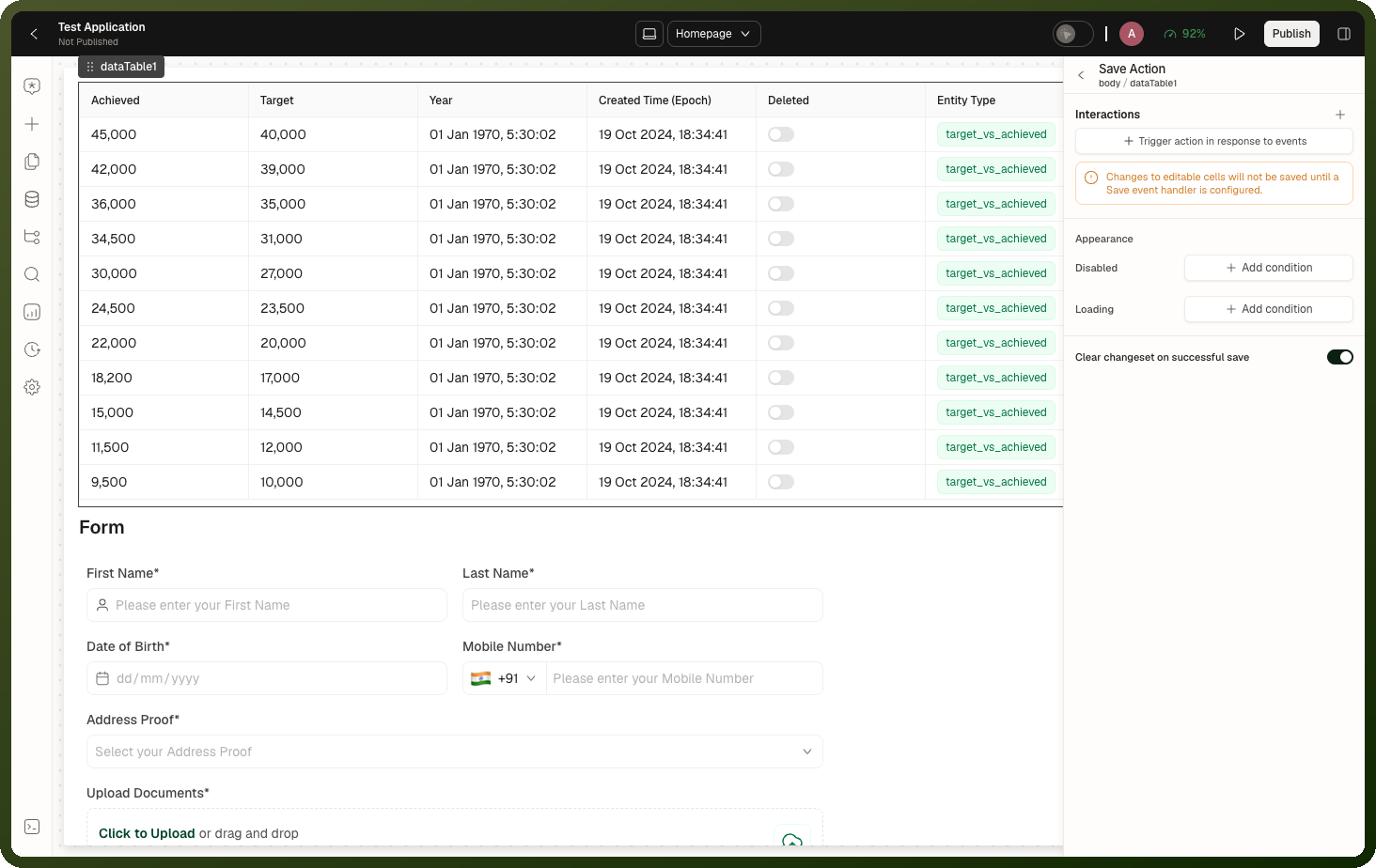
| On Save | event | — | The handler that runs when the user clicks Save. Wire your update call here, binding {{ id.changesetList }} as its input. |
| Disabled | condition | — | Condition to disable the Save button. |
| Loading | condition | — | Condition to show a spinner on the Save button. |
| Clear changeset on successful save | boolean | true | Clears pending changes automatically once the save's data refresh completes. |
Save and Discard Actions
Two block-level methods manage the changeset:
Method | Description |
|---|---|
Clear Changeset | Discards pending cell edits from {{ id.changesetList }}. Leave Changeset Cursor empty to discard all of them, or enter a number N to discard the first N and keep the edits made after that point. With Clear changeset on successful save on (the default), you don't need it after a save; call it when auto-clear is off. |
Clear Row Order Changeset | Works the same way, but discards pending row moves from {{ id.rowOrderChangesetList }}. |
Call these methods from any button or event handler with the Trigger Component Method action, targeting the table block.
The Save/Cancel Bar
The floating Save/Cancel bar is automatic — you don't build it. It renders at the bottom of the table as soon as the Save Action add-on has an On Save handler configured, and disappears once there's nothing pending. Without an On Save handler, no bar renders at all, even with editable columns.
Use the add-on's Disabled and Loading conditions (see Configuration Properties above) to customize its state — there's no separate visibility binding or container to wire up.
Example: Bulk Price Editor
A products table where users edit prices in bulk and save them in one go.
Set the table's Primary Key (for example
id). On the Price column, set the Field Key topriceand turn on Editable.Under Inspector → Content → Add-ons → Save Action → Interactions, add an On Save event.
In On Save, add a Trigger Data Source action for the data source that updates your records, with its input bound to
{{ products_table.changesetList }}. Bind it in this step — once the table refreshes, the changeset is empty.End On Save with Trigger Component Method →
products_table→ Refetch Data to reload the grid.Leave Clear changeset on successful save on. The pending changes clear once the refresh completes.
Related Pages
Page | Relationship |
|---|---|
The full reference for the Editable toggle, the Save Action add-on, changeset state and gotchas | |
Every state key the table exposes, including the changeset |