


Page parameters — also called page inputs — are typed values that a page declares as its interface with the outside world. They are how a page accepts data from the URL, from a navigation call, or from a parent frame that embeds the page.
Declaring Page Parameters
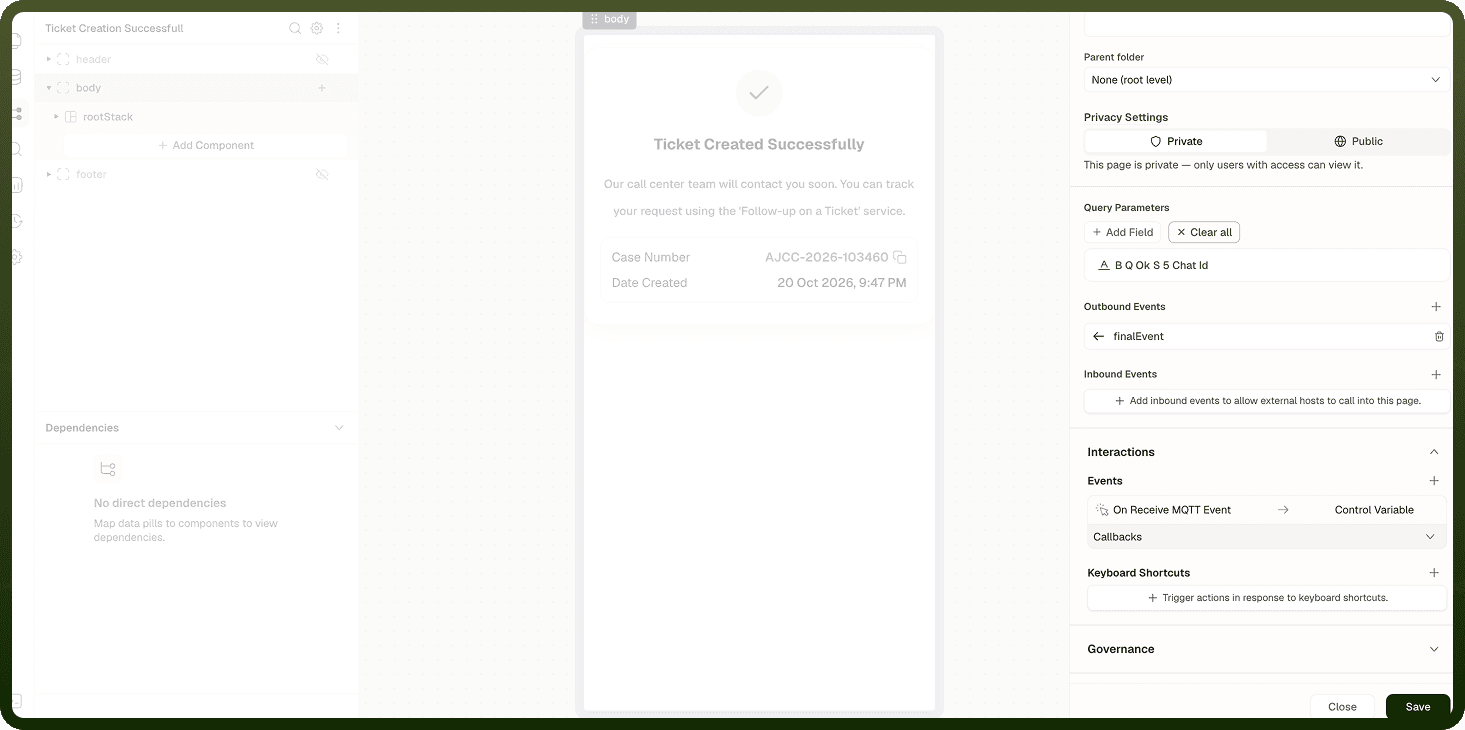
A page reads only the query parameters it declares.
Open Page Settings: In the Navigator panel, click the page.
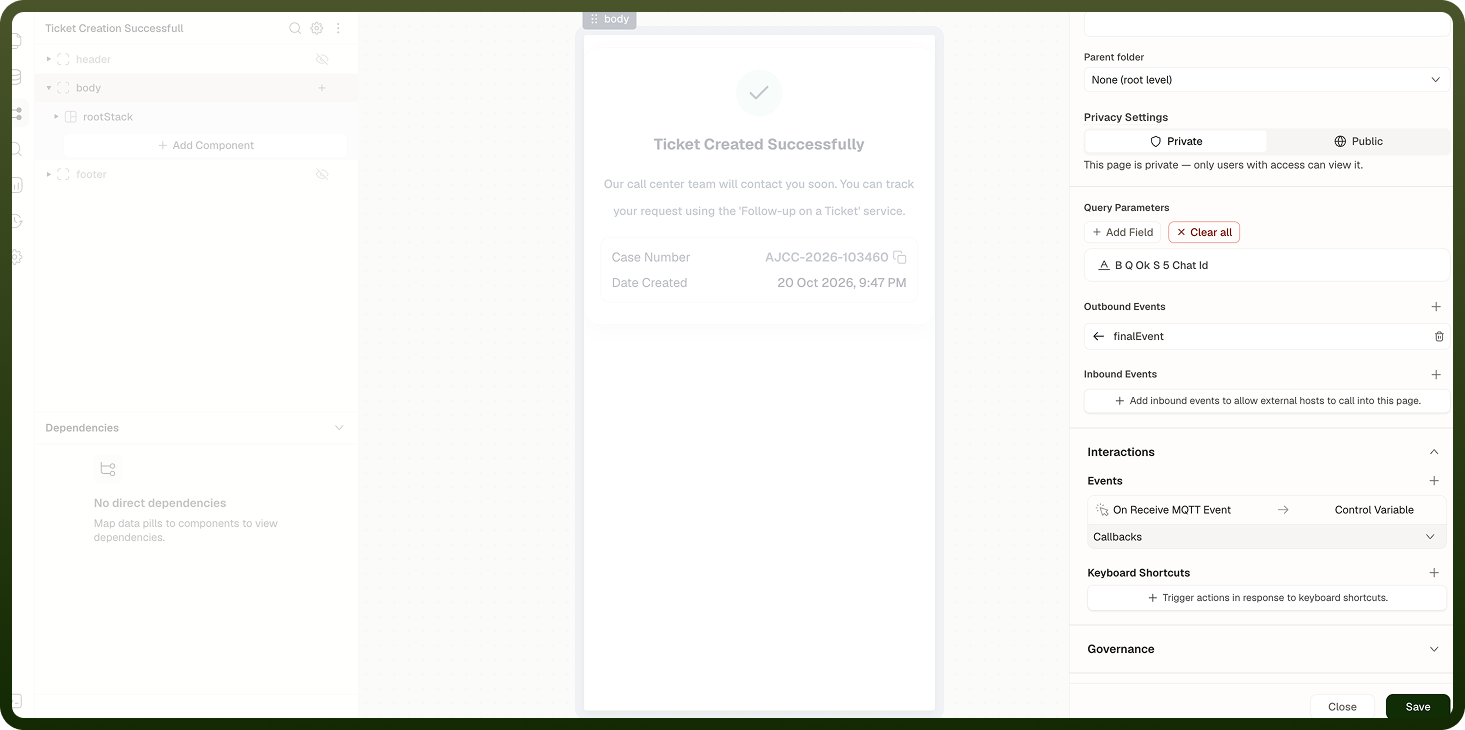
Find Query Parameters: In the General section, go to Query Parameters.
Add a parameter: Click Add Query params. In the Add new param dialog, enter the parameter's name and choose its type (for example String, Number, Boolean, Date, Object or Array). To paste several at once as JSON, use Use Code Snippet instead.
Read it on the page: Bind to it with
{{ pageInputs.<name> }}.
A default or sample value fills in only in the builder and preview. In the published app, a parameter has a value only when the URL or the navigation that opened the page provides one. The name pageInputs is reserved — don't use it for your own parameter.
Passing Parameters with Go to Page
Add the action: Select the block that starts the navigation (for example a button), add an event such as On Click, and add a Go to Page action.
Choose the destination: In Page, pick the page to open.
Fill Dynamic Params: Enter a value for each dynamic segment in the destination's path — for example
orderIdfor/orders/:orderId/details. The destination reads it as{{ pageParams.orderId }}. If a segment is left empty, the navigation doesn't happen; the builder and preview show an error message.Fill Page Inputs: Enter values for the destination's declared query parameters. They are added to the URL's query string and read as
{{ pageInputs.<name> }}.Set the options: Turn on Open in new tab if needed, and set History to Push (default) or Replace.
Note: Parameters arrive from outside the page — from the URL or from a navigation call. Variables are defined inside the page and are reset every time the page opens. Parameters are read-only within the page; variables can be updated by actions.
Reading Parameters in Bindings
Anywhere in the builder that accepts a binding expression, you can reference page parameters using two namespaces:
{} Binding syntax for page parameters
// Declared query parameters and passed inputs {{ pageInputs.orderId }} {{ pageInputs.tab }} // Values captured by dynamic folders in the path (/orders/:orderId/details) {{ pageParams.orderId }} // In a conditional expression {{ pageInputs.tab === 'activity' ? 'Activity' : 'Details' }} // As a data source filter {{ { orderId: pageParams.orderId } }}
pageInputs and pageParams are separate. pageInputs holds declared query parameters and values passed in directly (navigation inputs or an embedding host). pageParams holds only the values captured by Dynamic param folders in the page's path. A query parameter such as ?orderId=… isn't in pageParams, so {{ pageParams.orderId }} returns undefined for it.
Slugs and URLs
Each page has a slug that, together with the folders it sits in, forms its URL. Dynamic param folders capture the values you read with pageParams. For slug rules see Slugs and Visibility; for how the full URL is built see Path Tree and URLs. The browser tab title is set with Document Title in Page Settings and can use parameters:
Dynamic Document Title
A dynamic document title keeps the browser tab informative when a page displays record-specific content. For example, an order detail page can set its title to Order {{ pageParams.orderId }} so that users with multiple tabs can tell them apart at a glance.
🗎 Dynamic document title examples
// Order detail page Order {{ pageParams.orderId }} // User profile page (showing fetched name) {{ userQuery.data.name }} — Profile // Dashboard with filter {{ pageInputs.team }} Dashboard
Default Pages
The page that opens at the app's root URL is set in Settings → Navigation → Content → Default Page: Logged in User, and optionally Logged out User, which must be a Public page and falls back to the login page when unset. Only pages with static paths can be default pages. See Navigation Overview.
Privacy and Permissions
Privacy Settings decide whether visitors must sign in (Private) or not (Public). Governance → Permissions in Page Settings limits the page to users who hold the permission groups and permissions you choose — the user needs every permission listed. A signed-in user without them sees an Access Denied screen ("You do not have access to this page"). Visitors who aren't signed in hold no permissions, so a page with a permission rule stays closed to them. See Slugs and Visibility and Runtime & Access.