


This page covers six copilot blocks: Copilot Chat, Copilot Input, Copilot Response, Copilot Thread, Copilot Voice and Copilot History. For the all-in-one Copilot block and Headless Copilot, see Copilot Overview.
Copilot Chat
The Copilot Chat block is the conversation surface of the copilot family: it renders the running message transcript between the user and an AI agent (or a human agent in live-chat handoffs), plus the message input panel at the bottom. It loads earlier messages as the user scrolls, shows the agent's thinking progress while a response streams, displays conversation starters when the thread is empty, and supports message feedback (like/dislike), regeneration, citations, and file attachments.
Note: Copilot Chat isn't available in the block picker. The Copilot and Copilot Thread blocks compose it automatically as their transcript area. For a custom layout, use Copilot Thread or Headless Copilot with Copilot Input.
Key Configuration (set by parent composition)
| Property | Type | Default | Description |
chatId | string | — | The conversation this transcript belongs to. |
defaultChatAssigneeType | "aiAgent" | "agent" | — | Who is answering — an AI agent or a human agent. |
messageVariant | "DEFAULT" | "BUBBLE" | — | Flat rows or chat bubbles. |
conversationStarters | string[] | — | Suggested prompts shown while the conversation is empty. |
agentAvatarDetails | object | — | The agent's avatar for idle and thinking states — image, custom HTML, or Lottie. |
autofocus | boolean | — | Focuses the message input as soon as the chat appears. |
Behavior & Gotchas
Note: An initial prompt is sent automatically, exactly once. No property on this block sets a starting prompt. To send a first message for the user, call the Copilot block's Send Message method from an event.
Note: Returning from voice mode refreshes the transcript. When the user switches back from voice mode, the chat immediately re-checks the conversation so anything said during the voice session appears.
Warning: The input box hides for run-triggered workflow agents on an empty conversation. If the agent is a workflow agent whose trigger is not a chat message, the message input is hidden while the conversation is empty.
Copilot Input
The Copilot Input block is the message composer of the copilot family — the box where users type prompts, attach files, pick an AI model, enable tools and skills, share their location, or dictate by voice. It links to a Copilot or Copilot Thread block and sends messages into that conversation. It comes in Comfortable and Compact layouts and can offer intelligent autocomplete suggestions while typing.
Tip: When to use standalone: When composing a custom chat layout and wanting the prompt box as its own block — e.g. an input on a home page that starts a conversation in a thread view. If using the all-in-one Copilot block, it already includes its own input.
Properties
Property | Type | Default | Description |
|---|---|---|---|
|
|
| Layout density of the composer. |
|
| Send message | What the Enter key does — send the message or insert a new line. |
|
| — | Placeholder text before the user types. |
|
| — | Character limit: the longest message a person can send. A counter appears once the message nears the limit; past it, Send is disabled until the message is shortened. Leave empty (or 0) for no limit. |
|
| — | Link to conversation: the Copilot or Copilot Thread block this input sends messages to. |
|
|
| Focuses the input as soon as it appears. |
|
|
| Enables suggestions while typing (predictions, past conversations, document citations when linked to a thread). |
|
| — | Action buttons in the composer: Add Attachments, Send Message, Emoji Picker, Model Switcher, Tools, Skills, Enhance prompt, Connectors, Share Location. |
|
|
| Compact layout only: when on, clicking into the one-row composer expands it. Has no effect on mobile. |
Events
Event | Trigger |
|---|---|
| Input gains focus. |
| Input loses focus. |
| User opens conversation history from the input. |
| User opens the knowledge-sources manager. |
| User clicks Manage Skills in the skills list. Wiring this event is what makes Manage Skills appear. |
| User clicks Manage Connectors under the composer's connector list. Wiring this event is what makes Manage Connectors appear. |
| User shares a location (payload carries locationData with latitude, longitude, venueName, address, placeId, mapPreviewUrl and formattedTime). |
Methods
Method | Params | Effect |
|---|---|---|
| content, attachments | Sets the composer text and adds attachments. Merges (not replaces) attachments. |
| mode | Switches layout between comfortable, compact, and search (search is method-only). |
| — | Begins voice dictation into the input. |
| — | Ends voice dictation. |
| — | Clears the dictation transcripts. |
| — | Clears text and attachments; also turns off autofocus. |
| — | Moves keyboard focus into the input. |
| text | Inserts text at the cursor position. |
Exposed State
State key | Type | Description |
|---|---|---|
| string | The current composer text. |
| array | Files attached to the pending message. |
| string | The AI model selected via the model switcher. |
| boolean | Whether the input currently has focus. |
| array | The ids of the skills currently selected. |
Behavior & Gotchas
Note: Set Value merges attachments instead of replacing them. To start clean, call Reset first, then Set Value.
Note: Reset also turns off autofocus. Chain a Focus call if you want the cursor back in the box after a reset.
Copilot Response
The Copilot Response block renders one or more agent messages outside a live conversation. Feed it response data — an agent-to-agent (A2A) protocol message or a list of platform messages — and it displays them with the same rich rendering as the Copilot Chat transcript: markdown, embedded interactive content, and a citations row. Use it when you already have the agent's answer and just need to present it, without the input box, polling, or conversation state that a full chat brings.
Tip: When to use: Search-style or "one-shot answer" experiences where the user can't reply. Fetch an agent's answer yourself (automation, API) and display it with full copilot formatting. If the user should be able to reply, use Copilot Chat or Copilot Thread.
Properties
| Property | Type | Default | Description |
data | bound response data | — | The response to render. Bind to an A2A protocol message or a list of platform messages. |
citations.data | bound list | — | The sources cited by the response, shown as a citation row. |
citations.fieldMappings | mapped values | appName / iconUrl | Maps citation item fields to what the citation chip displays. |
Events
| Event | Trigger |
On Citation Click | User clicks a citation chip (payload: citation details). |
Exposed State
State key | Type | Description |
|---|---|---|
| string | The id of the message being shown. |
Copilot Thread
The Copilot Thread block is a standalone conversation view built for enterprise-search experiences. It renders a single thread in one of three views — Search (query-and-answer results), Chat (a running conversation), or Both (a toggle between the two) — and manages the thread lifecycle.
Tip: When to use: An enterprise-search or "ask anything" experience where users query knowledge and can continue in chat. Also use it when you need programmatic thread control, such as starting a new thread from a button, deep-linking to a thread, or reacting to thread creation. For a general-purpose assistant with its own shell, use the Copilot block instead.
Properties
Property | Type | Default | Description |
|---|---|---|---|
|
|
| Search results, chat conversation, or both with a user-facing switcher. |
Thread ID ( |
| — | Opens on an existing thread instead of a fresh one. |
Query ( |
| — | A query to run as soon as the thread opens. |
Events
| Event | Trigger |
On Message Sent | User sends a message or query. |
On Case Created | A new thread (conversation) is created. |
On Show History | User opens the history view from the thread. |
On Change View | The view switches between search and chat. |
Methods
Method | Params | Effect |
|---|---|---|
| message, attachments, tool toggles | Submits a message into the thread. |
| Thread ID | Switches the block to the given thread. |
| — | Starts a fresh, empty thread. |
| — | Stops the answer being generated. |
| viewType | Switches between the search and chat views. |
Exposed State
State key | Type | Description |
|---|---|---|
| string | The thread currently shown. |
| string | The thread's summary, kept up to date automatically. |
| string | The current search query. |
| string | The active view (search or chat). |
Copilot Voice
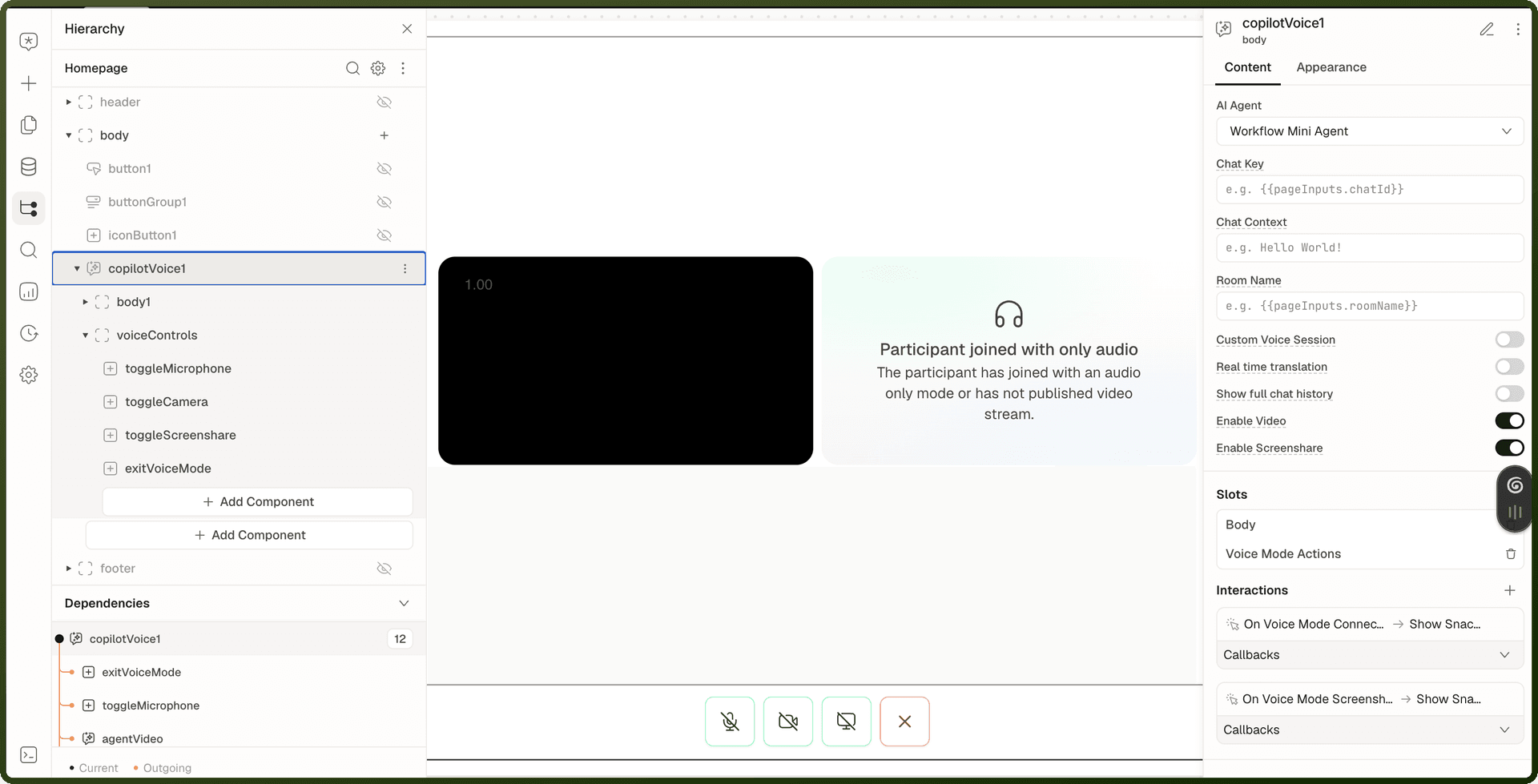
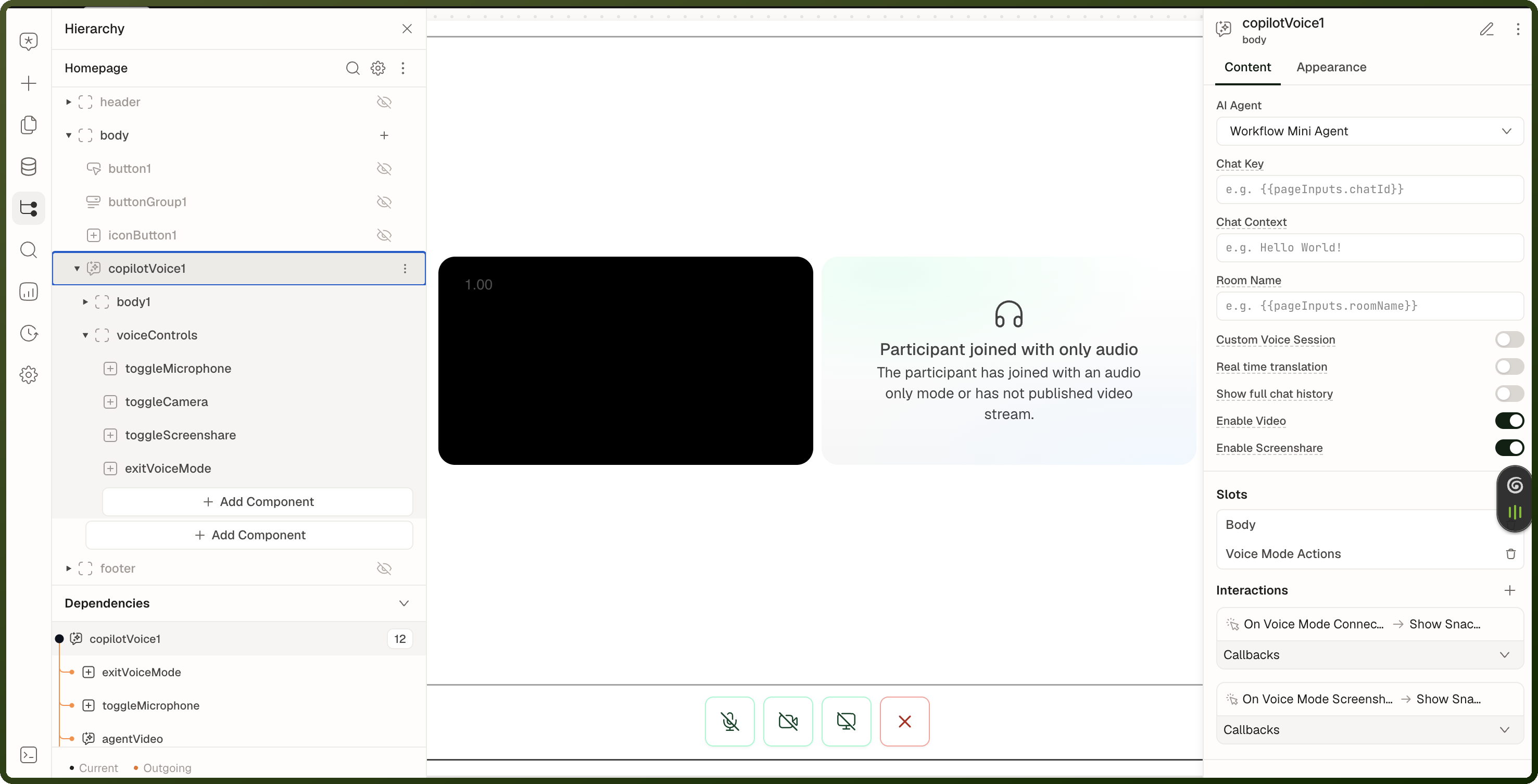
The Copilot Voice block runs a real-time voice conversation with an AI agent — microphone, optional camera, and screen sharing — without rendering any chat interface of its own. It is the engine of a custom voice experience: you compose the visible UI yourself using its slots and sibling blocks, then drive the session through its methods and state.
Tip: When to use: Build a bespoke voice assistant UI — call screen, kiosk, in-app voice agent — with full control over the layout. If you want a ready-made chat widget where voice is just one mode, use Copilot instead.
Properties
Property | Type | Default | Description |
|---|---|---|---|
Chat Key ( |
| — | The chat session to resume or open. Left empty, a new chat is created. |
AI Agent ( |
| First available agent | The AI agent that answers the conversation. |
Enable Video |
| On | Enables local camera sharing. Remote participant videos can still be viewed when this is off. |
Enable Screenshare |
| On | Enables local screenshare controls. Remote screenshares can still be viewed when this is off. |
Show full chat history ( |
| Off | Loads all existing messages into the voice transcript on connect, so the conversation continues with full history. |
Chat Context ( |
| — | Context passed to the AI agent when a new chat is created. |
Room Name |
| — | The voice room to join. Leave empty to start a new room; give the name of a live room to join the people and agent already in it. |
Custom Voice Session |
| Off | Lets you provide the voice session credentials yourself instead of having them managed automatically. Use it to join existing rooms with other people or agents. |
Real time translation |
| Off | Joins the room for translated transcripts only. Suggested replies arrive in the voiceMode.suggestedReply state, and replies are sent with the Send RTT Message method. |
Session URL |
| — | Shown when Custom Voice Session is on. The address of the voice service to connect to. |
Session Token |
| — | Shown when Custom Voice Session is on. The credential used to authenticate and join the voice session. |
Room ID |
| — | Shown when Custom Voice Session is on. The room identifier to use for the direct connection. |
Events
Event | Trigger |
|---|---|
| The voice session connects. |
| The voice session fails to connect. |
| Screen sharing fails to start. |
| The copilot canvas opens. |
| The copilot canvas closes. |
Slots
Slot | Description |
|---|---|
Body | The main area for your custom voice UI. |
Voice Mode Actions | A row for session controls such as mic, camera and end call. |
Methods
Method | Params | Effect |
|---|---|---|
| message, attachments | Sends a message into the session's chat. |
| — | Starts a fresh conversation. |
| chatId | Switches to an existing conversation. |
| mode | Switches between text and voice mode. |
| — | Mutes or unmutes the microphone. |
| — | Turns the local camera on or off. |
| — | Starts sharing the user's screen. |
| — | Stops the screen share. |
| device | Chooses the microphone, speaker or camera. |
| mode | Changes what the agent can observe. |
| — | Cuts off the agent mid-response. |
| Payload type, Suggestion ID or Message text, attachments | Sends a reply to the agent when Real time translation is on. Use the Suggestion payload type with a suggestion ID to send a suggested reply, or Custom with your own message text. |
Exposed State
State key | Type | Description |
|---|---|---|
| string | The conversation behind the voice session. |
| boolean | Whether a voice session is running. |
| boolean | Whether the microphone is on. |
| boolean | Whether the local camera is on. |
| boolean | Whether closed captions are on. |
| boolean | Whether a screen share is active. |
| string | What the agent is doing (listening, speaking, and so on). |
| object | The roomId and roomName of the live session. |
| object | Detected microphones, speakers and cameras. |
| object | The reply the translation agent currently suggests. Only filled while Real time translation is on. |
Behavior & Gotchas
Note: The session starts with the microphone muted. The user speaks once they press the microphone button. For a call that should start live, add a Toggle voice mode microphone action (Unmute) to the On Voice Mode Connect event.
Headless Copilot uses the same settings, slots and methods. See Copilot Overview.
Copilot History
The Copilot History block lists a user's past copilot conversations so they can jump back into any of them. It supports three conversation sources (AI Agent, Live Chat, Enterprise Search) and offers search, optional time-based grouping (Today, Previous 7 days, etc.), a pinned Starred section, and per-conversation actions (select, rename, archive, delete).
Tip: When to use: A chat experience with several conversations, where users need a sidebar to find and reopen past threads. It also lets your app react to conversation management, for example clearing the transcript when the active conversation is deleted. If you only need the conversation itself, use Copilot Chat or Copilot Thread. This block is only the list.
Properties
Property | Type | Default | Description |
|---|---|---|---|
|
|
| Which kind of conversations the list shows. |
|
| — | The conversation to show as selected in the list. Bind to the currently open conversation. |
|
| — | Filters the list. Bind to a search input's value for live search. |
|
| — | Limits the list to conversations by one specific agent. |
|
| — | Chat Source: lists only the conversations created by a Copilot with the same Chat Source, so bind it to whatever that Copilot was given. Leave blank to list conversations created without one. |
|
| — | Limit the list to conversations associated with one record (e.g. a specific ticket). |
|
| Off | Groups conversations into time-based sections: Today, Previous 7 days, Previous 30 days, and older. |
Slots
Slot | Description |
|---|---|
Header | Content shown above the list of conversations. |
Empty state | Content shown when there are no conversations. |
Events
Event | Trigger |
|---|---|
| User clicks a conversation in the list. |
| User renames a conversation. |
| User archives a conversation. |
| User deletes a conversation. |
Methods
Method | Params | Effect |
|---|---|---|
| — | Reloads the conversation list and the Starred section. |
Exposed State
State key | Type | Description |
|---|---|---|
| string | The currently selected conversation. |
Related Blocks
Block | Relationship |
|---|---|
The all-in-one assembled experience that composes these blocks. | |
The engine-only variant for fully custom UI. | |
Displays a live video or screen-share feed from a voice session. | |
Shows the live transcript of a voice session. | |
The human-to-human counterparts of Copilot Chat and Copilot Input, with no AI agent. |