


Overview
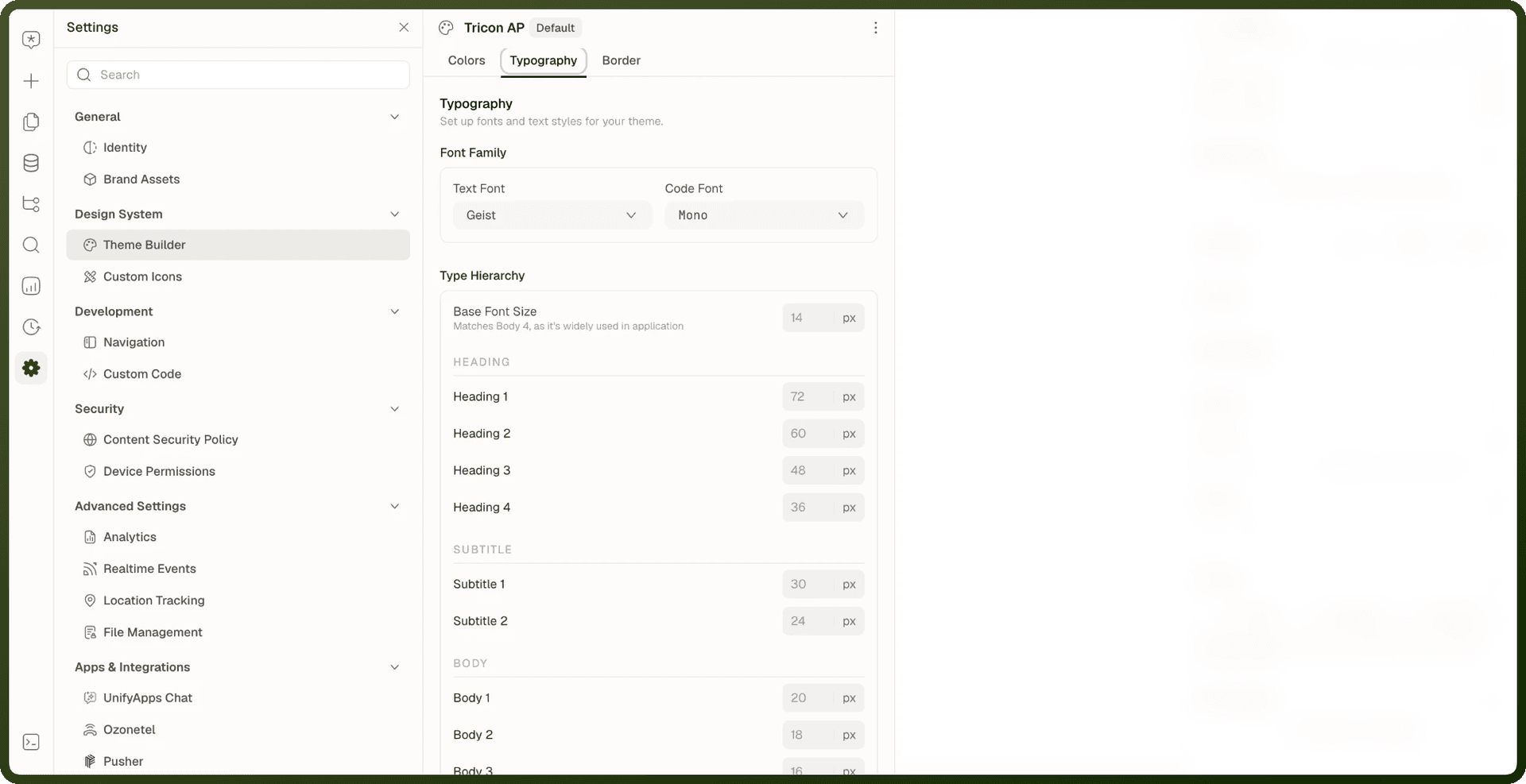
The Typography tab of the theme editor sets what your app's text looks like: which font families it uses and how big each level of text is. In an app, open it from Settings → Design System → Theme Builder. Typography is token-driven — you adjust one base size and the whole type scale moves together, keeping headings, body text, and captions in proportion automatically.
Font Families
A theme carries two font choices:
Text font — used for all regular text and headings. One pick covers both.
Code font — used wherever the app renders code-styled text.
Built-in Font Options
Available built-in fonts include: DM Sans, Figtree, IBM Plex Sans Arabic, Geist, Instrument Sans, Inter, Lato, Lexend, Manrope, Merriweather, Mono, Nunito, Open Sans, Poppins, Roboto, Source Serif 4, Spectral, and Special Gothic Expanded One.
Defaults are Geist for text and JetBrains Mono for code. JetBrains Mono is shown in the picker as Mono.
Note: One text font for both headings and body: The theme's Text Font applies to headings and body text alike — there is no separate heading font in the theme editor. If a design calls for a distinct display face, override the individual font-family tokens directly via Tokens & Custom CSS. Headings and body text read from two different underlying tokens (--fontFamily-display and --fontFamily-text) that the picker sets together.
Font Family Tokens
| Typography Tab Control | Tokens Written |
| Text Font Family | --fontFamily-text and --fontFamily-display |
| Code Font Family | --fontFamily-code |
Custom Uploaded Fonts
Uploading a custom font lives on the Fonts tab (immediately left of Typography) of the full theme editor — open the theme from the Design System area. The compact Theme Builder inside an app shows only Colors, Typography and Border, so it has no Fonts tab. You can also start an upload from the font picker's Add custom font option, which opens the same upload dialog. Once uploaded, a custom family appears in the Text font and Code font pickers.
Uploading via the Fonts Tab
Open the theme's Fonts tab.
Click Upload Font to open the Add Custom Font dialog.
Drop the font file into Upload a font — static or variable, TTF, OTF, or WOFF2 formats are accepted, up to 20 MB. Variable fonts and font collections are supported, so a family's weights and styles come in together.
Set the Font name.
Click Add font. The font now appears in the Fonts table and in the Typography tab's pickers.
Tip: Fonts tab features: The table lists uploaded families alongside built-in System fonts, with who owns each one and when it changed. Each row shows whether it is a System or Custom font. Use the search box to filter. Each custom row offers Edit (update font) and Delete Font.
Warning: Deleting a custom font is irreversible. Any text using that font will fall back to the default font.
How custom fonts behave at runtime
They're preloaded. Every custom font file is fetched as soon as the app loads, in parallel with the page itself, so text doesn't visibly swap from a fallback.
They appear in rich-text pickers. Custom families show up by name in font pickers of rich-text editing surfaces alongside built-in fonts.
Per-file weight and style
Each file in a custom font family declares its weight (for example 400 or 700) and whether it is the italic cut. This is how the app knows which file to use when text is bold, italic, or both. A weight/style combination with no uploaded file falls back to the browser's synthetic rendering of the nearest available file.
The Type Scale
Text sizes are organized as a named scale, grouped by how you'd use them:
Group | Levels | Default Sizes (px) |
|---|---|---|
Headings | Heading 1–4 | 72 / 60 / 48 / 36 (Heading 4 becomes 44 once the scale is recalculated — see Base Font Size) |
Subtitles | Subtitle 1–2 | 30 / 24 |
Body | Body 1–8 | 20 / 18 / 16 / 14 / 13 / 12 / 11 / 10 |
Paragraph | Para 1–3 | 16 / 14 / 12 |
Code | Code 1–3 | 12 / 11 / 10 |
Blocks reference these levels rather than raw pixel values, so retuning the scale restyles every piece of text that uses it.
Base Font Size
The scale hangs off a single Base Font Size (the Body 4 level, defaulting to 14px). Change it, and every other level shifts by a proportional amount. Each level's line height is also recomputed automatically to keep text comfortable (looser for body text, tighter for large headings).
Warning: Headings move twice as fast as body text. When you raise the base size by 1, body levels grow by 1 — but headings, subtitles and Body 1 grow by 2. This keeps the visual hierarchy pronounced as the scale grows, but a small base bump changes headlines more than you might expect. Check your largest headings after adjusting the base.
Lowering the base works the same way in reverse: body levels shrink by 1 for each 1 px, and headings, subtitles and Body 1 shrink by 2.
Each level also has its own field, so you can edit a single level after you set the base. Changing Base Font Size again recalculates every level and replaces those individual edits, so set the base first and fine-tune levels last.
Note: An untouched theme renders Heading 4 at 36 px (the platform default). The recalculation uses 44 px as Heading 4's starting point, so after any base change Heading 4 is 44 px at a 14 px base.
Typography Token Reference
The complete list of size and line-height tokens written by the Typography tab. Use these in Tokens & Custom CSS for fine-grained overrides.
Level | Size Token | Line-Height Token | Default (px) |
|---|---|---|---|
Heading 1 |
|
| 72 |
Heading 2 |
|
| 60 |
Heading 3 |
|
| 48 |
Heading 4 |
|
| 36 (44 once the scale is recalculated) |
Subtitle 1 |
|
| 30 |
Subtitle 2 |
|
| 24 |
Body 1 |
|
| 20 |
Body 2 |
|
| 18 |
Body 3 |
|
| 16 |
Body 4 (base) |
|
| 14 |
Body 5 |
|
| 13 |
Body 6 |
|
| 12 |
Body 7 |
|
| 11 |
Body 8 |
|
| 10 |
Para 1 |
|
| 16 |
Para 2 |
|
| 14 |
Para 3 |
|
| 12 |
Code 1 |
|
| 12 |
Code 2 |
|
| 11 |
Code 3 |
|
| 10 |
Related Pages
Theme Builder — how typography fits into the whole theme
Tokens & Custom CSS — overriding individual font-size or font-family tokens directly
Colors & Color Scheme — the color system
Typography & Link — the Typography block in UI Components (not the theme tab)