


The Voice Mode Transcripts block shows the live, running transcript of a voice session: what the user says and what the AI agent answers, as messages with timestamps. You link it to a Copilot, Headless Copilot or Copilot Voice block on the page, and it mirrors that block's voice session as text in real time. Use it as the captions panel when you build a custom voice interface.
Note: The block shows speech from voice mode only. Text-only conversations don't appear in it.
Note: Only the default voice service feeds this block. If the agent's voice setting is ElevenLabs or Vapi, the session runs on that provider's own screen and the transcript stays empty.
Properties Reference
Property | Where to set it | Description |
|---|---|---|
Chat Component | Content | The Copilot, Headless Copilot or Copilot Voice block whose voice session this transcript shows. Until you pick one, the block shows a "Please select a copilot block!" message. |
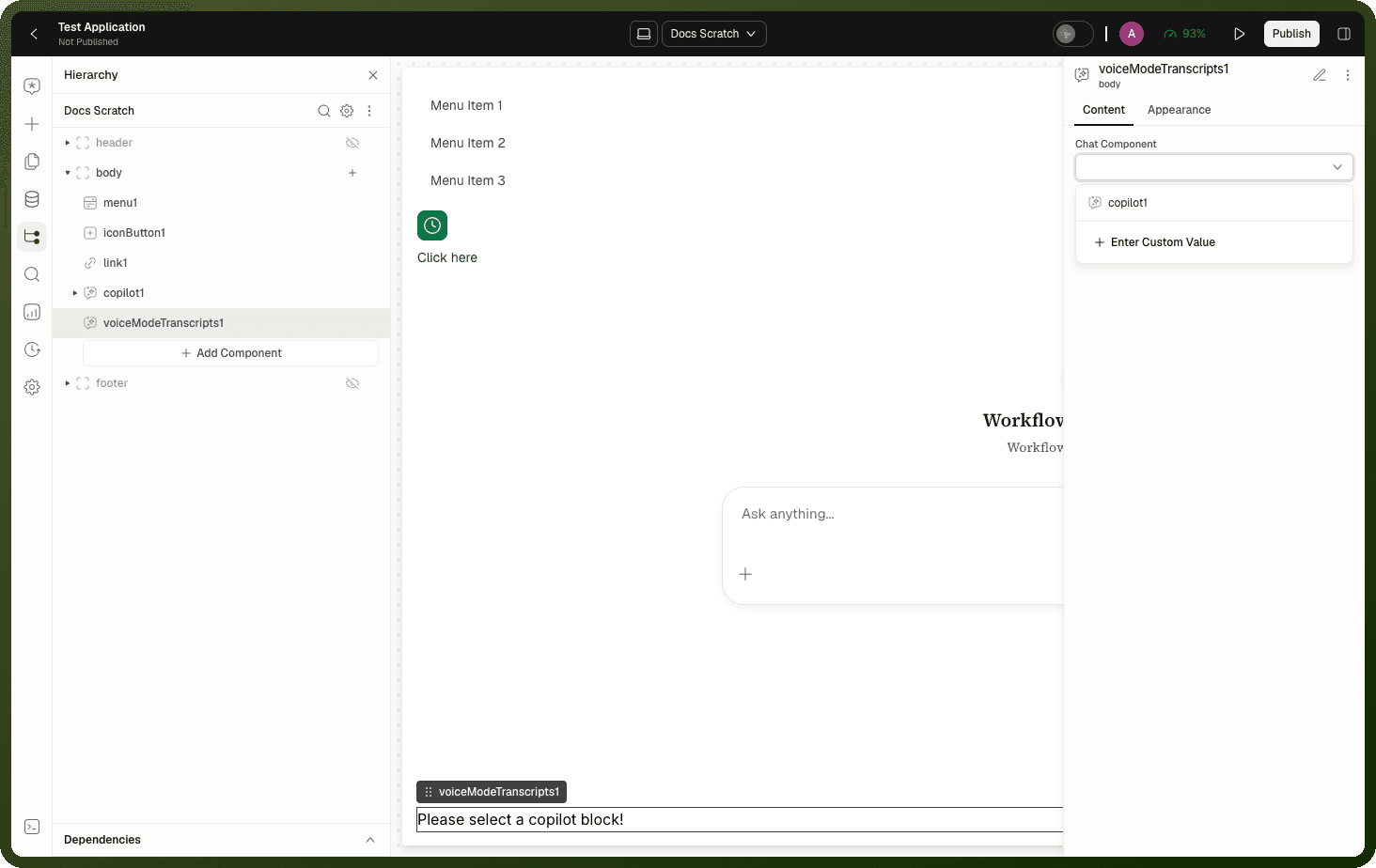
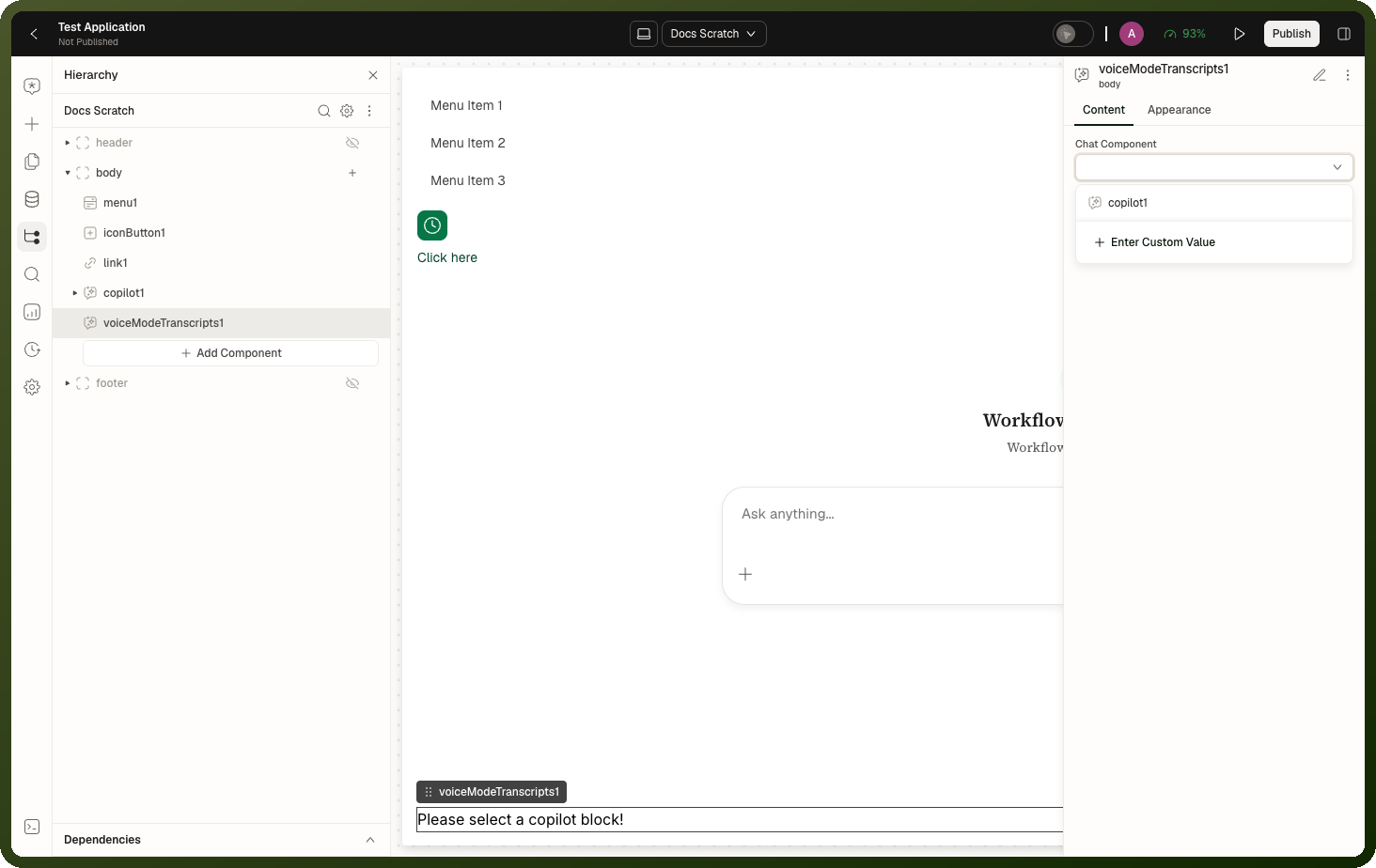
That is the block's only content setting. Timestamps are always shown, the text size is fixed and each message has a copy action; none of these can be changed. Under Appearance you can set styles (size, spacing, border, background) and visibility.
Earlier messages appear in the transcript only when the linked block has Show full chat history turned on. Otherwise the transcript starts with the live session.
Binding Expressions
The Voice Mode Transcripts block keeps no live session state of its own: its voice values are fixed when it loads and don't change. Read the session's state from the linked copilot block instead. In these expressions, copilot1 is the block you picked as Chat Component. Replace it with that block's real ID.
Expression | Type | Description |
|---|---|---|
| string | The identifier of the linked chat. |
| boolean | Whether a voice session is running. |
| boolean | Whether the user's microphone is live. |
| boolean | Whether closed captions are on. |
| string | The agent's connection or speaking state. |
Setting Up a Voice Audit Panel
Add a copilot block with voice mode: Make sure a Copilot, Headless Copilot or Copilot Voice block is on the page. Note its block ID (for example,
copilot1).Add the Voice Mode Transcripts block: Drag Voice Mode Transcripts from the Copilot category onto the page. In the Content inspector, set Chat Component to
copilot1.Restrict visibility (optional): If the transcript is for supervisor review only, add a Visibility condition that is true only for supervisors, for example one built on the signed-in user's details in
{{ user.* }}. See Conditions & Visibility. Regular agents see the copilot block but not the transcript panel.
Examples
Example: Call center audit panel
Place the Voice Mode Transcripts block in a supervisor view next to the copilot block. Show a "Live" badge only while a session is running by setting the badge's visibility to {{ copilot1.voiceMode.isVoiceModeActive }}.
Example: Custom voice interface with captions
Build your own voice controls with a Headless Copilot block, then add Voice Mode Transcripts linked to it so users can read along as they speak. Bind a status label to {{ copilot1.voiceMode.agentState }} to show whether the agent is listening or speaking.
Related Pages
Page | Relationship |
|---|---|
The Copilot and Headless Copilot blocks whose voice sessions this block displays | |
The Copilot Voice block, the engine for a custom voice UI | |
Full meeting transcription for video call contexts |