Overview
The controlYellowAI action is the programmatic interface to the Yellow.ai (formerly Yellow Messenger) conversational AI widget that UnifyApps can embed in your application. Rather than placing a static "chat bubble" widget that the user discovers on their own, this action lets you drive the bot from your UI — opening it at contextually relevant moments, pre-filling messages, and passing structured user data so the bot can provide personalised, context-aware responses from the first message.
The Yellow.ai widget communicates with Yellow.ai's cloud infrastructure directly. UnifyApps provides the SDK bridge and the controlYellowAI action as the in-builder interface to that bridge.
Prerequisites
Warning: Complete these steps before using the action:
Parameters
| Parameter | Type | Required | Default | Description |
| operation | "open" | "close" | "sendMessage" | "setUser" | Required (required) | — | open — shows the chat widget window (equivalent to clicking the chat bubble).
close — hides the chat widget window; the bubble remains visible.
sendMessage — programmatically sends a message into the active chat session as the user.
setUser — updates the user identity and custom attributes passed to the bot for personalisation. |
| botId | string | Required (required) | — | Your Yellow.ai Bot ID. Must match the Bot ID configured in App Settings → Integrations → Yellow.ai. If you have multiple bots per app (rare), specify which one to target here. |
| message | string | Required for sendMessage (required) | — | The message text to send into the active chat session. Supports bindings. Use this to pre-fill context: "I need help with order {{ row.orderNumber }}". The message appears in the chat as a user message and triggers the bot's intent detection. |
| userContext | object | Optional (optional) | {} | Custom attributes passed to the bot as user context. The bot can read these values in its flows using Yellow.ai's user property syntax. Common keys: userId, name, email, phone, plan, currentPage, currentOrder. Values must be strings or numbers. |
| openOnSend | boolean | Optional (optional) | true | When operation is "sendMessage" and this is true, the widget window opens automatically alongside sending the message. Set to false if you want to send a background context message without opening the widget. |
Note: setUser vs. userContext on sendMessage: Use operation: "setUser" once on page load (or after login) to establish the user's identity and persistent attributes for the entire session. Use userContext on a sendMessage call to pass ephemeral, page-specific context that applies only to the current interaction (e.g. the record the user is looking at).
Contextual Support Handoff Pattern
The most powerful use of this action is the contextual support handoff: rather than just opening a generic chat widget, you open it with a pre-composed message that immediately tells the bot what the user is struggling with. The bot can then jump directly to the relevant flow, skipping the greeting and intent-detection step.
Example scenario: A user is stuck on the checkout page. A "Need help?" button triggers:
setUserwith the user's profile and current cart contents.sendMessagewith"I need help completing my checkout. Cart ID: {{ var_cartId }}".
The bot receives both the user profile and the specific context, and can immediately offer relevant help without asking the user to repeat themselves.
Step-by-Step Usage Guide
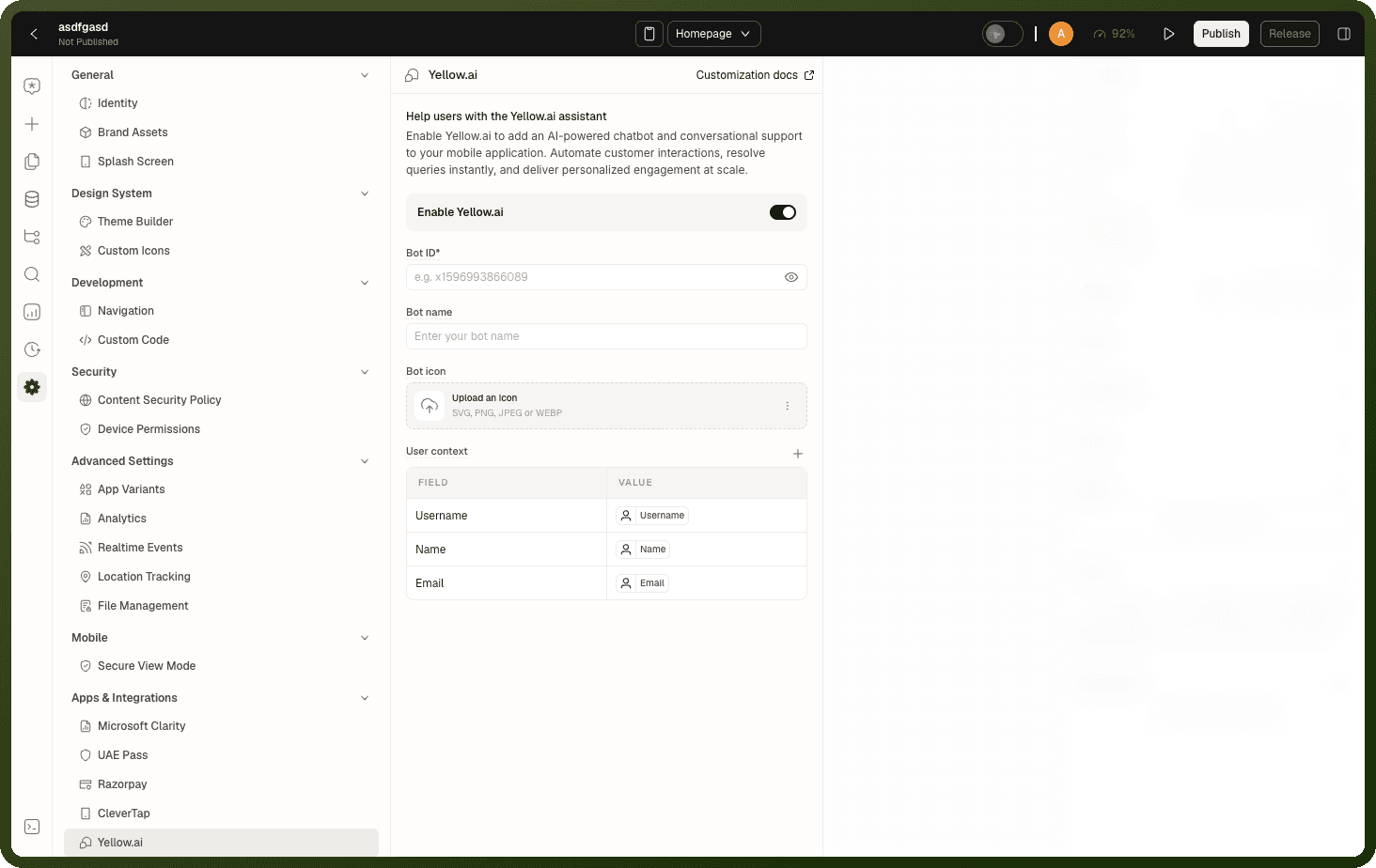
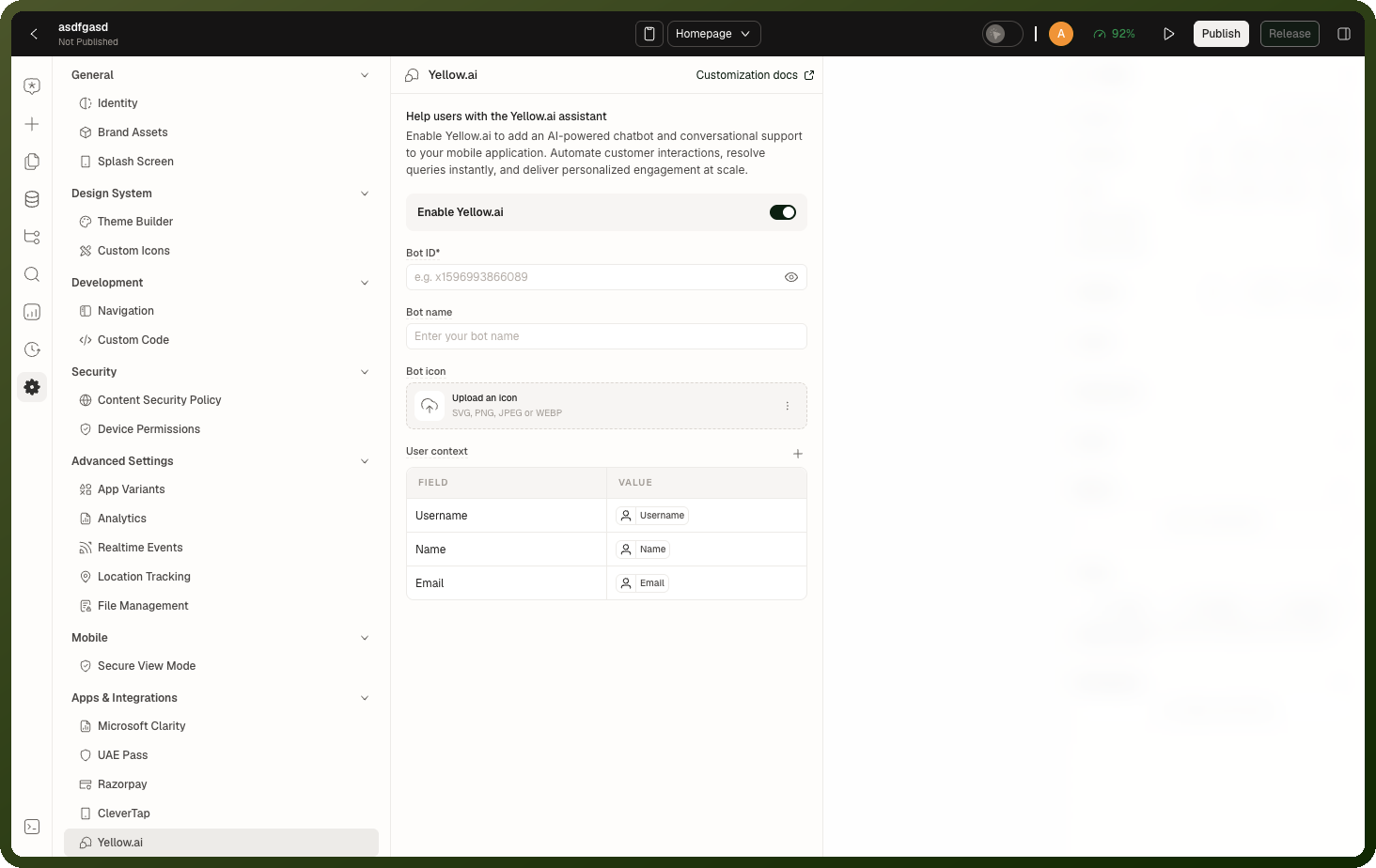
Configure the integration: In App Settings → Integrations → Yellow.ai, enter your Bot ID, choose widget position (bottom-right recommended), and set a theme colour matching your brand. Enable Auto-inject widget script. Save and republish.
Set user context on page/app load: In your app's
onAppLoador main page'sonPageLoadevent, add a Yellow.ai Action withoperation: "setUser". PassuserContextwith the user's ID, name, email, and any relevant account attributes. This establishes the user identity for the session.Add contextual help buttons where needed: On any page where users might need help, add an Icon Button or a "Chat with us" link. In its
onClickevent, add a Yellow.ai Action withoperation: "sendMessage",messageset to a context-rich pre-filled message, andopenOnSend: true.Test in Builder preview: Switch to Preview mode. The Yellow.ai chat bubble should appear in the corner. Trigger your contextual help button and verify the widget opens with the pre-filled message and the bot responds to the context correctly.
Examples
Set user identity on app load
{ "actionType": "controlYellowAI", "payload": { "operation": "setUser", "botId": "x1a2b3c4d5e6f", "userContext": { "userId": "{{ appUser.id }}", "name": "{{ appUser.name }}", "email": "{{ appUser.email }}", "phone": "{{ appUser.phone }}", "plan": "{{ appUser.subscriptionPlan }}", "accountId": "{{ appUser.accountId }}" } } }
Contextual help handoff from an order detail page
{ "actionType": "controlYellowAI", "payload": { "operation": "sendMessage", "botId": "x1a2b3c4d5e6f", "message": "I need help with order #{{ row.orderNumber }}. The status shows '{{ row.status }}' and I expected delivery by {{ row.expectedDelivery }}.", "userContext": { "currentOrderId": "{{ row.orderId }}", "orderStatus": "{{ row.status }}", "currentPage": "order-detail" }, "openOnSend": true } }
Open bot for lead qualification on landing page
{ "actionType": "controlYellowAI", "payload": { "operation": "open", "botId": "x1a2b3c4d5e6f", "userContext": { "source": "landing-page", "utmCampaign": "{{ appState.utmCampaign }}" } } }
Close the widget after a resolved ticket
{ "actionType": "controlYellowAI", "payload": { "operation": "close", "botId": "x1a2b3c4d5e6f" } }
Frequently Asked Questions
Does opening the widget start a new conversation or continue an existing one?
By default, the Yellow.ai widget maintains a conversation session tied to the browser session (web) or device installation (mobile). Calling open resumes the existing conversation if one is in progress. A new conversation starts when the session expires (configurable in your bot's Yellow.ai settings, default 30 minutes of inactivity) or when you call setUser with a new userId, which creates a new identity context.
Can I listen for events sent back from the bot to UnifyApps?
Yes. Yellow.ai bots can emit custom events to the parent application using the ymIframe.sendEvent API in Yellow.ai's Flow actions. UnifyApps listens for these events and exposes them as Custom Events on your page (event name: "yellowai.botEvent", payload includes the event name and data from the bot). Add a Custom Event listener to any block to react to bot-initiated events — for example, updating an order record when the bot confirms a cancellation.
Does the Yellow.ai action work differently on mobile vs. web?
On web, Yellow.ai is injected as an iframe-based chat widget. On Android and iOS, UnifyApps uses Yellow.ai's native SDK, which renders a full-screen or bottom-sheet chat UI. The action parameters are identical on both platforms — UnifyApps normalises the SDK calls. One difference: the close operation on mobile dismisses the bottom-sheet; the floating bubble is not shown on mobile (the action is the only entry point). Ensure your mobile UX includes explicit "Chat with us" buttons if you disable the default chat bubble in App Settings.