


Every page in UnifyApps is divided into three layout regions that appear on the canvas. Each region is independent — it holds its own block tree, and you can place any component in any region.
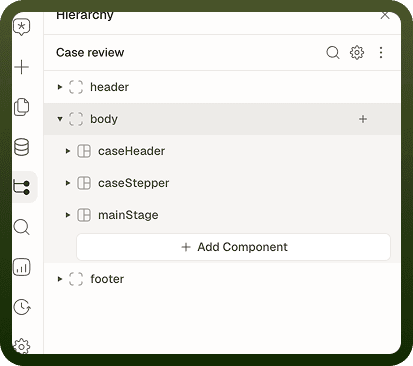
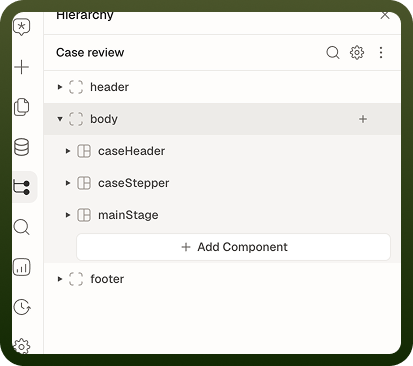
| Region | Position | Typical use |
| Header | Fixed band above the body | Navigation bar, logo, breadcrumb, global search, user account menu. |
| Body | Central scrollable content area | Main page content — tables, forms, dashboards, charts, cards, detail views. |
| Footer | Fixed band below the body | Legal text, secondary links, status bars, sticky action buttons on mobile. |
The header and footer are optional, and a new page starts with both hidden. To show one, select the header or footer in the Hierarchy panel (the left-rail panel that lists the open page's blocks) and turn on its visibility, as you would for any block. A page with neither renders the body region at full height. A header or footer with no blocks isn't shown in the published app, even when it's visible.
Tip: If you want a consistent header or footer across many pages, consider building it as a module and embedding the module in each page's header or footer region. Changes to the module propagate to all pages that use it without individual edits.
A page has exactly one layout — header, body and footer — so there's no separate drawer layout. To show content in a slide-in panel, add a Drawer block to the page.
Custom Code
To add content to the page's HTML, open Page Settings → Custom Code. It has two slots, and each takes raw HTML. The other Page Settings are described in Pages & Routing.
Slot | Position in HTML | Typical use |
|---|---|---|
Head Code | End of the | Meta tags, stylesheet links, inline styles, early-loading scripts such as analytics initialization. |
Footer Code | Before the | Deferred analytics, third-party chat widgets, scripts that depend on the page content being loaded. |
For example, add these to Head Code:
A meta tag:
<meta name="description" content="…">. Useog:titleandog:imagefor social sharing previews, orrobotsto control crawler indexing.A stylesheet:
<link rel="stylesheet" href="…">A script:
<script src="…"></script>
Warning: Custom code ships with the page and runs for every visitor who opens it, including visitors to pages with Public access. Never put credentials or scripts that need authentication in it. There's no platform sandboxing for custom code, so make sure it doesn't conflict with the UnifyApps runtime.
Export Layout
The Export Layout is a separate header and footer shown on each page of exported output (such as a PDF export). It is completely independent of the on-screen header and footer and is designed for printed or downloaded output rather than interactive use.
To set it, open the ⋮ menu at the top of the Hierarchy panel and choose Set Export Layout, then fill in the export header and footer. This option is available only for pages in web apps. You can place page number placeholders, a company logo, document titles, and any static content that should repeat across exported pages.
Page Folders
Folders let you group related pages into a nested tree. A folder becomes a URL segment, so the folder structure directly determines the URL hierarchy of your application.
Folder Basics
A page belongs to at most one folder.
Folders can be nested inside other folders to arbitrary depth.
Each folder adds a path segment to the URLs of all pages inside it.
Changing a folder's name or parent changes the URLs of every page inside it.
🌎 URL structure from folder nesting
App base URL: https://yourapp.com/ Folder: settings (static) Page: profile → https://yourapp.com/settings/profile Page: billing → https://yourapp.com/settings/billing Folder: orders (static) Folder: :orderId (dynamic, mock: "12345") Page: detail → https://yourapp.com/orders/:orderId/detail Page: timeline → https://yourapp.com/orders/:orderId/timeline
Folder Settings Panel
Folders live in the Navigator panel, the page and folder tree in the left rail. Click a folder there to open its Folder settings panel, make your changes and click Save. Saved folder changes are part of the app at once, like any other builder edit. Visitors to the published app see the new URLs after you next publish the app.
Setting | Description |
|---|---|
Parent folder | Which folder contains this folder, or None (root level) for a top-level folder. |
Type | Static param or Dynamic param. See below. |
Folder name | The folder's URL segment. The name is cleaned up as you type: spaces and other characters become hyphens. Static folder names are lowercased; dynamic folder names keep their capitals. |
Mock value | Dynamic folders only. A sample value used to build preview URLs in the builder. |
Redirection | Optional. Redirect to page sends visitors who open the folder's path to the selected page. If that page sits behind a dynamic folder, fill its Path parameters. Useful when the folder itself has no content. |
Static vs. Dynamic Folders
The most important folder setting is its type. This controls whether the folder's URL segment is a fixed literal or a captured value.
| Type | URL segment | Behavior |
| Static | A fixed literal (e.g., settings, admin) | The folder only matches that exact path segment. Visitors must know the literal name to reach pages inside. |
| Dynamic | A named parameter (e.g., :orderId, :userId) | The folder matches any value in that URL position and captures it as a named parameter. Pages inside can read the captured value as a page parameter. |
Dynamic Folder Mock Value
Because the builder cannot know the real runtime value of a dynamic parameter, dynamic folders have a Mock value field. The mock value is used only in the builder and preview environments to construct a valid preview URL. It is never used in the published application.
Tip: A good mock value mirrors the shape of real data. If the dynamic parameter is an order ID like ORD-00123, use that format as the mock rather than a placeholder like 123. This makes the builder URL more representative and reduces confusion when sharing preview links with teammates.
Folder Redirects
A folder redirect sends visitors who navigate to the folder path to a specific page instead. This is useful when:
A folder contains multiple pages but has no natural "landing" page at its own path.
You have reorganized pages and want old folder paths to forward to new locations.
A dynamic folder should always drop visitors into a specific child page.
The redirect target can be any page in your app. If the target page sits behind a dynamic folder, fill its Path parameters: there's one row for each dynamic segment. Enter a fixed value, or type :orderId to carry over the value captured from the visited URL.
Folder Constraints and Warnings
Warning: Renaming or moving a folder changes the URLs of every page inside it. Any bookmarks, external links, or integrations that point to pages inside the renamed folder will stop working once you publish. There is no automatic redirect from old URLs to new ones. Plan folder renames carefully in production applications.
Constraint | Detail |
|---|---|
Cannot delete a non-empty folder | The platform shows a panel listing all pages inside the folder. Move or delete each page first, then delete the folder. |
Folder name clean-up | Letters, digits and hyphens are kept. Spaces and other characters are turned into hyphens as you type. Static names are lowercased; dynamic names keep their capitals. |
One dynamic folder per level | A level can hold only one dynamic folder: "A dynamic segment already exists at this level". |
Reserved root names |
|
Unique path | Two folders can't have the same path: "A folder with this path already exists". |
Unique parameter name | A dynamic folder's name can't repeat the name of a dynamic folder above or below it: "Param name conflicts with an ancestor or descendant". |
Concurrent editing | If a collaborator is editing the same folder settings simultaneously, the platform warns you before overwriting their changes — but only if your local form has unsaved edits. |
Saving folder settings | Click Save in the Folder settings panel to apply your edits. Like other builder changes, they reach the published app's URLs when you next publish. |
Organizing Pages Effectively
Well-organized page folders make your application's URL structure intuitive for users and easier to maintain for your team. Here are practical guidelines:
Group Pages by Domain, Not by Feature
Prefer grouping pages by the data entity or user task they relate to rather than by the feature that generates them. For example, group all order-related pages under an orders folder, rather than separating them by the team that owns each page.
Limit Nesting Depth
URLs longer than three segments become unwieldy and harder to share. A depth of two or three folder levels (e.g., /orders/:orderId/timeline) is usually sufficient. Deeper nesting should be justified by a genuine hierarchy in the data model.
Use Static Folders for Named Sections
Top-level application sections — settings, reports, admin — are good candidates for static folders. They communicate the app's structure at a glance in the URL bar and in the Navigator tree.
Use Dynamic Folders for Records
Any folder that exists to scope pages to a specific record — an order, a user, a project — should be dynamic. The captured parameter flows into the pages inside it, so each page can fetch and display the right record without additional routing configuration.