


What Is a Module?
A module is a self-contained sub-app you build once and embed as many times as you need — on any page, across any number of applications. Where a page is a full screen a visitor lands on, a module is a slice of an app you drop inside other screens: a booking widget, a settings panel, an activity feed, even a navigation bar.
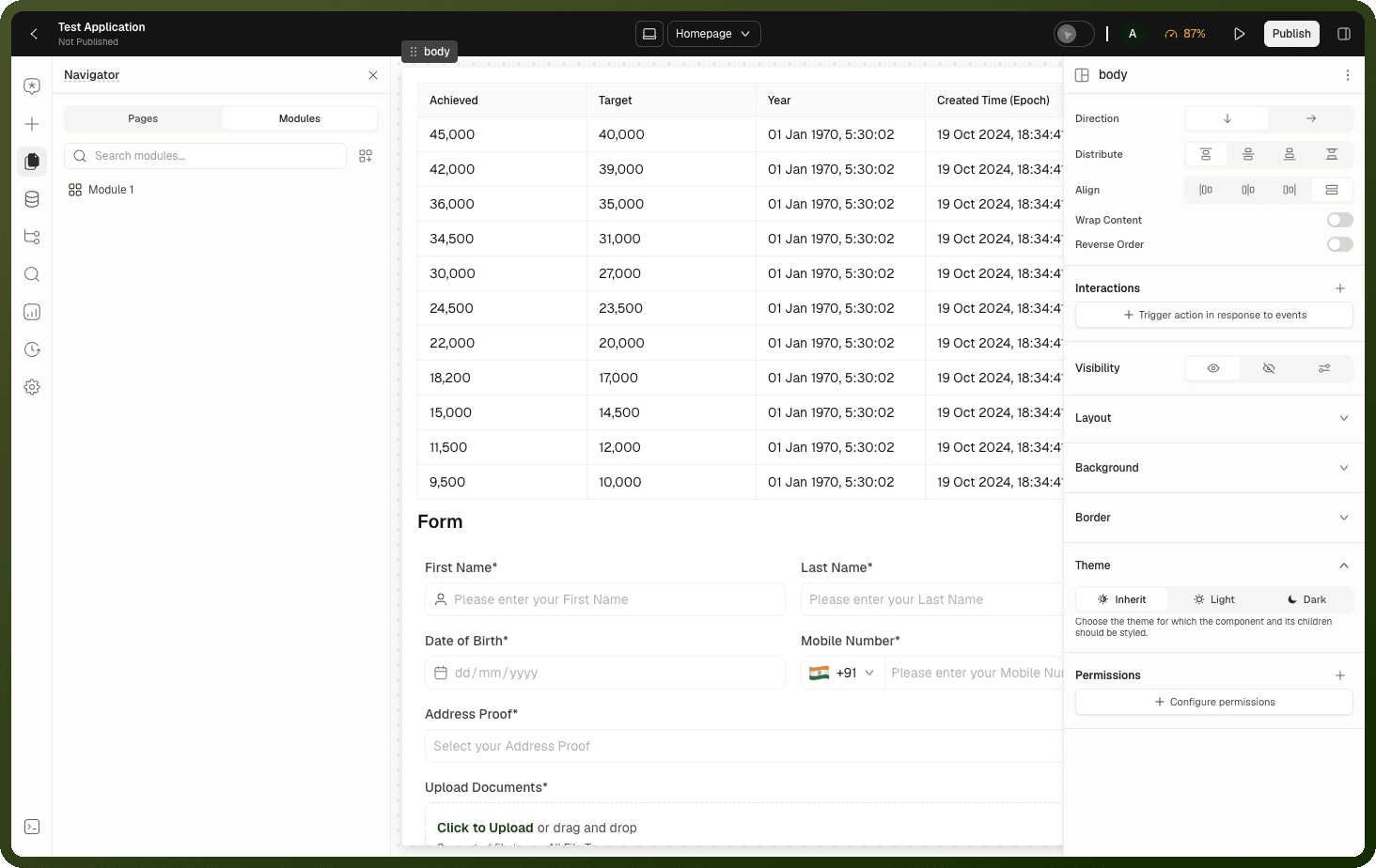
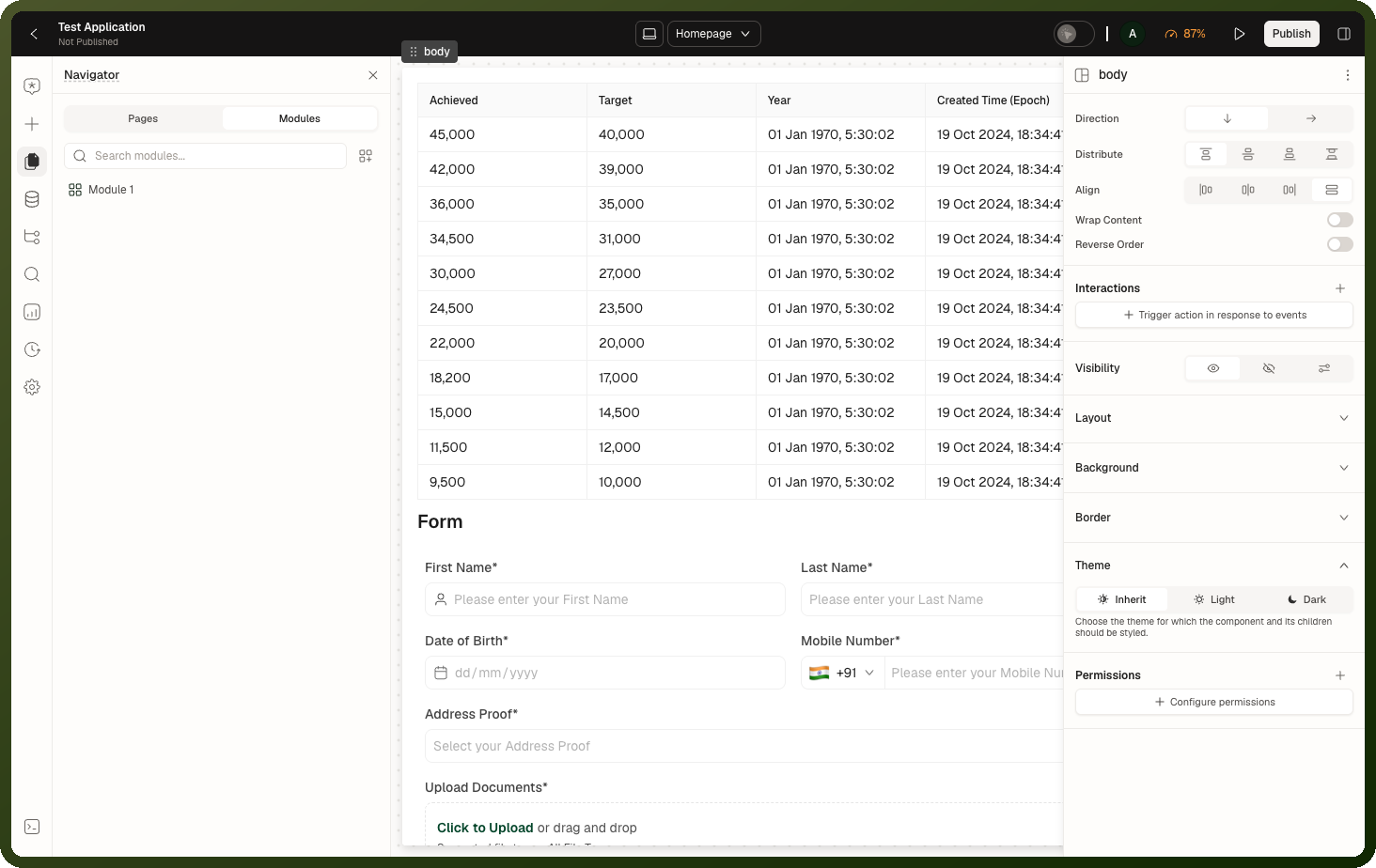
Think of it as one module and its many placements:
The module is the definition — the sub-app itself, edited in its own builder. There is exactly one of it.
A placement embeds that module at a spot on a page. There can be any number of placements, on any page, and each can be fed different values.
A placement renders the live module, not a frozen copy. Fix a bug or restyle the module once, and every placement picks up the change: in the builder and preview right away, and in the published app once you publish the module from its own builder header. See Building a Module and Custom Navigation Module.
Modules Across Applications
A module can live inside the same application that embeds it, or in a separate, standalone module application that has been published and shared. A single module can therefore be reused across many different apps, not just many pages of one app.
Note: Cross-interface modules: you normally pick the module in the Module block's Select Module field, which stores the right reference for you. For a module from another app, that reference is the combined form <moduleId>$$<interfaceId>; you only type it yourself when entering the module as a custom value. A plain module ID is enough when the module lives in the same app.
Why Build a Module
Reuse a whole slice of an app. Anything larger than a single component but smaller than a full app — a checkout flow, a filter bar, a details drawer — is built once and reused.
One place to change. Fix or restyle the module, and every placement across every application picks it up. No find-and-replace across pages.
Configurable per placement. Each placement can receive different values through the inputs the module declares, so the same module adapts to where it sits.
How It Works
Building a module and using a module are two distinct jobs:
Build the module in its own dedicated builder — a full workspace with its own canvas, design and data tools, and header, separate from the app that will embed it.
Embed the module by placing a Module block on a page, choosing which module to show, feeding it input values, and reacting to the output it publishes back.
Input / Output / Event contract
Values flow in and out across the embedding boundary:
Direction | Mechanism | Usage |
|---|---|---|
Parent → Module | Module Inputs | The placement passes values down into the module, keyed by input name. Inside the module, blocks read them as |
Module → Parent | Output | The module publishes an output record. The parent reads it via |
Module → Parent | Outbound events | The module declares Outbound Events in its settings and fires them with an Emit Page Event action. Each one appears as an event on the Module block, next to On Output Change, with its payload available to the actions you wire. |
Parent → Module | Inbound events | The parent runs the Module block's Emit Inbound Event method (through Trigger Component Method) to push an event into the module with an optional payload. |
Module vs. Template Component
| Aspect | Module | Template Component |
| What it contains | A sub-app on one canvas — its own blocks, data sources and logic | A single reusable component with a constrained configuration surface |
| Best for | Page-sized slices: checkout flows, filter panels, activity feeds, nav bars | Component-sized pieces: metric cards, reusable headers, product tiles |
| Sharing across apps | Yes — as a published standalone module | Yes — via the template component library |
| I/O contract | Inputs, output record, outbound/inbound events | Props (inputs), output, outbound/inbound events, slots, child overrides |
Module State Behavior
By default, when a placement is hidden and later shown again, the module inside starts fresh — anything the visitor had done in it is gone. Turning on Remember state when hidden on the placement keeps its state alive across hide and show.
Note: Remember state when hidden is off by default. The reset is the behavior you get unless you opt in.
Version Preview Behavior
Warning: When you preview an older saved version of an app, a placement that embeds a module from a different application does not show that module as it was back then — it shows the module's currently-deployed version instead. The old snapshot only captured the app's own screens, never the foreign module, so its current deployed state is used to avoid an empty slot.
Pages in This Section
Building a Module — where modules live, how to create one, the module builder workspace
Packages & Modules Screen — creating and managing modules and packages from the Applications manager
Custom Navigation Module — replacing the built-in navigation with a custom module
Related Pages
Template Components Overview — reuse at the component level
Slots Overview — the slot model shared by modules and template components